
Inspiring
September 16, 2020
Answered

Fixing incorrect borders on existing images

  • September 16, 2020
  • 2 replies
  • 635 views

Hi all,


Essentially what I am trying to do is create my own borders for images whose borders are disporportionate. Here is an example (you can see the white border if you hover the mouse over the image).

 

If you look at the image above, you can see the white border around it is not the same size on each side. I've tried to just create boxes, have them all be the same size, and then place them around the image, but when I export, I end up with the same problem I had despite using what I thought were equally-sized boxes all around the image.


Does anyone know of a way to ensure that I can create an equally-sized border?


Thanks.
This topic has been closed for replies.
Correct answer jmlevy

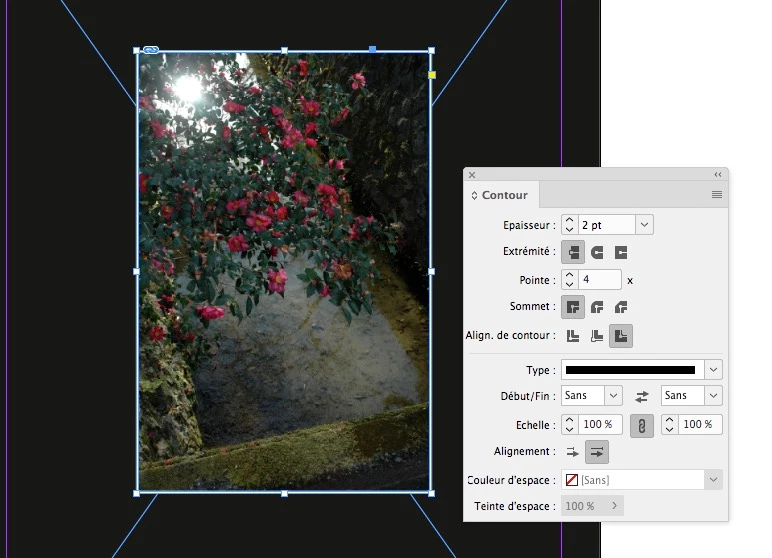
With the stroke panel, see screen shot below (in French, but you will understand…)

2 replies

John Mensinger
Community Expert
Community Expert
September 16, 2020


"equally-sized boxes all around the image"


I'm not really sure what you're doing, but this makes it sound like you're butting 4 rectangles up against the 4 edges of the image. If I understand your objective correctly, you'd be better off using the image frame to crop out any white that is part of the image (or take jmlevy's advice and crop it off in your image editor), then assign a white (or any color) stroke to the outside of the frame. "By nature," the stroke weight will be equal on all 4 sides.


kirbydooAuthor
Inspiring
September 16, 2020

Thank you for your ideas. How can I get the stroke to be assigned to the outside rather than the inside? I don't want it to cover up the actual image.

jmlevy
Community Expert
jmlevyCommunity ExpertCorrect answer
Community Expert
September 16, 2020

With the stroke panel, see screen shot below (in French, but you will understand…)

jmlevy
Community Expert
Community Expert
September 16, 2020

The white border is it a part of the image itself? If yes, just crop it in Photoshop.