
Participant
April 12, 2023
Question

font size issue

  • April 12, 2023
  • 3 replies
  • 1937 views

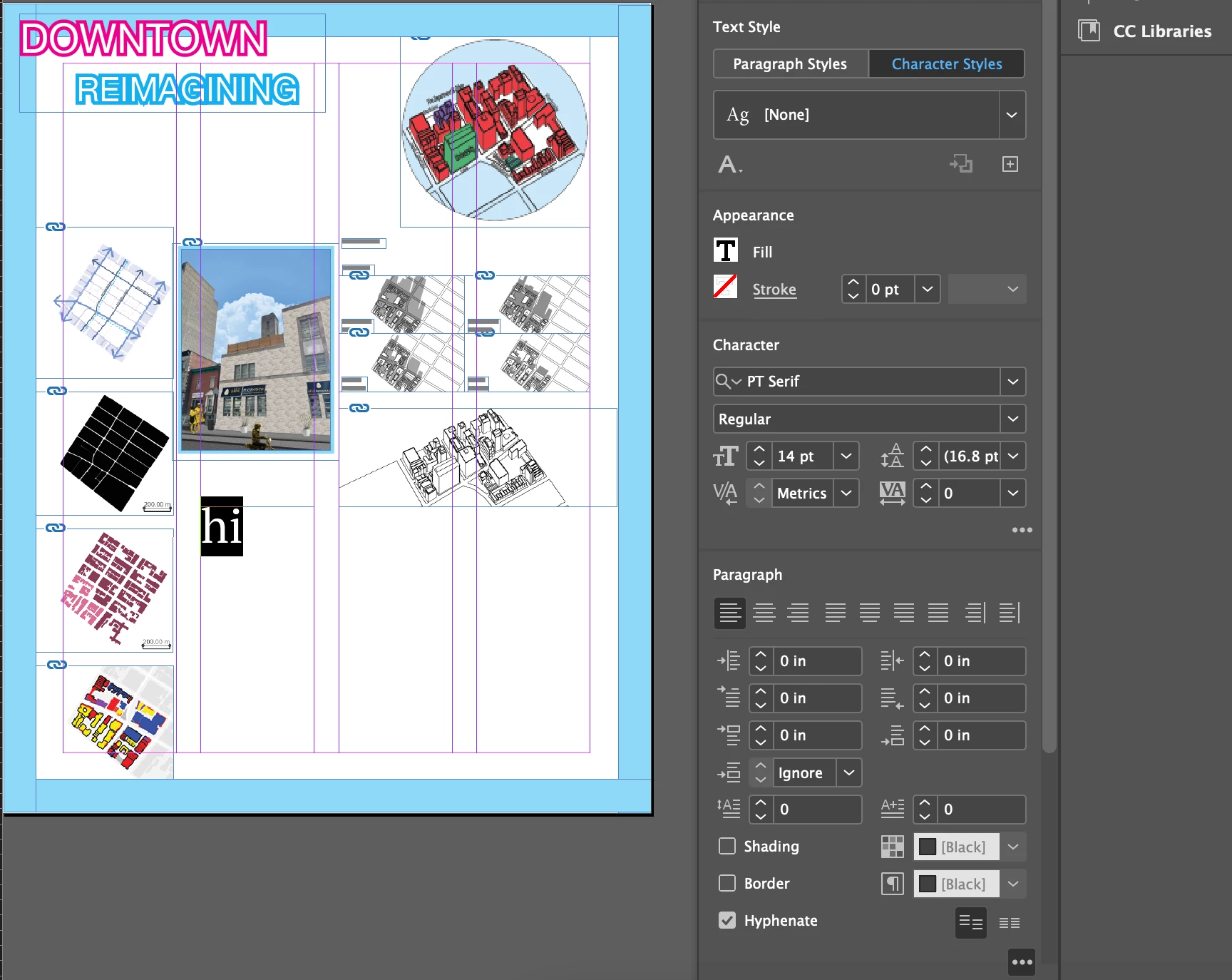
Hello, I am working on Adobe indesign for my university course making a demo-poster of my work during the semester. My professor included instructions on how to add a text box and that the requirements must have 14pt minimum, serif or sans serif and she also recommended to widen the linespacing to feel less cluttered.

As you can see in the file that I provided below, my font size is set to 14 but the font appears to be jumbo sized (not "downtown reimagining"- this too is the incorrect font as it is set to 10pt). I just want to know how to fix this issue, also I read that I can scale my text but do not know how to confirm if it was done properly. Also my scaling preferences in the general setting are... (scaling is applied to content)

FYI if I get a response past 11pm it will be too late as it is due.

Thanks in advance.
 

This topic has been closed for replies.

3 replies

Participant
December 15, 2024

1. Check the Text Scaling

  • Scaling Can Affect Font Size Display:

    • If your text box or text has been scaled, the displayed font size (e.g., 14pt) might not correspond to its actual visual size.
  • Reset Text Scaling:

    • Select the text box or text.
    • Go to the Control Panel (top bar) or Properties Panel and look for the Horizontal and Vertical Scale values (displayed as a percentage).
    • Ensure both values are set to 100%. If not:
      • Type 100% in both fields and press Enter to reset scaling.

2. Verify the Font Type

  • Font Design Differences:

    • Different fonts can look significantly larger or smaller at the same point size due to variations in their design.
    • For example, a 14pt size in one font may appear visually larger than 14pt in another font.
  • Try Another Font:

    • Switch to a standard serif or sans-serif font like Times New Roman or Arial (if it meets your professor's requirements).
    • This can help determine if the font itself is causing the issue.

3. Adjust Scaling Preferences

Your scaling preferences might be affecting text appearance. Since your scaling is set to "applied to content," InDesign adjusts text size along with object scaling.

  • Change Scaling Settings:
    • Go to Edit > Preferences > General (Windows) or InDesign > Preferences > General (Mac).
    • Check the box for "Adjust Scaling Percentage" instead of "Apply to Content."
    • Recreate your text box and enter the font size again.

4. Check Line Spacing (Leading)

  • Adjust Leading to Improve Spacing:
    • In your text box, select the text and go to the Character Panel (or Control Panel).
    • Look for the Leading field (symbolized by an "A" over another "A").
    • Set it to 16pt or more for a 14pt font to make the text feel less cluttered, as recommended by your professor.

5. Ensure Proper Font Size Display

To confirm the font size is applied correctly:

  • Select the text.
  • Look at the Control Panel (top) or Character Panel (right).
  • Ensure the font size reads 14pt.

6. Reset the Text Box

If the above doesn’t work, recreate the text box to remove any residual scaling or settings:

  1. Delete the existing text box.
  2. Create a new text box using the Type Tool (T).
  3. Set the font size to 14pt and re-enter your text.

7. Double-Check "Downtown Reimagining" Text

For the "Downtown Reimagining" text:

  • If it is set to 10pt but appears incorrect:
    • Check scaling (ensure it's 100%).
    • Ensure it's not using a decorative font that appears larger than its size.

Quick Checklist Before Submission

  1. Text scaling is set to 100%.
  2. Font size is verified at 14pt.
  3. Line spacing (leading) is widened appropriately.
  4. Correct serif or sans-serif font is used.
  5. All adjustments are made in the recreated text box
Legend
April 12, 2023

What is your page size, and in what units? 

Participant
April 12, 2023

These were the instructions for making this project. All the dimensions are indicated on the right side.


Legend
April 12, 2023

The instructions say to make the page 20 inches x 16 inches, but according to your properties panel, your page size is 2.6667 x 3.3333 inches

That's why your text looks large: your page is small

Here is my 14 pt text next to yours on the page set up as 2.6667 x 3.3333 (mine's in green)

Fix your document size, and your text will show up in the proportion you expect to see.


-- It looks like you originally set your page size as 16 x 20 picas. That would give you the 2.6667 x 3.3333 inch page size that you ended up with. The new doument dialog defaults to picas for some reason, so it's easy to see how this could happen to a new user.

James Gifford—NitroPress
Legend
April 12, 2023

Sorry I wasn't up late, but the first thing I would look at is if any Character Styles are applied to that text, which would override this base setting.


Participant
April 12, 2023

I should also mention that this is my first time using Indesign so I may be a little confused about how to check for these things.

When you say check to see if any Character Styles are applied to that text, I would thing they are because isn't that what makes you change the text font, size, and spacing? 

Also, my Paragraph Styles are basically set the same as the Character Styles. I can include a few other files showing the options I have checked off.


James Gifford—NitroPress
Legend
April 12, 2023

Okay, see the + sign at the end of the Character Style name? That means its been modified. In skilled practice, you should never see this marker, because every change should be associated with a fully updated Paragraph or Character style. You NEVER use spot formatting (grab some text, apply a change) in InDesign.


So select the paragraph that's not what you want it to be, and if either the Paragraph or Character Style name in the list has that + marker, right-click on it and click Clear All. That will reset the style to its definition and take away anything that was applied as an override.


Once you clear your overrides, select each paragraph, make all the changes to it you want, and then save it as a new style. Make further change to that style, and keep it updated — don't just "override" or "spot format" your changes. Styles seem like a hurdle, but they make everything very controllable and organized when used right.


InDesign is a great tool, but the initial learning curve is VERY steep. Don't get discouraged. You can't really just hack away at projects like you can in Word; you have to learn a number of basics before you can do even simple things the right way.


Feel free to ask questions here. Ir's pretty much why these forums exist, and why the regulars are here.