@adounas said: "Very puzzling, huh?"
Yes, indeed.
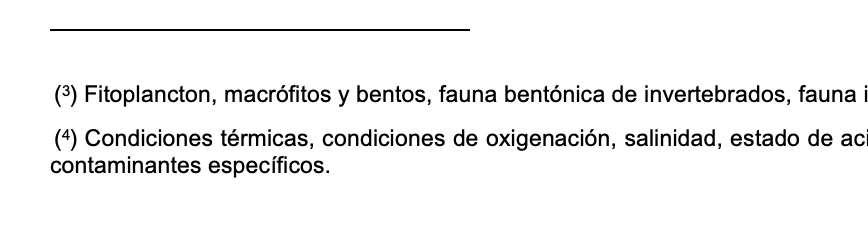
To get access to the parantheses you have to type the parantheses in every footnote text around the special character that constitutes the footnote number. As you alraedy see: do not use the prefix and suffix entries for this in the Footnote options.
To add them more or less automatically you have to find the special character of the footnote in the footnote text and add the parantheses around it. Not so easy to do in one go. I think, you need two different GREP Find/Change actions.
And you should find a way not to add parantheses if both are already in place.
The best way is to start by adding the closing parantheses after the footnote special character.
[1] GREP Find in text where paragraph style "Footnote" is applied.
Find the insertion point after a footnote special character that is positioned at the beginning of a text.
(?<=^~F)
Replace with a closing parantheses, perhaps also format the parantheses with a character style ( optional ) :
)
Then add the opening parantheses:
[2] Second GREP Find the insertion point before a footnote special character that is at the beginning of a text.
A positive lookahead:
(?=^~F)
Replace with a opening parantheses, perhaps also format the parantheses with a character style ( optional ) :
(
Regards,
Uwe Laubender
( Adobe Community Professional )




 AdChoices