
Inspiring
May 23, 2019
Answered

Force InDesign to print with Cyan and Black only?

  • May 23, 2019
  • 1 reply
  • 1332 views

We are printing a document both as 6 color litho (4c process and 2 spot colors; 202c and 431c) and 4 color digital.

Basically, 1 large run of a single document, and multiple small runs of language variants and we are working on getting the color match as close as possible.

The 202c we have an acceptable formula for as it is our corporate color. The 431c is a new spot grey to us, and matching it has proven a challenge. On our equipment,

the near perfect match is between:

C=0

M=0

Y=0

K=67% or 68%

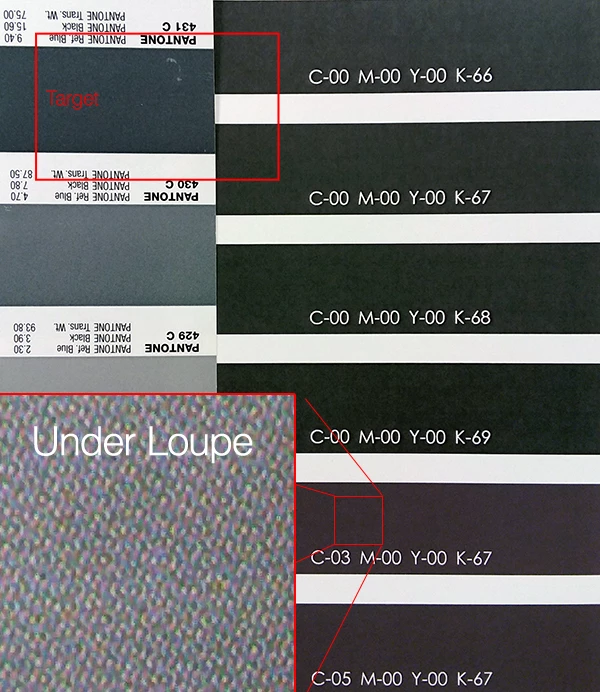
But adding a 3 or 5% Cyan ONLY, shifts it magenta. Looking under the loupe, it is printing 4 color, not just C and K.

It appears the same out of InDesign and PDF.

No change if I switch between Indesign Color Handling or Postscript.

Copier was calibrated yesterday.

Document and Printer Profile are U.S. Web Coated (SWOP) v2)

Am I missing something to prevent it printing Yellow and Magenta in this swatch?

Obviously, this image isn't color accurate, but it illustrates the problem.
    This topic has been closed for replies.
    Correct answer social_adventures16B8

    Thanks for the reply, I'm thinking that the issue is being driven on the copier end as well. Our Fiery RIP doesn't have as much integration with the Printer Dialog window as what you are seeing, but I will work with our Printer to see if he may have a solution on that end.


    Just to follow up and close this out. The problem seems to be that there is a disconnect between what I am seeing in InDesign and what is being read by the printer's RIP.

    We attempted to have the printer replace the Pantone color with its library value, and created a custom spot using the spectrodensitometer on the color in the Pantone Coated book. While printing direct from the printer's library, the spot colors were consistently close to our chosen 431C spot, but attempting to use the CMYK values that the printer recommended also came out dark and too magenta.

    Finally, I was able to take those numbers and create variations with more/less of each CMYK value to see what it would print like.

    We've finally decided that for now, with current calibration, we are okay with:

    C=66  M=48  Y=44  K=17   and   C=66  M=45  Y=47  K=20 as close enough

    1 reply

    rob day
    Community Expert
    Community Expert
    May 23, 2019

    Starting with CS6 the swatches from the PANTONE+ Solid Coated library are defined as Lab color, so if you force a conversion to process color at output the values will be a color manged conversion from  device independent Lab into you document’s CMYK profile—a neutral color like 431 would almost always convert to 4-color.

    Pantone now supplies process CMYK simulations of the solid ink colors, which are in the PANTONE+ Bridge libraries, but 431 is still a 4-color mix. If you wanted to override Pantone's suggested mix, you would have to edit the Bridge swatch:

    Inspiring
    May 23, 2019

    Thanks for the reply. I knew that the Pantone library was now Lab, but didn't know about the Bridge Coated library. Before I go as far as editing the swatch, I still need to find the mix that will print.

    Ignoring the Pantone part of the question for now, is there a reason why a process color that is only C=3%9 K=67% would still include magenta and yellow in the final print?

    rob day
    Community Expert
    Community Expert
    May 23, 2019

    Ignoring the Pantone part of the question for now, is there a reason why a process color that is only C=3%9 K=67% would still include magenta and yellow in the final print?

    Is the final output to separations for offset printing or some kind of composite digital? Are you printing directly from InDesign or exporting a PDF?