


- Home
- InDesign
- Discussions
- Re: Frame placement through master pages in Indesi...
- Re: Frame placement through master pages in Indesi...

Copy link to clipboard
Copied
Hi,
I am creating frames in Indesign CS6 javascript through master pages. It looks correct in master pages, but in normal pages right side page frame is not in the same coordinates. Please see attached screenshots:
mySafety = myDoc.masterSpreads.item(0).pages.item(0).rectangles.add ();
mySafety.geometricBounds = [".125 in", ".125 in", myPageHeight -.125, myPageWidth -.25];
mySafety = myDoc.masterSpreads.item(0).pages.item(1).rectangles.add ();
mySafety.geometricBounds = [".125 in", ".25 in", myPageHeight -.125, myPageWidth -.125];
Master pages:

Regular pages:

Thank you.
Yulia


 1 Correct answer

Hi Yulia,
I had the same problem too after the client made changes to a template (on the master page).
I solved it like so:
- open the template as original
- go from master page to the first regular page
- make some change: e.g. create and delete a frame
- save and close
This always resulted in the 1st regular page active after running the script.
Alternatively. you can use the solution suggested by lf.corullon in the previous post.
— Kasyan

 8
Replies
8
8
Replies
8

Copy link to clipboard
Copied
This doesn't happen on my side: CC 2017, Windows.
Document size: A4
Ruler units: inches
Origin: page
Master pages

Regular pages

— Kas
Copy link to clipboard
Copied
When I create new document with facing pages, it does work for me too. But for the case that we need, we get pre-loaded indesign file that does not have facing pages, so I have to change them to facing, including adding 2nd page to the master spread and adding correct amount of pages to the document. And it looks like that it is newly added master page that does not project object onto regular pages correctly. Is it some setting that I need to apply to it? The rulers show correctly, but there must be something else.
Thank you.
Yulia

Copy link to clipboard
Copied
I suspect the problem is ruler origin:
Try the following with a document having single pages. The script changes the document to facing pages and adds a page to the master spread A-Master. It then adds a rectangle to page 1 and page 2 of the master spread. Lastly it creates the same rectangle on page 1 of the document (overriding the rectangle from the master spread).
Notice that in line 6 the ruler origin is set to page origin. Try the script as written.
app.scriptPreferences.measurementUnit = MeasurementUnits.points;
var docRef = app.documents.item(0);
var bColor = docRef.swatches.itemByName("C=100 M=0 Y=0 K=0");
var kColor = docRef.swatches.itemByName("Black");
docRef.documentPreferences.properties = {facingPages: true};
docRef.viewPreferences.properties = {rulerOrigin:RulerOrigin.pageOrigin};
var mSpread = docRef.masterSpreads.itemByName("A-Master");
var mPage = mSpread.pages.add();
var bounds1 = [72, 50, 144, 150];
var rect1 = mSpread.pages.item(0).rectangles.add({geometricBounds:bounds1, fillColor:bColor, strokeWeight:0});
var rect2 = mSpread.pages.item(1).rectangles.add({geometricBounds:bounds1, fillColor:kColor, strokeWeight:0});
var rect3 = docRef.pages.item(0).rectangles.add({geometricBounds:bounds1, fillColor:bColor, strokeWeight:0});
Next revert the document back to its original state and try the script using ruler origin set to spread origin
Copy link to clipboard
Copied
Hi,
Thank you for your reply.
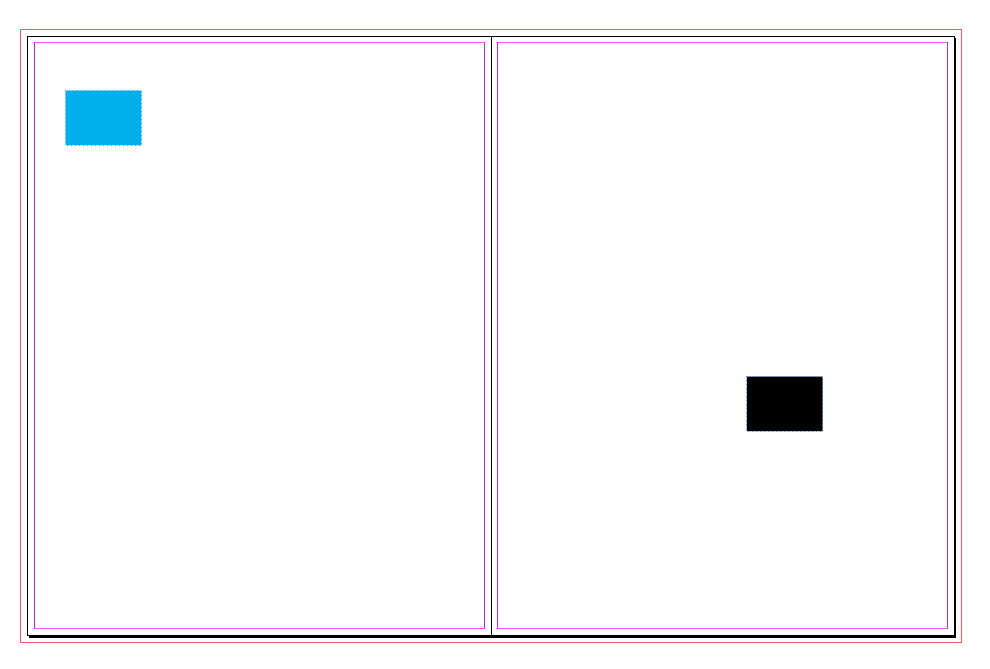
Here is what I got by running the script
Master pages:

First regular page:

2nd and 3rd regular pages:
Yulia
Copy link to clipboard
Copied
I remember I encountered a bug when I was trying to override objects by script. If you're interested, click here for details.
— Kas
Copy link to clipboard
Copied
Hi Kasyan,
I am using your referenced script and it's working perfectly, but it leaves my document with master pages showing, which will be very confusing to the user.
How can I show first page of the regular pages to the user after that?
Thank you.
Yulia

Copy link to clipboard
Copied
Try this line:
app.activeWindow.activePage = app.activeDocument.pages[0];
Copy link to clipboard
Copied
Hi Yulia,
I had the same problem too after the client made changes to a template (on the master page).
I solved it like so:
- open the template as original
- go from master page to the first regular page
- make some change: e.g. create and delete a frame
- save and close
This always resulted in the 1st regular page active after running the script.
Alternatively. you can use the solution suggested by lf.corullon in the previous post.
— Kasyan


Get ready! An upgraded Adobe Community experience is coming in January.
Learn more
 AdChoices