Cute James
Inspiring
March 21, 2018
Answered

Hide area of line covered by overlapping text

  • March 21, 2018
  • 2 replies
  • 2602 views

Hello folks,

I am working on a brochure illustration with a dashed line and text overlaying an image.

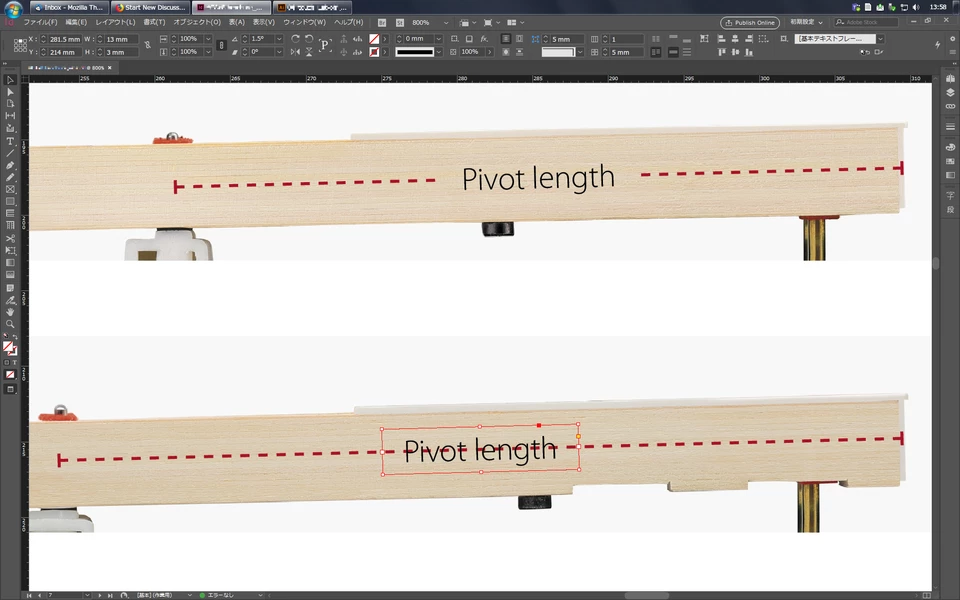
The top example indicates the effect I wish to achieve, while the bottom example is what I'm currently facing.

As you can see, I wish the dashed line to hide in the area where it intersects the text box.  On a solid background, this could be easily achieved by simply filling the textbox with the same background colour.  However, in this case (with an image below the text), I wish to use a transparent textbox, while also hiding the line.

In order to achieve this in the top example, I used the scissor tool to cut the line on either side of the text box, then deleted the centre portion of the line, thus leaving me with two separate lines.  This works, however I wonder if there is a less destructive solution?  I don't wish to recreate the line each time I change the angle of the image, or translate the 'Pivot length' text, and I'm aware that the scissor point will not be exactly the same each time..

Thank you in advance!

This topic has been closed for replies.
Correct answer Laubender

Hi Lhemz0527 ,

for your construct you need only two objects!

1. Text frame on top with text frame options' fitting options set to "Center".

2. Graphic line at the bottom with line caps defined.

Group both objects.

Set text frame fill color to any color.

Effects of text frame:

Set opacity of fill to 0 %.

If you are using fill color [Black] for the text set text to Multiply.

Select the group and check Knockout Group option.

You now can change the width of the group and the text frame will be always centered.

If you edit the text in the text frame the frame is always centered to the group.

For the distance you want from the graphic line to the text do left and right insets with the text frame options.

Illustrated with some screenshots from my German InDesign.

Group selected with an arbitrary background, here a rectangle with a linear gradient fill.

Effects panel "Effekte" is open and Knockout Group option is set. ( "Aussparungsgr." for "Aussparungsgruppe" in German )
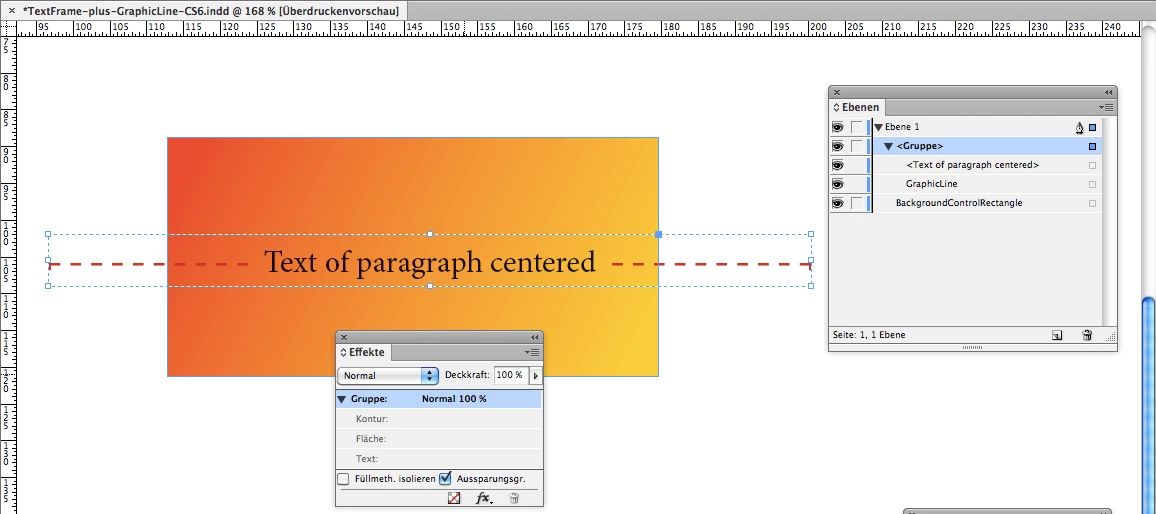
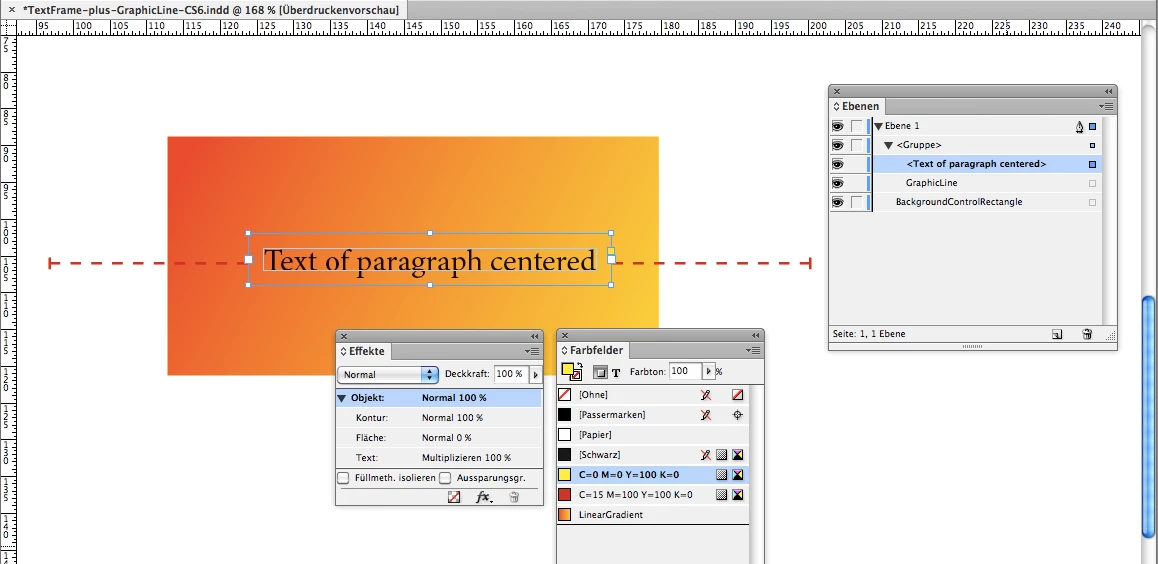
Details of the text frame that is grouped with the graphic line.
Fill color is a yellow. Could be any color, because in the Effects panel opacity for fill of the text frame is set to 0 % :
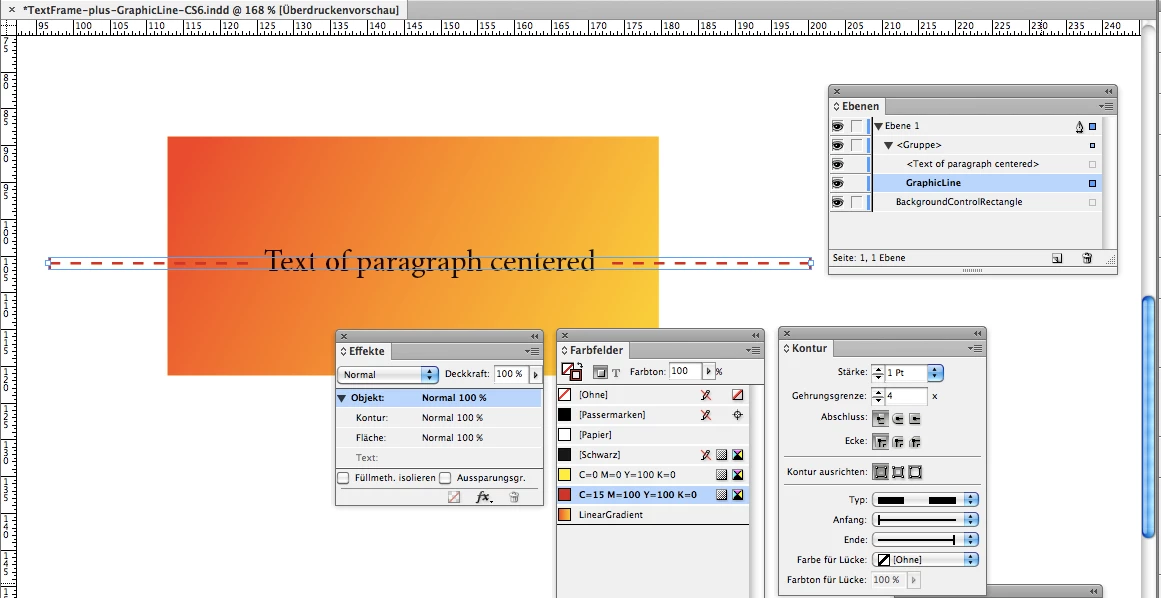
Graphic line selected with line end caps set in Stroke panel ( "Kontur" in German ):
Some more details below. Text selected. Fill color is [Black].
Now with this we have a problem! Since an effect is applied to the fill color of the frame [Black] fill color for text will not overprint the background!
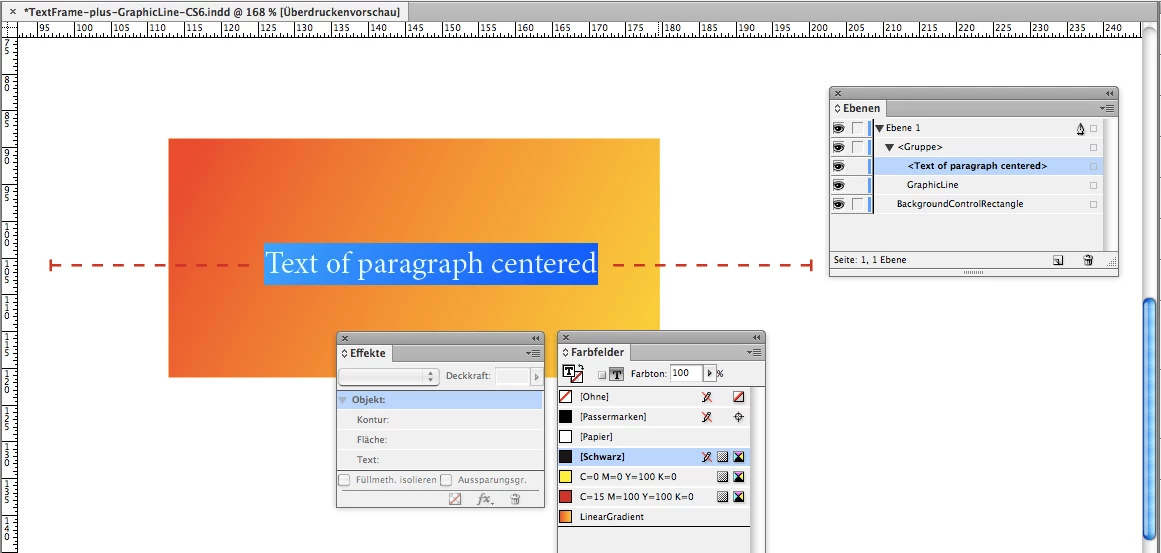
To get this straight—fill color [Black] for text should overprint the background—we use an effect on the text as well:
Multiply on text.
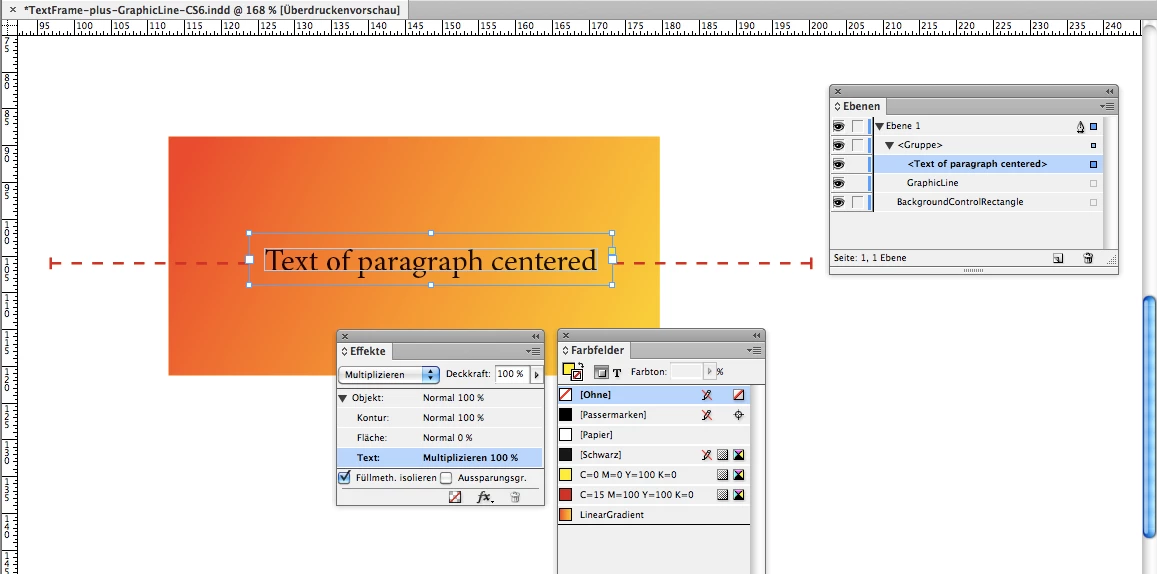
So we check the result of this effect with the Separation Preview panel ( "Separationsvorschau" ).

Here all separation colors visible:
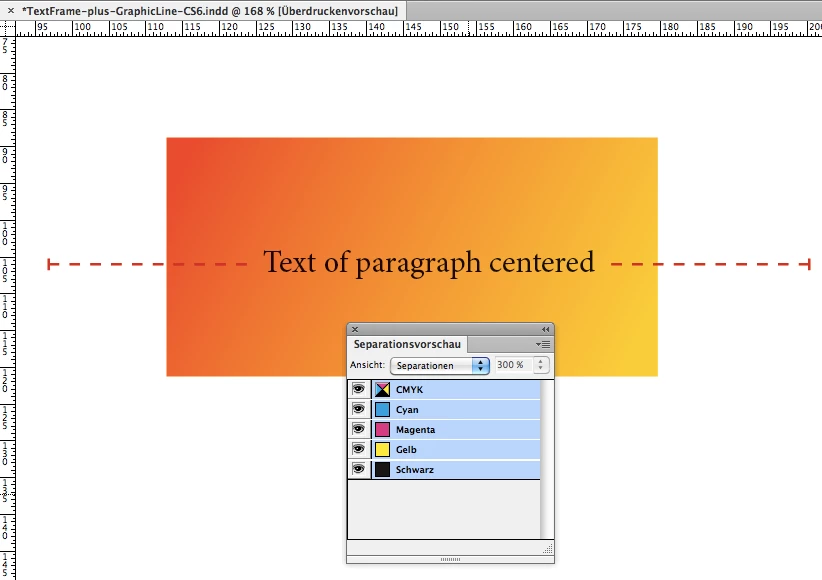
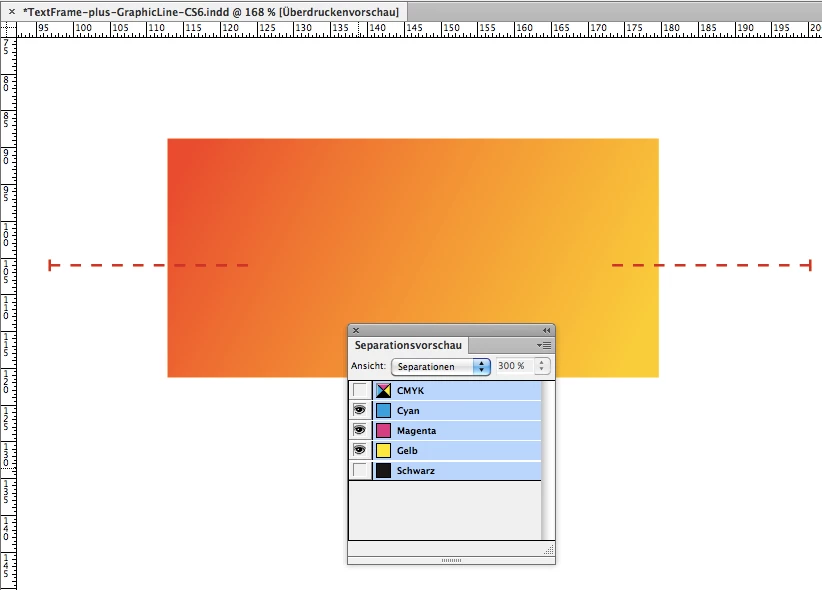
Below only Cyan, Magenta and Yellow are visible in the Separations Preview panel.

And as we can see text will overprint, because there is no visible trace on the other separation colors.

No white knockout for example:
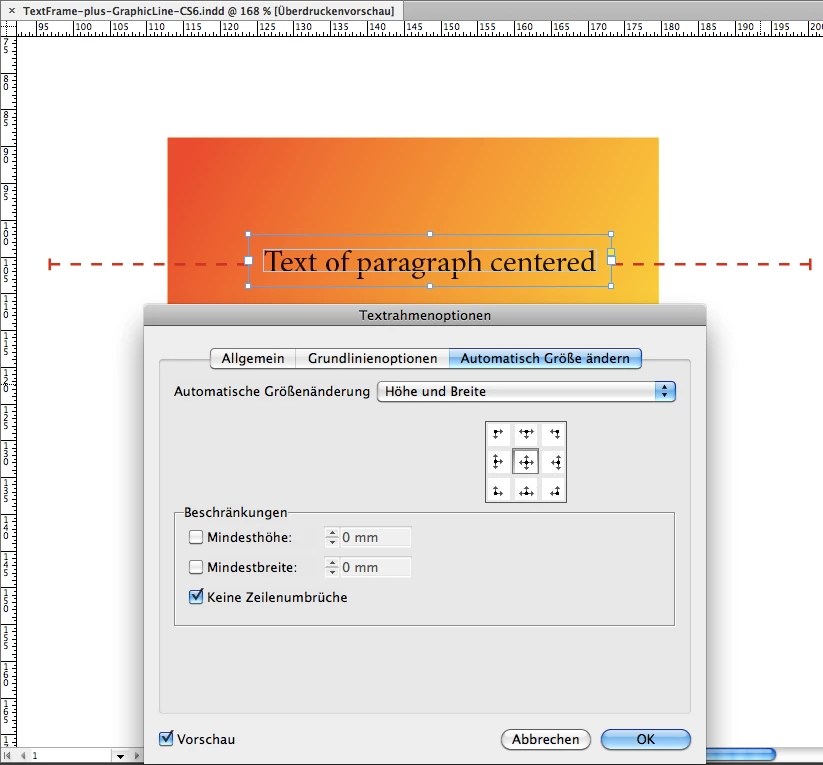
Edit: Other details on the text frame. Fitting options and insets.

Insets here set to 2 mm to leave a gap between the graphic lines visible appearance and the text.

Text Frame Options ( "Textrahmenoptionen" ) > General ( "Allgemein"), Insets all around ( "Abstand zum Rahmen" ) :
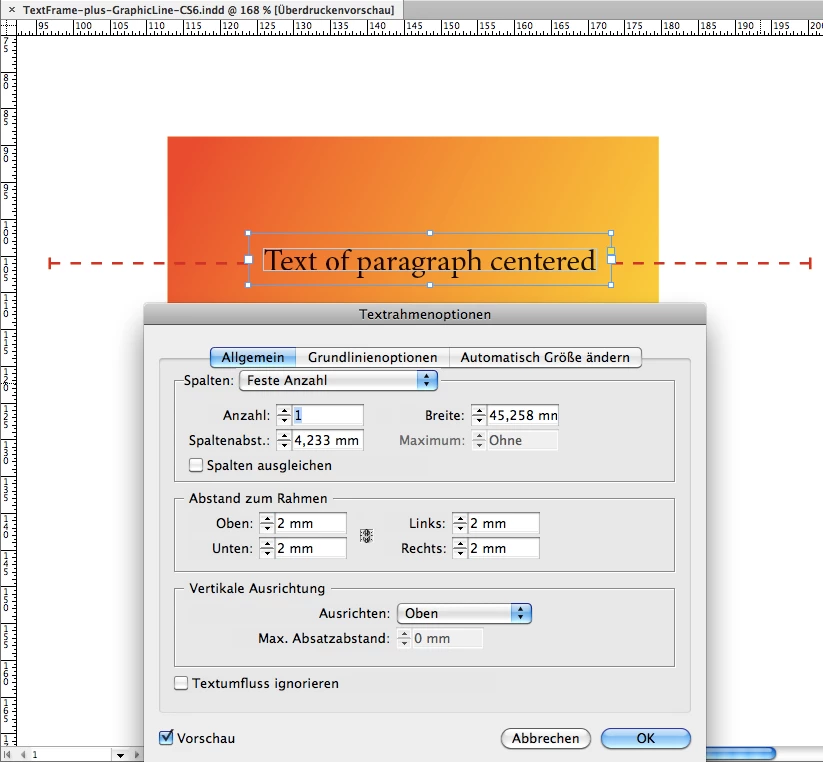
This is InDesign CS6—with CC 2018 you'll see more tabs in the Text Frame Options—Frame fitting options are still the 3rd tab.

Automatic options set to Height and Width and note, that the other options is checked for No Line Breaks:
Regards,
Uwe

2 replies

Participating Frequently
March 21, 2018

Here is my proposed solution:

  1. You should have three objects
    1. The Line at bottom
    2. The box to cover the line in the middle (Any color, maybe white or black)
    3. The text on top of the middle box
  2. In the Effects Panel, set opacity of the middle box to zero (0).
  3. Group the three objects.
  4. In the Effects panel Check the Knockout Group option.

Congratulations! You now have a non-destructive invisibility cover for the line.

LaubenderCommunity ExpertCorrect answer
Community Expert
March 21, 2018

Hi Lhemz0527 ,

for your construct you need only two objects!

1. Text frame on top with text frame options' fitting options set to "Center".

2. Graphic line at the bottom with line caps defined.

Group both objects.

Set text frame fill color to any color.

Effects of text frame:

Set opacity of fill to 0 %.

If you are using fill color [Black] for the text set text to Multiply.

Select the group and check Knockout Group option.

You now can change the width of the group and the text frame will be always centered.

If you edit the text in the text frame the frame is always centered to the group.

For the distance you want from the graphic line to the text do left and right insets with the text frame options.

Illustrated with some screenshots from my German InDesign.

Group selected with an arbitrary background, here a rectangle with a linear gradient fill.

Effects panel "Effekte" is open and Knockout Group option is set. ( "Aussparungsgr." for "Aussparungsgruppe" in German )

Details of the text frame that is grouped with the graphic line.
Fill color is a yellow. Could be any color, because in the Effects panel opacity for fill of the text frame is set to 0 % :

Graphic line selected with line end caps set in Stroke panel ( "Kontur" in German ):

Some more details below. Text selected. Fill color is [Black].
Now with this we have a problem! Since an effect is applied to the fill color of the frame [Black] fill color for text will not overprint the background!

To get this straight—fill color [Black] for text should overprint the background—we use an effect on the text as well:
Multiply on text.

So we check the result of this effect with the Separation Preview panel ( "Separationsvorschau" ).

Here all separation colors visible:

Below only Cyan, Magenta and Yellow are visible in the Separations Preview panel.

And as we can see text will overprint, because there is no visible trace on the other separation colors.

No white knockout for example:

Edit: Other details on the text frame. Fitting options and insets.

Insets here set to 2 mm to leave a gap between the graphic lines visible appearance and the text.

Text Frame Options ( "Textrahmenoptionen" ) > General ( "Allgemein"), Insets all around ( "Abstand zum Rahmen" ) :

This is InDesign CS6—with CC 2018 you'll see more tabs in the Text Frame Options—Frame fitting options are still the 3rd tab.

Automatic options set to Height and Width and note, that the other options is checked for No Line Breaks:

Regards,
Uwe
Participating Frequently
March 21, 2018

Hi Uwe Laubender​,

Thanks for noting about the auto-centering and that we only need two objects.

I forgot that we can set the opacity effects of text separately in InDesign (unlike in Illustrator).

Although, I think it's not necessary to set the black text to Multiply if the preferences is set to automatically overprint any Black object (stroke,fill, text).

Best Regards,

Lhemz

amaarora
Community Manager
Community Manager
March 21, 2018

Hi,

You achieve this by using both Rule Above and Rule below for the paragraph style. You will need to adjust the values of offsets and other parameters to achieve the desired effect.

-Aman

Cute James
Inspiring
March 21, 2018

Many thanks for the suggestion!

So just to clarify, you're somewhat abusing the intended functionality of Rule Above and Rule Below to create the lines on either side of the text, then shifting them away from the text with offsets, yes?  Nice trick!

Then I wondered how to add the caps on either end, as there are no options for this kind of appearance.  Fortunately, the Paragraph Border Stroke on the left and right side more or less did the job. I couldn't find a way to adjust the height of these two edges, but the result is close enough.

My only criticism of this method is that it seems to rely on fixed, rather than relative offsets on either side of the text.  As I mentioned in my initial post, I will likely need to revise the 'Pivot length' text for different translations, so will probably have to fine-tune the offsets each time.

Thanks again for the suggestion!