
Participant
June 11, 2020
Answered

Holding key for accent won't work in InDesign (Mac)

  • June 11, 2020
  • 4 replies
  • 11473 views

On a Mac, if you hold down a letter a contextual menu appears above it with the various accent glyphs:
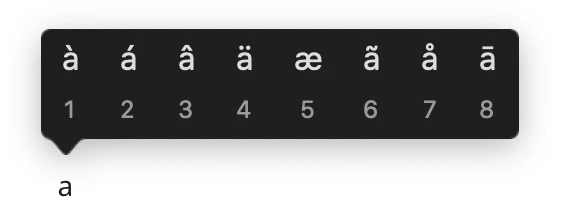
It's very handy when you work in languages that require them. Unfortunately, it seem to work everywhere except in Adobe software. If you hold down "a", you get aaaaaaaaaaa instead of that menu. I know about keyboard mapping, the glyph panel and Option-shortcuts --- what I'm trying to find out is if there's a way to activate that pop-up menu. It's really, really handy.

Correct answer Eric Dumas

I hold the Option key to get the 'accent' I need. But that does not cover all the characters, so I bought a French Keyboard.

It took some time to get used to it, especially swapping between QWERTY and AZERTY , then I got frustrated and I let the spell check do its job, that seemed the quickest.

The virtual keyboard, kept on the side is handy one as well.

4 replies

Participant
April 13, 2025

Yes I am having this trouble too, specifically for Ō. Whenever I paste it into InDesign from word doc, the whole letter turns into a square. The option key only gives this: ø

This is a major design flaw by adobe, most of the world uses accents except for the U.S. and it is incredibly frustrating.

Peter Spier
Community Expert
Community Expert
April 13, 2025

Actually, it's highly likely that the font doesn't have the glyph and Word is doing a behind the scenes silent font substitution which InDesign is not seeing.

Participant
April 25, 2025

This was the case! Found a font that looked similar enough for just the Ō. Thank you for your reply!

marcv71081261
Participant
September 13, 2022

Use the Option+ key functions. Option+e gives you the é,á,ú accents. It's two steps, you hit option+e, and it puts the accent there, then you hit the correct letter you want. So to get an é, you press Option+e, then hit the e key.

You use option+u for the ü, ö, ä. You use Option+n for ñ,ã, and so on. Try them out, there's a lot of shortcuts using option, or shift+option..

shaun-lee
Known Participant
October 16, 2022

I also find this fustrating and regularly have to use notepad to workaround the issue. I can get å using option + key. But none of the above solutions allow me to select these characters à, á, â, ä, æ, ã, ā. 

davecourtemanche
Inspiring
October 17, 2022

If the option combos listed by marcv aren't working, odds are your font doesn't have those characters. 
Option + i = â

Option + ` +à


Sheena Kaul
Legend
June 20, 2020

Hi there, 


I hope your issue has been resolved till now. If not, please let us know so that we can assist you further. 

Else please confirm if any of the suggestions above helped. 


Regards,

Sheena

sujans55447335
Participant
February 12, 2021

I have this same problem, and buying a keyboard just to type one character is not an option. What are some of the other methods we can use to solve this issue?

jmlevy
Community Expert
Community Expert
February 12, 2021

Use the glyph panel.

Eric Dumas
Community Expert
Eric DumasCommunity ExpertCorrect answer
Community Expert
June 11, 2020

I hold the Option key to get the 'accent' I need. But that does not cover all the characters, so I bought a French Keyboard.

It took some time to get used to it, especially swapping between QWERTY and AZERTY , then I got frustrated and I let the spell check do its job, that seemed the quickest.

The virtual keyboard, kept on the side is handy one as well.