
samuels75
Participating Frequently
August 31, 2017
Question

Horizontal dotted line or lines with round caps distorted in PDF (Enhance thin lines)

  • August 31, 2017
  • 2 replies
  • 2603 views

Hello,

I have this problem. I have been looking around for a solution but I did not find anyone describing exactly the same problem.

I will not tell the whole story and I will go right to my final conclusion and finding.

- When drawing a dotted line or a line with round caps, the round part look bulky and ugly but only when the line is horizontal.

- Since I want to use this kind of line in the upper rule of Paragraph Style, it will of course be horizontal.

- If I disable "Enhance thin lines" from acrobat reader everything is ok. But since this document will be distributed to many people and most of them will use Acrobat Reader it is very awkward to need to tell them to disable this feature (I know there are many angry people about it).

- The lines I am using are not thin at all, they are 14 pt!! Why Acrobat reader is enhancing them?? and only when they are horizontal?? is it a bug??

This is the screenshot from InDesign (Lines are 9pt)
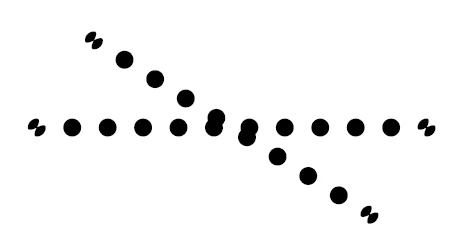
And this is the image from Acrobat reader
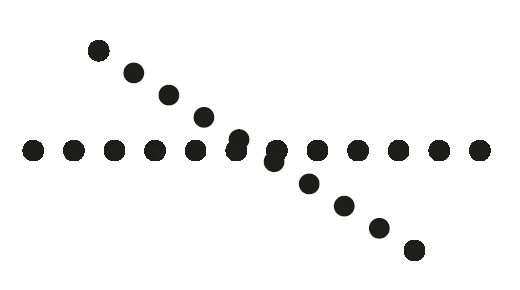
As you can see the circles on the horizontal line look pretty bad, but not in the oblique line (except the first and the last dot, also pretty strange). Also as you can see the connection circles on the ends of the line that they are different in InDesign they are just circles in the PDF (But this is something I do not care for now since I don't want them).

- Is there any work around for that?

- Am I the only one having exactly this problem? (I gave the PDF to a colleague and it was exactly the same on his computer).

Thanks in advance

Samuel

[Moved from non-technical Forum Lounge to specific Program forum... Mod]

[Here is the list of all Adobe forums... https://forums.adobe.com/welcome]

    This topic has been closed for replies.

    2 replies

    amaarora
    Community Manager
    Community Manager
    August 31, 2017

    Hi,

    I agree to what Rob said.

    Can you also let us know what happens when you make the line using a rule above option and not make the line manually... by placing small circles. I hope i understood the question right.

    In the InDesign screenshot, i see 2 small circles placed closely to each other at the end of both lines. In the pdf screenshot i do not see those circles.

    What are those?

    -Aman

    samuels75
    samuels75Author
    Participating Frequently
    August 31, 2017

    Hi Amaarora,

    Sorry, when I said that I make the line manually, I meant with the tool to make straight lines, not placing circles manually (placing circles manually would probably be fine), selecting Japanese dot stroke. Using the paragraph style and rule above I have the same problem (that is how it started). The 2 small circles close to each other at the edges is something coming from applying the Japanese Dot stroke, when I convert the file to PDF they become normal circles but I do not know why but I am pretty sure this is a InDesign issue and I am ok about it. My problem are the normal circles showing that bad.

    About Robs comment. You might be right, but do not you think this is a very bad way to deal with those lines? I will try what you say about turning off the anti aliasing in InDesign. I know for sure that disabling "Enhance thin lines" from Acrobat Reader preferences the problem disappears (nothing to do with antialiasing settings). And as the image shows, it only happens with the line is horizontal but not oblique, strange way to deal with it.

    Thanks for your feedback

    Samuel

    rob day
    Community Expert
    Community Expert
    August 31, 2017

    I know for sure that disabling "Enhance thin lines" from Acrobat Reader preferences the problem disappears (nothing to do with antialiasing settings). And as the image shows, it only happens with the line is horizontal but not oblique, strange way to deal with it.

    My point is there's nothing you can do from InDesign that will change the client's Acrobat's Page Display preferences, or the client's zoom level. There's nothing stopping your client from viewing the PDF at 20%, which obviously would change the appearance of the stroke width.

    samuels75
    samuels75Author
    Participating Frequently
    August 31, 2017

    Hello Again,

    I just wanted to point a few things, my previous explanation may not be that good, sorry about that.

    - The problem happens when visualizing the exported PDF (I should state that at the beginning).

    - The line in the picture actually were made manually. First I did the horizontal line and then I duplicated it and tilted it.

    - Since my problem is that I want to use the dotted line in a Paragraph Style (rule above), and it is a long document, there are many of this lines in the document and making the lines manually and transforming them to something else manually is not an option.

    - I also tried drawing a single circle about the same size. And the exported document is shown fine no matter what the "Enhance thin lines" setting is.

    I hope you can help me.

    Thanks in advance

    Samuel

    rob day
    Community Expert
    Community Expert
    August 31, 2017

    There's nothing you can do about it from InDesign. The Acrobat preferences are simply setting the user's anti-aliasing preference for line art and that is out of your control.

    InDesign also has an anti-aliasing preference found under Display Performance and if you turn it off you'll get a similar look. The ID preference has no affect on the PDF.