


- Home
- InDesign
- Discussions
- Re: How can I get images placed in InDesign to sta...
- Re: How can I get images placed in InDesign to sta...
How can I get images placed in InDesign to stay 100% scale

Copy link to clipboard
Copied
Or do a global scale edit when finishing! Either answer would help.
I'm designing decorative, large scale window film in InDesign, and the images used are all photographs of glass.
It's important the press files all have images of 100% scale. Because there's a lot of directional changes, I often copy & paste the contents of one shape into another and then adjust the direction slightly. However I always, somehow end up getting scale changes. I then have to go in manually and check / adjust the scaling of every object individually. Since I'm making 24x36" repeats, this is a real chore.
Why doesn't the Frame Fitting Options panel have a scale field????
Arrgh.

I've tried using the find / change which doesn't have any options for content scaling that I can find.
Any help would be truly appreciated!


 26
Replies
26
26
Replies
26




Copy link to clipboard
Copied
When working with images in InDesign, anytime you are Placing or Pasting Into a Frame that already has content, the Scale and position of that existing content will influence the NEW image. The best way to assure images stay at 100% is to always Place or Paste intro totally new Frames.
Copy link to clipboard
Copied
Ya that doesn't really help but thanks anyway. These elaborate, large scale designs are created in Illustrator and there have to be glass changes as one goes on. I suppose there isn't any fix, which is what I suspected. UI flaw...

Copy link to clipboard
Copied
I suppose there isn't any fix, which is what I suspected. UI flaw...
I couldn't tell from your original post if the problem is the graphic's horizontal and vertical scales don't match, or you need both to be exactly 100%?
If the idea is that you need the artwork to be exactly 100% in order to get an optimum resolution for the press output, that is not true. An image at 100% could have any output resolution (Effective Resolution in the link info panel). Also, both the image and its parent frames could have different scales, which would combine to affect the output resolution.
A simple script could force all of the document's graphics and their parents to be 100%, or have matched horizontal and vertical dimensions. I can post one if you need it.
Copy link to clipboard
Copied
Ya for the client placed images haveto be 100% scale. There was no easy fix
for checking all image holders once done a design. I’ve just had to be more
careful while designing.
I’d love to try out a script. Never have used with indesign.
Copy link to clipboard
Copied
Ya for the client placed images haveto be 100% scale.
Too bad your client doesn't understand how scaling works. If you export to PDF they would never know what the original ID scale was set to—Acrobat's Object Inspector gives you pixel dimensions, inch dimensions, and output resolution, but no ID scaling info.
What OS are you using?
Copy link to clipboard
Copied
Ya there’s nothing I can do about that one. I need to deliver the INDD files and it’s been requested that there are no scale changes and that’s that.
Copy link to clipboard
Copied
If you are using OSX this would set all graphics to 100% both ways, centered.
tell application "Adobe InDesign CC 2018"
set transform reference point of layout window 1 to center anchor
set properties of all graphics of active document to {horizontal scale:100, vertical scale:100}
end tell
To use open Apple Script Editor, paste in the code, and save with .scpt extention to Applications/Adobe InDesign CC 2018/Scripts/Scripts Panel. It will then show in your Scripts panel, double click to run
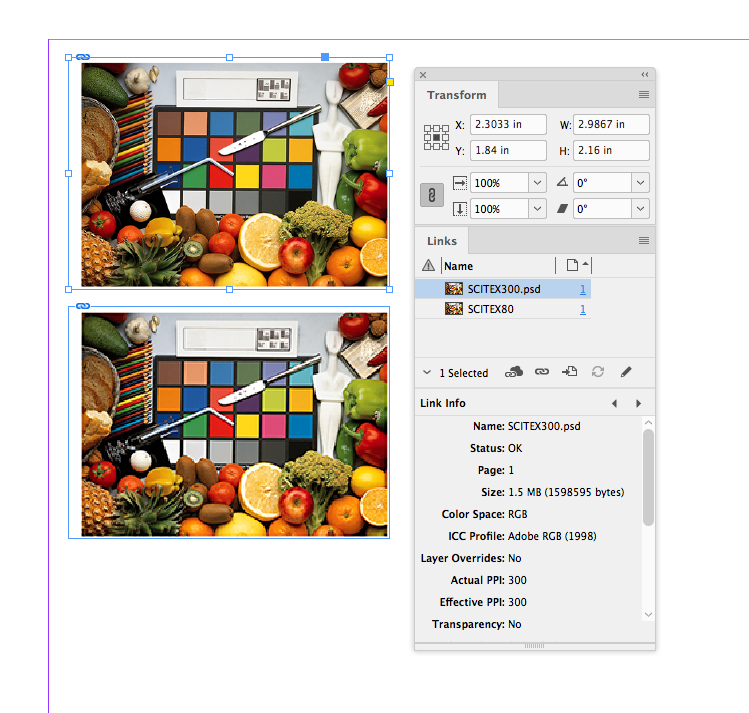
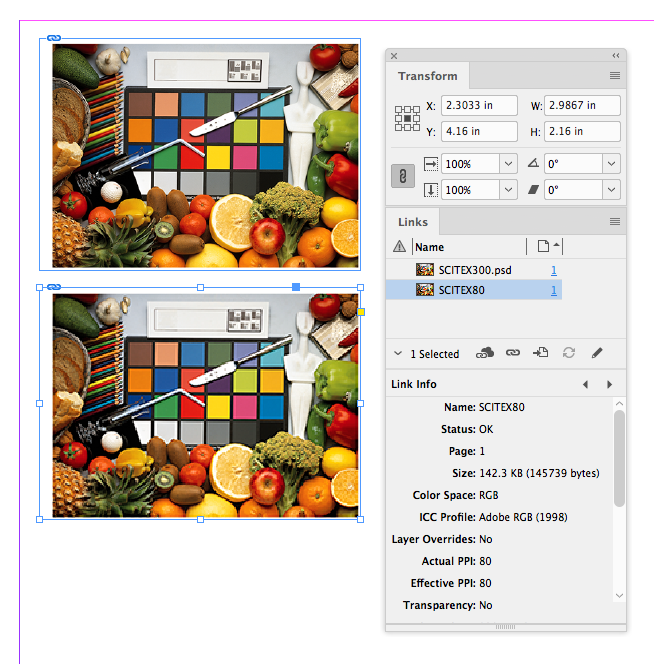
This shows the problem with assuming 100% has anything to do with output quality
100% with an output res of 300ppi
100% with an output res of 80ppi
Copy link to clipboard
Copied
OK I don’t want to change the positioning of any of the images at all. This is b/c the images are positioned so that a specific part shows.
Copy link to clipboard
Copied
If the scale really does matter you'll have to check the images and their parent frames:
Here both images are showing as 100%
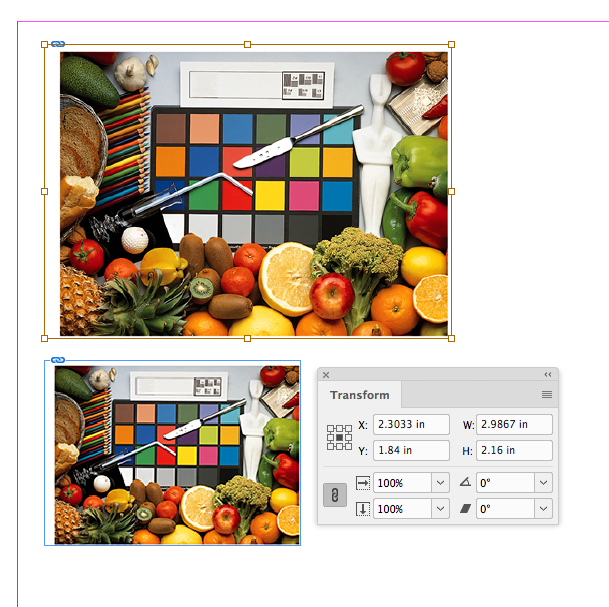
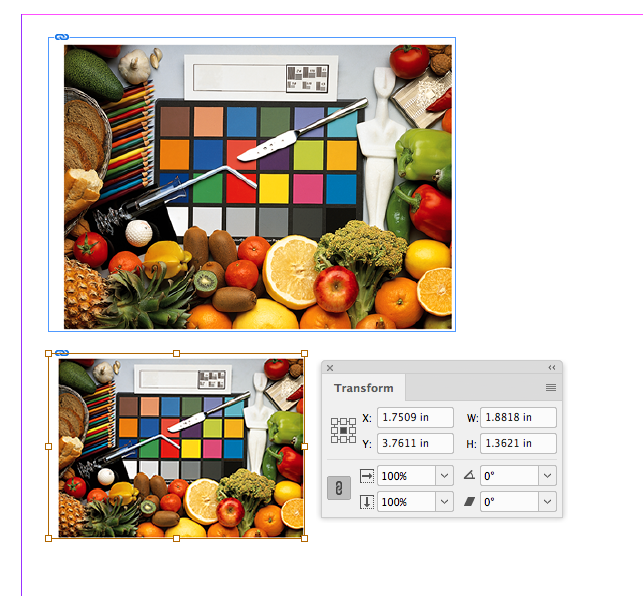
But here with the parent frame of the bottom image selected I can see it has been scaled, which means the image is also scaled even though a direct selection of it shows 100%
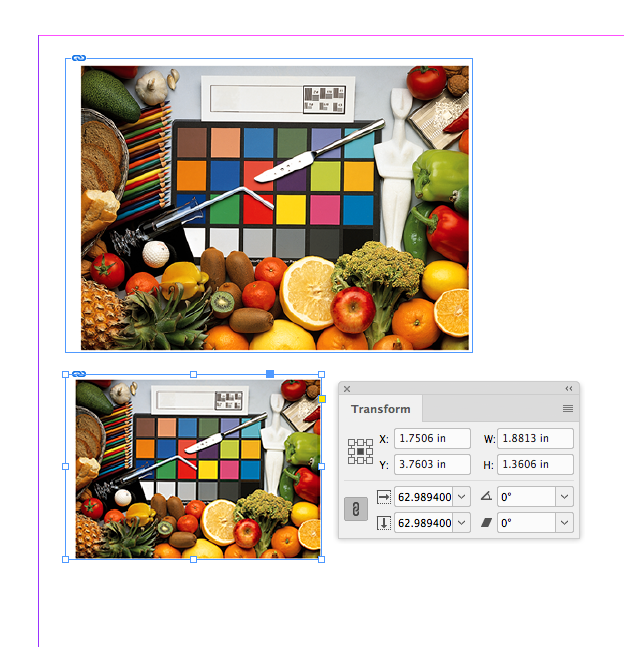

Copy link to clipboard
Copied
So did either suggestion in my post #9 work? They are both ‘easy’ and show the scale of placed images.
Copy link to clipboard
Copied
I haven’t had a chance to try them yet but I will tomorrow.

Copy link to clipboard
Copied
Hi Jeff
What about using Size and Position Options in Object Styles?
Cheers, Derek
Copy link to clipboard
Copied
I'll try that!! Will report back. Sunday morning before 8am and I haven't started designing yet 
Copy link to clipboard
Copied
Hi Derek,
That's another possibility. Have not tried it yet.
Best,
Jeff
Copy link to clipboard
Copied
You could just delete the existing image and with the Frame selected, look under the Object menu > Fitting > Clear Frame Fitting Options. This acts like a brand new Frame when you Place another image.
Copy link to clipboard
Copied
The thing is, I work in sort of frenzy. I want an option where I can just check everything globally at the end. I didn't do any more work on this Sunday but I'm going to try the object styles & see.
Copy link to clipboard
Copied
The thing is, I work in sort of frenzy. I want an option where I can just check everything globally at the end. I didn't do any more work on this Sunday but I'm going to try the object styles & see.
Perhaps this “report” will do what you want:
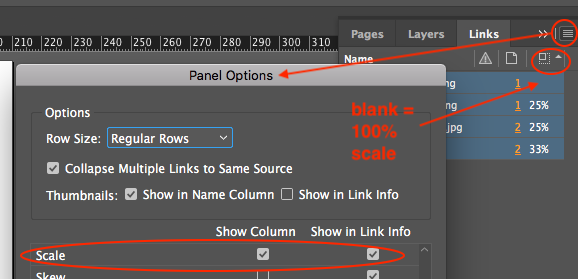
Or perhaps a tab delimited text file that you can open as a spreadsheet and sort or filter on the Scale X/Y % columns:
// LinkExport-Pro_1a.jsx
//DESCRIPTION: Exports some information about placed images in the active Document into a textfile in the same folder as the document.
// The values are tab-separated, so that the content of the file can be copied to Excel via Clipboard.
// The exported textfile has the ending ".txt".
// Script by Martin Fischer (www.hilfdirselbst.ch)
//
var myDoc = app.documents[0];
if (myDoc.saved == false)
{
alert("Error.\rYou must first save your document.");
exit();
}
var myDocName = myDoc.name.split(".indd")[0];
var myTXT_File = myDocName + '.txt';
var myPath = myDoc.filePath + "/";
var myCreator = "R*ch";
var myType = "TEXT";
var theFiles = myDoc.links;
var myData = "link\tpath\tpage\twidth\theight\t% vertical\t% horizontal\teff. PPI\r";
var f = new File( myPath + myTXT_File );
f.open( 'w', myType, myCreator );
f.writeln( myData );
for (myCounter = 0; myCounter<theFiles.length;myCounter ++ ) {
var myBounds = theFiles[myCounter].parent.geometricBounds;
var myWidth = Math.round(myBounds[3]-myBounds[1]);
var myHeight = Math.round(myBounds[2]-myBounds[0]);
var myScaleVert = Math.round(theFiles[myCounter].parent.absoluteVerticalScale);
var myScaleHori = Math.round(theFiles[myCounter].parent.absoluteHorizontalScale);
var myImagePath = theFiles[myCounter].filePath;
// WARNING if vertical scale is different to horizontal scale
if (myScaleVert != myScaleHori)
{
var myWarning = "% vertical is not equal % horizontal";
}
else
{
var myWarning = "";
}
try
{
myPPI = (theFiles[myCounter].parent.effectivePpi);
}
catch (e)
{
myPPI = 0;
}
var myClass = theFiles[myCounter].parent.parent.parent.constructor.name;
// image placed on page
if (myClass == "Page")
{
myPage = theFiles[myCounter].parent.parent.parent.name;
}
// image embedded
else if (myClass == "Character")
{
try
{
myPage = theFiles[myCounter].parent.parent.parent.parentTextFrames[0].parent.name;
}
catch(e)
{
myPage = "versteckt im Überlauf";
}
}
else {
try
{
// image placed outside the pages
myPage = "Spread of " + theFiles[myCounter].parent.parent.parent.pages[0].name;
}
catch(e)
{
// don't know the page where the image is placed
alert ("Class: " + myClass + "\r" + theFiles[myCounter].name);
}
}
myData = theFiles[myCounter].name + "\t" + myImagePath + "\t" + myPage + "\t" + myWidth + "\t" + myHeight + "\t" + myScaleVert + "\t" + myScaleHori + "\t" + myPPI + "\r";
f.writeln(myData);
}
f.close();


Copy link to clipboard
Copied
Hi,
I would like to know if the steps suggested above worked for you, or the issue still persists.
Kindly update the discussion if you need further assistance with it.
Thanks,
Srishti
Copy link to clipboard
Copied
I’m going to try the scripts at some point but for now I don’t think it’s been resolved, as script submitted would’ve changed position of images, and this would not do. You can close if you want as unresolved.
Copy link to clipboard
Copied
So if you did place some images not at 100% scale, how do you propose to fix them? Wouldn’t that also involve changing their position too? Whether by GUI or script, an anchor point has to be selected and resizing to 100% will change position. Would the anchor point vary?
Copy link to clipboard
Copied
I'm working with a ton of irregularly shaped vectors and glass images which I place. The problem is that in working, since there are so many to place, there are glass changes and I copy & paste images. I've simply been more careful lately about checking for scale changes as I go, so far.
Copy link to clipboard
Copied
Copy link to clipboard
Copied
I'll try this on an older file.
Copy link to clipboard
Copied
However I always, somehow end up getting scale changes.
Is the reason for maintaining the 100% scale, so that the repeat edges line up (it's not about output resolution or quality)?
If that's the case maybe you should identify what you are doing in the workflow that changes the scale as you position the panels. By default if you place an image directly on a page, the placed object and its parent frame place at 100%. When you try to change the placed object's position, you could inadvertently adjust its scale depending on what tool you have selected, whether you have selected the image or its parent frame, whether you have selected an anchor point, modifier keys pressed, etc.
There are also a couple of preferences that affect scaling. Preferences>General>When Scaling affects the problem I'm showing in #19. You probably want Apply to Content. There's also File Handling>Links>Preserve Image Dimensions, which might come into play if you are pasting into.

-
- 1
- 2

Find more inspiration, events, and resources on the new Adobe Community
Explore Now
 AdChoices