Participant
January 27, 2021
Answered

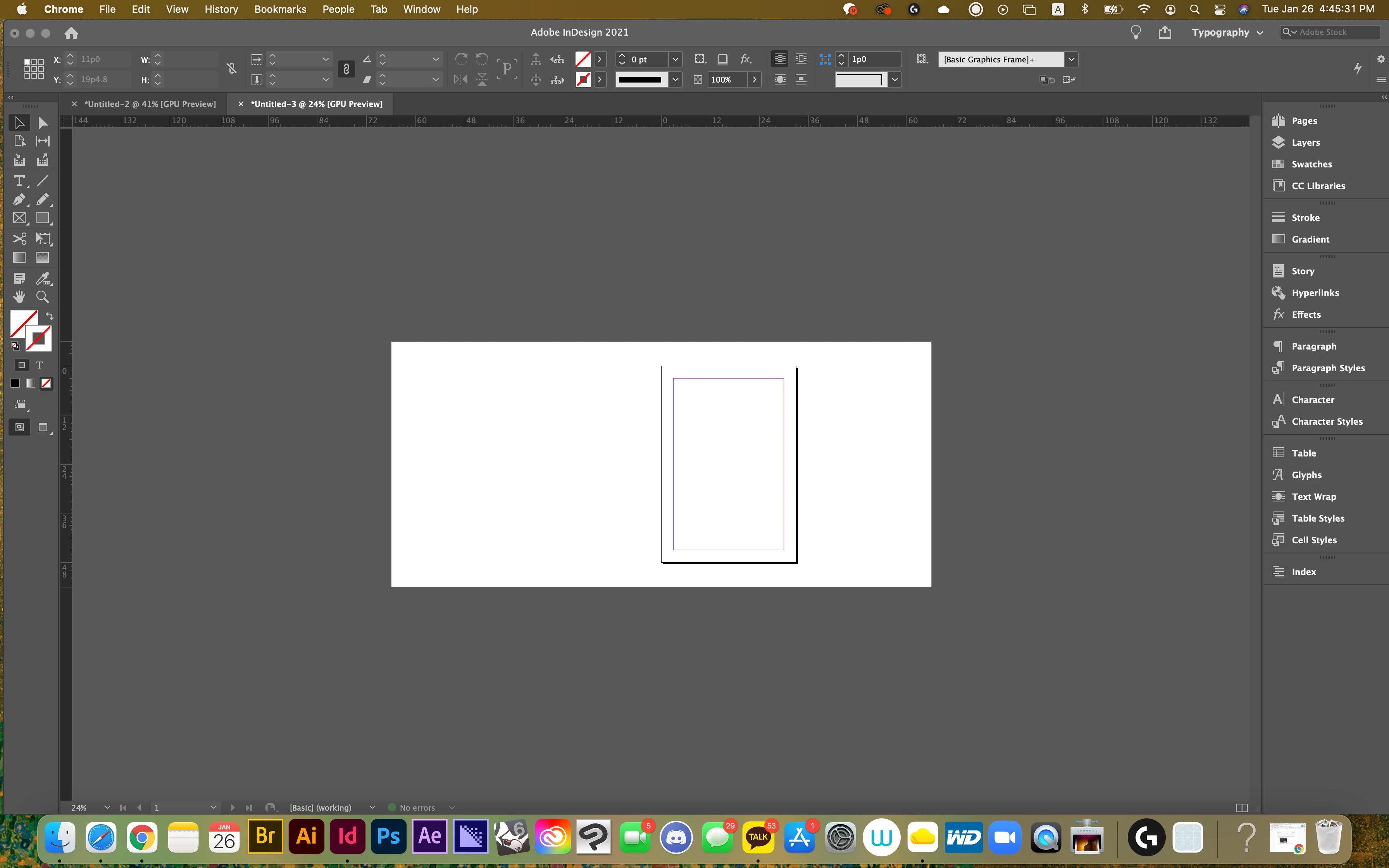
How can I get rid of the white background behind the document?

  • January 27, 2021
  • 6 replies
  • 26291 views

Hello, 

How can I get rid of the white background behind my working document?
 

Correct answer Mike Bro

Hello Jin5FA0

,

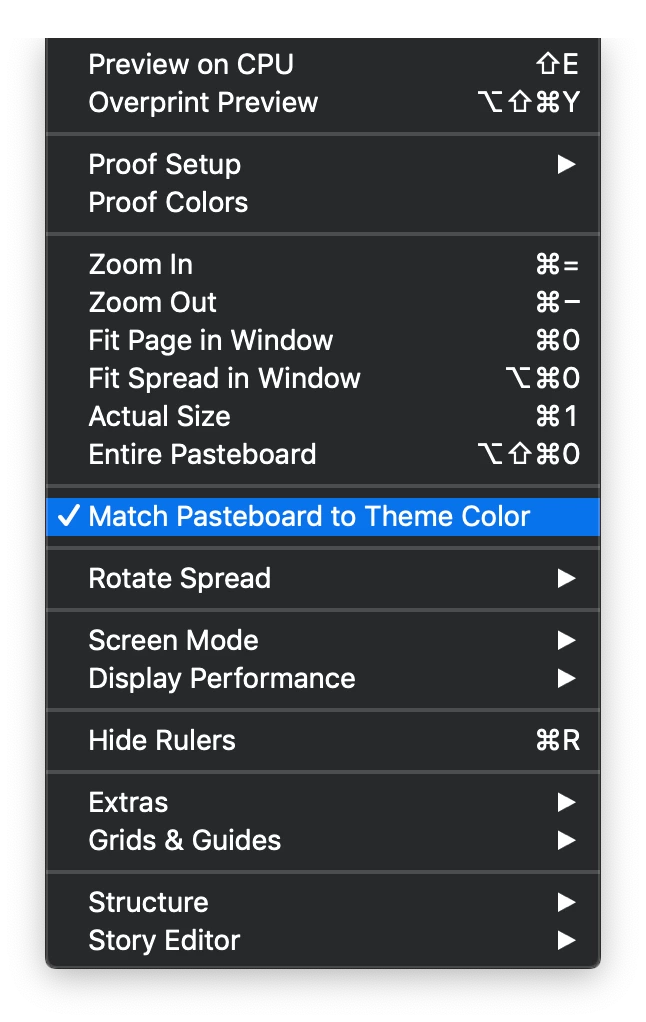
 Under the View menu select the "Match Pasteboard To Theme Color" so it's checked on.
 

Regards,

Mike

6 replies

Participant
January 27, 2023

Go to Pages > Double Click on Parent Page > Window > Color > Double-click on the Fill box > Choose your desired color.

 
Participant
January 27, 2023

Go to Window > Color > Double-click on the Fill box > Choose your desired color.

John Mensinger
Community Expert
Community Expert
January 27, 2021

It's the pasteboard. The W key toggles its visibility.

Mike BroCorrect answer
Legend
January 27, 2021

Hello Jin5FA0

,

 Under the View menu select the "Match Pasteboard To Theme Color" so it's checked on.


Regards,

Mike

Barb Binder
Community Expert
Community Expert
January 27, 2021

The white background behind the page represents the paper. It does not print. You can change the paper color by modifying the [Paper] swatch in the Swatches panel. 


The white background outside the page is the pasteboard. You can use it to hold elements that you're not ready to add to the page yet. They will be stored with the file, but they will not print. If you are trying to make the pasteboard fade back, enable View > Match Pasteboard to Theme Color. 


~Barb 

~Barb at Rocky Mountain Training
Steve Werner
Community Expert
Community Expert
January 27, 2021

Why would you need a transparent background? Tell us what you're trying to do.


InDesign documents intended for either print or online use will never have a transparent background.

Jin5FA0Author
Participant
January 27, 2021

I don't need a transparent background.
It means that I want to remove the wide white background behind the document. 


Steve Werner
Community Expert
Community Expert
January 27, 2021

That's called the Pasteboard.


Go to Preferences >  Guides & Pasteboard. Go into Pasteboard options and set the Margins to 0.
