Hi @Geobop ,
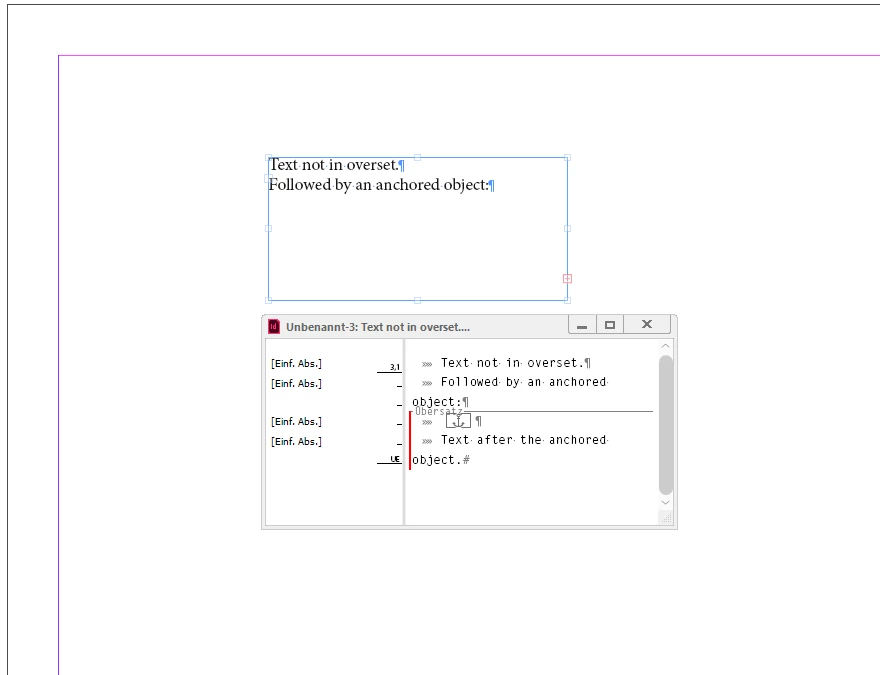
you could look up the issue with overset in the Story Editor window.
If there is an anchored object you'll see its anchor symbol there in the overset section.
What you can try:
[1] Select the anchor character and cut it to the clipboard.
Draw out a new text frame on the pasteboard, make its size really huge and paste the contents of the clipboard to the only text insertion point you can select there. If the text frame still does not show the anchored image change the height until it is visible.
[2] Run a script written in ExtendScript (JavaScript) to change the type of anchor from Inline or Above Line to simply Anchored:
// Anchor character selected in the Story Editor window.
// The Story Editor window must be the active window.
// Make sure that this is the case before you run that script.

var anchorCharacter = app.selection[0];
var frame = anchorCharacter.pageItems[0];
frame.anchoredObjectSettings.anchoredPosition =
AnchorPosition.ANCHORED;
Sample screenshots from my German InDesign 2022 below.
Anchor character at the start of the overset section in the Story Editor window. The anchored object creates a permanent overset. The text following the anchored object cannot flow in. Not on this page not on another page if the text frame would have been threaded to a next frame:
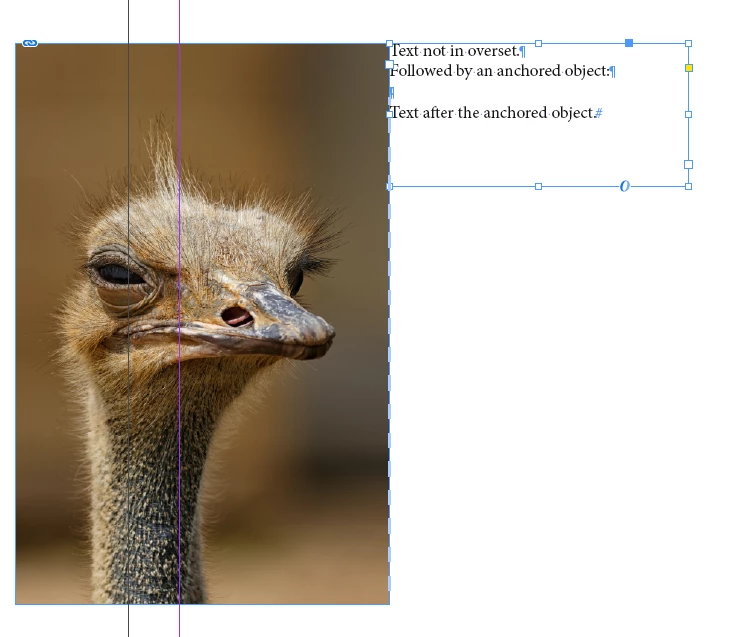
Select the anchor character, make sure the Story Editor window is the active window and run the script above. The result is an anchored object that is not anchored Inline or Above Line:
To my fellow scripting colleagues here in the forum a note of caution:
Of course I also tried to release the anchored object or do a duplicate of the graphic frame holding the image and to remove the anchor character with some more line of codes, but in two different test versions of my script code, InDesign 2022 crashed. Why? That's perhaps a different discussion dedicated to scripting alone.
For now I leave it to the simple code above…
Regards,
Uwe Laubender
( Adobe Community Professional )

 AdChoices