Participant
January 26, 2020
Answered

How do I change the color picker in InDesign (2019)

  • January 26, 2020
  • 7 replies
  • 45028 views

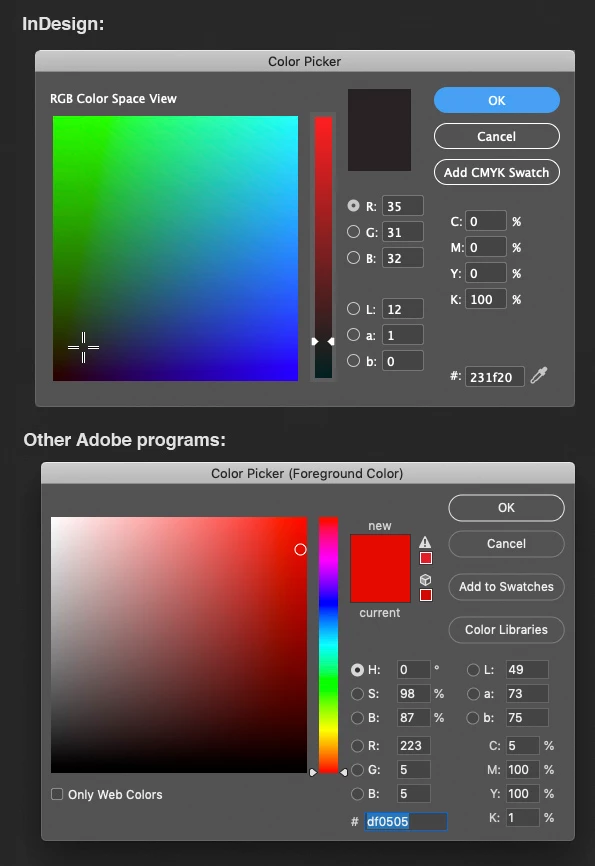
Ho do I change the color picker/color space view to what it looks like in the other Adobe programs?

I have problems with the look and function of this color view.
 

Correct answer Sanika Joshi

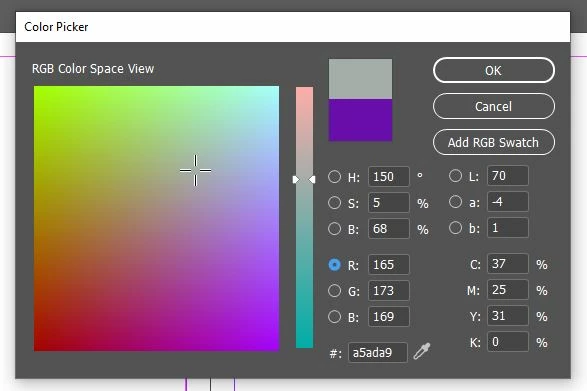
Click on the color picker, after the dialogue box opens up it will look something like the image below. As you can  see it by default the option R will be selected (The one highlighted in blue). Now all you have to do is just select the circle next to the letter H and it will activate your HSB view which will look like the 2nd img below.  
7 replies

Participant
June 6, 2023

Double-click either the Fill or Stroke box in the Toolbox or the Color panel to open the Color Picker. Select the desired color, and click OK , i  have designed  my websit( pickleball ) images  this method that was perfect design. 


Participant
June 6, 2023
Thanks, but I understand what you mean and this is an easy way to pull up
the color picker, but what I'm looking for is to make the window behave
like it does in Photoshop and illustrator; with a consistent behavior
inside the window. As it stands now, if you click on the dot next to R or G
or B, the diagram changes. I dont want that.
What I later figured out and answered my original question is that you need
to click the dot next to the H instead. This way you see a color diagram on
the left side with a color bar next to it that you can slide up and down
and change the diagram.

--
Best,
*Pete*

415.218.1932
www.hardline.design

This message contains information which may be confidential and privileged.
Unless you are the intended recipient (or authorized to receive this
message for the intended recipient), you may not use, copy, disseminate or
disclose to anyone the message or any information contained in the
message. If you have received the message in error, please advise the
sender by reply e-mail, and delete the message. Thank you very much.
Participant
June 10, 2023

wellcom dear i will tray to clear you r confusion. In Photoshop and Illustrator, the color picker provides various modes or representations for selecting colors, such as RGB, HSB (Hue, Saturation, Brightness), or others. It sounds like you prefer the HSB mode, where clicking on the dot next to the H (Hue) allows you to see a color diagram on the left side and a color bar that can be adjusted up and down to change the colors displayed.

If the color picker in the tool you're currently using doesn't have the desired behavior by default, you may want to explore the settings or preferences of the tool. Look for options related to the color picker, color modes, or representations, and see if there are customization options available. Check if you can switch to an HSB or similar mode that matches the behavior you're seeking.

In the event that the tool you're using doesn't offer the specific functionality you're looking for, you might consider exploring alternative color picker tools or software. There are standalone color picker applications available that provide advanced features and customization options beyond what certain software tools offer.

If you can provide more specific information about the tool or software you're using, I'd be happy to assist you further in customizing the color picker or addressing any other questions or concerns you may have.

Participant
January 27, 2023

Select H under the HSB options.

Inspiring
June 5, 2023

Thanks man.

Participant
October 5, 2021

M.L.S

Sanika JoshiCorrect answer
Participant
May 31, 2021

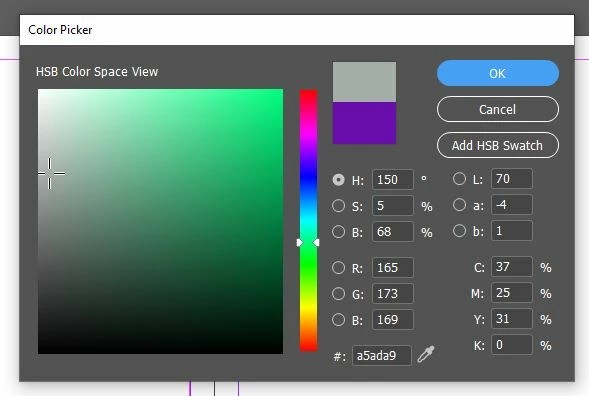
Click on the color picker, after the dialogue box opens up it will look something like the image below. As you can  see it by default the option R will be selected (The one highlighted in blue). Now all you have to do is just select the circle next to the letter H and it will activate your HSB view which will look like the 2nd img below.  
Participant
June 10, 2022

Hallelujah you absolute delight. Saved me some additional hairloss.

Participant
April 16, 2021

Agreed. This color picker is cancer. I can't even pick a gray color because the slider is mad confusing. SO FRUSTRATING OMADFJALDKFJALDFJ


rob day
Community Expert
Community Expert
April 16, 2021

CC2021 now has an HSB Color Space View.


If you haven’t upgraded set the Lab a & b values to 0 with the L radio button selected, and you will get a gray slider:


Steve Werner
Community Expert
Community Expert
April 16, 2021

To update this thread, InDesign 2021 adds the HSB view which looks like this:


Participating Frequently
September 24, 2020

I agree. This is definitely a new issue - I never used to be forced to view the colour picker in RGB mode

rob day
Community Expert
Community Expert
September 24, 2020

This is the Color Picker from ID CS6:


and CC2014


samy@123
Inspiring
January 26, 2021

Hi All 

I have installed Indesign Softwere 2020 and i wanted to change the Background of the Softwere in "White"

insted of "Gray" color how can i do that.

pls suggest me 

rob day
Community Expert
Community Expert
January 26, 2020

InDesign doesn’t have an HSB view. The Lab L view is similar, where H & S are in the color field and B is in the slider.

https://community.adobe.com/t5/indesign/how-do-i-achieve-the-same-hsb-colour-photoshop-in-indesign/m-p/10088737

Participant
January 26, 2020

Thank you for being clear and adding the link. I find it very frustrating that the Adobe employees responsible for this refuse to make the color picker consistent with other CC programs. I see zero reasons for not using HSB view. These programs are tools and the more consistent these tools are the better. This is bad.

rob day
Community Expert
Community Expert
January 26, 2020

InDesign’s color management is more complicated than CM in Photoshop and Illustrator.


In Photoshop and AI the document has a single color mode, so when you pick a color from the abstract Hue color field, and apply it to the document, the picked color gets explicitly converted into the document’s color space—if the document color mode is RGB you know you are actually picking an RGB color even though the color field view is Hue.


With InDesign the document doesn’t have a color space, there can be a mix of Lab, RGB, or CMYK colored native objects on the same page. If InDesign gets a Hue color view there will have to be a way for the user to also choose which of the color modes the color chosen from the Hue view will get converted into for the swatch or color fill.
