

devops at app-project
Participating Frequently
May 21, 2022
Question

How do I correct font rendering PPI in Indesign for iPhone high resolution Epub?

  • May 21, 2022
  • 4 replies
  • 1539 views

From Adobe Stock, I purchased the template  Classic Book for Reflowable EPub Books

I used this to create an indesign document set up for intent "Mobile" with resolution of 1125px 2436px, iPhone X.


At 14 points, the font is rendering to the display  as below.  This is much to small for anyone to read on a 5" iPhone X. It appears that the font is rendering points as pixels, and on todays' devices pixels are smaller than 72 per inch. So how do I cause the fonts to ender at the correct PPI for display in InDesign?
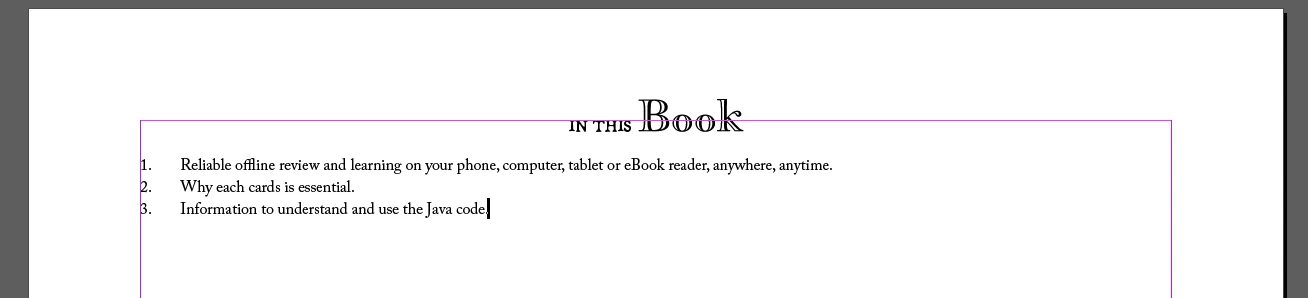
 

 I realize as a reflowable ePub, this will change on the device, but I still need to be able to work with a reasonable facsmile of the design within the desktop application.


If the answer is to change the font size, is there a way to do this globally across all styles? 


This topic has been closed for replies.

4 replies

BobLevine
Community Expert
Community Expert
May 21, 2022

It's a reflowable epub. Document size is quite literally meaningless! Every epub reader is a bit different but they all allow the reader to choose not just the actual font but the font size as well.

Legend
May 21, 2022

Yes, I think this is a key point. " I still need to be able to work with a reasonable facsmile of the design " There isn't a design, really. You have to give up the idea, and focus on the content, since it will look different on all devices. (That's not to say the template is a good one).


InDesign is all about fixed design, so using it to design reflowable work is forcing it to do what it isn't made for. I suggest you make some quick sample documents and try them on a WIDE range of devices and reading apps. Don't use InDesign to get any clue what it looks like.

James Gifford—NitroPress
Legend
May 24, 2022

So how would do you recommend tagging a manuscript that requires anhored frames?   It appears that there is no way to do this short of getting into IDML.   Or going back into Indesign and manually creating anchored text frames.   The input parser on Amazon converts style-based ruled paragraphs from a Microsoft Word doc, to the required inline divs.  However, Indesign, while offering both object and paragraph styles, does not seem to offer a way to tag input files.  If you are averaging two anchored text frames per page, the workflow and the proofreading workflow are multiplied.


There is no shortcut to a properly structured file. If you didn't anchor your images and text frames, there's no path to a successful EPUB/Kindle import other than 'going back into InDesign and anchoring them.' (Although I suppose there might be some fantastically convoluted script-based solution.)


There are only three paths to Kindle: direct Word upload, Word-to-HTML-to-upload, and ID-to-EPUB-to-upload. (I am ignoring the build-a-bear EPUB approach and ID-to-HTML.)


For all the "ease" that direct Word upload seems to offer, and noting that the process is heavily weighted to make this approach easy, it means taking what Word+Kindle Previewer want to give you. If you can't make it happen with Word formatting, it basically can't happen. That this path has some automation to get around amateur limitations doesn't make it worthwhile for anyone else.


Without knowing more specifics about your project, I'd suggest:

  1. Create object styles for each type of image or text frame in your doc. Optimize each one for the content and look you want. Make sure these styles are consistently applied without overrides.
  2. Anchor each image and text frame to the end of the immediately prior or otherwise appropriate paragraph. Don't get tricky with layout; just center them between paragraphs.
  3. Experiment with the Object export options, especially Fixed vs. Relative, to see what gets you the best export to EPUB overall. (Use a neutral reader like Thorium if a pass through Previewer isn't quick enough.)
  4. If you're lucky, one setting or the other, plus adjustment of the image sizes as placed in the doc, will get you the result you want. If not, you are going to have to go into any "unsuitable" images and set the object export options for each, or all of that type.


And you'll certainly have to do some CSS tweaking to get things like borders around your text frames and other styles just right. No visual tool I know of exports perfect EPUB code.


And, I am not sure you're comfortable with tags/styles; maybe I am misreading your posts but if every paragraph in your doc doesn't have a defined style with no overrides, it will be that much harder to get to a successful result. Particularly in ID, absolutely every element in a doc should have a paragraph style or object style, with all text overrides applied with character styles... no exceptions.


ETA: it is possible to edit the XHTML code to add divs around material, but it's tedious and I have rarely found it necessary. If you get all material into one flow with anchored elements, there's rarely a need to go in and create such content blocks.


rob day
Community Expert
Community Expert
May 21, 2022

Hi @devops at app-project , I think one thing to consider is Pixels in InDesign are a Ruler Unit measurement and don’t represent resolution. If you change the ruler units for your document you will see that its output dimensions are 15.625" x 33.833". Points are a print output dimension, so 14pt relative to your 15.625" x 33.833" page is very small when the page is forced into the iPhoneX 2.75" x 5.65" physical dimensions:


Fixed ePub Export, Apple’s Books on the right:


If I setup a document closer to the target device’s physical dimensions 14pt text looks more like its 100% print output dimensions on that device:


James Gifford—NitroPress
Legend
May 21, 2022

Unless it's for a very specific, narrow purpose, reflowable EPUB should not be designed scaled to a particular device, screen size or resolution. A proper reader for each device will scale the content appropriately — based on that "body text = 1X" rule.


EPUB etc. =/= print or fixed screen resolution, and should not be developed or constrained in that model.


If you want a fixed layout, use PDF instead.


JonathanArias
Legend
May 21, 2022

Is the file using web fonts?

have you looked in to using adobe fonts instead?:

https://community.adobe.com/t5/indesign-discussions/how-to-embed-a-font-in-epub-format/m-p/11009577#M180483


devops at app-project
Participating Frequently
May 23, 2022

For now i'm specifying adobe OTF fonts and seeing built-in kindle fonts in the output.  Based on limited research the consensus seems to be that font embedding is not possible in the kindle environment outside of hiring a service bureau to help.

James Gifford—NitroPress
Legend
May 23, 2022

It's possible to get fonts into Kindle. It is, however, difficult and unstable and strongly disrecommended. The reader is not 'passive' but does many active things to the document, the way old-school browsers used to apply their own ideas even to straightforward web code.


You can fight this uphill battle (see: Sisyphus), or just relax to a completely different medium that offers plenty of design options using a default font set.


If you want electronic pages that look just like printed ones... use PDF.


James Gifford—NitroPress
Legend
May 21, 2022

I have never been much of a fan of using templates of any kind, even those from high-quality/premium sources. But maybe that's just me.


If the template is indeed defining font sizes in pixels, it's obsolete. You might be able to fix it, but honestly, for a simple flowing-text book (novel, narrative, basic nonfic) you can do your own layout from scratch and have more control and fewer problems. I'm not sure that makes sense, since if ID can define font sizes in px, it's a feature I've never encountered.


First, look into the generated EPUB — it's just a ZIP file, use any utility — drill down to the CSS folder and examine the default CSS file. If the fonts are defined in pixels, you could adjust these values using a custom CSS file, but (again, honestly) I'd chuck it and start over with a simple document format that is not in any way "told" it's for web, EPUB or screen. The one thing the export and template should NOT be doing is building the document for that specific screen and resolution (if that's part of the workflow) — it means the doc will not display correctly on any other display or reader. Use a standard page size and font sizes; EPUB will take care of the display and 'liquidity.'


ETA: I just opened a new doc for Mobile, 1100x2400 or so, and the base font, defined as 12pt, is so tiny on my screen it's greeked. This is not the path to successful doc development.


If the CSS uses points, as it should, you can try adjusting the document sizes in ID. There is a peculiar aspect to EPUB (and Kindle) in that the defined body font size is used as the 1X value for all text scaling; it should be defined as 1rem (or 1em) and nothing else. That's how the readers start parsing and defining the text sizes.


Also, Apple's EPUB readers are... idiosyncratic. You might check the EPUB in other, more standard readers (Thorium Reader is pretty much the baseline) to see if the problems persist


More questions welcome.


BobLevine
Community Expert
Community Expert
May 21, 2022
quote

I have never been much of a fan of using templates of any kind, even those from high-quality/premium sources. But maybe that's just me.

Most definitely not just you. Most of them are trash and they've been dumbed down even if they were created properly by an expert.