
SRenee
Known Participant
June 22, 2018
Answered

How do I delete an a A Master Grid for two pages of my 9 page Presentation?

  • June 22, 2018
  • 4 replies
  • 1896 views

I AM A BEGGINER

I have created a Presentation in Adobe InDesign. I have created A Master Grid for each page however I now want to delete the grids on 2 Pages and create a new grid for only those particular pages . However it is part of A Master. How would I get around this please?
    This topic has been closed for replies.
    Correct answer jane-e

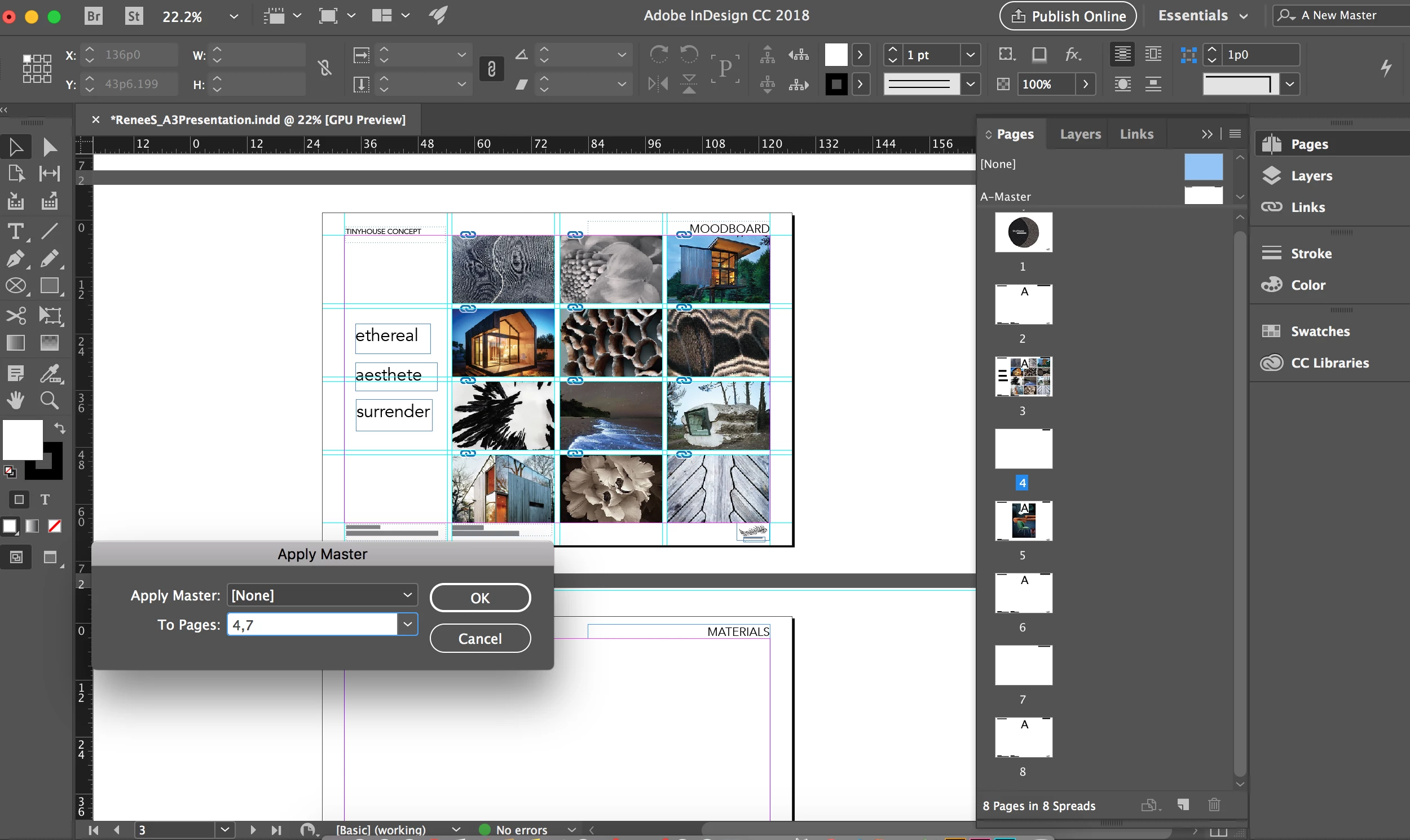
    Thank you Steve. Please find below what I have done... You can see the third page with A Master Grid and the forth page without any grid. I have highlighted the 'None' to the right and Page 4. Is this where I start my new Grid?


    You can't edit the None Master. Create a new master and make your new grid there. Apply it to pages 4 and 7. Use the Panel Menu.

    4 replies

    jane-e
    Community Expert
    Community Expert
    June 23, 2018

    SRenee,

    If none of these answer your question, then we will need screen shots, including the Pages panel. We need both the Masters section and Pages section—adjust the divider so we can see both.

    Derek Cross
    Community Expert
    Community Expert
    June 23, 2018

    Do you really mean "I have created A Master Grid for each page" or do you mean "I  have applied a Master page to each page"?

    You wouldn't normally create nine master pages for a nine page document.

    Alexandre Becquet
    Community Expert
    Community Expert
    June 22, 2018

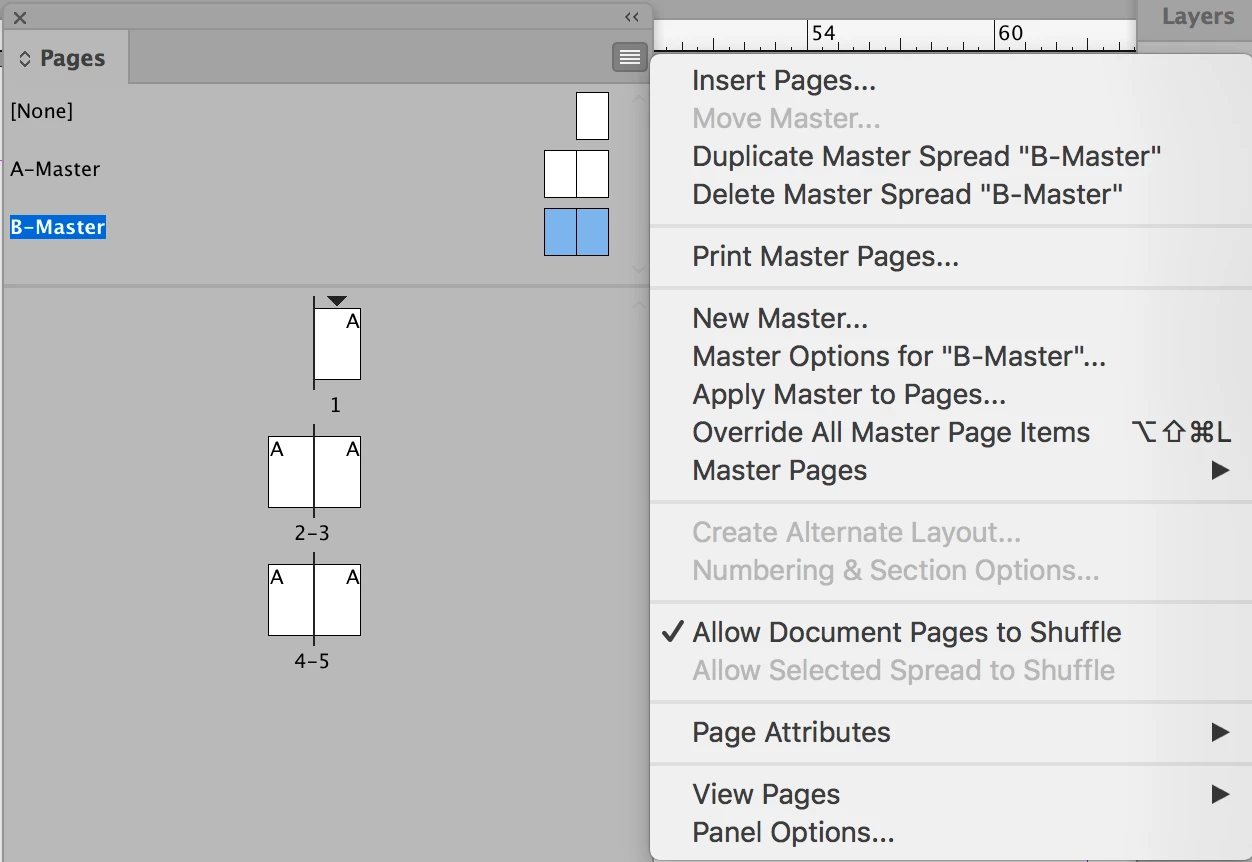
    Hello, you have to create a new Master (B) with the desired grid and then apply it to the pages to modify.

    For example: Page 1 with A Master 2-3-4 with  B Master and 5 to 10 again A Master

    I hope that my explanation of French will be understandable

    SRenee
    SReneeAuthor
    Known Participant
    June 24, 2018

    Thank you CIA_design

    Steve Werner
    Community Expert
    Community Expert
    June 22, 2018

    You don't need to delete your A Master.

    Just create a new master (from the Pages panel menu, choose New Master). You could call it B Master. While it's the active master page, format it as you like for the two pages.

    Drag the thumbnail of A Master onto the thumbnails of pages you want to have that format. Drag the B Master thumbnail onto the pages you want with that format.

    SRenee
    SReneeAuthor
    Known Participant
    June 24, 2018

    Thank you Steve. What I have done is I have gone to Layout, Pages, Apply Master to Pages, I chose (None) and added 4, 7 to  the Pages. So now, what I have is page 4 and 7 without any grids and the rest of pages in A Master.

    So, now do I press on (None) and create my Grid??

    Steve Werner
    Community Expert
    Community Expert
    June 24, 2018

    Since I'm having a hard time visualizing your layout, it would help if you could follow @jane-e's advice: Create screen shots of your Pages panel showing both the Master section and the Document pages section. Go to the Pages panel menu and choose Panel Options and choose Large thumbnails so it's easier for us to see them.

    You can attach your screen capture to your message in the forum editor by clicking the Insert Image button.