chrystald44556015
Participant
October 23, 2017
Answered

How do I remove the light blue guidelines that I added?

  • October 23, 2017
  • 3 replies
  • 14021 views

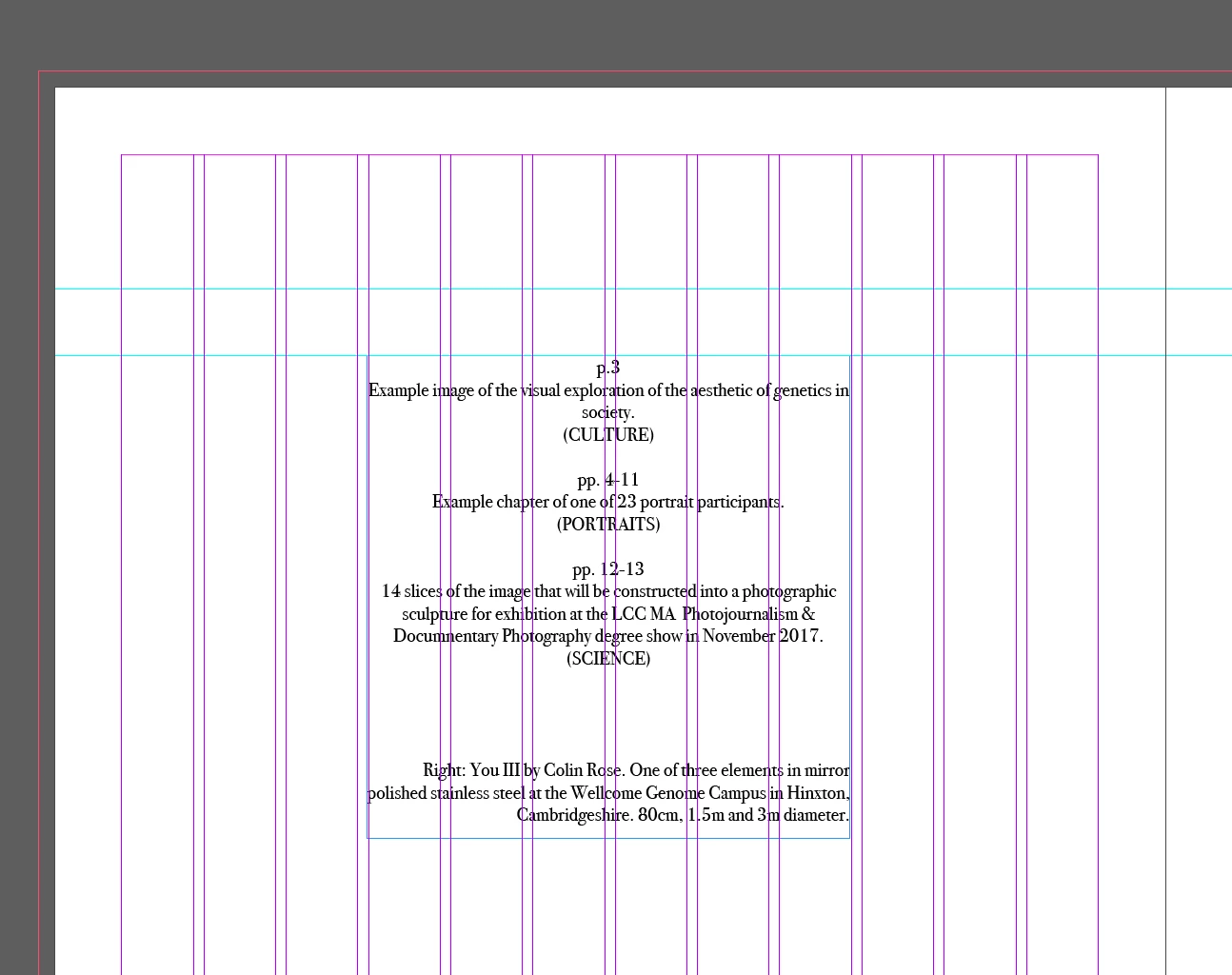
I want to remove one of the light blue guidelines that I added in but can't seem to select it.

Anyone know what I should do? I'm an InDesign newbie.
This topic has been closed for replies.
Correct answer Barb Binder

Or, you can click them individually with the Selection tool and press Delete, which is helpful when you only need to delete some of the guides.

3 replies

chrystald44556015
Participant
October 23, 2017

PROBLEM RESOLVED. I had accidentally locked the guides at some point! Oops.

Barb Binder
Community Expert
Barb BinderCommunity ExpertCorrect answer
Community Expert
October 23, 2017

Or, you can click them individually with the Selection tool and press Delete, which is helpful when you only need to delete some of the guides.

~Barb at Rocky Mountain Training
chrystald44556015
Participant
October 23, 2017

Can't click/select them...

Barb Binder
Community Expert
Community Expert
October 23, 2017

Go to page where you drew them—sounds like the A-Master? Make sure the guides are unlocked, and use the black arrow and click the tip of the arrow on the guide(s). They will turn a darker blue after you select them and then you can delete them.

~Barb at Rocky Mountain Training
winterm
Legend
October 23, 2017

View > Grids and Guides > Delete All Guides on Spread.

KB shortcut on Win to select all guidelines Ctrl+Alt+G, then hit Del.

chrystald44556015
Participant
October 23, 2017

Didn't work... I'm on a Mac and it's on the Master pages - does that make a difference? (Tried deleting while selected on the master.)
