
How do I replace missing fonts?
Hello InDesign Community! I normally use Illustrator but I was recently sent an InDesign file to look at. When I click to open it, I get the following dialog:
- "This document contains ... links to sources that are missing. You can find or relink the missing links using the Links panel."
I click "OK" and it takes me to the next dialog box.
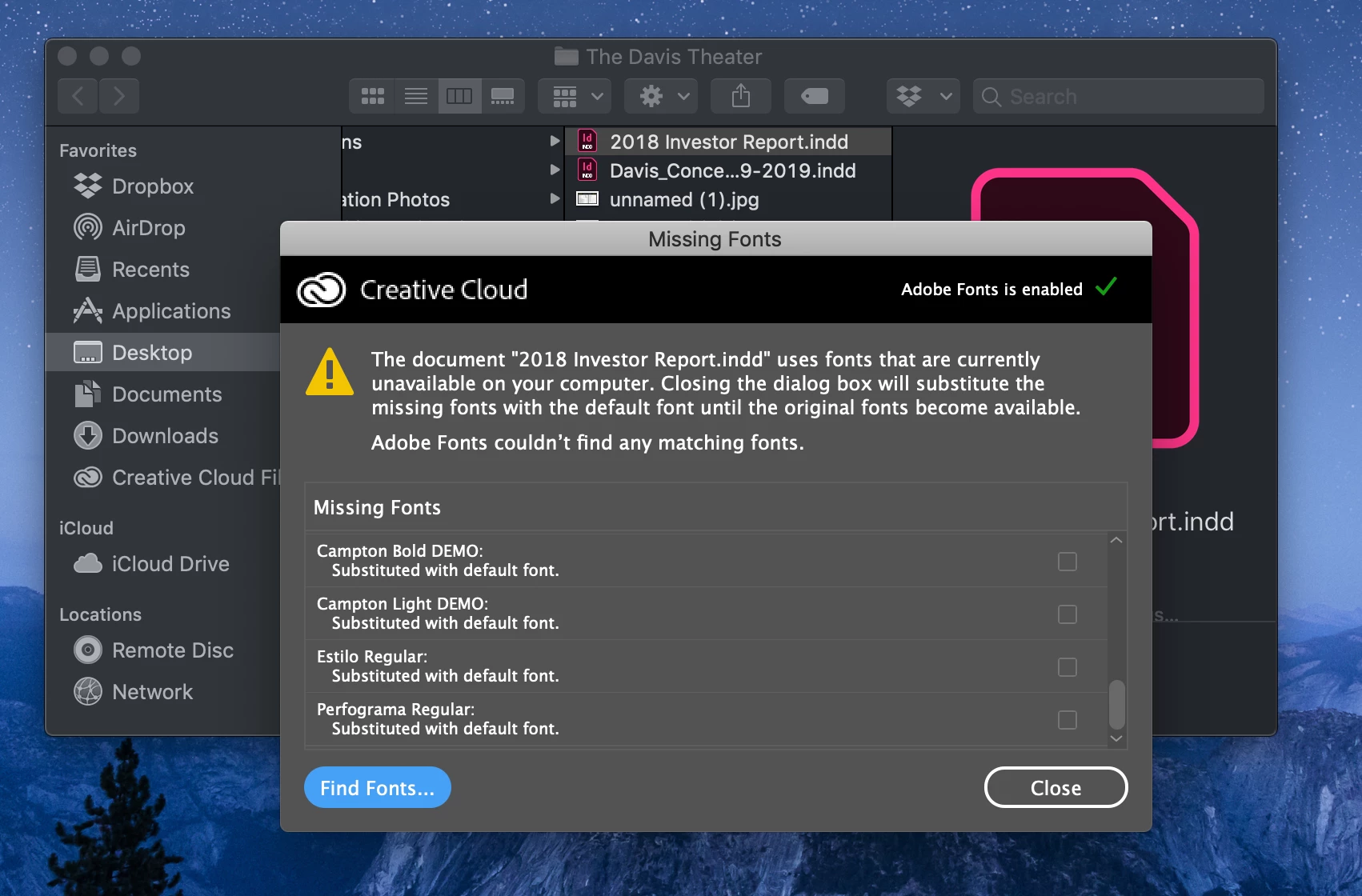
2. "The document uses fonts that are currently unavailable on your computer. Closing the dialog box will substitute the missing fonts with the default font until the original fonts become available. Adobe Fonts couldn't find any matching fonts."
Great, so closing this dialog box will automatically substitute the missing fonts and I can open my file and deal with it manually. Or so I think. I click "Close" and this does nothing. The file just won't open. So I go back and double click to open it. I have to go through the first two dialogs again. On the second one, I click "Find Fonts..." instead of clicking "Close".
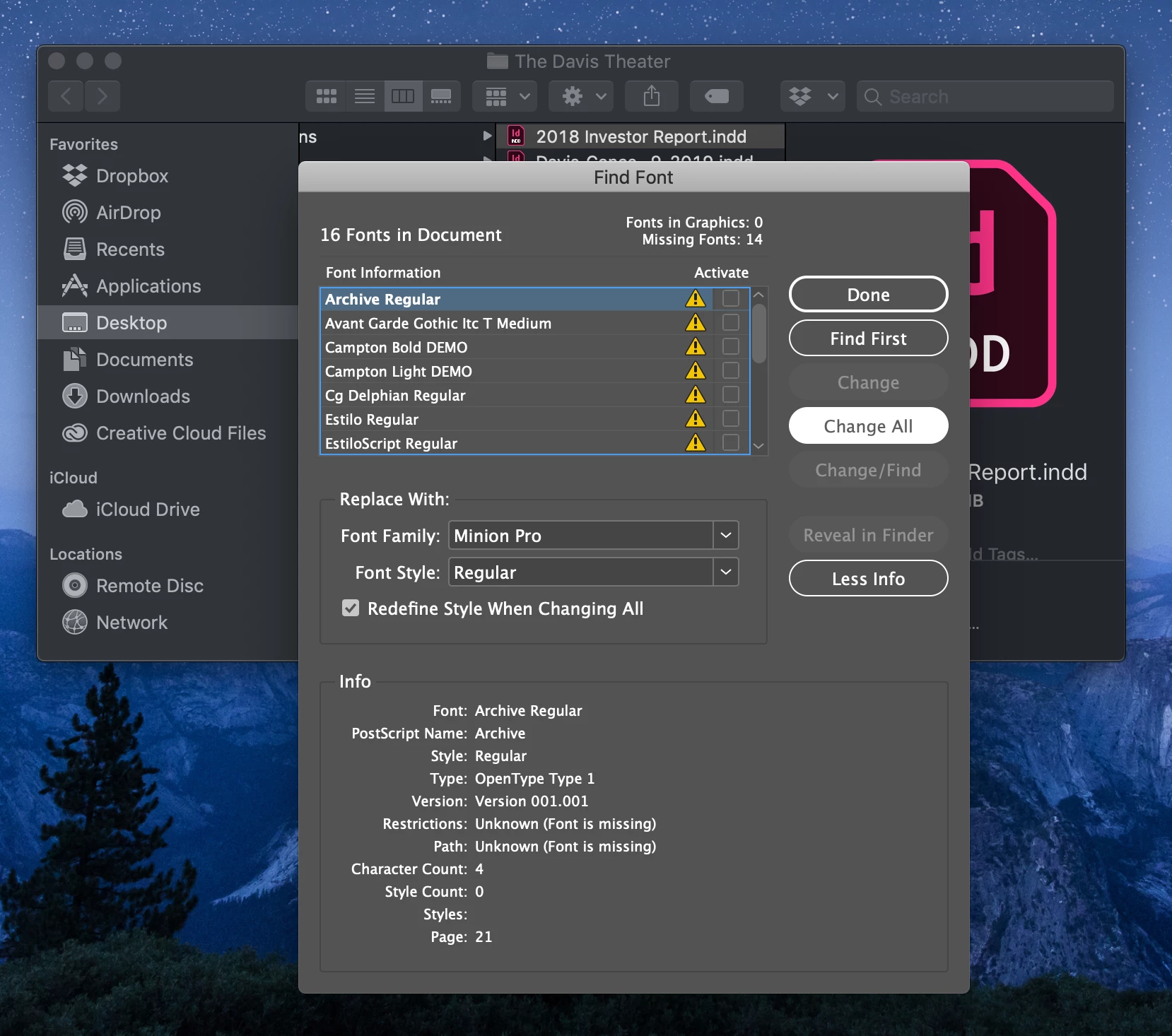
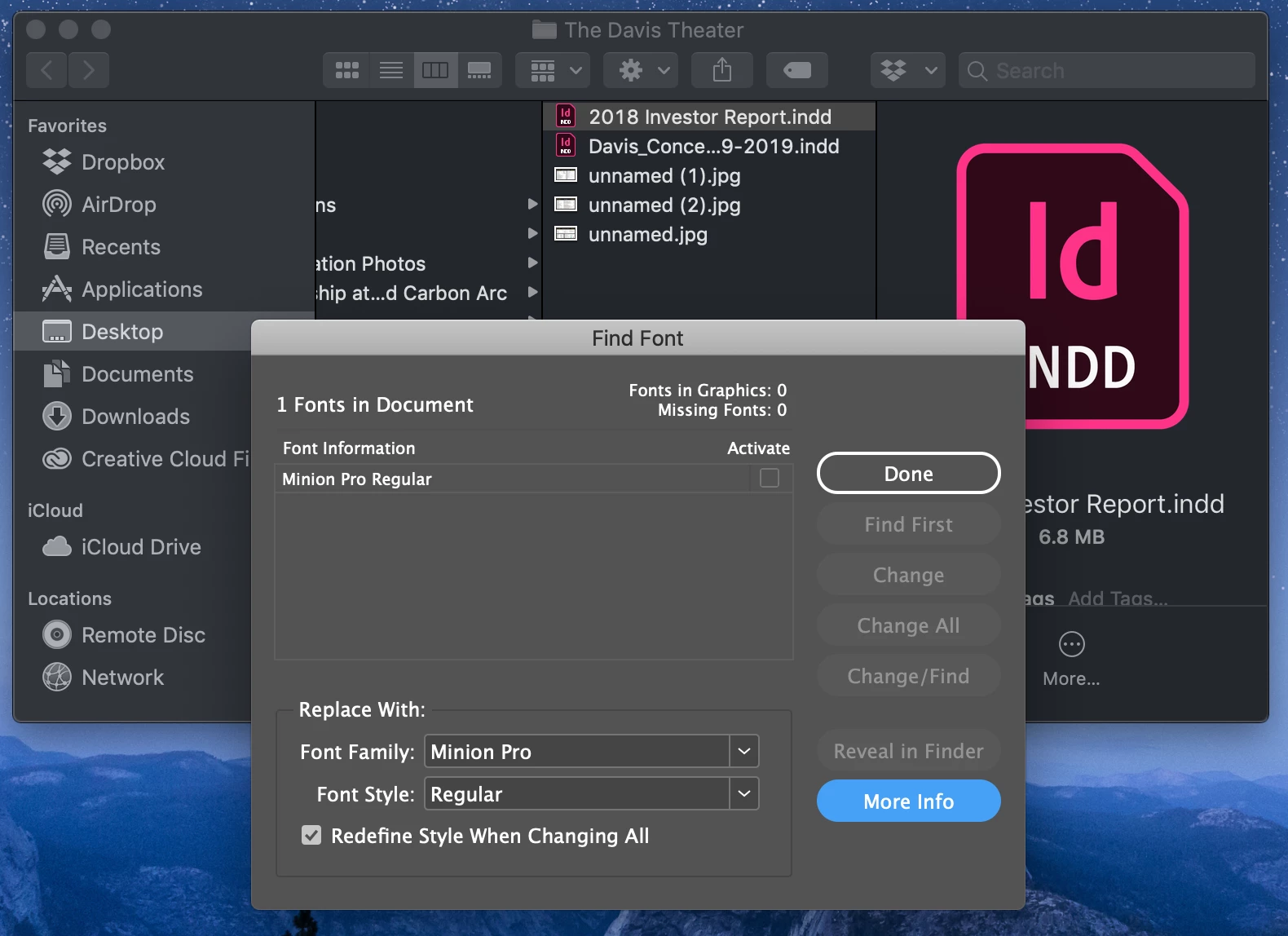
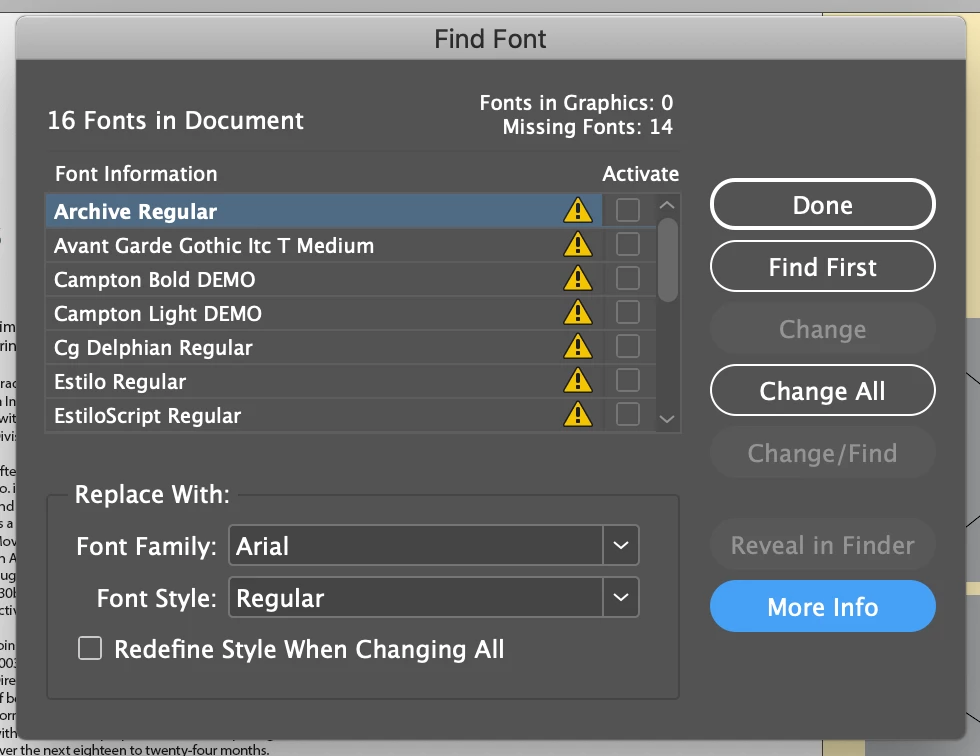
Next, I'm taken to a third more complex dialog box. I'd tried selecting each font and clicking "Change All." I do this for all of the missing fonts, changing them to Myriad Pro Regular. When I get to the last one, I click "Change All" and it refuses to disappear from the list. Okay fine then. I click "Done". I try to open the document and I'm back to square one.
What am I doing wrong? I feel like I'm going mad. Please see the attached screenshots for reference.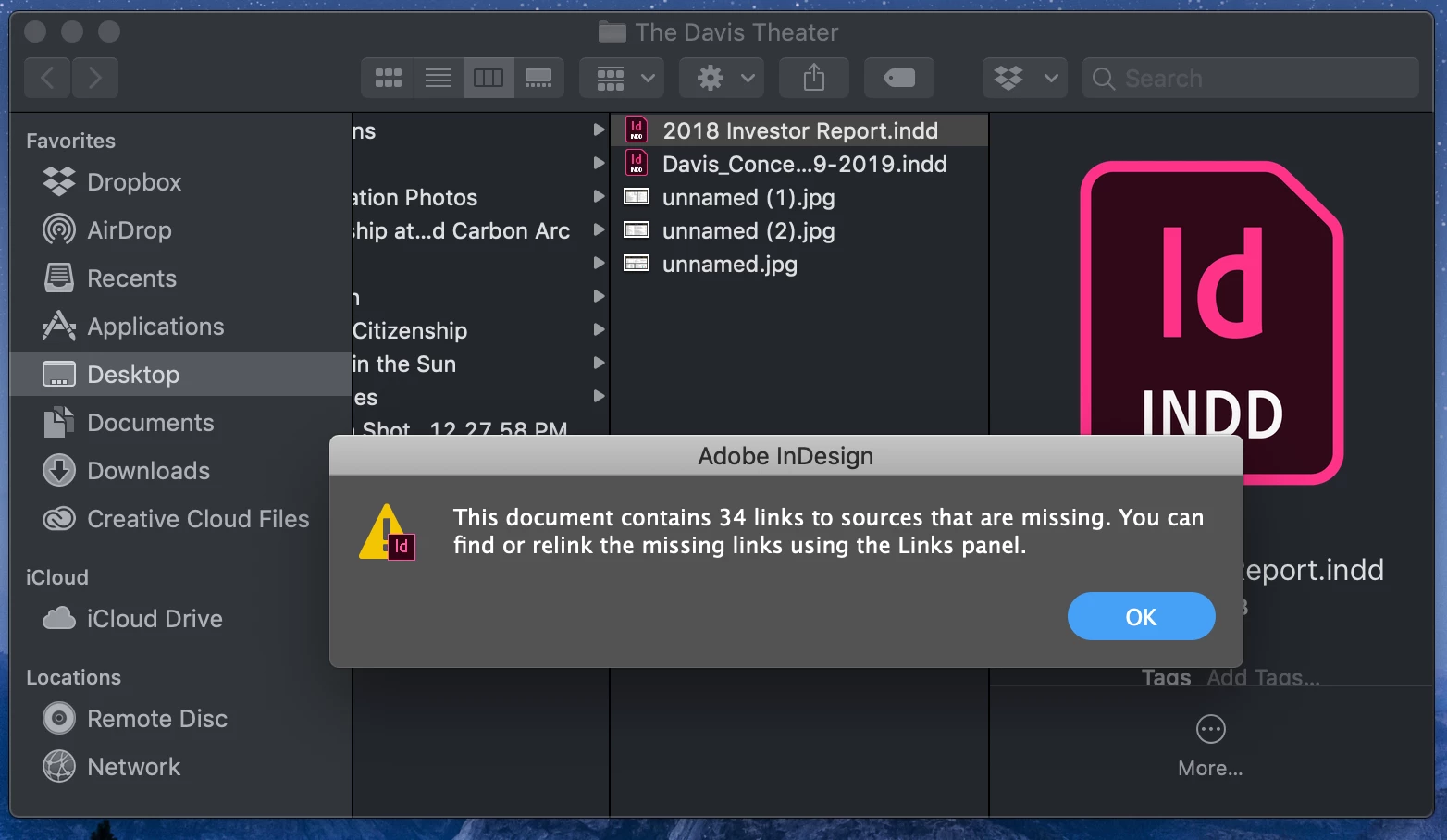
Update:
I was able to open the file in InDesign by first opening the InDesign program and then navigating to open my file from within the program.
However, I still have the problem of re-linking the missing fonts.
I watched a YouTube tutorial video and it was unhelpful. In the video, the instructor would get to the third dialog box and would have the option/ability to check the box under "Sync". See the below screenshot:
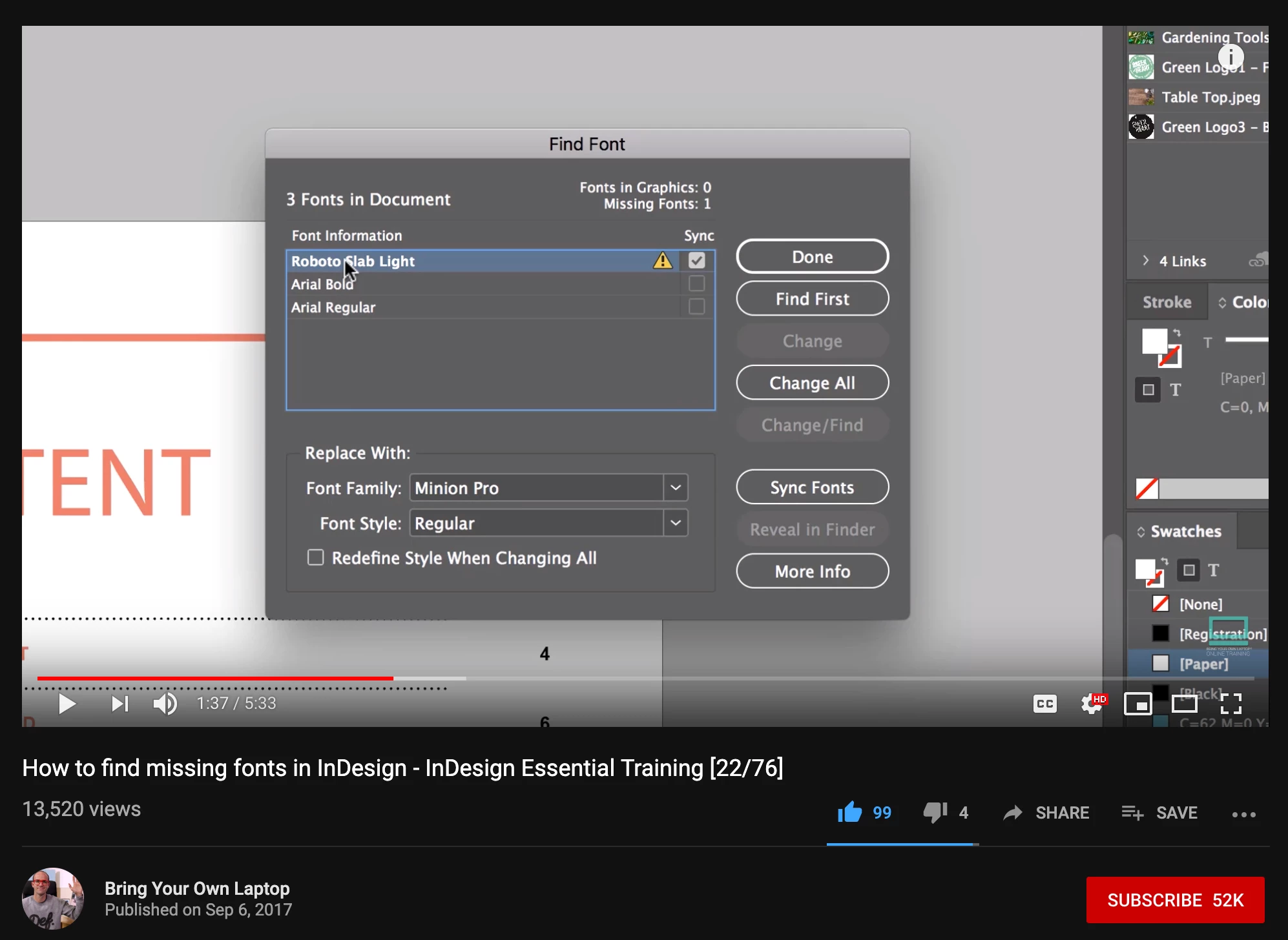
However, the problem is that in my third dialog box, the option to check the box does not exist. When I try to check the box under "Activate" it is unresponsive/refuses to be checked:
 AdChoices