
Participant
May 21, 2021
Question

how do I select the rectangle again?

  • May 21, 2021
  • 4 replies
  • 735 views

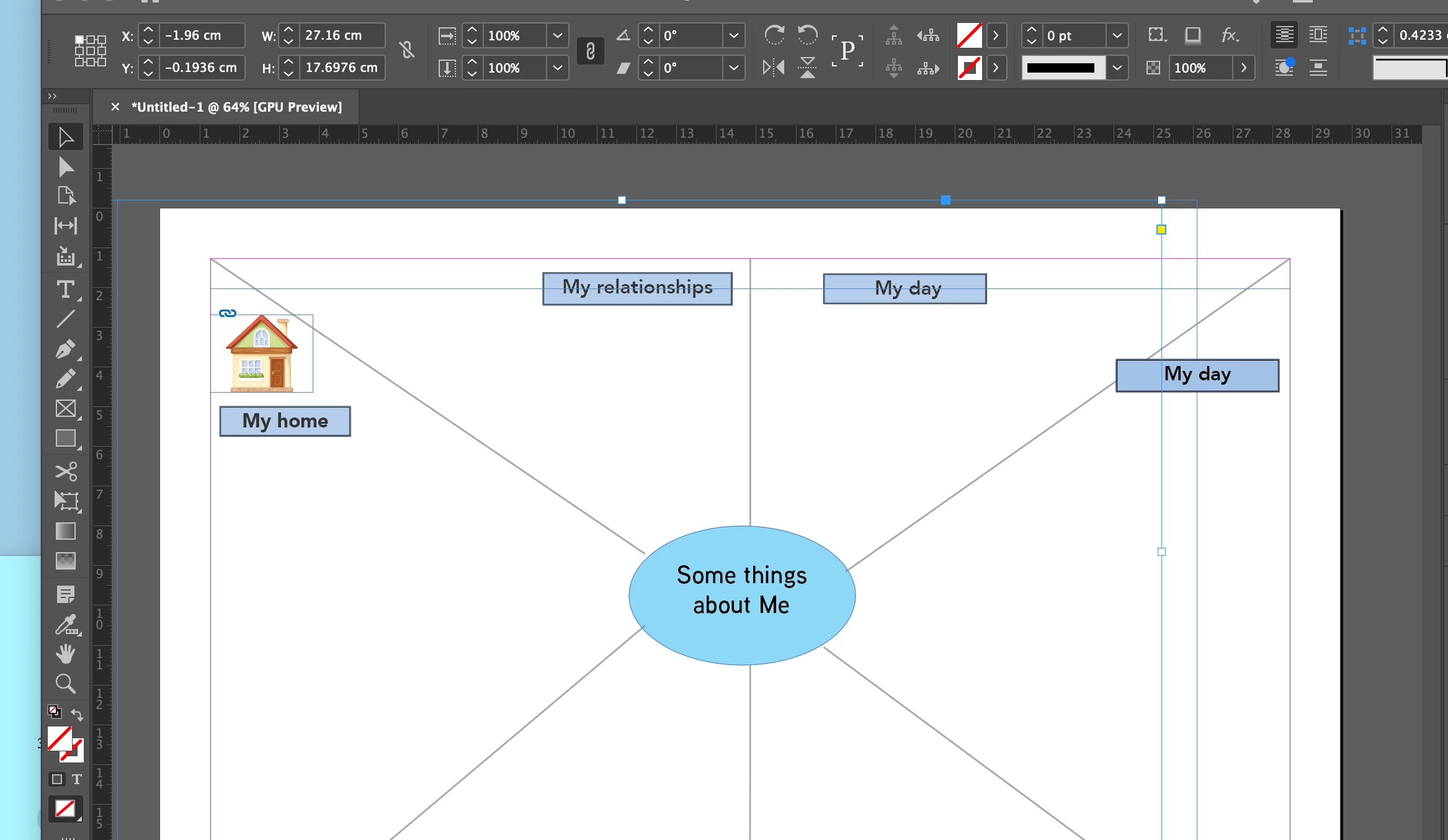
Hello, I am new to InDesign, and have reviewed the help intro videos.  I have spent 2 hours developing the image I have attached...and now I can't reselect one of the rectangles to edit the text.  When I go to select it, a 'text' cursor appears at the top of the page, for me to 'add text there'.  I have chosen 'deselect all', I'm using Mac osx, and can't find 'ungroup' as an option.  I assume deselect all is the same. however, I simply can't edit the rectangle?  I could draw this on an app in my ipad much quicker, and much more effectively.  What have I missed with this? sorry for maybe what is an easy question, I'm in the don't know what I don't know stage.  any help would be much appreciated.  Christine
 

This topic has been closed for replies.

4 replies

Peter Spier
Community Expert
Community Expert
May 22, 2021

Two other points...

Empty frames drawn with the Rectangle, Ellipse or Polygon tools (the group without the X in the icon) start with a content type of Unassigned and are generally meant to simply be shapes. These frames, if they have no fill color assigned, can only be selected by clicking an edge. You'll see the cursor change to have a little spot at the lower right when you are in the correct position.

Clicking into ANY empty frame with the text tool, regardless of how it was created, converts that frame to a text frame. This can cause some headaches for situations where there might be a background frame in place and you want to add a new text frame on top. It can help to put those frames on a layer by themselves and lock the layer.

Derek Cross
Community Expert
Community Expert
May 22, 2021

InDesign is a professional application with a steep leaning curve. It would help you a lot if you took some training - there are some excellent books, such as the Classroom in a Book series and online video tutorials from Linkedin Learming (you can get 30 days free access).

And of course, return to this friendly forum for particular questions. 


Willi Adelberger
Community Expert
Community Expert
May 22, 2021

It seems you are stacking frames above each other.

Go to the Layer Panel (Windows > Layers) F7, expand layers, so you see each object on that spread. You can simply select any object by clicking right of tha name then a selection proxy square appears.

You can lock or hide any unwanted object. 

You could and should work with layers and organize the file and you can sort it out.


You can simply hold the command (Mac) or Ctrl (Win) key and klick through the stack until you get to the object you want.

Legend
May 22, 2021

Hello,


The object you're trying to select could simply behind another, what you can do with the big rectangle selected in your screen shot is to send it to the back, giving you access to the other smaller frames.

Object menu > Arrange > Send to Back


Regards,

Mike