ElenaLeeMing
Known Participant
May 29, 2019
Answered

How do I stop InDesign from turning on an object effect globally, after applying it to one object?

  • May 29, 2019
  • 5 replies
  • 7176 views

Hi and thanks for your help. My question: Often, when I apply an object effect like outer glow or feather to one object, that effect then gets turned on globally so every object I create after that automatically has the effect applied. It doesn't do it every time, and I can't figure out what I'm doing differently (if anything) to make the effect turn on globally. I've had this issue the whole time I've been using InDesign, since maybe CS4. I'm definitely not picking the effect without any object selected, so it's not that I'm accidentally turning it on at a global level myself.

Anyone else have this issue and know why it happens or how to prevent it?

Thanks,

Elena

Correct answer AnneMarie Concepcion

Regardless, it does sound like you're certain the problem is in InDesign.

Barb asked if you were choosing FX options from the other locations (other than the Properties panel) in InDesign, such as the Object menu, the Control panel, or the Effects panel itself. All of these can be active the same time as the Properties panel.

You told Barb,

ElenaLeeMing  wrote

Yes, I use those panels, but again the FX option is only available if there's an object already selected, so would it even be possible to set an effect as a document default from there?

Yes, it would be possible. Unlike in the Properties panel, the FX option is always available in those other locations, even though you don't have an object selected. So choosing something there, even with nothing selected, could inadvertently set the defaults for that tool (the Frame tool, for example) if that's the active tool.

The fix is:

  1. Choose Edit > Deselect All
  2. Select the Frame tool (or whichever tool you use to create an object that's coming in with an unwanted appearance)
  3. Check the state of the effects in the  fx menu in the Effects panel or from the Control panel's FX button. There should be no checkmarks next to any effects. If there is, choose that effect again to deselect it.
  4. Check the Fill/Stroke settings in Swatches and Strokes. Change if necessary (as Scott outlined).
  5. Save your document

Now try again. Use the tool to create a shape. It should use the defaults you reset.

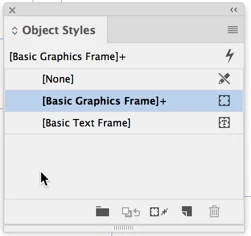
FASTER: Instead of steps 3 and 4, another solution is with nothing selected but the tool active, open the Object Styles panel (Window > Styles > Object Styles) and Option/Alt-click on the default style to clear out overrides, indicated by the plus symbol. That will reset the tool to the "factory defaults".
AM

5 replies

Participant
February 9, 2021

Thanks AnneMarie.  I was having the same issue and opening the Object Styles fixed it for me.  I don't recall ever opening and setting up a style, but the + on the "Basic Graphic Frame" proved it had been modified.  I trashed that, saved, and am back to normal.

AnneMarie Concepcion
Community Expert
AnneMarie ConcepcionCommunity ExpertCorrect answer
Community Expert
June 1, 2019

Regardless, it does sound like you're certain the problem is in InDesign.

Barb asked if you were choosing FX options from the other locations (other than the Properties panel) in InDesign, such as the Object menu, the Control panel, or the Effects panel itself. All of these can be active the same time as the Properties panel.

You told Barb,

ElenaLeeMing  wrote

Yes, I use those panels, but again the FX option is only available if there's an object already selected, so would it even be possible to set an effect as a document default from there?

Yes, it would be possible. Unlike in the Properties panel, the FX option is always available in those other locations, even though you don't have an object selected. So choosing something there, even with nothing selected, could inadvertently set the defaults for that tool (the Frame tool, for example) if that's the active tool.

The fix is:

  1. Choose Edit > Deselect All
  2. Select the Frame tool (or whichever tool you use to create an object that's coming in with an unwanted appearance)
  3. Check the state of the effects in the  fx menu in the Effects panel or from the Control panel's FX button. There should be no checkmarks next to any effects. If there is, choose that effect again to deselect it.
  4. Check the Fill/Stroke settings in Swatches and Strokes. Change if necessary (as Scott outlined).
  5. Save your document

Now try again. Use the tool to create a shape. It should use the defaults you reset.

FASTER: Instead of steps 3 and 4, another solution is with nothing selected but the tool active, open the Object Styles panel (Window > Styles > Object Styles) and Option/Alt-click on the default style to clear out overrides, indicated by the plus symbol. That will reset the tool to the "factory defaults".

AM

Scott Citron
Legend
June 2, 2019

Thanks, A-M. I think you've nailed it.

Scott Citron
Legend
May 31, 2019

This problem is easy to fix.

Let's say, for example, you create a blue rectangle and apply a drop shadow. Then the next time you draw a rectangle it too is blue with a drop shadow? And you want a white rectangle with no drop shadow. Sound familiar?

Click the rectangle once while it's still in the Tools panel. Then set the Fill to Paper (White) and open the Effects panel and turn off the Drop Shadow effect.

Now click away to another tool. The next time you click and draw a rectangle your object will have a white fill and no drop shadow.

ElenaLeeMing
Known Participant
May 31, 2019

Hi, Scott - Thanks for your reply. Your scenario sounds somewhat familiar....but why is the second object picking up all the attributes of the first object in the first place?

Elena

AnneMarie Concepcion
Community Expert
Community Expert
June 1, 2019

The second object automatically "remembering" and picking up the settings applied to the first object is the default behavior of Illustrator, not InDesign. So if it's happening in InDesign, something is glitchy.

Is it possible that you are actually referring to what's happening in Illustrator? For example, this screen shot is from Illustrator.

There you have the same Properties panel, with the same action you describe; the "fx" option doesn't appear under Appearance unless you select an object first. (Which is also what happens in InDesign.)

This has happened to ALL of us at one time or another, so if it's the case, don't be embarrassed. ;-) If not, sorry, had to bring it up (for lurkers in the future, if nothing else.)

AM

Barb Binder
Community Expert
Community Expert
May 30, 2019

Hi Elana:

I'd say it's one of two things:

  1. You are inadvertently setting a document default with nothing selected or
  2. you are inadvertently using an object style for new objects with the effect activated in the style. See Use object styles to format objects in an InDesign document.

Since you are ruling out the first one, explore the second. Let us know what you uncover.

~Barb

~Barb at Rocky Mountain Training
ElenaLeeMing
Known Participant
May 30, 2019

Hi, Barb - If those are the only two options, I'm going to need some help figuring out what I'm accidentally doing that's activating the effect at the document level.

1. The reason I'm convinced I'm not accidentally setting a document default with nothing selected is that that would require me to--without having anything selected--go into Object Effects, pick my effect, set all my settings, click OK and go back to my document and see that the original object I'd intended to add the effect to hadn't changed. Which would mean going back and making all those selections for a second time with the object selected. And this would have to happen several times a week. I feel like I would notice if that were happening.

2. I never use Object Styles...so, if I never open the panel, is there a keystroke or other selection that I might unknowingly be making that would set a style (or update the Basic style) without opening the panel?

Elena

Michael Bullo
Community Expert
Community Expert
May 29, 2019

Apologies for the bluntness but are you sure this isn't happening as a result of you activating an effect with nothing selected? I appreciate you said that you have already ruled this out.

ElenaLeeMing
Known Participant
May 29, 2019

Yes