
Inspiring
August 16, 2019
Answered

How do you edit pages copied/applied from the master page?

  • August 16, 2019
  • 3 replies
  • 1328 views

First, maybe I should establish my understanding of what a master page does. The master page is the page you decide the layout of other pages. If I create a master with a text box and a circular frame for putting pictures into, all other pages will have a layout exactly like that page, unless I do something to change them. Is that correct?

Assuming that's right, here's what I did. I created a master page similar to what's stated above. I went to the pages panel, clicked on the icon in the upper right corner of that panel, and chose "apply to pages" and selected all the pages in my five page document. I then see that the other pages now have the same layout as the master.

However, they all have light blue replicas of the master page and are not editable simply by clicking on those frames. The only way I can edit them is by pressing cmd+opt+shift+clicking on the specific frame I want to edit. This hardly seems like the easy/correct way. Is there another way to do this? I can only find information on how to create the master and duplicate pages, not how to edit the dupes.
    This topic has been closed for replies.
    Correct answer Peter Villevoye

    Life can be a bit easier for you:

    you can forget the option key !

    It's just Cmd-Shift-click...

    And as a more general thought...

    Like other answers all described, the Master page wants to act as a base for any real pages, not just a template from which a autonomous copy will be created. Pages will change accordingly, whenever something changes on their Master. And by overriding some item or its settings (by using this override), the Master will very cleverly not interfere with these local changes, while still keeping (or changing) the rest of the items and their settings as defined by the Master. This is a very sophisticated approach.

    But don't go over board with preparing everything on these Master pages.

    Only if you need items always (or at least very regularly) on the same spot, with the same settings, then it's a good practice to put them on a Master page. But if it seems easier to you to simply create similar copies of items on normal pages, then go ahead. You might want to look into the Object Styles, to scale, position, and/or style them all in the same way (and if necessary with individual overrides, again, but without using keys and clicks).

    Since InDesign introduced size and position to Object Styles, my thoughts about Master pages have changed.

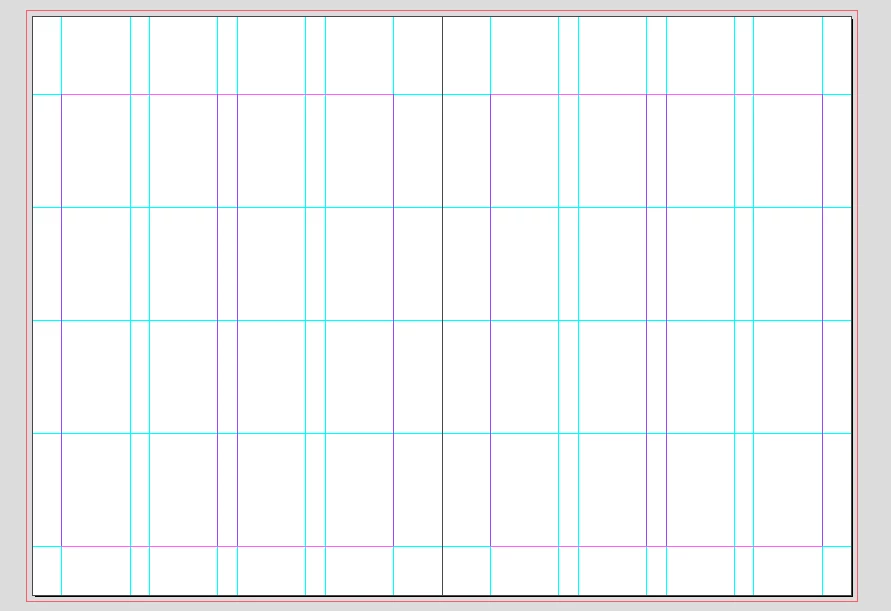
    On a final note, the Master page can also hold many kinds of guidelines, like margins (pink), column guides (purple), extra guides (blue), etc. As a matter of fact, I never start putting any stuff on any page (not even on the Master) without setting up some guides, like below.

    3 replies

    Inspiring
    August 17, 2019

    Thanks to all who answered. I guess I really need to learn a lot more about InDesign!

    Peter Villevoye
    Community Expert
    Peter VillevoyeCommunity ExpertCorrect answer
    Community Expert
    August 17, 2019

    Life can be a bit easier for you:

    you can forget the option key !

    It's just Cmd-Shift-click...

    And as a more general thought...

    Like other answers all described, the Master page wants to act as a base for any real pages, not just a template from which a autonomous copy will be created. Pages will change accordingly, whenever something changes on their Master. And by overriding some item or its settings (by using this override), the Master will very cleverly not interfere with these local changes, while still keeping (or changing) the rest of the items and their settings as defined by the Master. This is a very sophisticated approach.

    But don't go over board with preparing everything on these Master pages.

    Only if you need items always (or at least very regularly) on the same spot, with the same settings, then it's a good practice to put them on a Master page. But if it seems easier to you to simply create similar copies of items on normal pages, then go ahead. You might want to look into the Object Styles, to scale, position, and/or style them all in the same way (and if necessary with individual overrides, again, but without using keys and clicks).

    Since InDesign introduced size and position to Object Styles, my thoughts about Master pages have changed.

    On a final note, the Master page can also hold many kinds of guidelines, like margins (pink), column guides (purple), extra guides (blue), etc. As a matter of fact, I never start putting any stuff on any page (not even on the Master) without setting up some guides, like below.

    Daniel Flavin
    Inspiring
    August 17, 2019

    Your findings are as they are intended to behave. Frequent master elements are not meant to be altered; auto page numbering markers, titles, rules, sidebars being some of these.

    A master text box will determine where text flows when placing text and will become live to the page afterwards.

    Your expectation of master item behavior is how Quark Express behaves. It is a major difference and occasional hurdle. (I have not used Quark in years...I may be corrected.)

    ​It's not a bug... It's a feature.

    Inspiring
    August 17, 2019

    What's the point of creating a master page then if you can't easily edit the other pages that are formatted that way? It seems that the purpose of creating a master is to allow you to continue using the same format in every other page as easily as possible. This doesn't seem like an efficient feature at all.

    Willi Adelberger
    Community Expert
    Community Expert
    August 17, 2019

    The most important settings or elements of a master are:

    1. Border settings, where the layout is inside on the pages.
    2. Outside of the border frames have to be the text frame(s) for running header, best on its own layer above. I recommend that these/this frame align with border guide lines and make their distance with the offset which is set up in an object style. This should never be overriden on a page as it is filled with text variables related to the content.
    3. Page Number, also on its own layer, also aligned outside the border guide lines, filled with a marker text for the current page number. Apply the very same Paragraph Style for left and right pages, same with the object style as there are settings relative to the spine.
    4. If you need pages without page number or running header, don't override it on your pages, create another master based on the first one and override it there and apply this second master.
    5. If you need a background (color) do it on the master on its own layer on the bottom. Divide it always on the spine which makes it easier to apply it on pages.
    6. If you create a book it is recommendable to use primary text frames which can be connected for a specific flow. Using primary text frames will let flow the text in them and if you apply another master with different primary text frames the text reflows them. With any other text frame you will get multiple text frames stacked over. Use a specific layer for the text.
    7. If you need repeatedly frames or objects but not on every page, never put them on the master. That's what libraries are for. All kind of libraries have a functionality to place their objects precise on the spot where they have been created and remember their layer (setting in the layer panel).