Exit
  • Global community
    • Language:
      • Deutsch
      • English
      • Español
      • Français
      • Português
  • 日本語コミュニティ
  • 한국 커뮤니티
0

How to Angle Line Edges in InDesign?

Guest
Mar 10, 2023 Mar 10, 2023

Hi everyone 🙂


I don't know how to word this well but basically I am trying to have the outline of my box spread over two different colours with the line being the opposite colour to the background.

How would I make the lines angle like the background colours so they are flush?

Hope that makes sense! TIA 
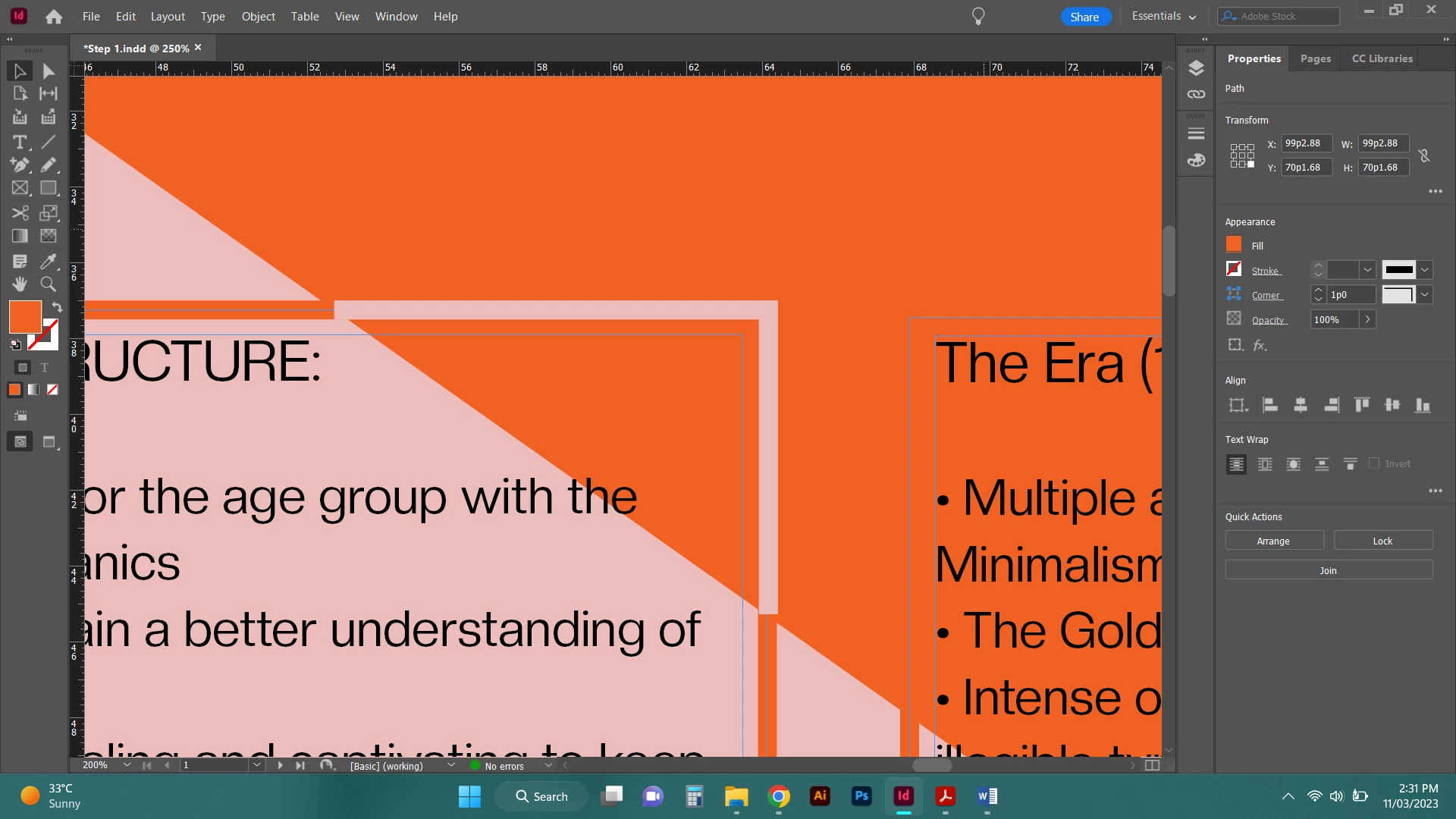
image.png


<Title renamed by moderator>

TOPICS
How to
2.0K
Translate
Report
Community guidelines
Be kind and respectful, give credit to the original source of content, and search for duplicates before posting. Learn more
community guidelines

correct answers 1 Correct answer

LEGEND , Mar 11, 2023 Mar 11, 2023

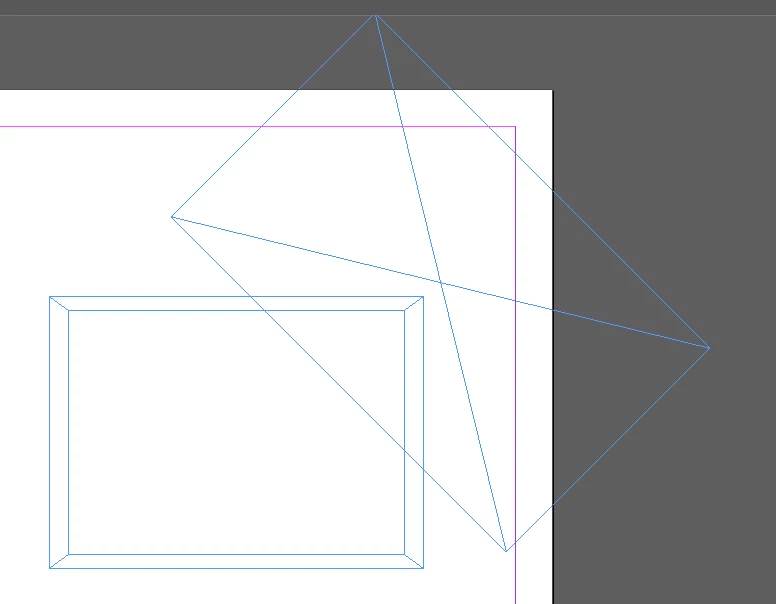
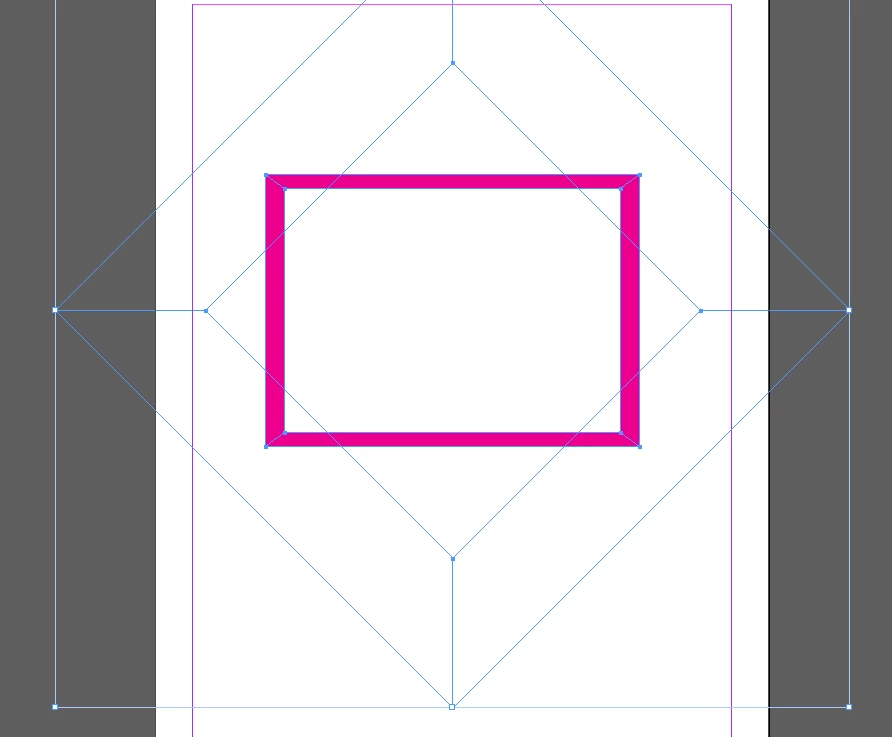
No Scissors tool - PathFinder:


Compund path + 45degree Rectangle:


RobertTkaczyk_0-1678543996904.png


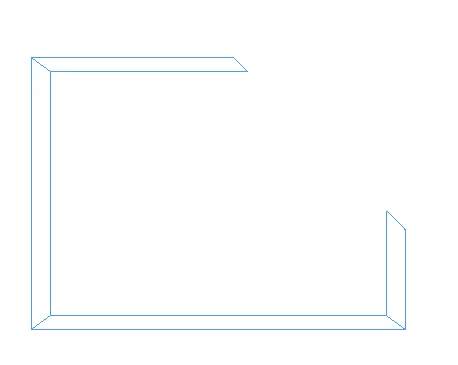
PathFinder -> Substract:

RobertTkaczyk_2-1678544056460.png

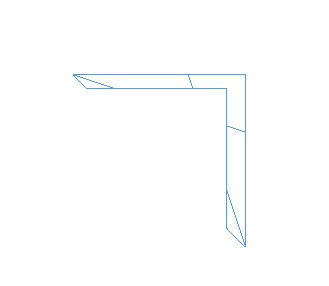
PathFinder -> Intersect:

RobertTkaczyk_3-1678544079117.png

Substract all four corners at once:


RobertTkaczyk_9-1678544446273.png


RobertTkaczyk_10-1678544457962.png

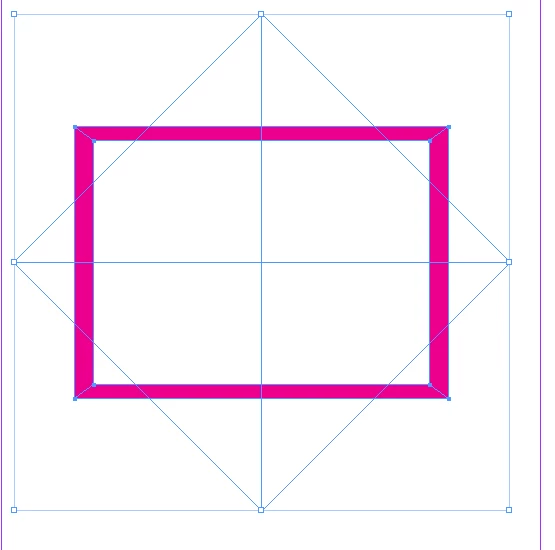
Or two compund paths and another Substract:


RobertTkaczyk_7-1678544385511.png


RobertTkaczyk_8-1678544412994.png


Translate
Community Expert ,
Mar 11, 2023 Mar 11, 2023

I was hoping to find a way to d this with Blend Mode on the stroke, but you'd have to be extremely lucky to work with two colors that would work, so the only solution I've come up with is to do this with Illustrator's Pathfinder tool, which has a Divide function absent in InDesign).

Rather than a stroked path for the outline you will need to make a filled shape (like a donut) by drawing two shapes in InDesign, one inside the other, then using InDesign's Pathfinder to remove the center. Copy that shape, along with the background shape over to Illustrator, and rearrange so the donut is behind the background, then select both and use the Divide function of the Illustrator pathfinder to cut the donut into segments which can then be copied back to InDesign and recolored independently.

Translate
Report
Community guidelines
Be kind and respectful, give credit to the original source of content, and search for duplicates before posting. Learn more
community guidelines
LEGEND ,
Mar 11, 2023 Mar 11, 2023

But you can cut things in the InDesign as well? 


Translate
Report
Community guidelines
Be kind and respectful, give credit to the original source of content, and search for duplicates before posting. Learn more
community guidelines
Community Expert ,
Mar 11, 2023 Mar 11, 2023

But not easily on a slope. Using the patfinder in Illustrator takes the guesswork and fiddliness of using InDesign's Scissor tool out of the equation.

Translate
Report
Community guidelines
Be kind and respectful, give credit to the original source of content, and search for duplicates before posting. Learn more
community guidelines
LEGEND ,
Mar 11, 2023 Mar 11, 2023

No Scissors tool - PathFinder:


Compund path + 45degree Rectangle:


RobertTkaczyk_0-1678543996904.png


PathFinder -> Substract:

RobertTkaczyk_2-1678544056460.png

PathFinder -> Intersect:

RobertTkaczyk_3-1678544079117.png

Substract all four corners at once:


RobertTkaczyk_9-1678544446273.png


RobertTkaczyk_10-1678544457962.png

Or two compund paths and another Substract:


RobertTkaczyk_7-1678544385511.png


RobertTkaczyk_8-1678544412994.png


Translate
Report
Community guidelines
Be kind and respectful, give credit to the original source of content, and search for duplicates before posting. Learn more
community guidelines
Adobe Employee ,
Mar 31, 2023 Mar 31, 2023

Hi @Deleted User,


Hope you're doing well!


We would like to know if the suggestion suggested by our expert help you in resolving the issue. Please feel free to update the discussion if you need further assistance from us.


We would be happy to help.


Thanks,

Harshika

Translate
Report
Community guidelines
Be kind and respectful, give credit to the original source of content, and search for duplicates before posting. Learn more
community guidelines
Community Expert ,
Mar 31, 2023 Mar 31, 2023
LATEST

The reason I chose to do this in Illustrator using Divide is that both parts are retained and are now separate paths that can have different fills, which seems to fit the OP's example better.

Translate
Report
Community guidelines
Be kind and respectful, give credit to the original source of content, and search for duplicates before posting. Learn more
community guidelines