Known Participant
February 14, 2023
Answered

how to center two objects vertically to the margins

  • February 14, 2023
  • 5 replies
  • 3053 views

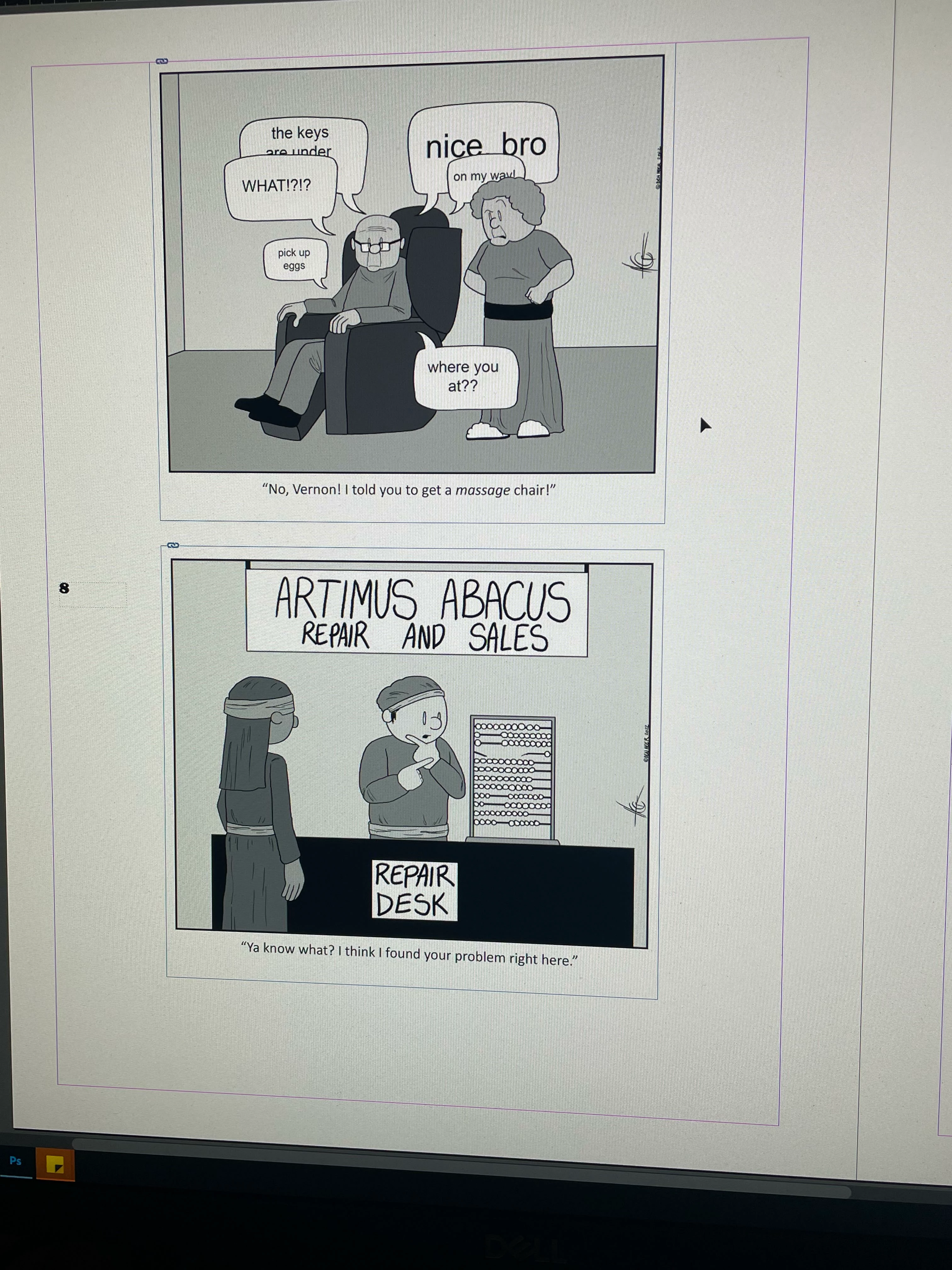
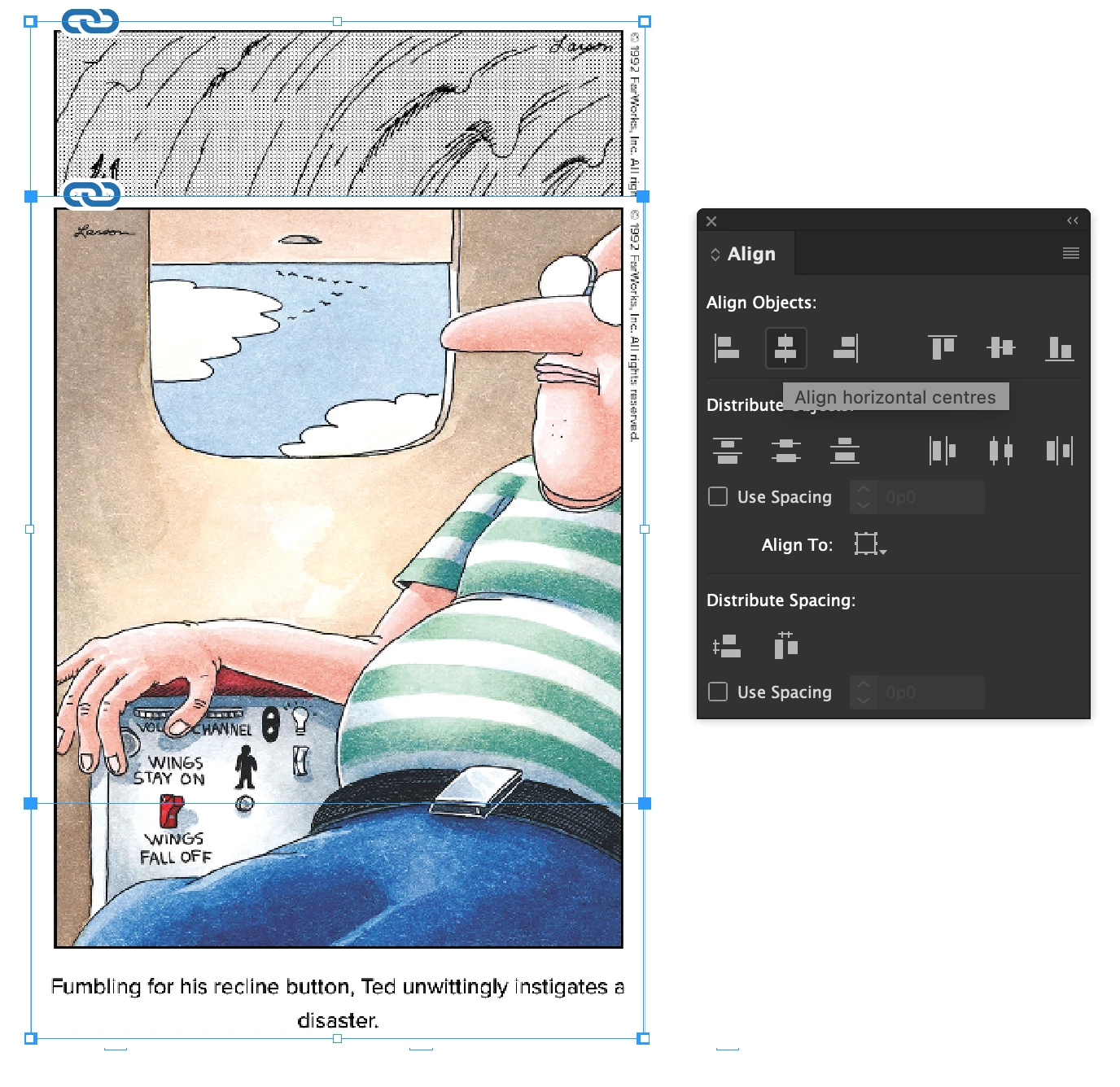
This may sound simple but for the life of me I cannot get these two images to center evenly and vertically on the page. I want them sitting in the center of the margin with .25" of space between them. thats it, thats all I want, but the top image still aligns to the top. I've been at this for a long time and feel really foolish so can anyone help me with this?


    This topic has been closed for replies.
    Correct answer Scott Falkner

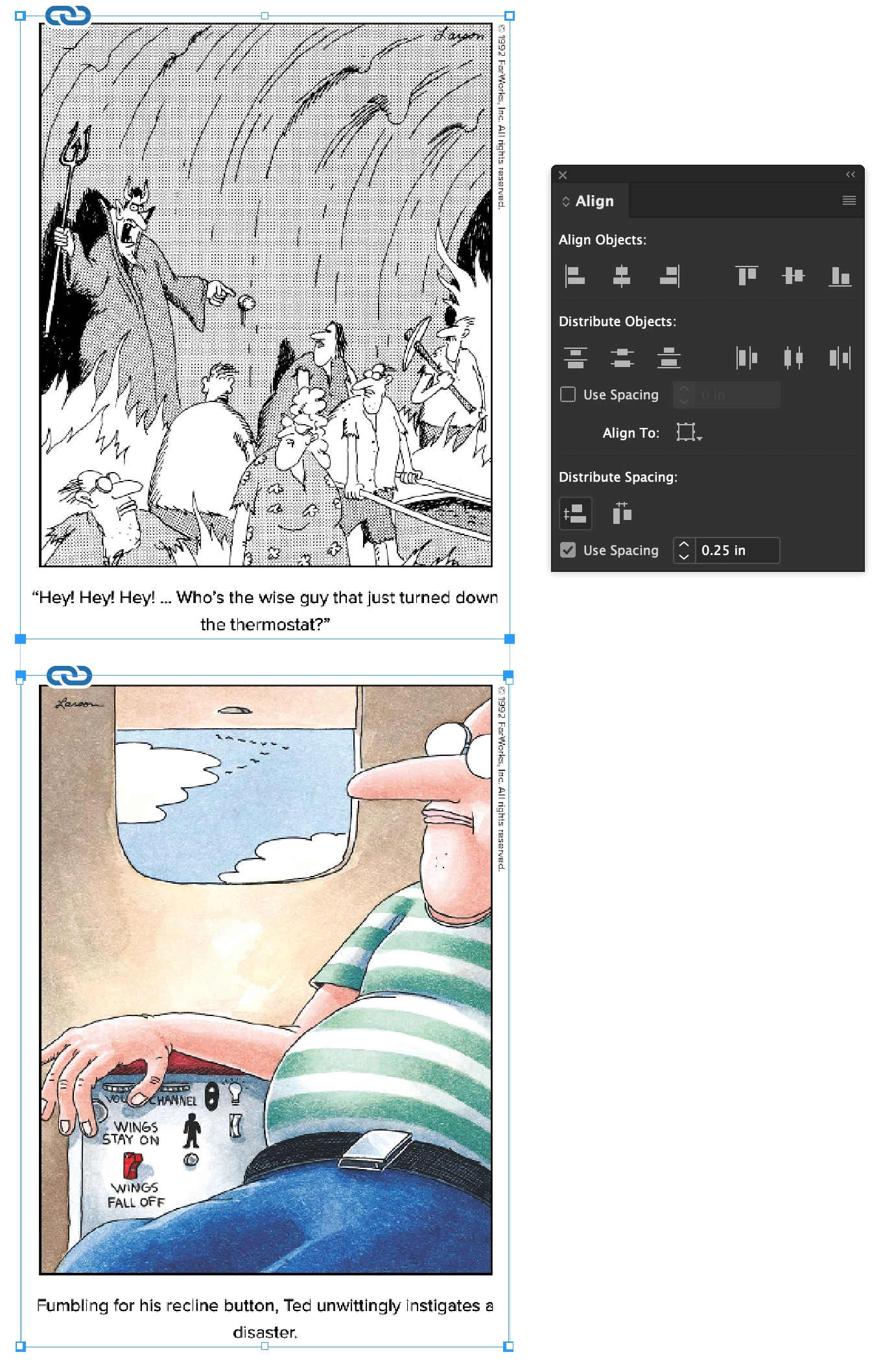
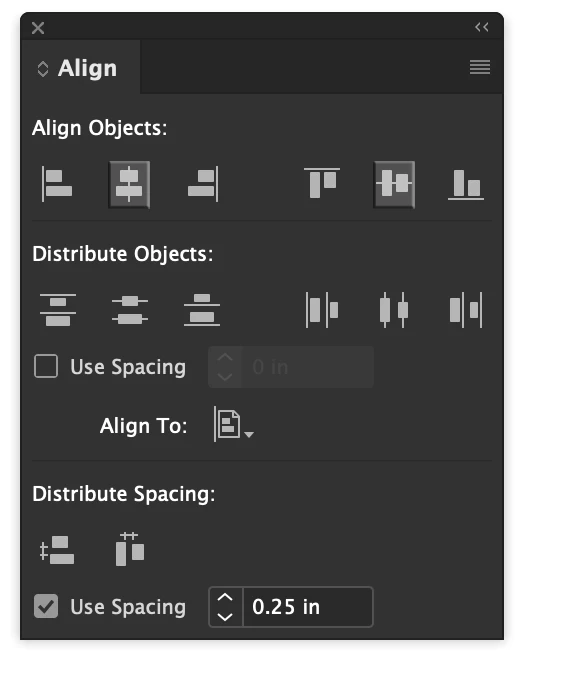
    First, select both objects then use the Align panel to alight the items by horizontal centre…

    Then, again in the Align panel, select Use Spacing near the bottom (you might have to expand the panel by double clicking on the panel title), enter the desired spacing, then click the Distribute Vertical Space button.

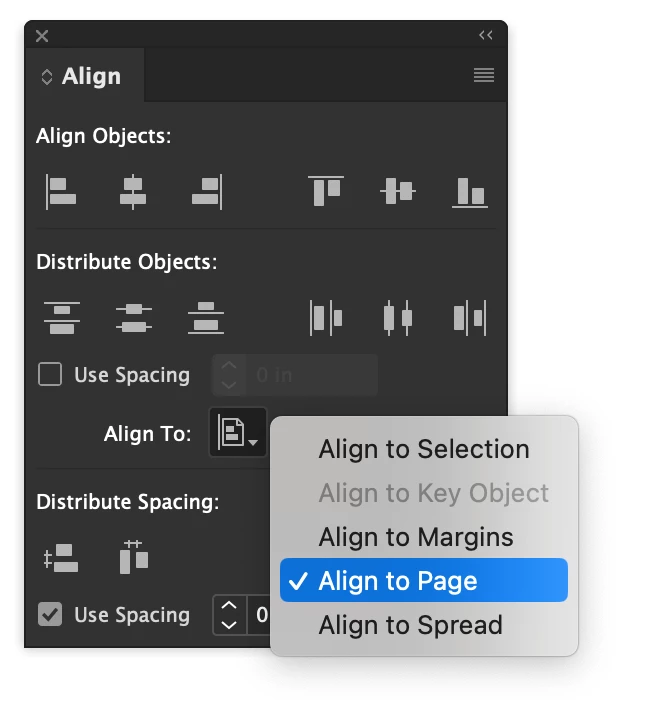
    If you want the pair of images centred on the page you will have to group them together so they act as one object then Turn on Align to Page…

    Then click on both Align Horizontal Centres and Aligne Vertical Centres.

    If you expect each image to be the same size and always in the same places you can make this a Parent Page. That way every new page in your document will have picture frames in the right position.

    5 replies

    jane-e
    Adobe Expert
    February 15, 2023

    @Benjamin98A4 


    I've merged your duplicate posts with their replies into a single thread. It's best to post once, please.


    Jane


    Adobe Expert
    February 14, 2023

    See also here:


    center two objects vertically in InDesign
    @Benjamin98A4 
    https://community.adobe.com/t5/indesign-discussions/center-two-objects-vertically-in-indesign/td-p/13577729


    Regards,
    Uwe Laubender
    ( Adobe Community Expert )

    Conrad_C
    Adobe Expert
    February 14, 2023

    You can do it precisely in just a few seconds in InDesign. Here are the steps shown in the demo below:

    1. With the objects touching, select the top object and enter -0.25 inches after its current Y position and press Enter, Return, or Tab. This moves the object up, to be exactly one quarter inch away from the other object. You can do this in the Properties panel, the Control panel, or the Transform panel.

    2. Select both objects and choose Object > Group. They are now grouped to maintain the space between them as you align them as one unit to the margins.

    3. Set the alignment to Align to Margins. You can do this in the Properties panel, the Control panel, or the Align panel. This doesn’t do anything right away, what it does is set what you want objects to align to.

    3. With the group selected, click the Align Horizontal Centers button. The group is now centered horizontally between the vertical margins.

    4. With the group selected, click the Align Vertical Centers button. The group is now centered vertically between the horizontal margins.

    At this point you can ungroup them (Object > Ungroup) if you want to.


    Known Participant
    February 14, 2023

    thank you so much, this helped!

    Known Participant
    February 14, 2023

    I am trying to center these two images in InDesign. I want .25" between them and have the pair sitting in the center of the margins, dos that make sense? I cannot get them to do this with the alignment tools. the top picture still sticks to the top. I am very confused


    Adobe Expert
    February 14, 2023

    Are those images floats or inlines?

    Known Participant
    February 14, 2023
    I am sorry, but I don't know what a float or an inline is. They are two
    separate photoshop documents I placed in this page
    kglad
    Adobe Expert
    February 14, 2023

    what app?

    Known Participant
    February 14, 2023

    indesign


    kglad
    Adobe Expert
    February 14, 2023

    in the future, to find the best place to post your message, use the list here, https://community.adobe.com/


    p.s. i don't think the adobe website, and forums in particular, are easy to navigate, so don't spend a lot of time searching that forum list. do your best and we'll move the post if it helps you get responses.


    <moved from using the community>