
Participant
May 1, 2011
Answered

How to change color of black logo, while keeping the background transparent?

  • May 1, 2011
  • 6 replies
  • 104821 views

Dear InDesign-users,

I am facing the following problem with InDesign CS2 and I hope you can help me.

I have a logo (EPS, in black with a transparent background, so the logo is isolated). Now, I want to change the black of the logo to some Pantone color.

As far as I have understand, I have to make a non-transparant PSD, TIFF, BMP or JPG file of my EPS-file to change the color in InDesign. However, I have to place the logo over some other images, so I need the transparent background.

The only solution I could image was to multiply the transparency of the image, but this also blurs the color.

What would you suggest to do, when I want to change the color while maintaining the transparent background? Thank you very much for your help and advice in advance.
Correct answer rob day

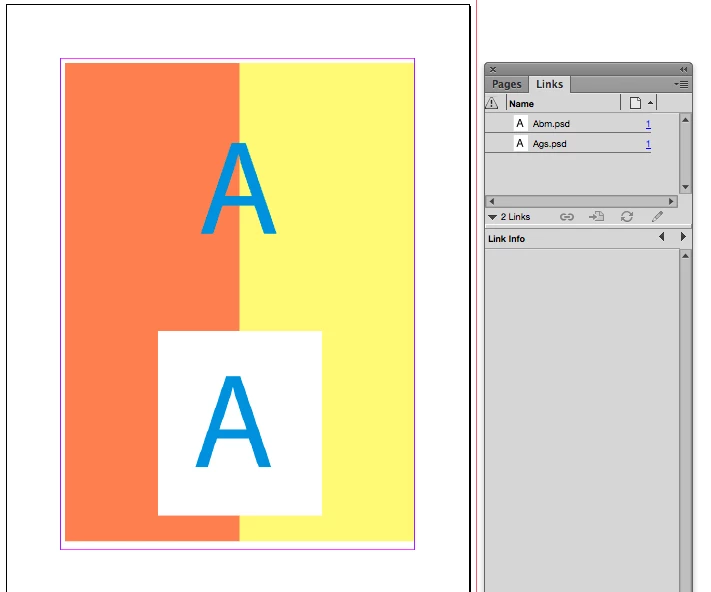
The original post is old, but if you are looking to color an image and keep the background transparent, save the file as a 1-color Bitmap.

Here the top A is a Bitmap mode .PSD, and the bottom is a Grayscale .PSD:

6 replies

Jocki
Participating Frequently
January 31, 2021

I feel none of the workaraounds / solutions are really ideal. If your goal is to have design consistency across multiple documents and applications, which is usually the case when dealing with logos, you want to work with one single source file. Applying color should not force you to make a copy of the vector at all, especially if it's a one color file. Bitmaps are certainly not the alternative, because the have issues with resolution and are not editable in the future.
Best solution would be: Give the ability to apply color to vectors saved in CC Libraries.

rob day
Community Expert
Community Expert
January 31, 2021

Bitmaps are certainly not the alternative, because the have issues with resolution and are not editable in the future


A 10,000px x 10,000px 1-bit file is only around 5mb, so you could have a master vector file for editing, and a bitmap exported with enough resolution for any scale.

Jocki
Participating Frequently
February 1, 2021

You are right, Rob. With a resolusion like that you will certainly not run into quality issues. You could also create an Icon font containing the logo.

However I feel that for a typical task like that, there should be a more straightforward solution, with no extra export steps nescessary. But that is a topic for uservoice. If you are interested in this kind of feature please consider supporting them on Uservoice:
https://indesign.uservoice.com/forums/601021-adobe-indesign-feature-requests/suggestions/38649277-apply-swatch-to-monotone-greyscale-with-transparen
or
https://indesign.uservoice.com/forums/601021-adobe-indesign-feature-requests/suggestions/32539225-variable-spot-colors-from-illustrator-definable-in

The author of the second feature suggests a workaround based on multi-layered PDFs with one layer for each color variant. I like that idea, it gives even more flexibility (e.g. multiple colors).

Participating Frequently
September 26, 2017

Hi, with regards to changing the color of vector art in InDesign - I don't think I saw anyone suggest this, but its very handy, expecially if you've transformed the properties of the placed art aside from its native properties (such as scale, rotation, etc...)

  • Select the vector art in InDesign
  • Open up Illustrator
  • Paste the art from the clipboard
  • Using direct selection tool in Illustrator (white arrow) select the encompassing path and delete
  • Select all the remaining vectors
  • Switch back to InDesign and paste - usually InDesign will paste it directly over the original.
  • Lock the new pasted art and delete the old one or hide it in a sub-layer
  • Unlock the new pasted art and use the direct selection tool in InDesign to select the vectors, you can now change the colors of the object paths from the swatch palate

Has always worked great for me!

Inspiring
August 16, 2016

Waaay late here. I was looking for something similar to this. I have a imported vector object. I didn't want to create multiple objects of the same thing just to change the colour. So I found a work around:

  1. Select the object
  2. Right Click  / Effects / Inner Glow
  3. Select the Colour and then for MODE make NORMAL (or maybe you want some effect?)
  4. And make the size of the glow whatever is required to cover the whole object.

It works!

SaraBequette
Inspiring
February 15, 2017

Thank you bingandham! That worked wonderfully for what I was trying to do today. Not sure if this would work in every situation, but for today --- NAILED IT! Thank you, thank you!

rob day
Community Expert
rob dayCommunity ExpertCorrect answer
Community Expert
February 16, 2017

The original post is old, but if you are looking to color an image and keep the background transparent, save the file as a 1-color Bitmap.

Here the top A is a Bitmap mode .PSD, and the bottom is a Grayscale .PSD:

Community Expert
July 8, 2014

I realise I'm a bit late to the table with my response, but thought I might share my thoughts anyway.

If it's just a simple vector file with one colour (black, white or something else), open the vector in Illustrator and copy it, then paste it directly into your document in InDesign. Once in InDesign, you'll have the freedom to change the colour to whatever you want using the swatches.

Participant
November 20, 2020

Bless you! 🙂

Peter Spier
Community Expert
Community Expert
May 1, 2011

There are a couple of things wrong here. First, you cannot colorize .eps files, nor vector files of any sort. Second, if this is a Photoshop .eps, it uses a clipping path, not transparency, to remove the background.

None of that really matters much, though, since the bottom line is you can't colorize .eps.

If this is really a vector logo, do what Bob said, if it's raster, you have a couple of choices: add a spot channel and move the black pixels into it and save as .psd or .tif with a transparent background or (ugh) DCS2 .eps with a clipping path which will probably look pretty crappy.

BobLevine
Community Expert
Community Expert
May 1, 2011

I suggest you change the color in Illustrator and place it as an AI file.

Bob