November 11, 2010
Answered

How to control weight of outline around letterforms

  • November 11, 2010
  • 1 reply
  • 77176 views

I am not asking a question about creating font outlines, such as some printers may want.

In the toolbar, there are two type icons. One shows a solid cap T. That is not the one I'm asking about. One adjacent icon shows an open or outlined cap T. That IS the one I'm asking about.

No doubt there is a way (not easy to find in two books I have about InDesign CS4) to control the weight of the outline, the color of the outline, perhaps even the position of the outline around or within a given letterform. By position, I mean, does it add to the outside of the letterform thus making the letter wider by the weight of the line, does it simply hit the edge of the letterform, or sit somewhere within the letterform.

How do I control those? And thank you.
This topic has been closed for replies.
Correct answer MT.Freelance

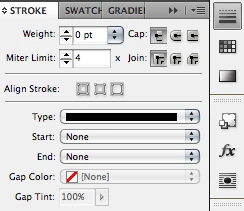
You can edit the stroke weight (the outline of the letterform) via the stroke panel (Window > Stroke) or in the Control Panel. Select the text (or object) and adjust the weight.

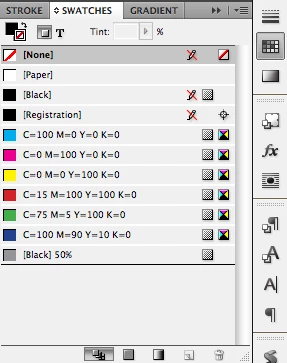
You can edit the stroke color (the outline of the letterform) via the Swatches panel (Window > Swatches).

In the screenshot below, the two icons in the upper left define the fill (solid box) and stroke (hollow box). Click on the appropriate icons (the hollow box) to edit the color of the strokes.

Click the small T icon to change from editing the text frame, to editing the text, then click the color swatch to apply to either the fill or stroke.

1 reply

MT.Freelance
MT.FreelanceCorrect answer
Inspiring
November 11, 2010

You can edit the stroke weight (the outline of the letterform) via the stroke panel (Window > Stroke) or in the Control Panel. Select the text (or object) and adjust the weight.

You can edit the stroke color (the outline of the letterform) via the Swatches panel (Window > Swatches).

In the screenshot below, the two icons in the upper left define the fill (solid box) and stroke (hollow box). Click on the appropriate icons (the hollow box) to edit the color of the strokes.

Click the small T icon to change from editing the text frame, to editing the text, then click the color swatch to apply to either the fill or stroke.

November 11, 2010

Perfect. Thank you. On the money. And a thank-you tip from me. For pure pleasure, wit, humor, and information too, TALK SHOW, the new book by Dick Cavett. (Hope I'm allowed to say that here.)