
Participant
October 15, 2024
Question

How to Enable Left Indent for Arabic Numbering in InDesign ME

  • October 15, 2024
  • 1 reply
  • 376 views

Hey all,


Ive installed the ME indesign version and I'm looking to adjust the numbering system so that the lines start at the same point (if that makes sense). I know how to do it on my regular indesign (as seen below)
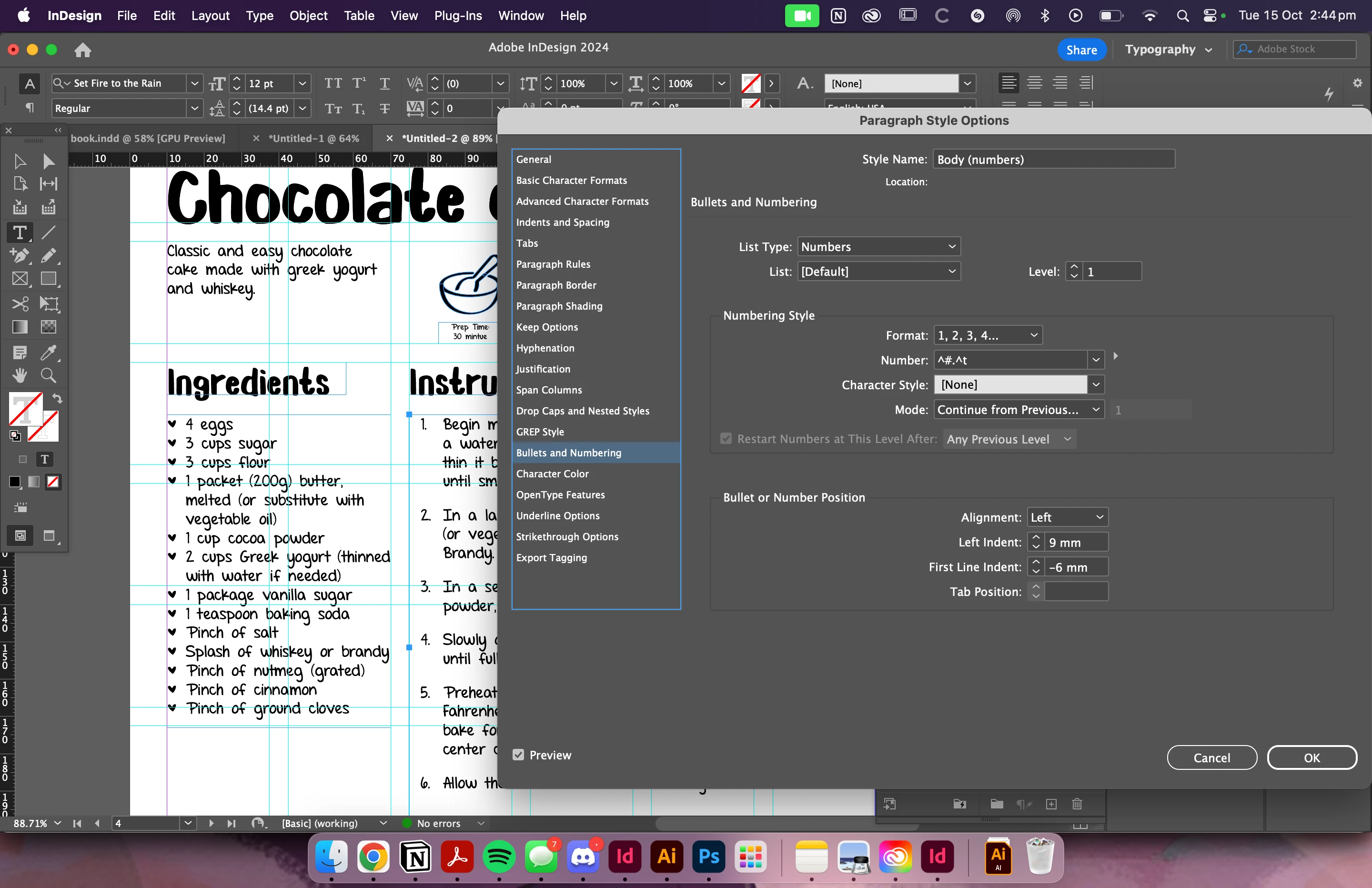
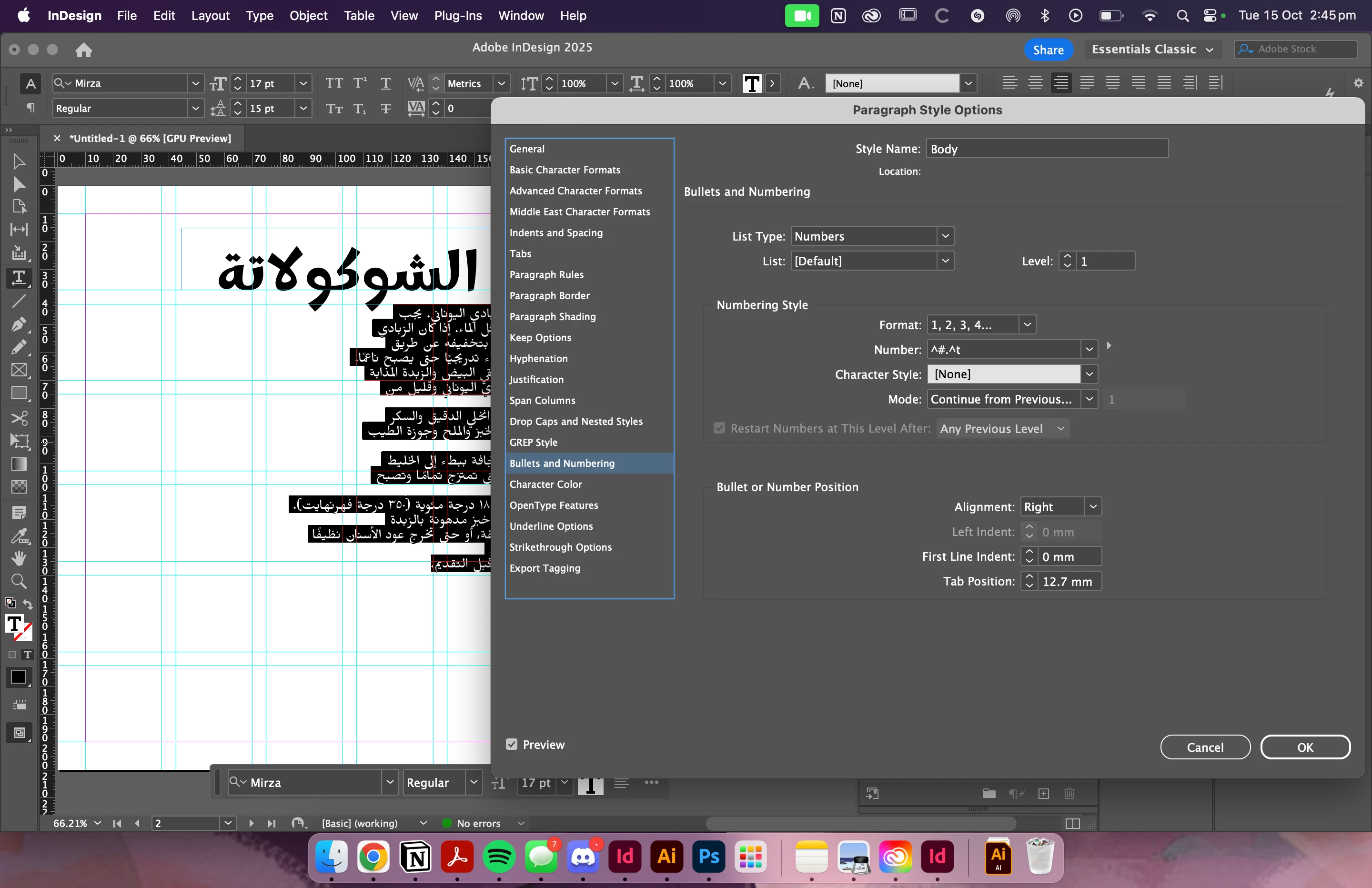
but when i try to do it on the ME indesign. the left indent option is greyed out. PLEASE HELPPPP 


<Title renamed by MOD>

This topic has been closed for replies.

1 reply

Vivek12
Community Manager
Community Manager
October 15, 2024

Hi, Sorry for the trouble. Please confirm whether the issue is specific to a file or if it is occurring with all the files. Also, confirm your OS version, so that we can better assist you.


^VS

Participant
October 16, 2024

Hi !!

So im having this problem only with the ME version of indesign and not the traditional indesign I've been accustomed to using. Im unsure what you mean by OS version, I'm assuming you mean of the application,  I've attached a photo of the ME Indesign version below


and the traditional indesign application i use is attached below. 


I'm also using the MacOS sonoma!


Thanks in advance!!

Abhishek Rao
Community Manager
Community Manager
October 16, 2024

Hi @Mirella26387635nqqu,


Thank you for the detailed information!


The reason the Left Indent option is greyed out in the ME (Middle Eastern) version of InDesign is likely due to the 'RTL (Right-to-Left)' text settings. In the ME version, when you use Arabic or Hebrew numbering, the system aligns the text to the right by default, which disables the left indent option because the primary text flow is from right to left.

To resolve this issue and customize your numbering alignment:


1. Ensure that your paragraph direction is set to 'Left-to-Right' for Arabic numbering. You can do this by selecting the text, going to the 'Paragraph panel', and choosing 'Left-to-Right Paragraph Direction'.

2. For RTL documents, use the 'First Line Left Indent' option instead of the regular left indent. This can be found under the 'Bullets and Numbering' options, and it should allow you to adjust the spacing to your needs.

3. You can also adjust the alignment and indentation by going to 'Bullets and Numbering > Numbering Style' and modifying the indent values accordingly.


Let me know if this helps, or feel free to share more details if you're still experiencing difficulties!


Best,
Abhishek Rao