
Chris  P.  Bacon
Inspiring
August 17, 2022
Answered

How to get a box to displace the text under automatically & how to snap offsets to grid?
  • August 17, 2022
  • 6 replies
  • 1666 views

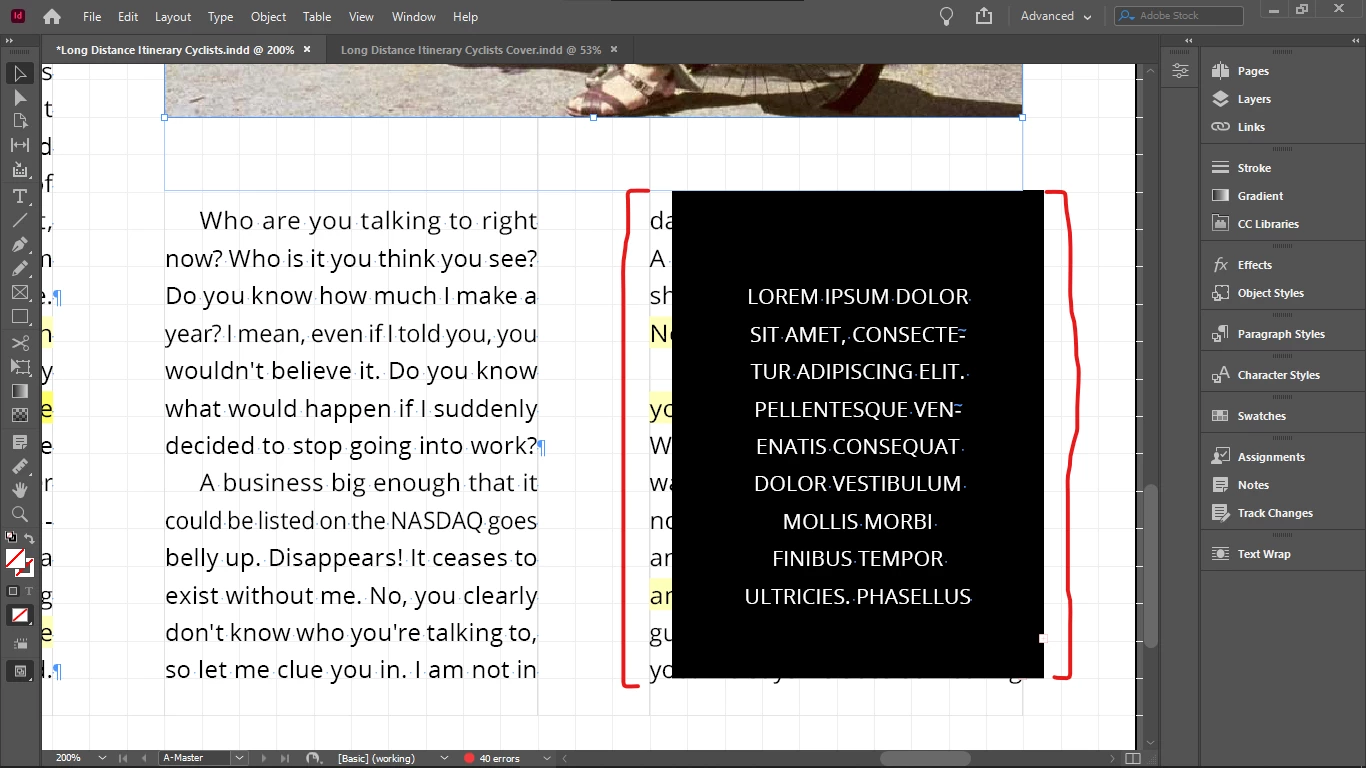
As visible on the screenshot, my image has a bottom offset, but the black box doesn't have any offset.

However I still expected the black box to displace the text column under it, if I place it on the top, especially because it has the same dimensions as the text column, but it doesn't.

Am I supposed to just delete that text every time, or is there a setting that would enable the box to displace or delete the column under it automatically, if they have the same dimensions (so it's obvious to the app that the text won't be visible under it anyway).

And, is there any way to snap offsets to document grid (like the bottom offset of my image), especially if "Snap To Document Grid" is enabled  in the Grids & Guides menu?

I can't grab the offset to adjust it, then it would perhaps snap. I only can adjust the distance in the text wrap settings. How do i grab the offset to drag it to see if it snaps to the baseline grid?

Thanks in advance.


This topic has been closed for replies.
Correct answer James Gifford—NitroPress

What you likely want to use here (on a pro level) is "jump object," which essentially gives the object infinite side margins and prevents any text from appearing there regardless of any other text, spacing or other changes you might make. Wrap around with no spacing might be jusssssst enough to keep text from creeping in alongside, and that could change.


If you experiment, you will also find that side wrap distances will push into adjacent columns, while Jump Object does not. All useful variations for fine tuning such layout.


6 replies

rob day
Community Expert
Community Expert
August 18, 2022

Hi @Chris P. Bacon 

Look at Paragraph Shading. You should be able to do this without creating an extra text frame:


Chris  P.  Bacon
Inspiring
August 18, 2022

Just what I needed, thanks.

Peter Spier
Community Expert
Community Expert
August 17, 2022

Chris, have you considered taking some introductory classses in using InDesign? The questions you've been asking would probably be covered.

Indesign, like any professional page layout application is very complex and far from intuitive. It's not like typing in a word processor. We're happy to answer your questions, but I really think you will get more out of some real training.

Chris  P.  Bacon
Inspiring
August 17, 2022

Thanks, but the forums suits me better. 

I know about the courses of course. I would say forums are way better because they give you the information what you need when you need it. In the "school" models of education they will start to teach you things that you don't really need at that moment exactly, so it will not stick so well, and many of those things they teach you you might never intend to use either - typical school model. But thanks for the recommendation. 

Chris  P.  Bacon
Inspiring
August 17, 2022

Forums are the luxury of education I guess.

Chris  P.  Bacon
Inspiring
August 17, 2022

Thanks everyone, great community here.

It seems that the second part of the question didn't get noticed.

Is there a way to grab offsets by their outer boundary, and drag them to snap them to the document grid, if snap to document gris is enabled?


Legend
August 17, 2022

I believe you are looking for Text Wrap. The wrap settings need to be applied to your black box.

Chris  P.  Bacon
Inspiring
August 17, 2022

It worked.

Derek Cross
Community Expert
Community Expert
August 17, 2022

Have you tried Window > Text Wrap ?

Chris  P.  Bacon
Inspiring
August 17, 2022

That's right.

James Gifford—NitroPress
Legend
August 17, 2022

Set the text wrap characteristics. You want either wrap around bounding box, or wrap top/bottom, aka "jump object."


With most, you can also set the wrap margin from other elements.


By default, most objects are set to "do not wrap," which is what you're seeing in your screen shot.


Chris  P.  Bacon
Inspiring
August 17, 2022

Each of the 4 options removed the text under, I have chosen the second: "Wrap Around Boundig Box" and it seems to remove the text under even if the wrap dimensions are set to zero. That's nice cause I really didn't want to see an extra offset box there because there is no actual need for an obset, I just wanted to not allow any text under the black box. Great, sorted out, thanks.

James Gifford—NitroPress
Legend
August 17, 2022

What you likely want to use here (on a pro level) is "jump object," which essentially gives the object infinite side margins and prevents any text from appearing there regardless of any other text, spacing or other changes you might make. Wrap around with no spacing might be jusssssst enough to keep text from creeping in alongside, and that could change.


If you experiment, you will also find that side wrap distances will push into adjacent columns, while Jump Object does not. All useful variations for fine tuning such layout.