
V I L  L O V
Inspiring
July 19, 2024
Answered

how to hide the green square guides in normal screen mode

  • July 19, 2024
  • 2 replies
  • 1452 views

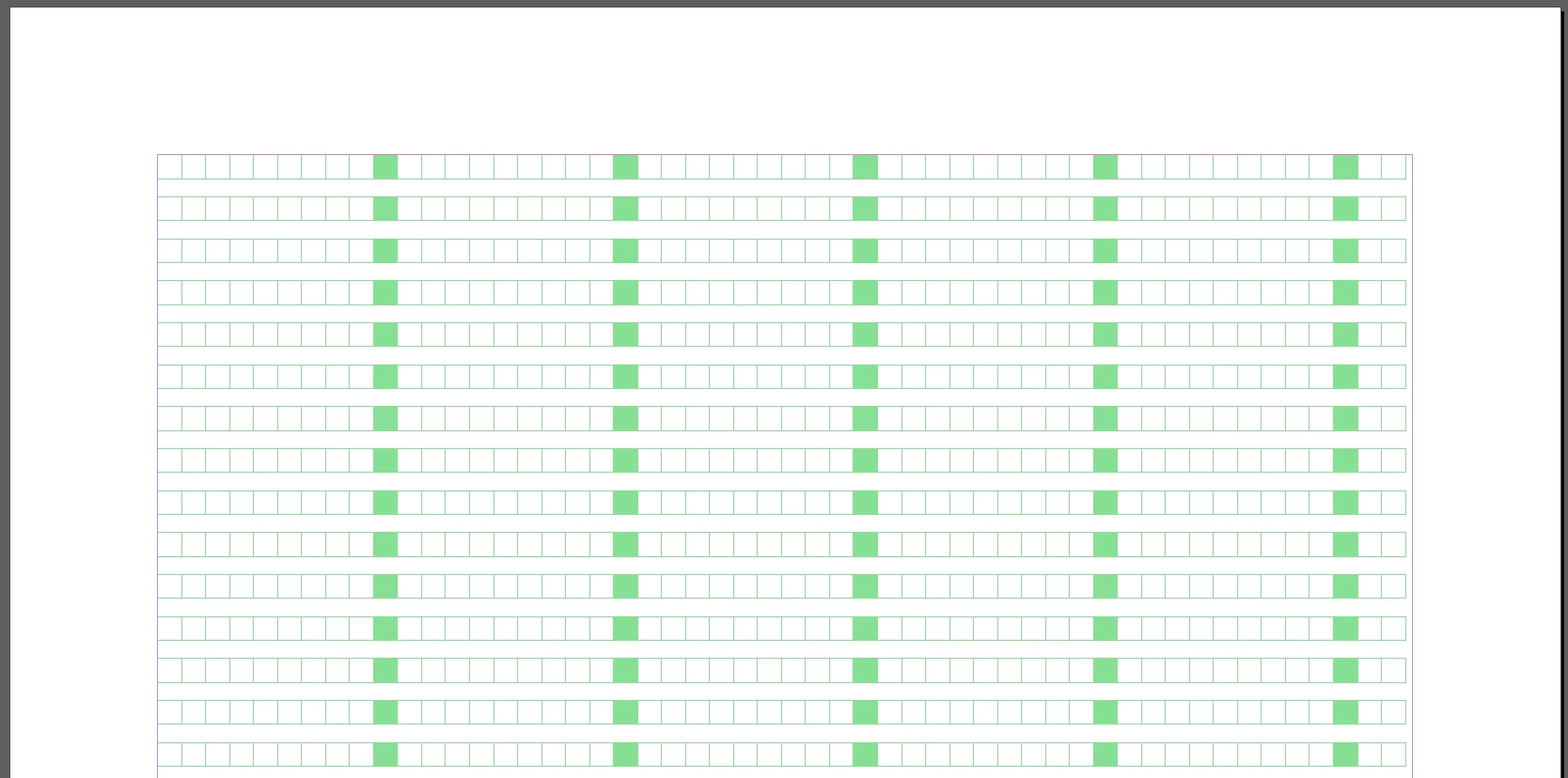
whenever i create a new document, there are these green squares on the page. they are not guides, neither are they defined somewhere else in indesign. somehow, they are visually interfering when doing graphics or layout as there are guidelines and baseline grids, which i use more. is there a way to hide theese green squares and what are they even called?


going to preview mode is not an option as it does not show margins and baseline grids.
This topic has been closed for replies.
Correct answer James Gifford—NitroPress

thank you for defining that this is called a layout grid. unfortunately, there seems to be none under the layout menu. did adobe remove this? no results in indesign help either.


If you didn't find an answer in that help page, it may be that your ID preferences are corrupted. Reset them; here's a basic page on how to do that. (It varies a little with platform and version.)


Reset InDesign Preferences and Other Troubleshooting

2 replies

James Gifford—NitroPress
Legend
July 19, 2024

This looks very much like a text grid for Asian languages, but I'm out of depth to say anything more. I'd suggest looking under View | Grids & Guides and turn off any of the options that say "Show..."


There are probably additional settings in Preferences, probably under Grids...


If you're not using the "CJK" version of InDesign, which supports Chinese, Japanese, Korean etc., I have no idea what these are. 🙂

V I L  L O V
Inspiring
July 20, 2024

i think you are right. i only had it after installing MEL version. but there's really no option under grids and guides to hide it.

James Gifford—NitroPress
Legend
July 20, 2024

Odd, this page says it's only for Japanese layout, which would be the CJK version; I don't know how much overlap there is between the non-Western versions.


https://helpx.adobe.com/indesign/using/layout-grids.html


If that doesn't lead you to a solution (note that the controls seem to be under the Layout menu), you might just need to reset your InDesign preferences to clear a faulty setting of some time.

Mike Witherell
Community Expert
Community Expert
July 19, 2024

What version?

what OS? Version of OS?

Mike Witherell
V I L  L O V
Inspiring
July 20, 2024

sonoma 14.5

indesign 19.5