benhopkins
Participant
August 16, 2017
Answered

How to import/place PSD in Indesign WITHOUT flattening layers

  • August 16, 2017
  • 2 replies
  • 4550 views

Software: Indesign and Photoshop CC, both versions 2017.1.12

OS: Mac Sierra 10.12.16

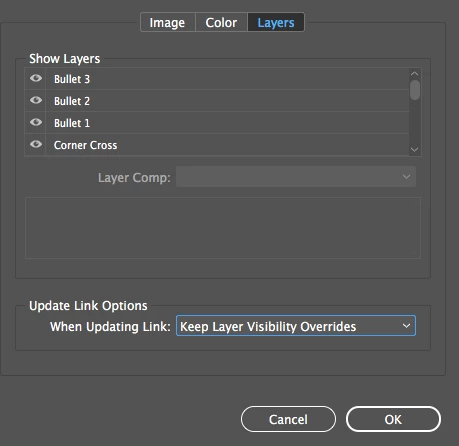
I'm trying to import a layered PSD into a new Indesign doc so I can do some type/layout experimentation it keeps flattening the PSD! I'm sure I"m missing something here, but I'm attaching a screen shot of the import options window in hopes somebody will see what I'm doing or not doing. It shows all the layers, and I've kept them all on, but once placed the file is flattened. I can't select the layers; I can just turn them on or off.

I've tried with both of the "When Updating Link" options and keep getting the same results.

Please help!
    This topic has been closed for replies.
    Correct answer Jeff Witchel, ACI

    The Layered Photoshop file is not flattened by InDesign. Those Layers still exist and as Rob mentioned you can turn those Layers on or off from within your layout (This doesn't change the Photoshop file at all, just what is seen in your layout.)

    To control the Layer Visibility of any PSD in your layout, select the the Graphic Frame, go to your Object menu and choose Object Layer Options. Click the Eye to turn off or on Layers and click OK.

    2 replies

    Jeff Witchel, ACI
    Community Expert
    Jeff Witchel, ACICommunity ExpertCorrect answer
    Community Expert
    August 16, 2017

    The Layered Photoshop file is not flattened by InDesign. Those Layers still exist and as Rob mentioned you can turn those Layers on or off from within your layout (This doesn't change the Photoshop file at all, just what is seen in your layout.)

    To control the Layer Visibility of any PSD in your layout, select the the Graphic Frame, go to your Object menu and choose Object Layer Options. Click the Eye to turn off or on Layers and click OK.

    rob day
    Community Expert
    Community Expert
    August 16, 2017

    When you place a PSD or other image format the image preview is a JPEG proxy—you can't edit the original image pixels with ID. All you can do with the Object layer Options feature is change the visibility of the PSD layers. You can edit the original layered PSD via Links panel>Edit Original, or you can Option Click with a Selection tool to open.

    benhopkins
    Participant
    August 16, 2017

    Thanks, Rob and Jeff!

    So can I create multiple iterations of the PSD in different pages of my InDesign file so I can see what different fonts would look like? It seems easier than creating a different PSD for every font I want to experiment with.

    I want to get to the point where I can look at several options, and edit each one differently.

    Jeff Witchel, ACI
    Community Expert
    Community Expert
    August 16, 2017

    Yes, but a quick question.

    Why are you adding your text in Photoshop instead of in InDesign?