Participating Frequently
July 4, 2024
Answered

How to import pngs into frames without resizing the original image?

  • July 4, 2024
  • 3 replies
  • 1161 views

Hi there!  I am using InDesign to write a book of music. 

I have my parent pages set up with only two objects:

1.  An 8.5x11 frame for the background object, created outside of InDesign, which includes a graphical header and some other simple elements.  This goes on the bottom layer.

2.  A 7.5x8.35 in frame to import a png of the music I'm writing in Finale.


The frame for the background is working great with no issues.  It's the second frame that's at issue.


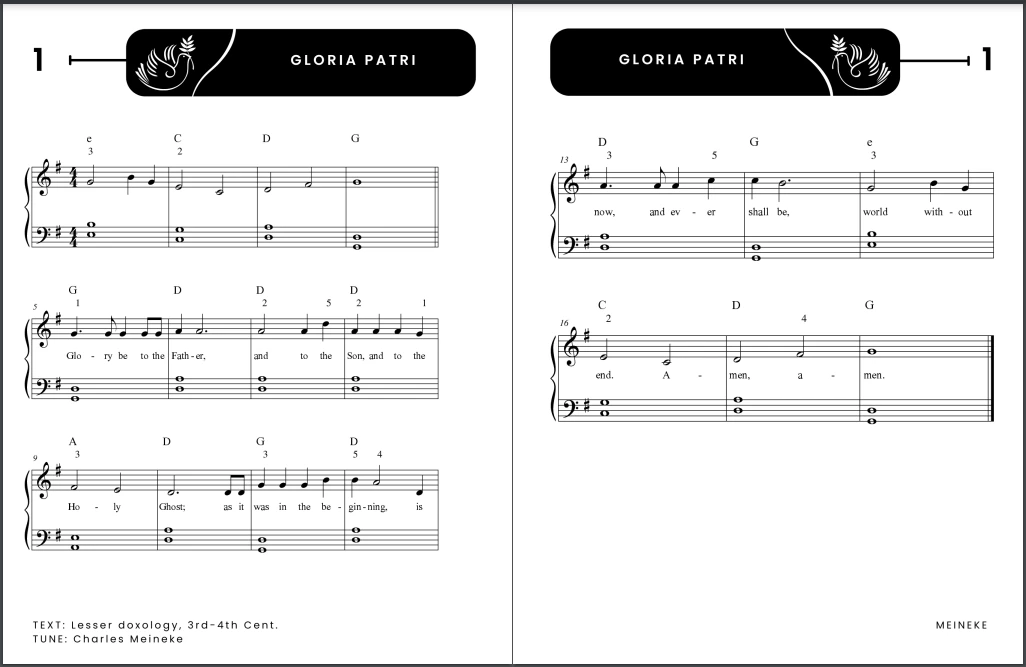
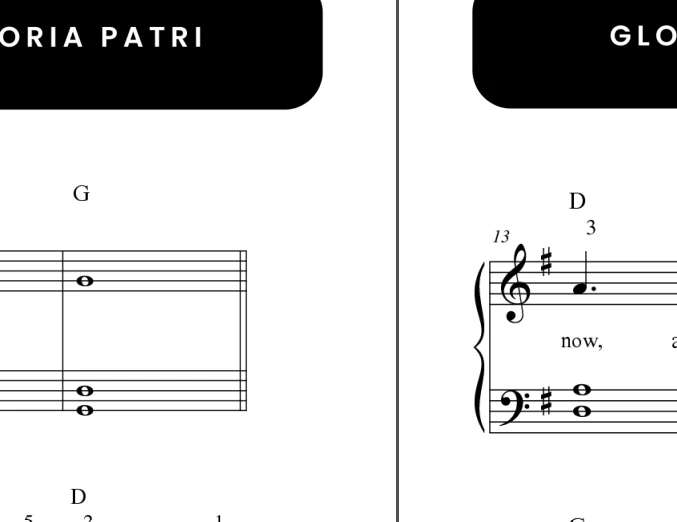
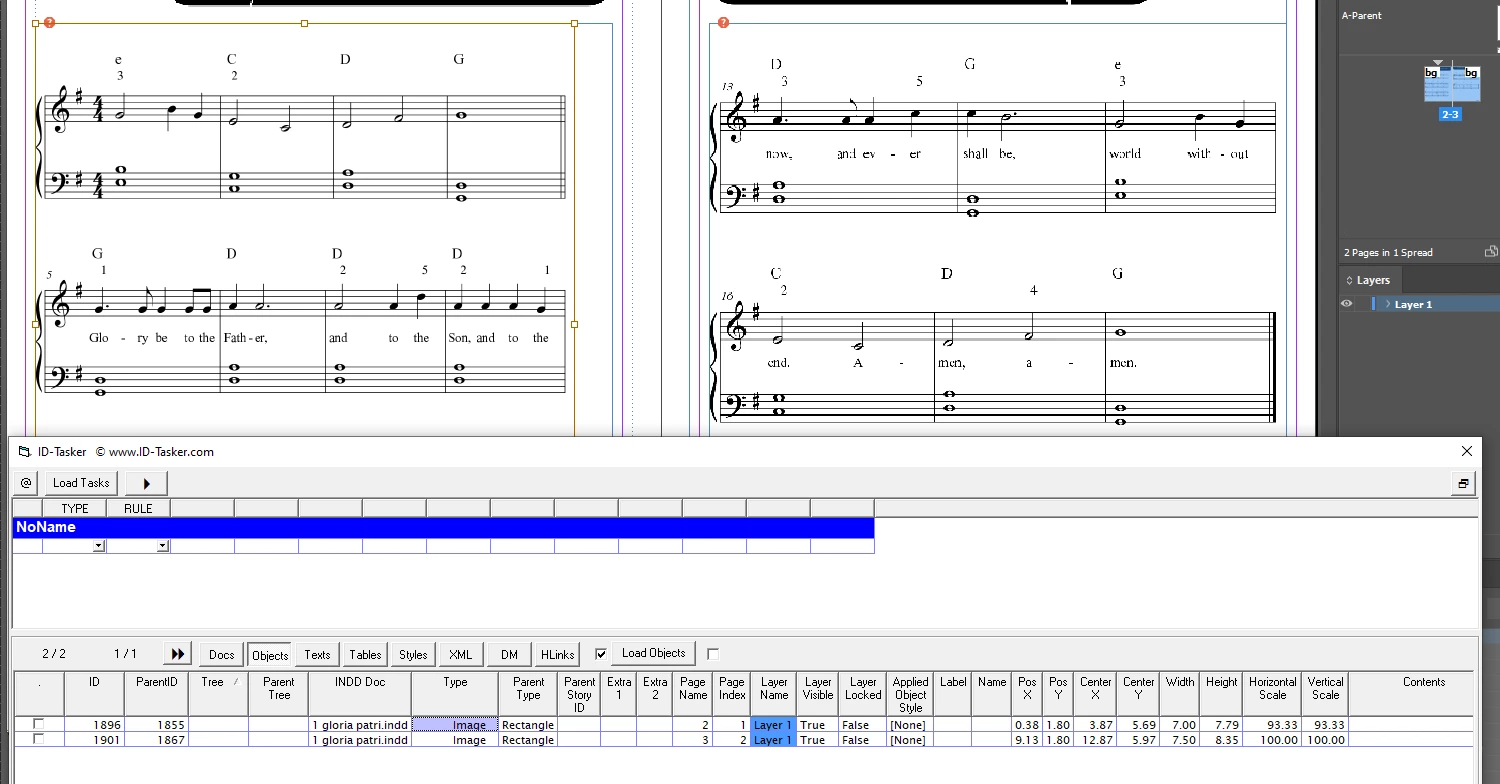
I am exporting the music from Finale by printing it using PDFCreator as a png with the size being defined on PDFCreator 7.5x8.33 inches.  After I "print" it that way, I import it into InDesign.  It seems to me like this should result in a perfect fit, but unfortunately, the second page of music in this example is larger than the first:

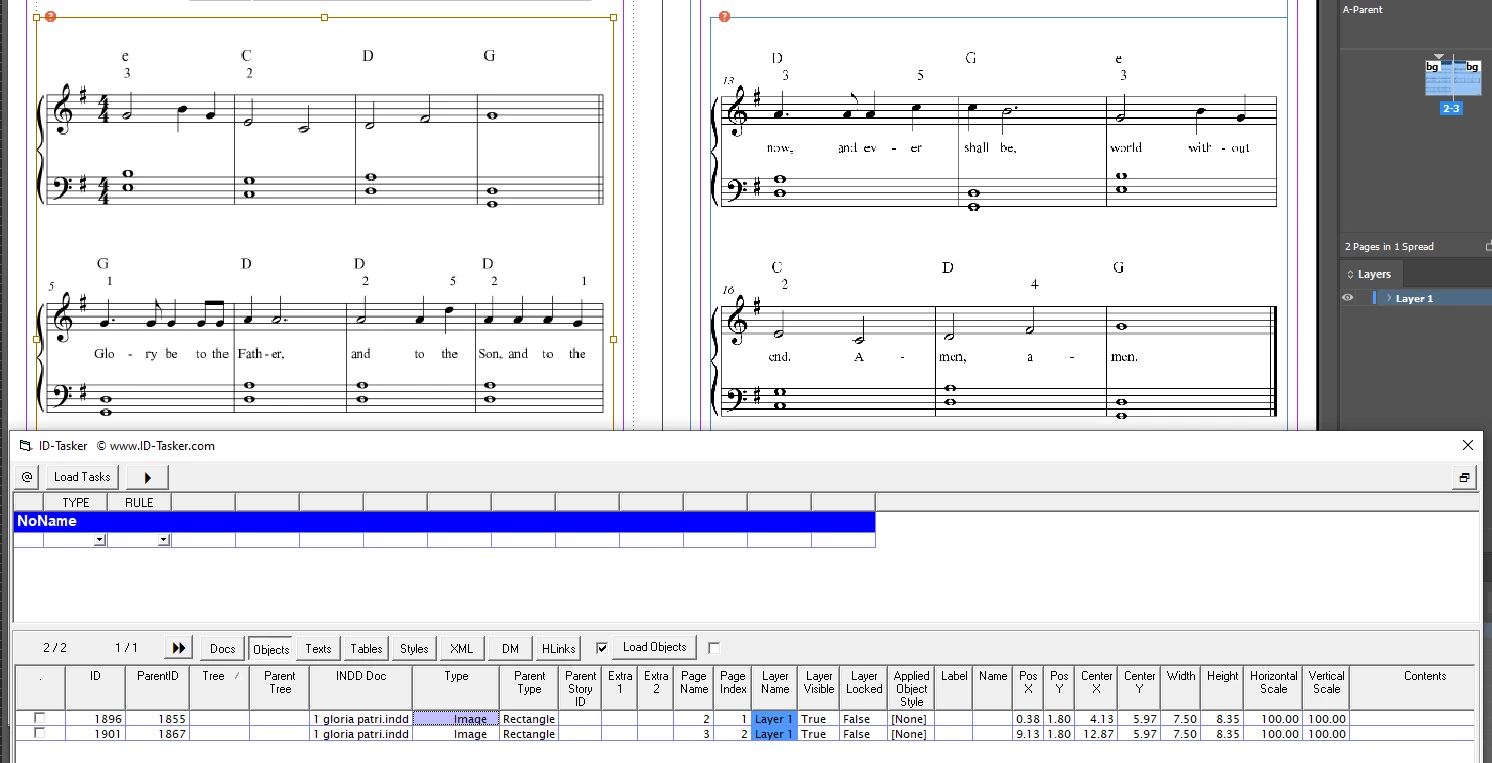
Full two-page spread, exported as pdf
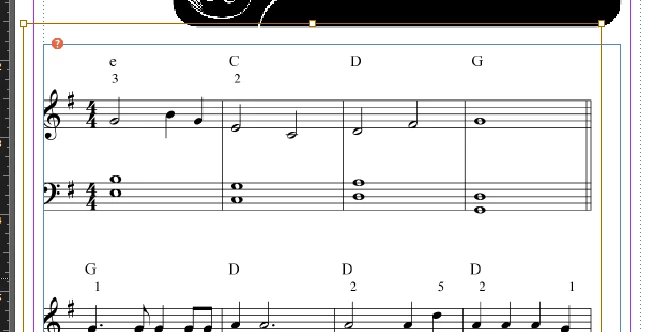
Detail from this spread, showing the size difference:
 

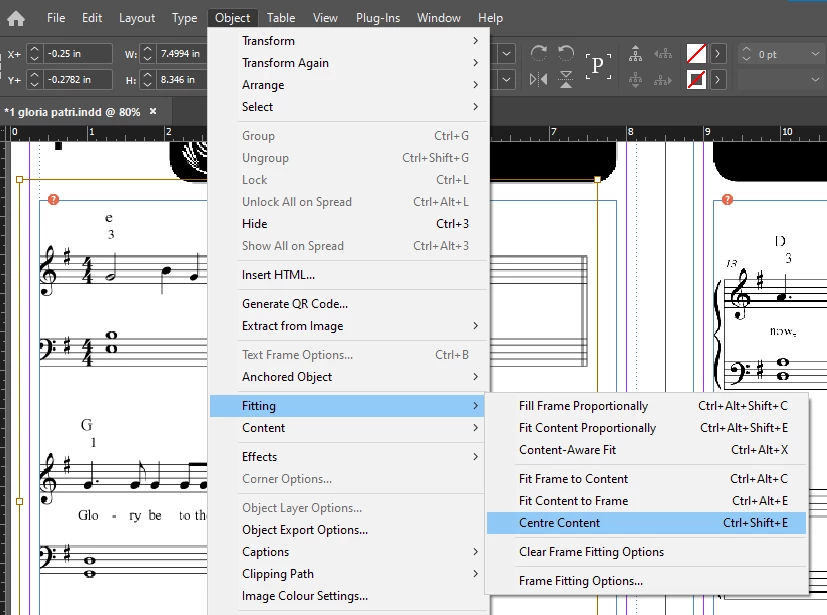
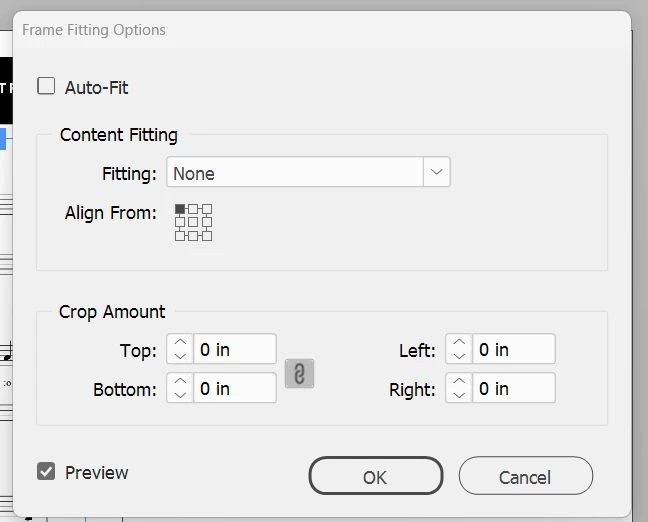
Here's a screenshot of my frame fitting options:
 

I'm new at this and probably missing something obvious.  Any help would be appreciated.  Thanks!


Melissa
This topic has been closed for replies.
Correct answer Robert at ID-Tasker

@Melissa359683205ypc 


Somehow, you've changed the sizof the imported image:

(the brown frame on the lext represents image place inside the Rectangle)


- if you reset it - then both are exactly the same:

(here it is exactly the same size as the Rectangle)


In order to reset your image:

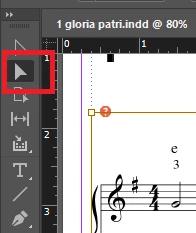
1) use DIRECT SELECTION tool:

2) click on the rectangle - you should see this brown frame - instead of blue one,

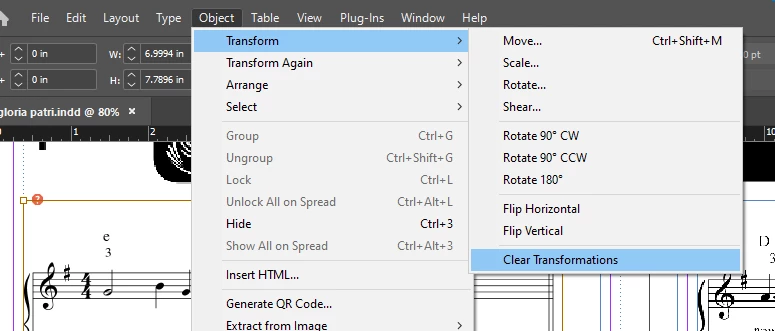
3) clear Transformmation:

4) your image will probably slightly move:

5) still using Direct Selection tool - move it, align its top-left corner with top-left corner of the Rectangle:


Or you can just center it:


3 replies

Robert at ID-Tasker
Robert at ID-TaskerCorrect answer
Legend
July 4, 2024

@Melissa359683205ypc 


Somehow, you've changed the sizof the imported image:

(the brown frame on the lext represents image place inside the Rectangle)


- if you reset it - then both are exactly the same:

(here it is exactly the same size as the Rectangle)


In order to reset your image:

1) use DIRECT SELECTION tool:

2) click on the rectangle - you should see this brown frame - instead of blue one,

3) clear Transformmation:

4) your image will probably slightly move:

5) still using Direct Selection tool - move it, align its top-left corner with top-left corner of the Rectangle:


Or you can just center it:


Participating Frequently
July 4, 2024

WOW!  I would have never figured that out on my own.  Thank you so much!!!  That did the trick.  😄

Robert at ID-Tasker
Legend
July 4, 2024
quote

WOW!  I would have never figured that out on my own.  Thank you so much!!!  That did the trick.  😄


By @Melissa359683205ypc


You are welcome. 


James Gifford—NitroPress
Legend
July 4, 2024

I'd agree with RT to export to PDF, which InDesign imports and handles very well. I'd also wonder if the exports are actually coming out at the same size; it looks as if they are either different file/pixel/dimension sizes, or the app you're exporting from is choosing a different "bounding box" around the content so it expands in the ID frame and looks larger.


PDF, exported to a consistent page size, will probably solve the problems, and give you a vector-based file that will scale and print more cleanly as well. Be sure Finale is set to export a "page" of defined size, and not selected content which is then scaled to the export format.

Participating Frequently
July 4, 2024

Yeah, the last line, that's exactly the issue.  When I export directly from Finale, it takes my 7.5x8.35" music and slaps it on a 8.5x11" canvas.  That's why I use PDFCreator.  However, I can certainly export a PDF from PDFCreator just as easily as a png.  I'll try that and see if it looks different.  Thank you for the tip!

Robert at ID-Tasker
Legend
July 4, 2024
quote

Yeah, the last line, that's exactly the issue.  When I export directly from Finale, it takes my 7.5x8.35" music and slaps it on a 8.5x11" canvas.  That's why I use PDFCreator.  However, I can certainly export a PDF from PDFCreator just as easily as a png.  I'll try that and see if it looks different.  Thank you for the tip!


By @Melissa359683205ypc


But you can export PDF directly from Finale? 


Robert at ID-Tasker
Legend
July 4, 2024

Can you create PDF instead of PNG? 


Looks like it's possible:

https://usermanuals.finalemusic.com/FinaleWin/Content/Finale/PDFs.htm#To_create_a_PDF_document 


It will at least should make it look better.


Participating Frequently
July 4, 2024

I downloaded the PDFCreator software because the pdfs were always 8.5x11.  I could change the size of the page, but in the end, the pdfs were going to be 8.5x11 (or another standard size actually, there's a few to choose from, but not the weird 7.5x8.35" size that I need.


However, PDFCreator can export pdfs also with custom sizes.  I only used pngs because I thought I'd get better quality.  I'll try a pdf now!

Participating Frequently
July 4, 2024

The only "problem" is that it's cropped on the left - instead of being centered - but it's not a big deal anyway. 


You just need to move your Rectangle - to compensate for the lack of left margin in the PDF, make sure it is placed 100% - not scaled up or down - and fully visible.


Do not worry that the Rectangle will crop it on the right & bottom - as long as contents is fully visible. 


I tried what you suggest and it works absolutely fine.  You're right -- I can just export pdfs from Finale the regular way and then put them into InDesign at 100% with no fitting options.  Align from the upper-left side, no cropping, and that should work; right?  The frame will do the cropping for me.  Thanks!  I was adding unnecessary steps!