Participating Frequently
January 29, 2023
Answered

How to insert a group within a table cell using script?

  • January 29, 2023
  • 4 replies
  • 1840 views

I am trying to insert a group of placed images and text into a table cell. Before trying programmatically, what I do is

  1.  Click on the cell as like trying to insert text. 
  2.  Paste the image and text group into the text

I tried couple of methods, for example, using insert points. But they seems not working. Anyone has ideas to insert groups into table cells using scripts?


I can provide more information. 

This topic has been closed for replies.
Correct answer m1b

Hi @SHY.John, given that you (or someone else reading this) may need to include text frame(s) here is an implementation of @Peter Kahrel's code. For help I've included the various values at the bottom of script so you can adjust the "props" object.


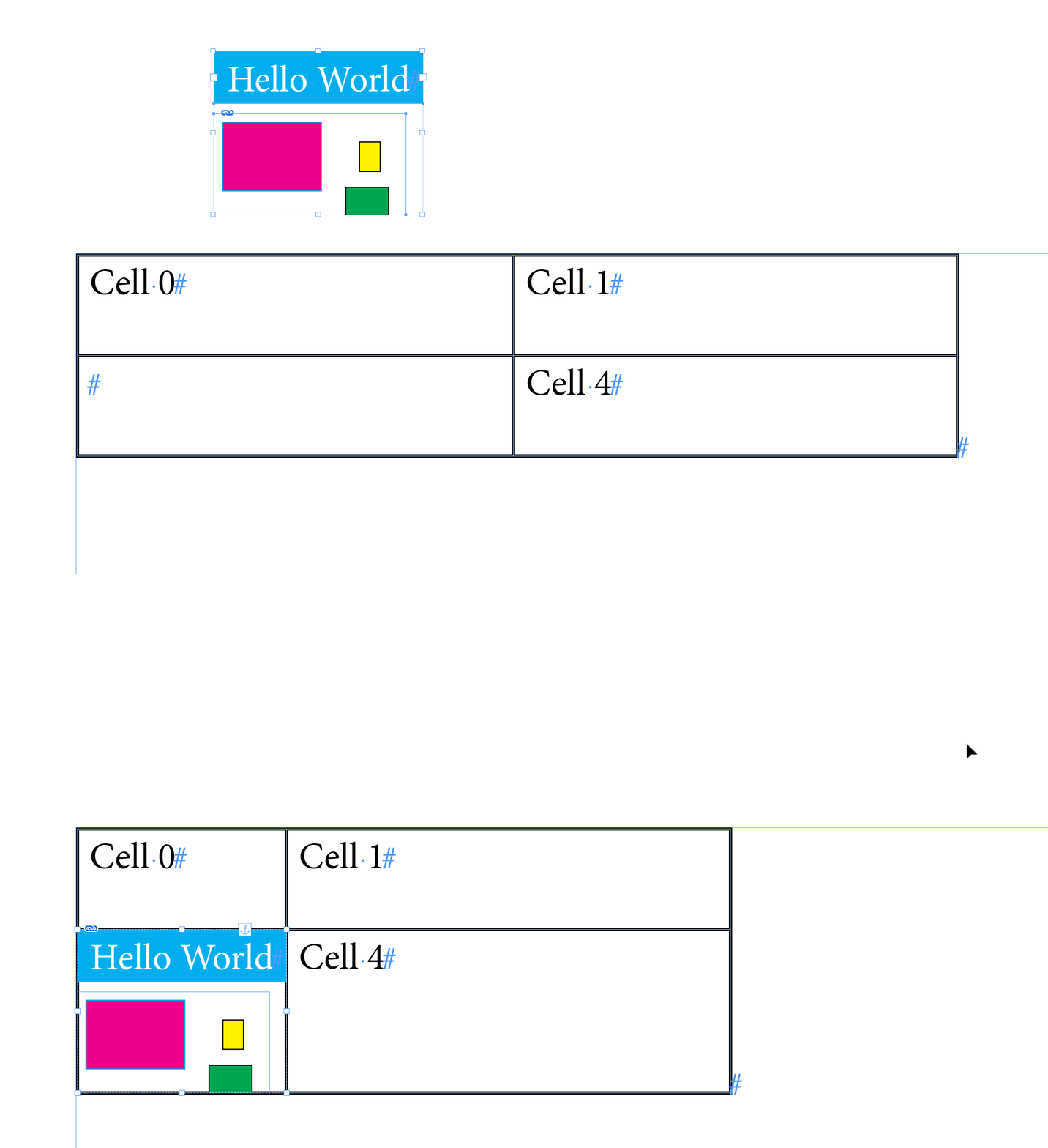
This script grabs the selected page items and groups them (if more than one) and adds that group to the first insertion point of the 3rd cell of the first table in the active document. It sets the anchored object settings such that the group aligns with the top left of the cell (doesn't allow for the borders though!) and then the script adjust the width and height of the cell to match the anchored item's size. Just for learning—take what you want from it. I wrote it for myself, but you never know... it might be helpful to others.

- Mark


/**
 * Anchor Selected Items To Insertion Point
 * @discussion https://community.adobe.com/t5/indesign-discussions/how-to-insert-a-group-within-a-table-cell-using-script/m-p/13540380
 */
function main() {

    app.scriptPreferences.measurementUnit = MeasurementUnits.POINTS;

    var doc = app.activeDocument;

    // get the first table
    var table = doc.stories.everyItem().tables.item(0);

    // target the 3rd cell
    var targetCell = table.cells[2];
    var insertionPoint = targetCell.insertionPoints[0];

    // choose your items to anchor
    var items = doc.selection;
    // var  items = doc.groups[0];
    // var  items = [doc.pageItems[0],doc.pageItems[1]];

    // anchoredObjectSettings properties
    // see bottom of script for enums
    var props = {
        anchorPoint: AnchorPoint.TOP_LEFT_ANCHOR,
        anchorSpaceAbove: 0,
        anchorXoffset: Number(targetCell.leftInset),
        anchorYoffset: -Number(targetCell.topInset),
        anchoredPosition: AnchorPosition.ANCHORED,
        horizontalAlignment: HorizontalAlignment.LEFT_ALIGN,
        horizontalReferencePoint: AnchoredRelativeTo.COLUMN_EDGE,
        lockPosition: false,
        pinPosition: true,
        spineRelative: false,
        verticalAlignment: VerticalAlignment.TOP_ALIGN,
        verticalReferencePoint: VerticallyRelativeTo.COLUMN_EDGE,
    };

    // this will return a Group or page item, anchored to the insertion point
    var myAnchoredItem = anchorItemsToInsertionPoint(items, insertionPoint, props);

    // match cell size to anchored item
    targetCell.width = myAnchoredItem.visibleBounds[3] - myAnchoredItem.visibleBounds[1];
    targetCell.height = myAnchoredItem.visibleBounds[2] - myAnchoredItem.visibleBounds[0];


    /**
     * Anchors page item(s) to an insertionPoint.
     * @author m1b and Peter Kahrel
     * @version 2023-01-31
     * @param {Array<PageItem>|PageItem} items - an array of page items, or single pageItem.
     * @param {InsertionPoint} insertionPoint - where to insert the anchored group.
     * @param {Object} [anchoredObjectSettings] - properties that will be applied to the item's anchoredObjectSettings property (default: empty).
     * @returns {PageItem|Group} - the anchored item.
     */
    function anchorItemsToInsertionPoint(items, insertionPoint, anchoredObjectSettings) {

        if (items == undefined)
            throw error('anchorItemsToInsertionPoint failed: no `items` supplied.');

        if (insertionPoint == undefined)
            throw error('anchorItemsToInsertionPoint failed: no `insertionPoint` supplied.');

        var anchorMe;

        if (
            items.constructor.name == 'Group'
            || items.constructor.name == 'PageItem'
        ) {

            // a single group or page item
            anchorMe = items;

        }

        else if (
            items.constructor.name == 'Array'
            || items.constructor.name == 'PageItems'
        ) {

            if (items.length == 1)

                // a single page item
                anchorMe = items[0];

            else

                // array of page items
                anchorMe = app.documents[0].pages[0].groups.add(items);

        }

        if (
            anchorMe != undefined
            && anchorMe.isValid
        ) {

            // do the insertion
            anchorMe.anchoredObjectSettings.insertAnchoredObject(insertionPoint);

            if (anchoredObjectSettings != undefined)

                // apply supplied properties
                anchorMe.anchoredObjectSettings.properties = anchoredObjectSettings;

        }

        return anchorMe;

    };

}

app.doScript(main, ScriptLanguage.JAVASCRIPT, undefined, UndoModes.ENTIRE_SCRIPT, 'Anchor Items');


/*

from: https://www.indesignjs.de/extendscriptAPI/indesign-latest/#AnchoredObjectSetting.html

anchorPoint:
    AnchorPoint.BOTTOM_CENTER_ANCHOR
    AnchorPoint.BOTTOM_LEFT_ANCHOR
    AnchorPoint.BOTTOM_RIGHT_ANCHOR
    AnchorPoint.CENTER_ANCHOR
    AnchorPoint.LEFT_CENTER_ANCHOR
    AnchorPoint.RIGHT_CENTER_ANCHOR
    AnchorPoint.TOP_CENTER_ANCHOR
    AnchorPoint.TOP_LEFT_ANCHOR
    AnchorPoint.TOP_RIGHT_ANCHOR

anchoredPosition:
    AnchorPosition.ABOVE_LINE
    AnchorPosition.ANCHORED
    AnchorPosition.INLINE_POSITION

horizontalAlignment:
    HorizontalAlignment.CENTER_ALIGN
    HorizontalAlignment.LEFT_ALIGN
    HorizontalAlignment.RIGHT_ALIGN
    HorizontalAlignment.TEXT_ALIGN

horizontalReferencePoint:
    AnchoredRelativeTo.ANCHOR_LOCATION
    AnchoredRelativeTo.COLUMN_EDGE
    AnchoredRelativeTo.PAGE_EDGE
    AnchoredRelativeTo.PAGE_MARGINS
    AnchoredRelativeTo.TEXT_FRAME

verticalAlignment:
    VerticalAlignment.BOTTOM_ALIGN
    VerticalAlignment.CENTER_ALIGN
    VerticalAlignment.TOP_ALIGN

verticalReferencePoint:
    VerticallyRelativeTo.CAPHEIGHT
    VerticallyRelativeTo.COLUMN_EDGE
    VerticallyRelativeTo.EMBOX_BOTTOM
    VerticallyRelativeTo.EMBOX_MIDDLE
    VerticallyRelativeTo.EMBOX_TOP
    VerticallyRelativeTo.LINE_ASCENT
    VerticallyRelativeTo.LINE_BASELINE
    VerticallyRelativeTo.LINE_XHEIGHT
    VerticallyRelativeTo.PAGE_EDGE
    VerticallyRelativeTo.PAGE_MARGINS
    VerticallyRelativeTo.TEXT_FRAME
    VerticallyRelativeTo.TOP_OF_LEADING

*/

 

4 replies

m1b
Community Expert
m1bCommunity ExpertCorrect answer
Community Expert
January 31, 2023

Hi @SHY.John, given that you (or someone else reading this) may need to include text frame(s) here is an implementation of @Peter Kahrel's code. For help I've included the various values at the bottom of script so you can adjust the "props" object.


This script grabs the selected page items and groups them (if more than one) and adds that group to the first insertion point of the 3rd cell of the first table in the active document. It sets the anchored object settings such that the group aligns with the top left of the cell (doesn't allow for the borders though!) and then the script adjust the width and height of the cell to match the anchored item's size. Just for learning—take what you want from it. I wrote it for myself, but you never know... it might be helpful to others.

- Mark


/**
 * Anchor Selected Items To Insertion Point
 * @discussion https://community.adobe.com/t5/indesign-discussions/how-to-insert-a-group-within-a-table-cell-using-script/m-p/13540380
 */
function main() {

    app.scriptPreferences.measurementUnit = MeasurementUnits.POINTS;

    var doc = app.activeDocument;

    // get the first table
    var table = doc.stories.everyItem().tables.item(0);

    // target the 3rd cell
    var targetCell = table.cells[2];
    var insertionPoint = targetCell.insertionPoints[0];

    // choose your items to anchor
    var items = doc.selection;
    // var  items = doc.groups[0];
    // var  items = [doc.pageItems[0],doc.pageItems[1]];

    // anchoredObjectSettings properties
    // see bottom of script for enums
    var props = {
        anchorPoint: AnchorPoint.TOP_LEFT_ANCHOR,
        anchorSpaceAbove: 0,
        anchorXoffset: Number(targetCell.leftInset),
        anchorYoffset: -Number(targetCell.topInset),
        anchoredPosition: AnchorPosition.ANCHORED,
        horizontalAlignment: HorizontalAlignment.LEFT_ALIGN,
        horizontalReferencePoint: AnchoredRelativeTo.COLUMN_EDGE,
        lockPosition: false,
        pinPosition: true,
        spineRelative: false,
        verticalAlignment: VerticalAlignment.TOP_ALIGN,
        verticalReferencePoint: VerticallyRelativeTo.COLUMN_EDGE,
    };

    // this will return a Group or page item, anchored to the insertion point
    var myAnchoredItem = anchorItemsToInsertionPoint(items, insertionPoint, props);

    // match cell size to anchored item
    targetCell.width = myAnchoredItem.visibleBounds[3] - myAnchoredItem.visibleBounds[1];
    targetCell.height = myAnchoredItem.visibleBounds[2] - myAnchoredItem.visibleBounds[0];


    /**
     * Anchors page item(s) to an insertionPoint.
     * @author m1b and Peter Kahrel
     * @version 2023-01-31
     * @param {Array<PageItem>|PageItem} items - an array of page items, or single pageItem.
     * @param {InsertionPoint} insertionPoint - where to insert the anchored group.
     * @param {Object} [anchoredObjectSettings] - properties that will be applied to the item's anchoredObjectSettings property (default: empty).
     * @returns {PageItem|Group} - the anchored item.
     */
    function anchorItemsToInsertionPoint(items, insertionPoint, anchoredObjectSettings) {

        if (items == undefined)
            throw error('anchorItemsToInsertionPoint failed: no `items` supplied.');

        if (insertionPoint == undefined)
            throw error('anchorItemsToInsertionPoint failed: no `insertionPoint` supplied.');

        var anchorMe;

        if (
            items.constructor.name == 'Group'
            || items.constructor.name == 'PageItem'
        ) {

            // a single group or page item
            anchorMe = items;

        }

        else if (
            items.constructor.name == 'Array'
            || items.constructor.name == 'PageItems'
        ) {

            if (items.length == 1)

                // a single page item
                anchorMe = items[0];

            else

                // array of page items
                anchorMe = app.documents[0].pages[0].groups.add(items);

        }

        if (
            anchorMe != undefined
            && anchorMe.isValid
        ) {

            // do the insertion
            anchorMe.anchoredObjectSettings.insertAnchoredObject(insertionPoint);

            if (anchoredObjectSettings != undefined)

                // apply supplied properties
                anchorMe.anchoredObjectSettings.properties = anchoredObjectSettings;

        }

        return anchorMe;

    };

}

app.doScript(main, ScriptLanguage.JAVASCRIPT, undefined, UndoModes.ENTIRE_SCRIPT, 'Anchor Items');


/*

from: https://www.indesignjs.de/extendscriptAPI/indesign-latest/#AnchoredObjectSetting.html

anchorPoint:
    AnchorPoint.BOTTOM_CENTER_ANCHOR
    AnchorPoint.BOTTOM_LEFT_ANCHOR
    AnchorPoint.BOTTOM_RIGHT_ANCHOR
    AnchorPoint.CENTER_ANCHOR
    AnchorPoint.LEFT_CENTER_ANCHOR
    AnchorPoint.RIGHT_CENTER_ANCHOR
    AnchorPoint.TOP_CENTER_ANCHOR
    AnchorPoint.TOP_LEFT_ANCHOR
    AnchorPoint.TOP_RIGHT_ANCHOR

anchoredPosition:
    AnchorPosition.ABOVE_LINE
    AnchorPosition.ANCHORED
    AnchorPosition.INLINE_POSITION

horizontalAlignment:
    HorizontalAlignment.CENTER_ALIGN
    HorizontalAlignment.LEFT_ALIGN
    HorizontalAlignment.RIGHT_ALIGN
    HorizontalAlignment.TEXT_ALIGN

horizontalReferencePoint:
    AnchoredRelativeTo.ANCHOR_LOCATION
    AnchoredRelativeTo.COLUMN_EDGE
    AnchoredRelativeTo.PAGE_EDGE
    AnchoredRelativeTo.PAGE_MARGINS
    AnchoredRelativeTo.TEXT_FRAME

verticalAlignment:
    VerticalAlignment.BOTTOM_ALIGN
    VerticalAlignment.CENTER_ALIGN
    VerticalAlignment.TOP_ALIGN

verticalReferencePoint:
    VerticallyRelativeTo.CAPHEIGHT
    VerticallyRelativeTo.COLUMN_EDGE
    VerticallyRelativeTo.EMBOX_BOTTOM
    VerticallyRelativeTo.EMBOX_MIDDLE
    VerticallyRelativeTo.EMBOX_TOP
    VerticallyRelativeTo.LINE_ASCENT
    VerticallyRelativeTo.LINE_BASELINE
    VerticallyRelativeTo.LINE_XHEIGHT
    VerticallyRelativeTo.PAGE_EDGE
    VerticallyRelativeTo.PAGE_MARGINS
    VerticallyRelativeTo.TEXT_FRAME
    VerticallyRelativeTo.TOP_OF_LEADING

*/


SHY.JohnAuthor
Participating Frequently
January 31, 2023

Thanks. Let me have a read first and then reply back to you. 

Peter Kahrel
Community Expert
Community Expert
January 29, 2023

It doesn't work like that, Brian. You need to insert the group as an inline:

g = app.documents[0].pages[0].groups.add([aPageItem, anotherPageItem]);

g.anchoredObjectSettings.
  insertAnchoredObject (
    cell.insertionPoints[0], 
    AnchorPosition.INLINE_POSITION
  );


John -- The difference between the two methods is that when you place a group as an inline in a cell you can add some text as well (or indeed other page items). With Mike's method the group takes over the cell, you can't add anything else.

m1b
Community Expert
Community Expert
January 30, 2023

Thanks @Peter Kahrel, I really like that. I'm sure I've scripted the same thing before with a mere 50 lines of code. 🙂 I'm learning a lot from your posts.

- Mark (or Mike is fine, too)

Peter Kahrel
Community Expert
Community Expert
January 30, 2023

Ouch! Sorry, Mark. 

m1b
Community Expert
Community Expert
January 29, 2023

Hi @SHY.John, here's another approach. Use which ever suits your needs best. This script converts the cell into a graphic cell and puts the group into it (actually duplicates the group). - Mark


var doc = app.activeDocument;

// get the first table
var table = doc.stories.everyItem().tables.item(0);

// target the 3rd cell
var targetCell = table.cells[2];

// then make the cell a graphic cell
targetCell.convertCellType(CellTypeEnum.GRAPHIC_TYPE_CELL);

// get the first group in document
var targetGroup = doc.groups[0];

// and put the group into the targetCell's graphic frame
targetCell.rectangles[0].contentPlace(targetGroup);


Community Expert
January 30, 2023

Hi @m1b ,

the last line of your code will throw an error if the group contains a text frame.

Error number 140032, error message with my German InDesign: "Platzieren des Inhalts ist fehlgeschlagen" ( $ID/kContentPlaceFailureStrKey ) .


Tested with InDesign 2023 on Windows 10.


FWIW: If you were or actually are successful with that in an earlier version of InDesign, note that duplicating that table with the text frame inside a graphic cell will immediatelly crash InDesign!


Regards,
Uwe Laubender
( Adobe Community Expert )

m1b
Community Expert
Community Expert
January 30, 2023

Thanks Uwe, I hadn't tested that. And I confirm the same error on Indesign 2023 MacOS 13.2.

brian_p_dts
Community Expert
Community Expert
January 29, 2023

Rudimentarily: cell.insertionPoints.item(0).groups.add([aPageItem, anotherPageItem]);