
How to insert HTML5 created by Captivate 2019 into InDesign 2019?
Thank you for looking into this.
May I know how do I insert HTML5 created by Captivate 2019 into InDesign 2019?
I've followed the tutorial by Creating an Interactive eBook: Step 4 - YouTube but it does work for me.
Following are the steps I've taken:
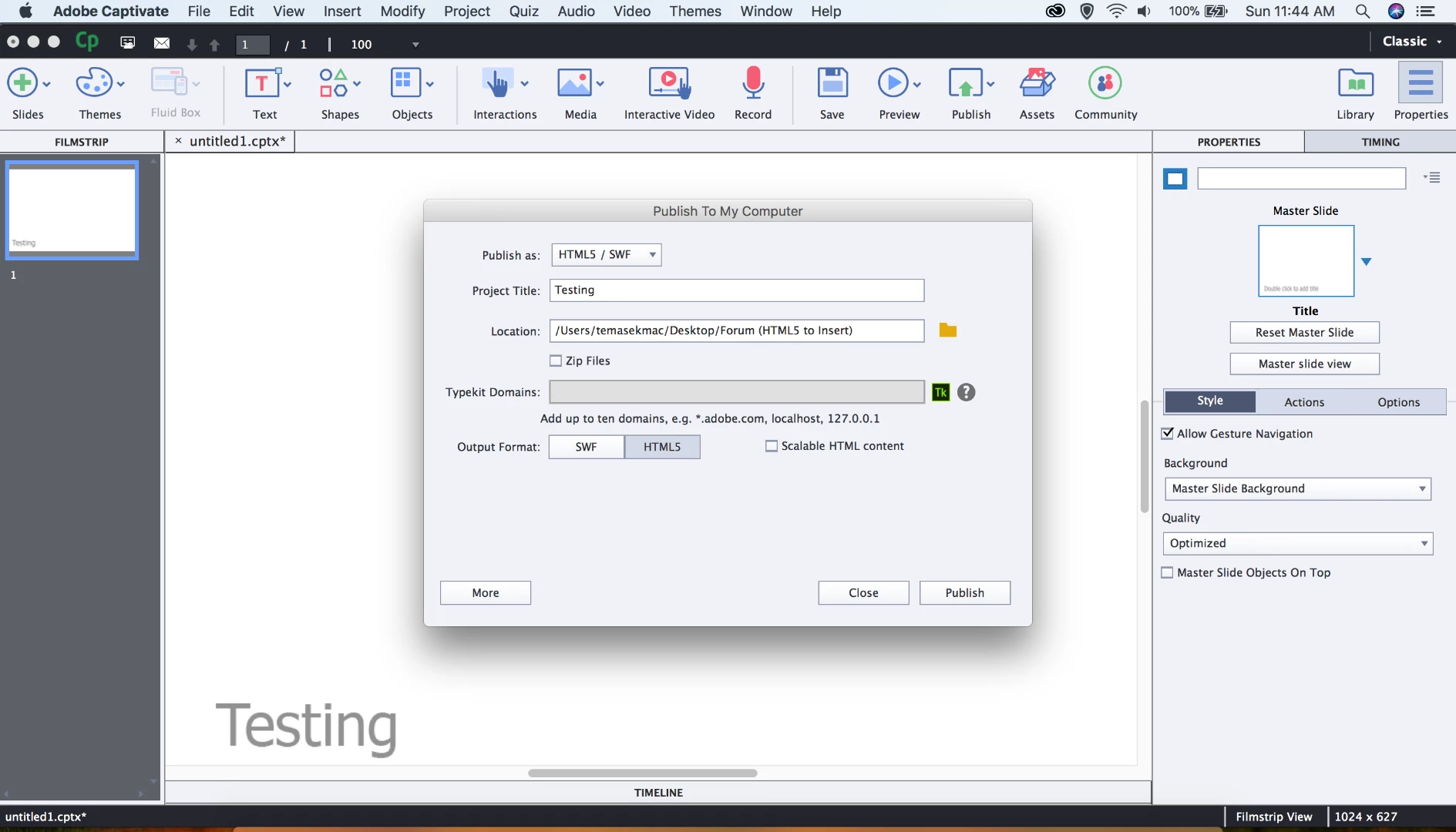
1) I created a very simple one page HTML5 project in Captivate 2019 which I will use it as an example to insert into InDesign 2019.
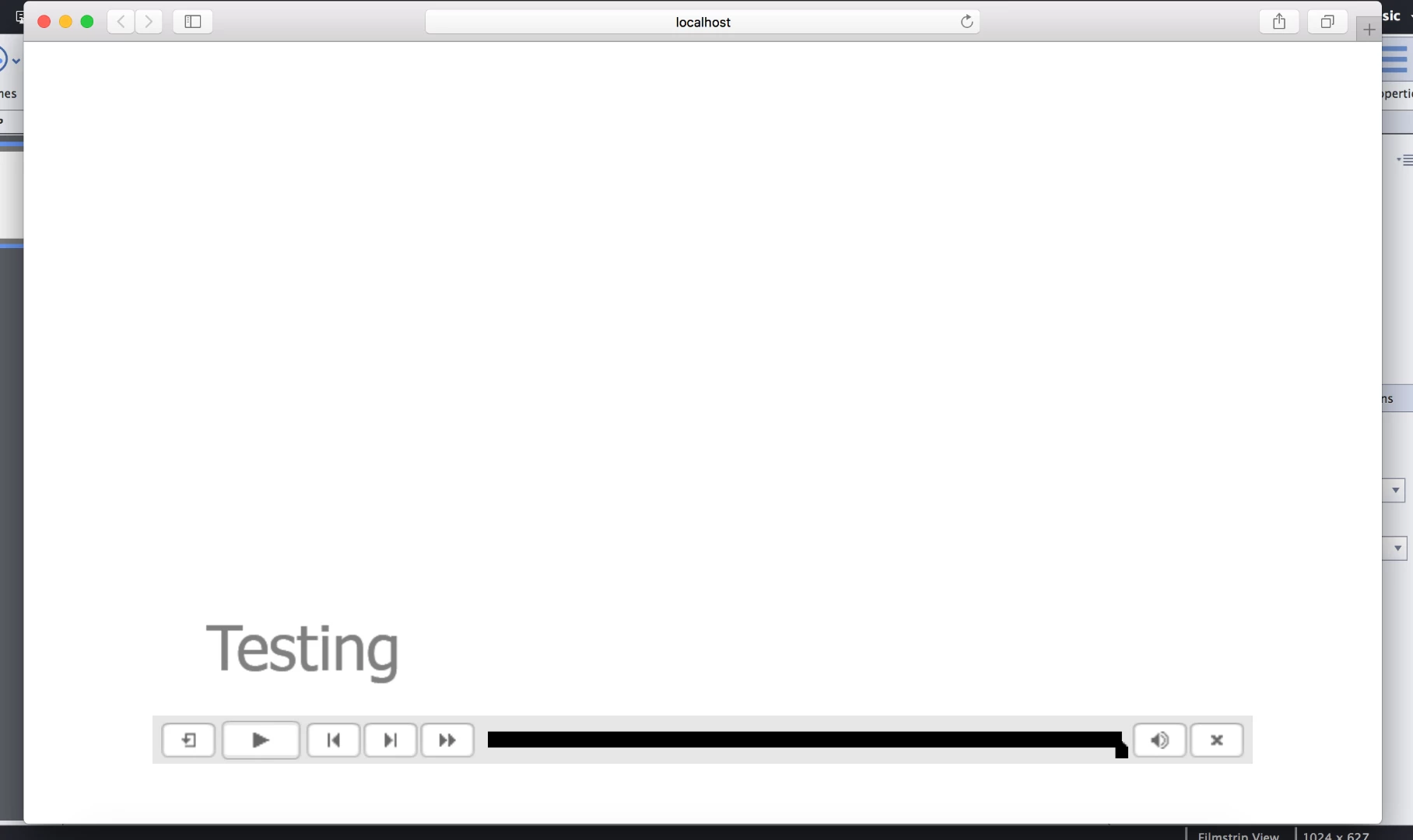
2) Following is the proof that the HTML5 project generated from Captivate 2019 actually works.
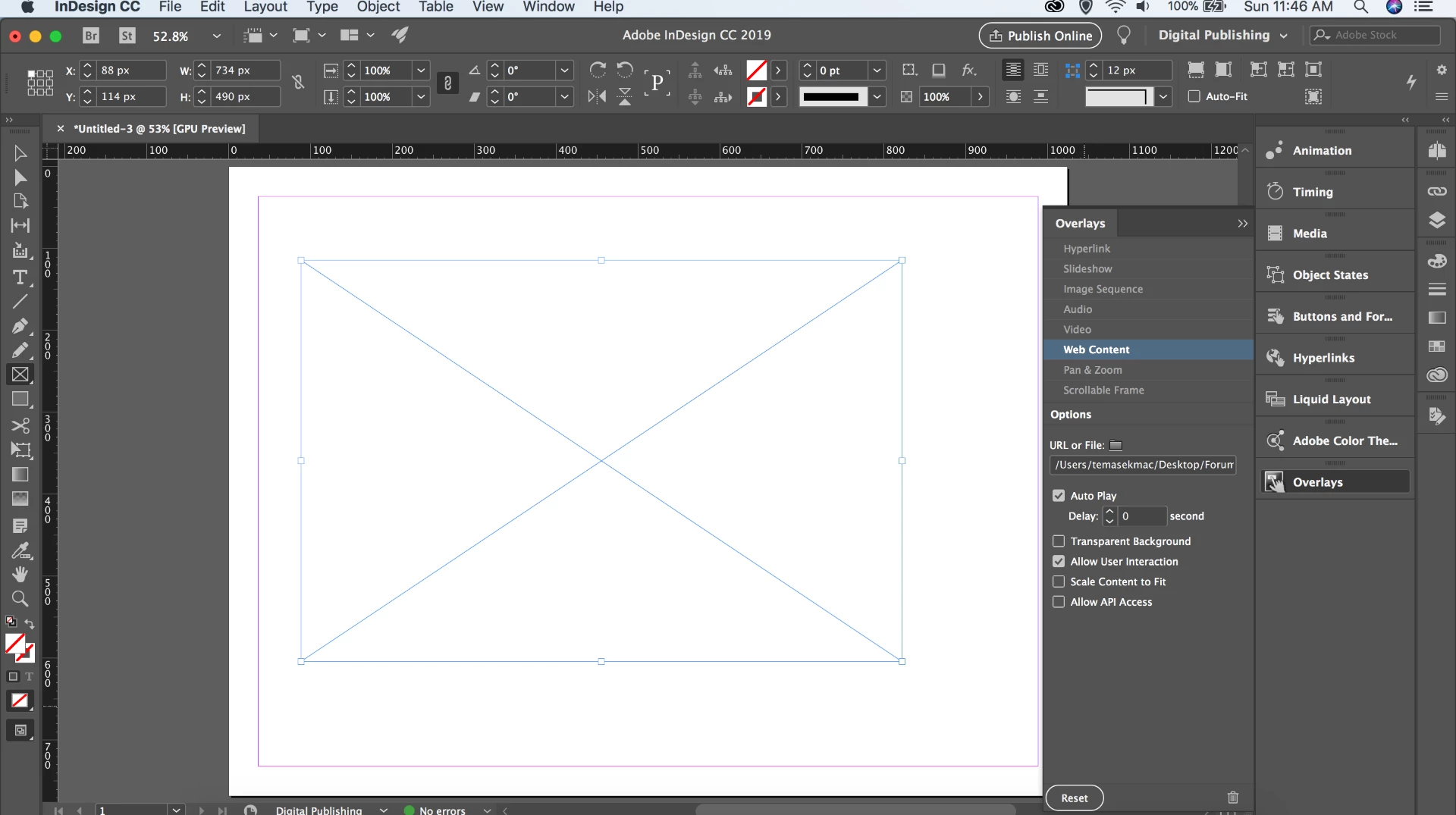
3) Inside InDesign 2019, I created a place holder using the "Rectangle Frame Tool" which later I will place the HTML5 project generated by Captivate 2019 into it

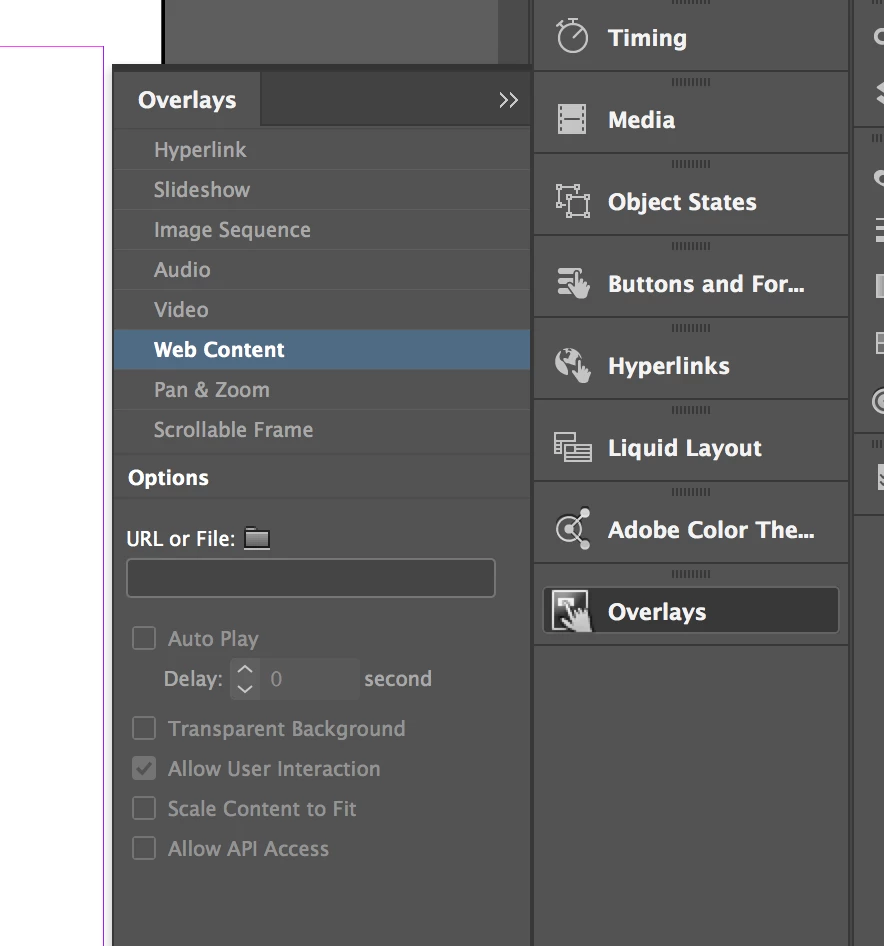
4) Inside InDesign 2019, I went to "Overlays" then "Web Content"
5) Then I click the folder icon to search for my HTML5 project file generated from Captivate 2019. I inserted the "index.html" file
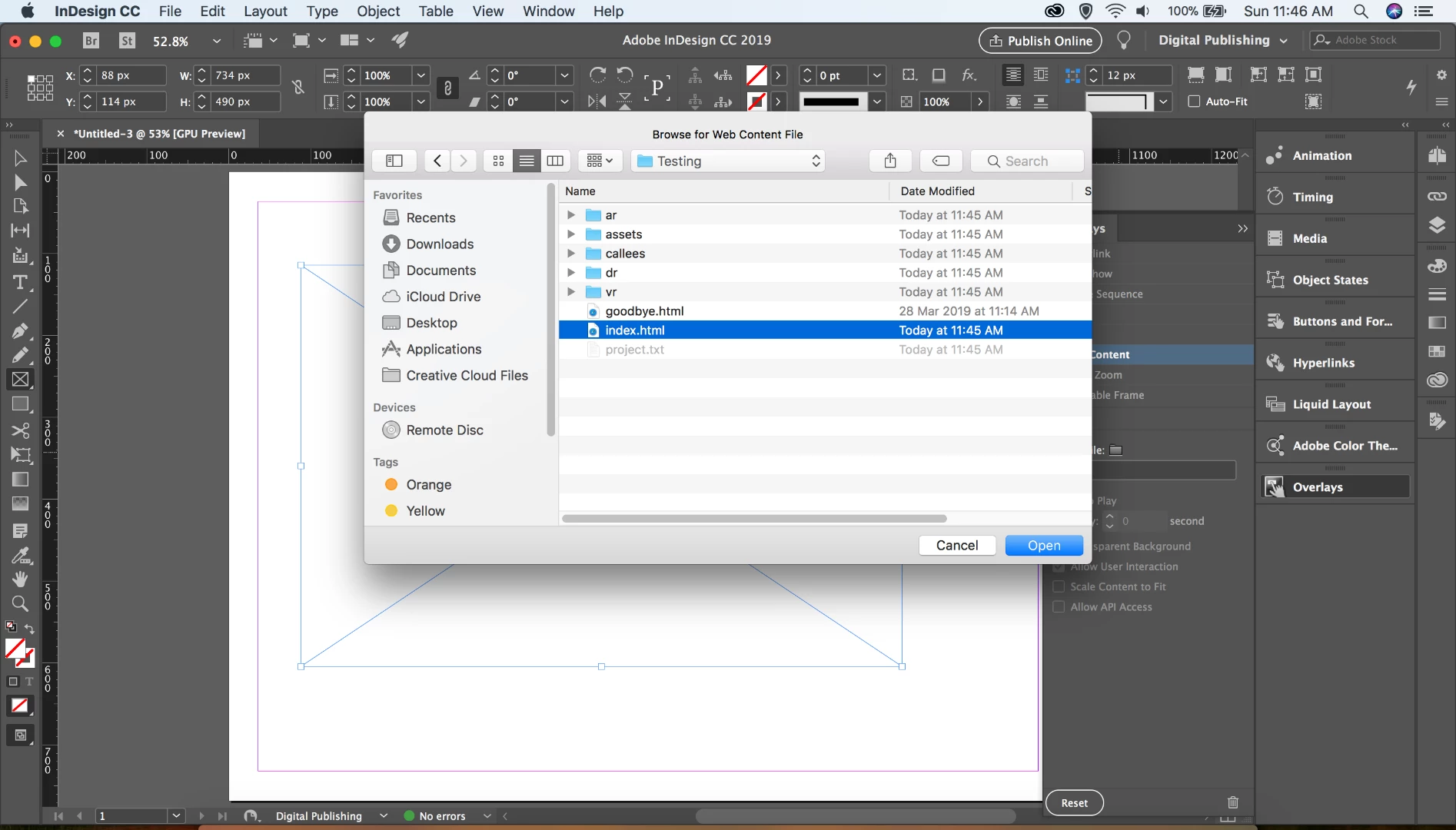
6) I also checked the "Auto Play" and "Allow User Interaction" buttons. I understand that after I've inserted the HTML5 file, nothing will be shown in the place holder until I preview it
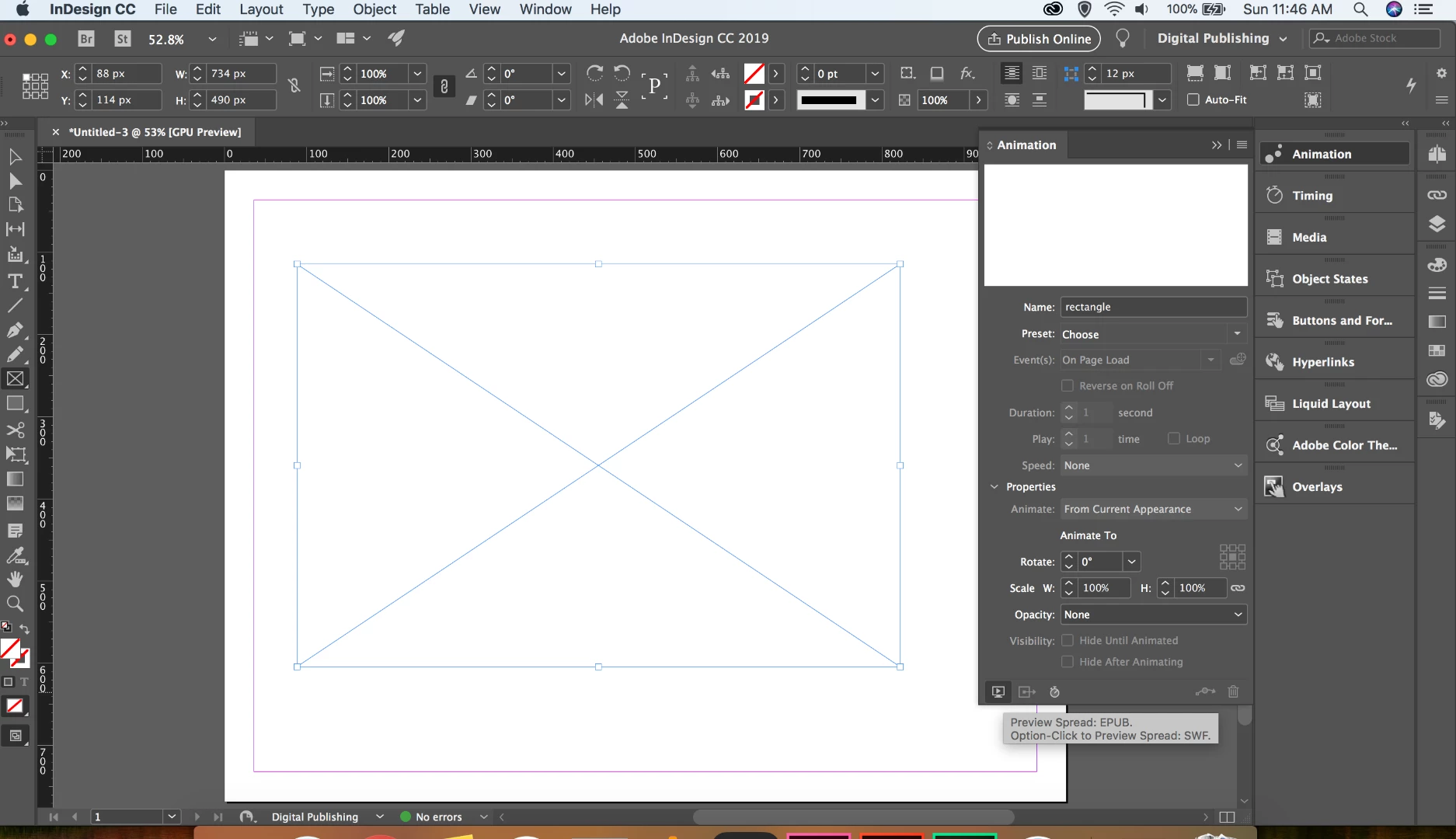
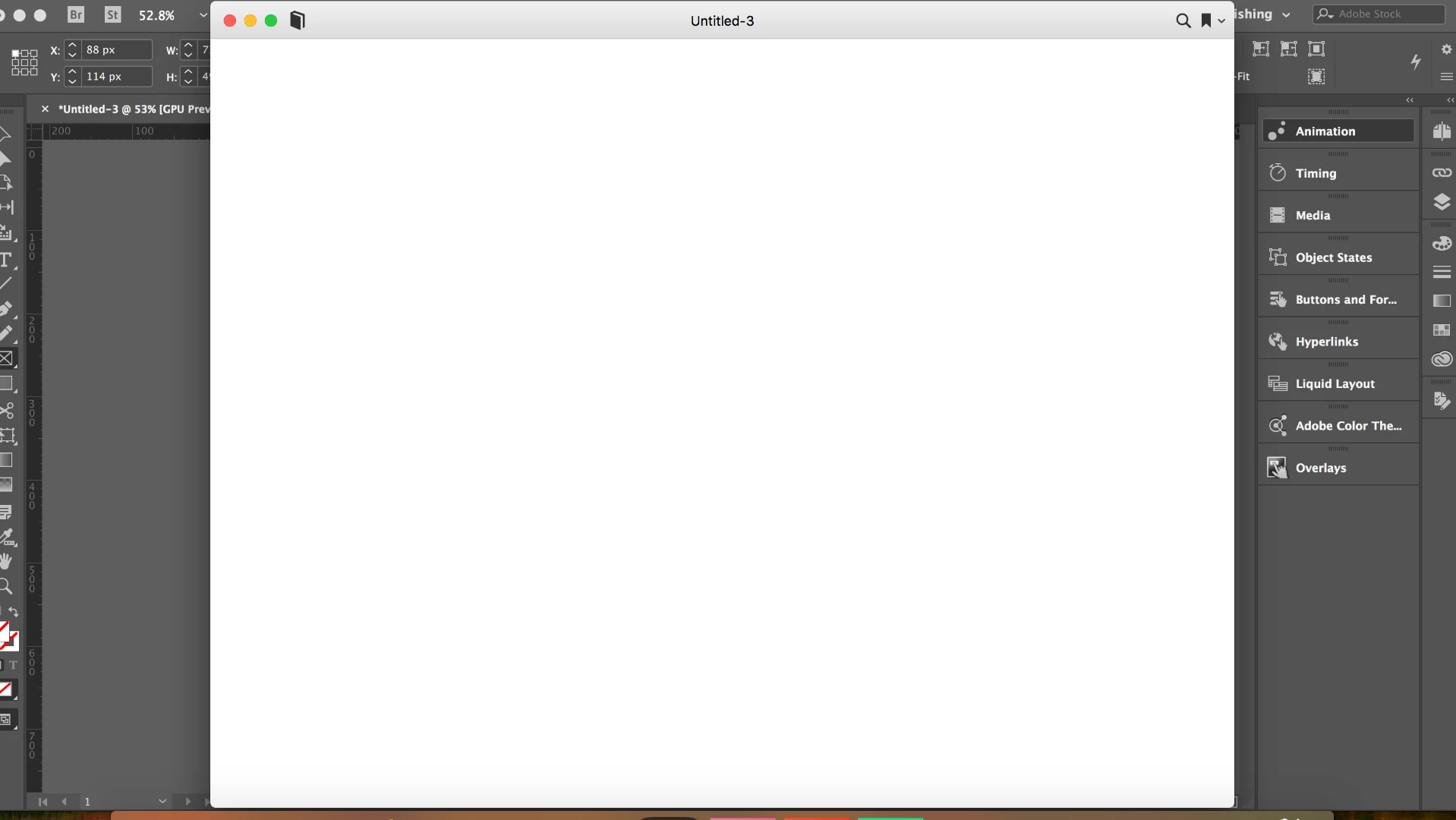
7) However, after I preview it using the "Preview Spread: EPUB" play button nothing is shown in the preview
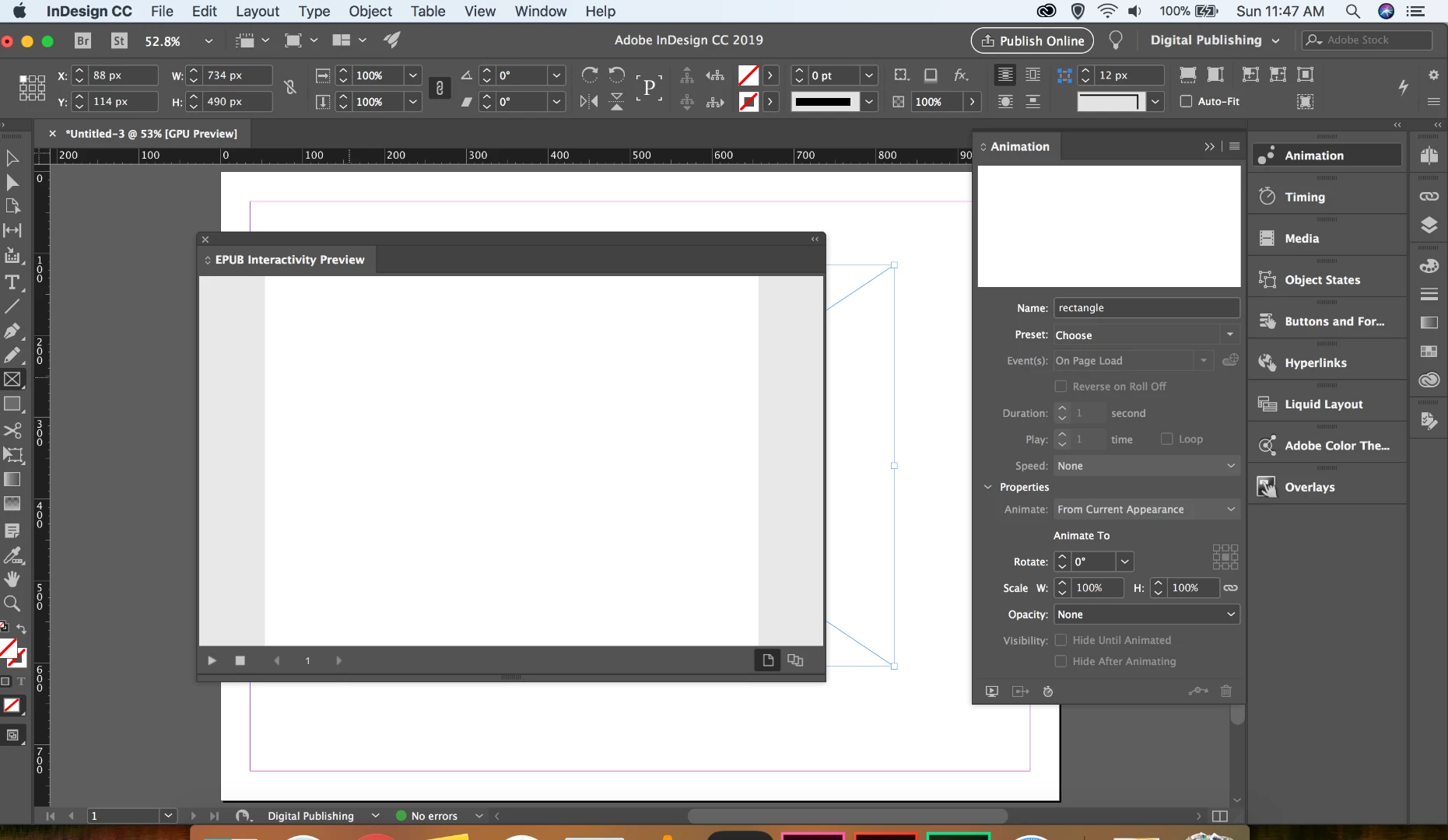
😎 Following is the blank preview page I see when I click the "Preview Spread: EPUB" play button
9) I even tried to export the InDesign project as HTML5 to test whether the HTML5 project created using Captivate 2019 I've inserted into InDesign works or not. But once again I only managed to see the following blank page.
10 I even tried to export the InDesign project as EPUB (Fixed Layout) to test whether the HTML5 project created using Captivate 2019 I've inserted into InDesign works or not. But once again I only managed to see the following blank page
Thank you for looking into this and answer my question.
 AdChoices