
How to: Place anchoredObject after found text?
I am new to inDesign scripting. I’ve been poring over the discussion boards and help docs and cannot find anything that will help me even get near the answer. Thanks in advance, getting my head around these concepts (and the lack of examples in online resources) have me pulling my hair out.
I’m working in Visual Studio Code and writing in JavaScript.
I have a Story consisting of headers and related paragraphs. Like flowers and descriptions. (See below.) I also have an array with the flower names and the related imagenames in a folder on my drive.
Generally speaking, how can I…
- Search for the text in the headers
- Insert the related image between the header and the paragraphs as an anchored object?
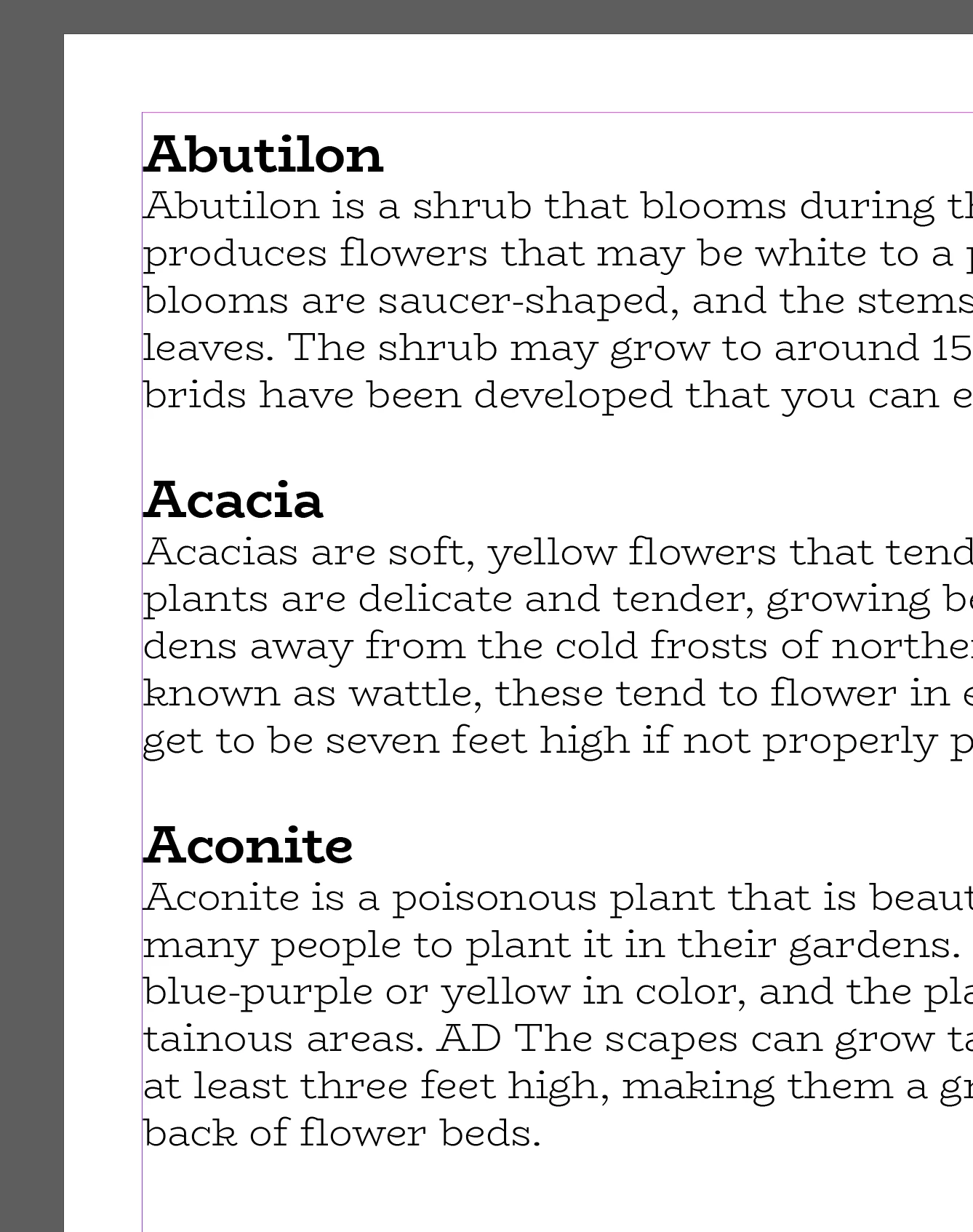
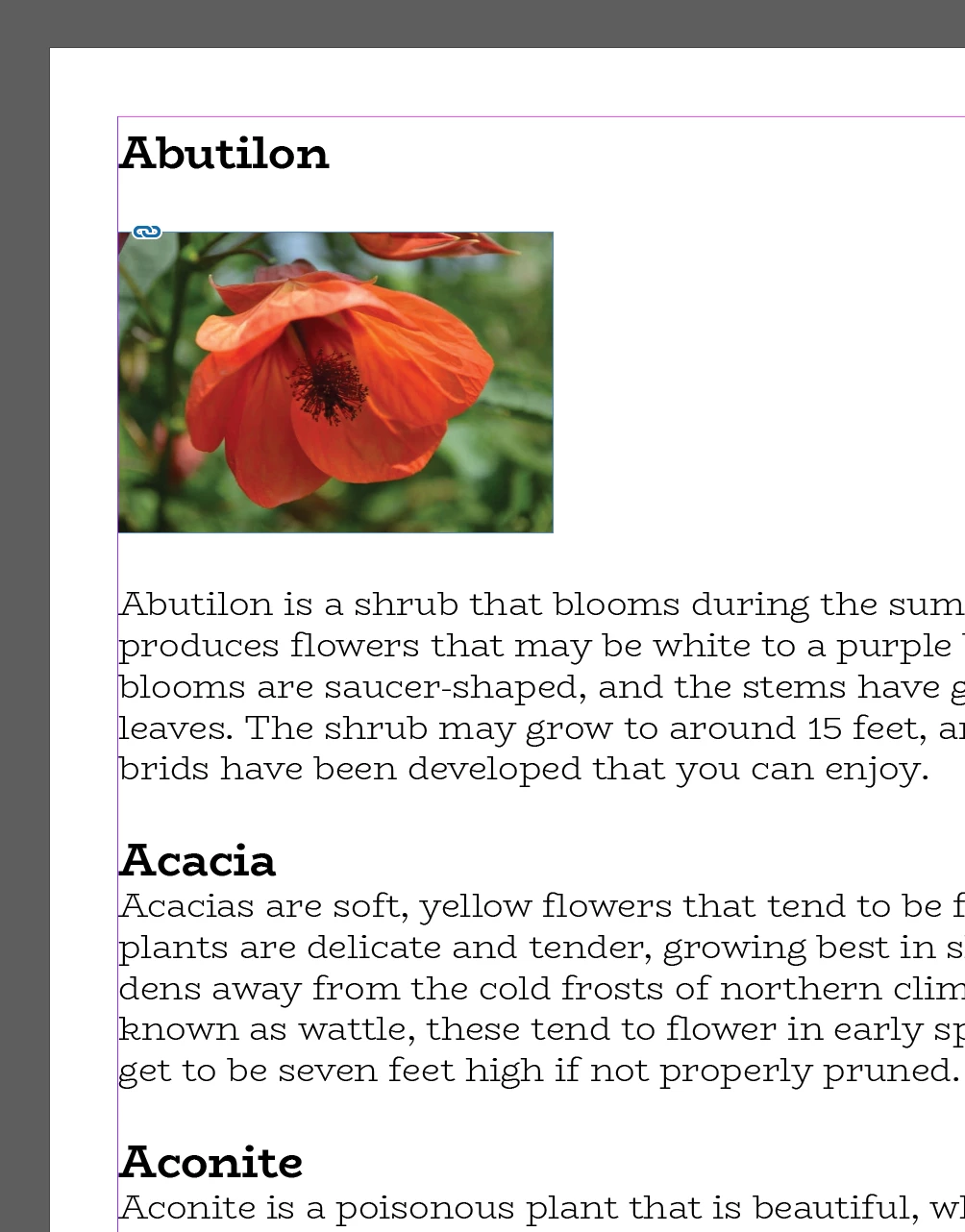
I can find the text using findText(), but the insertion point it gives is at the beginning of the text, not the end, and not inclusive of the /r paragraph marker.
How can I say “Yes this insertionPoint, but [headertext.length]+1 later”? Then “add this rect AND a /r character”?
I have managed to add a rect as an anchored object to the (wrong) insertionPoint, and even load, place, and fit the image. That might be OK, if I could figure out how to then move the rect, but I cannot.
How can I say “Take this [anchoredObject rect] and move it [headertext.length]+1 later in the story?”
I can’t imagine that the code will help, because it’s not working, and what I’m looking for is an explanation of how things are supposed to work, generally, but here it is…
    var this_flower_name = this_card_data[0];
    var this_flower_image = this_card_data[1];
    var this_file = File(this_flower_image);

    // find the flower name in the text
    app.findTextPreferences = app.changeTextPreferences = NothingEnum.NOTHING;
    app.findTextPreferences.findWhat = this_flower_name;
    var finds = flower_parent_story.findText();
    if (finds.length == 0) {
        alert('flower title not found?!');
        throw new Error();
    } else {
        var this_insertionPoint = finds[0].insertionPoints[0];
        var image_container = this_insertionPoint.rectangles.add({geometricBounds:[0,0,1.5,1], contentType:ContentType.GRAPHIC_TYPE});
        this_insertionPoint.contents = "\r";
        var flower_image_container_style = doc.objectStyles.item("flower_container");
        image_container.applyObjectStyle(card_style);

        var myGraphic = image_container.place(this_file);
        image_container.fit(FitOptions.PROPORTIONALLY);
        image_container.fit(FitOptions.FRAME_TO_CONTENT);
    }
 AdChoices