Participant
August 2, 2017
Answered

How to rename a permanent swatch in InDesign?

  • August 2, 2017
  • 4 replies
  • 3946 views

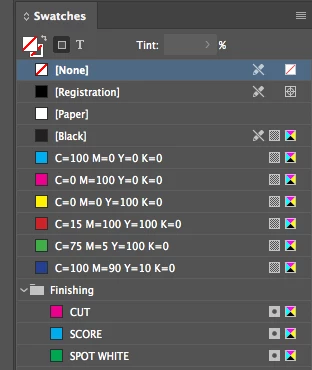
How do you rename a permanent swatch in InDesign? I need to change the name of SPOT WHITE to WHITE INK and keep it permanent. There is no "Finishing" Swatch file in my application folder, so I cannot delete delete it. 
I want to either delete the whole "Finishing" group altogether, so I can make a new one, or be able to rename just one of the names. It won't let me! HELP!!!

This topic has been closed for replies.
Correct answer Bill Silbert

Changes to the default color swatches can be made by opening the swatch panel while no document pages are open and then after adding or subtracting a color quitting the program which makes it part of your preference file. Since the colors that you are dealing with were created for a document they will not be there when you close the document so they will have to be defined anew in the swatch panel using the process that I have just described.

After you have added default colors like this it would be a good idea to make a copy of your preference file for future occasions when you might have to reset your preferences but you don't want to lose your custom swatch panel.

The preference files can be found:

For Macintosh Users: With InDesign closed Launch a Finder Window in column view and click on your home folder. With the Option Key pressed choose Library from the Finder Go Menu. Within the Library folder find the folder called Preferences and within it will be found the folder Adobe InDesign which you should copy.

For Windows Users the file can be found at: C:\Users\[User Name]\AppData\Roaming\Adobe\InDesign\Version [#]

4 replies

elShimmer
Participant
March 16, 2021

Bill Silbert here has all the answers. I could have used this tip about ten years ago.


Create all your strokes, frames, boxes, and text with the same colour swatch. If you're smart you'd save them all in a new swatch folder. And in a few clicks you can remove the items all coloured with the one swatch to another. Fantastic. A really simple fix to an annoying problem. 


Once your swatches are in a new folder you can rename them. From there you can even change the tint two a new swatch. 


This will really save me thousand upon thousands of clicks a year. Bonus!

Mike Witherell
Community Expert
Community Expert
September 27, 2018

Newest InDesign opens the Start Workspace when no documents are open. You can turn this feature OFF in preferences. OTOH, if you cannot see any panels, have you clicked the Tab key inadvertently? The tab key hides/shows panels.

Mike Witherell
Participant
September 27, 2018

Hi Bill,

I wanted to ask how you do this in the newest version of indesign as when you don't have an open widow open, you can't see any of the panels?

Thank you for any help.

All the best

Scott Citron
Legend
September 27, 2018

Kevin, here's a screen shot of the latest version of InDesign (MacOS). As you can see, I have no open documents but all panels are still accessible.

Participant
September 27, 2018

Hi Scott,

I always have this, is there a way to change it?

Bill Silbert
Community Expert
Bill SilbertCommunity ExpertCorrect answer
Community Expert
August 3, 2017

Changes to the default color swatches can be made by opening the swatch panel while no document pages are open and then after adding or subtracting a color quitting the program which makes it part of your preference file. Since the colors that you are dealing with were created for a document they will not be there when you close the document so they will have to be defined anew in the swatch panel using the process that I have just described.

After you have added default colors like this it would be a good idea to make a copy of your preference file for future occasions when you might have to reset your preferences but you don't want to lose your custom swatch panel.

The preference files can be found:

For Macintosh Users: With InDesign closed Launch a Finder Window in column view and click on your home folder. With the Option Key pressed choose Library from the Finder Go Menu. Within the Library folder find the folder called Preferences and within it will be found the folder Adobe InDesign which you should copy.

For Windows Users the file can be found at: C:\Users\[User Name]\AppData\Roaming\Adobe\InDesign\Version [#]