Known Participant
April 29, 2020
Answered

How to setup master pages with bleed in InDesign?

  • April 29, 2020
  • 7 replies
  • 8004 views

hi, I need to be able to set up InDesign master pages but be able to give the masters a bleed on the spines on a facing page document. Printer needs spine bleeds and have a big 150 page book so want to set up correctly before I start.


{Renamed by MOD}

Correct answer rob day

he says he needs as singles, crops and bleeds

from there that is his department and prefer to try to make it easier for him so there are no mistakes. I think either one of the solutions above will work. 


Think in the end I will do facing pages, single master pages called L and R so I don't confuse them! Then have them butted next to each other in page layout. Just prior to print I will separate with allow shuffle and then pull out bleed on the master pages and pdf with crops and bleeds as single pages.

thank you all so much.

now to the next question in new topic re captions!  really appreciate everyones input.


he says he needs as singles, crops and bleed


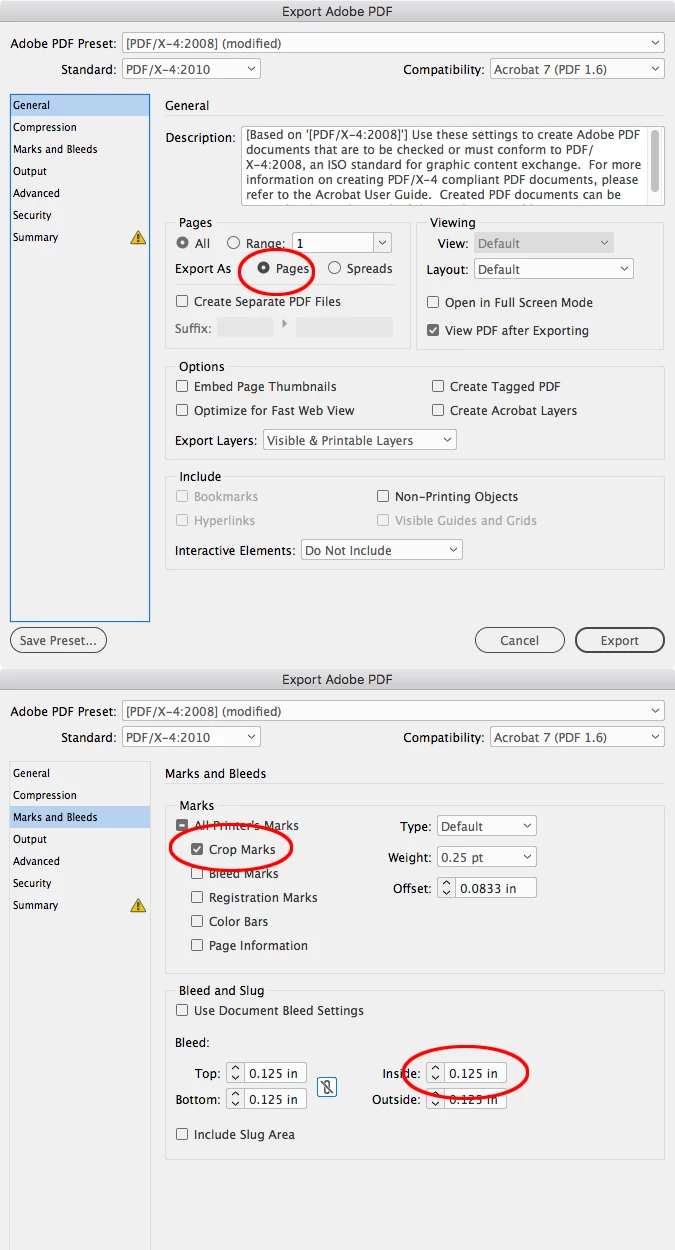
That’s what you’ll get if you export a facing page doc with these settings:
 

7 replies

rob day
Community Expert
Community Expert
April 30, 2020

With perfect binding the signatures get folded on the spine edge, not trimmed. If you provide an inside bleed it would have to be removed when the pages are imposed. Page 2 of the signature would be joined with page 7 on their trim edges and the 2-7 spread would be folded on the spine mark. There might be some allowance for creep, but by definition that amount would be hidden in the binding.

Known Participant
April 30, 2020

I use two different printers. One said is ok, the other wants the bleed...

rob day
Community Expert
Community Expert
April 30, 2020

Both will have to impose so just provide the facing page inside bleed.

David Popham
Participating Frequently
April 30, 2020

From what you're describing, it sounds like you should be able to have 1-page master pages, keep your document as Facing Pages, and keep your spreads together until you're ready to send to the printer. You would have separate master pages for left and right pages, and you wouldn't be able to work on the master pages as spreads, but it sounds like you only need to keep regular pages as spreads during layout. So you should be able to set up the following way:


Left master spread


Right master spread


Pages 2–3 spread (during layout)


Page 2 (after preparing for printer)


Page 3 (after preparing for printer)

Known Participant
April 30, 2020

looks a bit confusing on the master pages but if I label them correctly this could possibly work. I could leave the bleeds inside margins until I am ready for print at which point I could hang them over with crops etc. I will do a test doc on this. thanks. this could work 


I have another question regarding file extensions and live captions. Should I start a new thread?

David Popham
Participating Frequently
April 30, 2020

Hopefully, that works for you. Please start another thread for separate questions.

David Popham
Participating Frequently
April 30, 2020

Unless I'm misunderstanding, why not use single-page master pages and extend your background element bleeds on all four sides?


Even if your document is using Facing Pages, you can have master pages with only one page. It's going to potentially look wonky while your pages are still in spreads and the backgrounds overlap in the middle, but once you separate them, your bleeds will be as required.


Additionally, if you have folios that need to align, for example, away from the spine, use a paragraph style with that set as your alignment.

Known Participant
April 30, 2020

I can do that but as it is a big book, when designing the pages, I need facing pages so I can see the page layout side by side, even with margins side by side as such.

Singles just don't work as it is hard to see what is on what is on each page as a single page not in relation to the one next to it (a L and a R)

Legend
April 29, 2020

The bit about single pages isn't that you should design in single pages. Keep your facing-pages document, but when you export, don't tick the Spreads radio button in the Export As section. This will create a PDF where each of your InDesign pages will be a PDF page, rather than each pair of InDesign pages being a single PDF page that the printer won't be able to break apart at the spine.


Also, with the understanding that your printer is asking for bleed at the spine, that is really only necessary for something like a spiral- or comb-bound book. Perfect bound doesn't really need it, as most people on the forum will attest to. But if that's what the printer wants, and you can't talk them out of it, I think the workflow you described is the way to go. If you have a single image that spans a spread, it will probably only stick to one or the other of the pages in it's spread, so when you break up that spread, you will have to have a second copy of that image that you can copy to the other page, but I think you may have had to do this before, so I just mention it to be thorough.

Known Participant
April 29, 2020

I do export as single pages but there is no bleed as on master pages the L and R and are butted together for facing pages. I have just emailed the printer and he said he would prefer bleeds on spine edges (internal). He said he can work around it... so I may have to try on my next book.  What do people do if they are spiral binding?


yep I am ok if there is a photo on one page on the book but often I have a textured background or similar on the master pages and I am really reluctant to have to put this on every single page rather than on the master page itself.


appreciate your input, think there is no work around to suit what I want to do other than what I am doing already which is a fair bit of work at the end. Especially if I have master pages I often have to manually put page numbers (not key in but can use the auto)

Legend
April 30, 2020

Here's my master spread with an image pulled out to the bleed guides:

Here's the pages 2-3 document spread:

Here are pages 2 & 3 after I uncheck Allow Selected Spreads to Shuffle and pull page 3 to the right:

Notice that the image is still in place on each page. Here are pages 2 & 3 in the PDF, exported as pages (not spreads) with bleed on the inside:

I think this is what you want. Are you getting something different?

David Popham
Participating Frequently
April 29, 2020

If your printer requires interior bleeds, you can accomplish this by doing the following:


1. Set up bleeds as you normally would in Document Setup.

2. Set up your document and master pages as Facing Pages.

3. In the Pages panel, select all pages and uncheck Allow Selected Spreads to Shuffle from the panel menu.

4. For each right-handed page of each spread, click on the page in the Pages panel and drag to the right until you see a straight line, then release.


The end result should look something like the screenshot below.

Known Participant
April 29, 2020

thanks, Yes I normally do this just prior to print time. I separate the pages with the allow to shuffle, but if I have a background for example on the master pages behind all page numbers and also behind text on an actual page, then I can't get into the master. I end up having to copy the background from the master to every page.  This seems silly as I could have done that in the beginning but it takes up more memory and seems odd to do.


so in summary, not sure it can be done.

Printer definitely needs internal spine bleeds or some white may show when perfect binding. But, I need facing pages so I can run some things across on actual pages and also to see layout of the full book I need facing pages.

Derek Cross
Community Expert
Community Expert
April 29, 2020

You don't have bleed on the inside pages of facing pages. You add (normally) 3mm bleed to the other edges for bleed to the TPS (trimmed page size).

Check all specs with your printer before you start, particulary about the PDF spec s/he wants (normally PDF/X-4, single pages - not spreads - and tick Crop marks and Use Document Bleed Settings).

Also check the number of pages – 150 is a strange number, 148 more likely.

Known Participant
April 29, 2020

but with a big book I need facing pages? not singles or I can't see side by side pages

printer needs the inside edges to have a bleed as well as they are section binding the book (lays flat), and if not bleed is given they may trim out of the crop marks if not bleed it will be white

normally before I send to print, I manually separate any pages with a bleed (I allow pages to shuffle...) and hang over the edges of those pages I need a bleed on. 

yep 150 ish.. but in fact it will be a multiple of 4 for binding purposes

Luke Jennings3
Community Expert
Community Expert
April 29, 2020
Just Shoot Me
Legend
April 29, 2020

I moved your post over from the poorly named Community Help forum, which is for getting help using this forum system, to a better forum.

Known Participant
April 29, 2020

I had another yesterday that wasn't answered.. I may have put that in the wrong place as well??
