



infomamun
Inspiring
March 14, 2023
Answered

How to use reference point to increase page size

  • March 14, 2023
  • 1 reply
  • 1576 views

Hi There,

Currently my Parent Page size is 7.0866in × 9.0551in. I need to resize the page size to 7in × 10in and then want to "Apply Parent to Pages" to apply the parent page size to all the pages at once. Problem is, while I am increasing the parent page size from "Custom" menu of "Pages" panel (please see the attached image), the size of the parent page is increasing to all directions (top/bottom/left right) and the reference point is not working in this case. If I use "Page Tool" and set the reference point to top right corner, then the size of the parent page is increasing at left and bottom (two directions). But after increasing the parent page size, while I am pressing "Apply Parent to Pages", the other pages are increasing to all directions (same reference point which I selected for parent is not working).
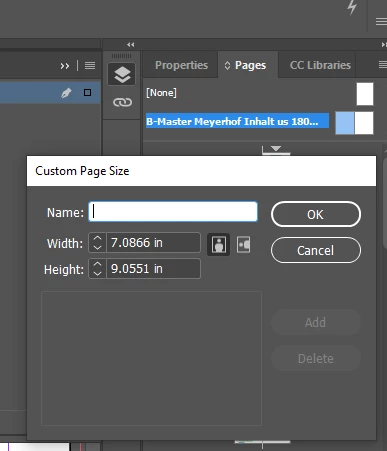
 

As I have existing texts on book pages, if they increase to all directions, I have to realign the text to top margin. But I want the existing text will be kept to the top margin and the page will grow/increase only to downwards so that the extra blank space after increasing page size will be at bottom part of the pages.


How to achieve that or how to use reference point to increase the book's page sizes by applying Parent Page sizes?

This topic has been closed for replies.
Correct answer infomamun

Without being there its hard to troubleshoot this.


Officially I'd play around with it until it worked.


On a test duplicate document.


Sorry I can't help without sitting down and trying a few steps.


No problem, I have figured it out. Actually it needs to Apply the parent to the pages before going to resize the parent, might be due to the fact that the pages were aligned/positioned manually previously. Then after resizing the parent, Parent needs to be applied on the pages once again. Thankyou for your help.

1 reply

Community Expert
March 14, 2023

Use the Pages tool - and select all pages in your document on the Pages Panel.

Resize to your reference point.

Then go to the master page - and resize your master the same size.


Then go to document setup - and set the document setup to the same size as your master page (nothing will change as it's the same size.


Then apply all master pages.


I think after this - when you choose document setup - you can change the size and it should change all pages.


I have to do it all the time.

infomamun
infomamunAuthor
Inspiring
March 15, 2023

Hi @Eugene Tyson 

Thanks for your help. But unfornately, I can see that even I use Page Tool and Reference Point to increase the page size, although page size increases according to the Reference Point direction, but the text box remains at it's original position, I want it should be stick with Top Margin. Please check the attached screenshots on before and after increment of page size using the Page Tool.


Please let me know how to keep text box at the top margin even after increment.


Regards