

Howard322
Participant
May 4, 2020
Answered

Hyperlinks from Word 2016 lost when placed in InDesign

  • May 4, 2020
  • 1 reply
  • 3126 views

I have seen a few posts about this, but my issue seems to be different, so I am opening a new thread.


I understand hyperlinks.  My issue is that I have a client that sends me "Flyers" she creates in Word - not sure what version, but nowing her it's no more than a few years old - that I export to pdf in Word 2016 Professional Plus and place into a digital publication that I do for her in InDesign CC 2020.  The files she sends - Word Docs - are fine.  When I convert them - her Word Docs, using Word 2016 Pro - to pdf the hyperlinks work just like they are supposed to.  When I import the pdf into InDesign the links no longer work.  They don't act like a hyperlink does in ID, so, obviously, when I make a pdf from ID they don't work.  Hyperlinks that I make in the text I create in ID for the rest of the publication work just fine.  I have created an Export PDF Preset that "Includes Hylerlinks" and even tried using that preset with Word, but no luck. 


If I just combine the PDF I made using Word with the ID file in Acrboat the links all work.  Unfortunately, I have headers, page numbers and other formatting in my ID doc that go around these "Flyers" my client creates, so combining with DC doesn't work in my application.


What am I missing?'


Any help is GREATLY appreciated, it can't be this hard


Thanks in advance


{Renamed by MOD}
This topic has been closed for replies.
Correct answer Srishti Bali

Hi Patrick,


Sorry to hear about your difficulties. If I got your workflow correctly, you are exporting Word file to PDF and then you are placing the PDF to InDesign file? Is that correct? If yes, then it is an expected behavior.


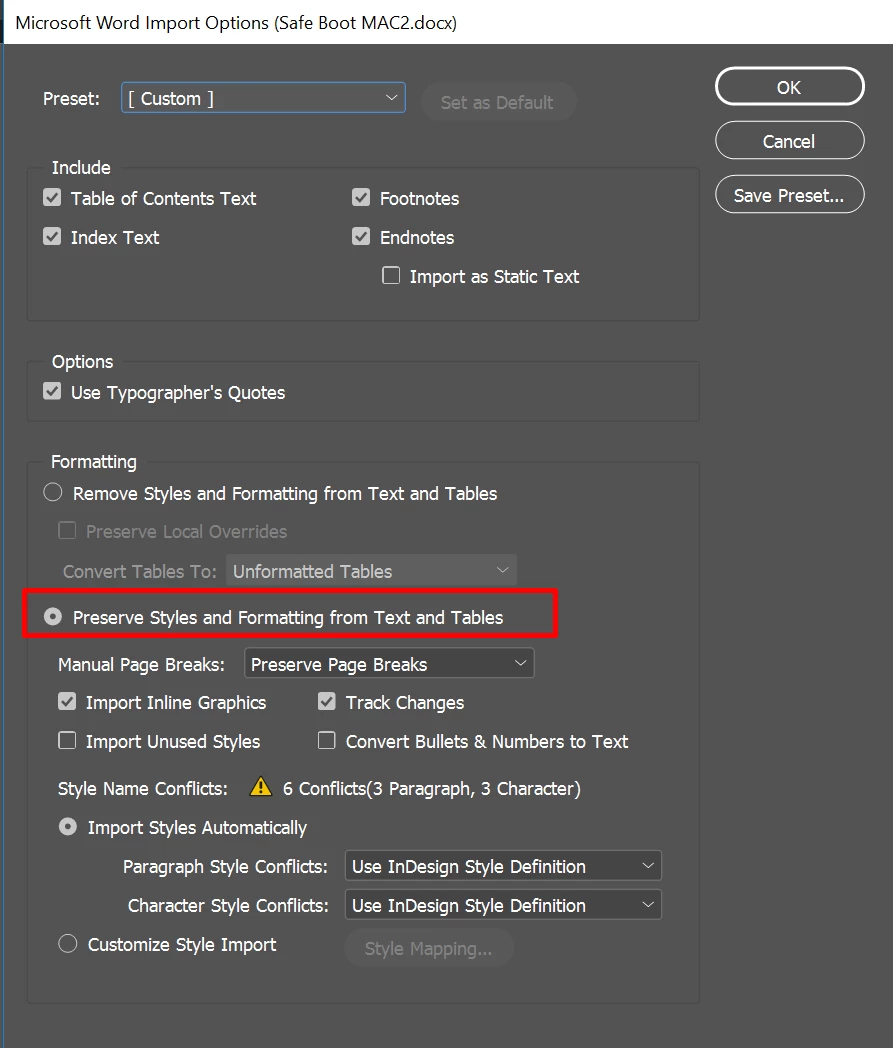
When you place a PDF in InDesign, it's just an image of PDF. Neither the text nor the images are live. You could not edit that either. The correct way is to import the content from Word file itself. While importing Word file, please check "Show Import Options". This will open "Microsoft word Import Options" dialog box. Select "Preserve Styles and Formatting from Text and Tables"  and click OK.


Let us know if this workflow helps resolving your query or if you have any further questions. We'd be happy to assist.


Regards,

Srishti

1 reply

Srishti Bali
Community Manager
Srishti BaliCommunity ManagerCorrect answer
Community Manager
May 8, 2020

Hi Patrick,


Sorry to hear about your difficulties. If I got your workflow correctly, you are exporting Word file to PDF and then you are placing the PDF to InDesign file? Is that correct? If yes, then it is an expected behavior.


When you place a PDF in InDesign, it's just an image of PDF. Neither the text nor the images are live. You could not edit that either. The correct way is to import the content from Word file itself. While importing Word file, please check "Show Import Options". This will open "Microsoft word Import Options" dialog box. Select "Preserve Styles and Formatting from Text and Tables"  and click OK.


Let us know if this workflow helps resolving your query or if you have any further questions. We'd be happy to assist.


Regards,

Srishti

Howard322
Howard322Author
Participant
June 2, 2020

Srishti


Sorry for the dealyed reply!


I finished that particular project and moved blissfully on to projects that had nothing to do with Word Documents


Thank you for your instructions, they worked like a charm!


I appreciate your time


P

Srishti Bali
Community Manager
Community Manager
June 2, 2020

Glad to hear that, Patrick. Please feel free to reach out if you run into any other questions or issues in the future.


Thanks!