
Participating Frequently
February 4, 2023
Answered

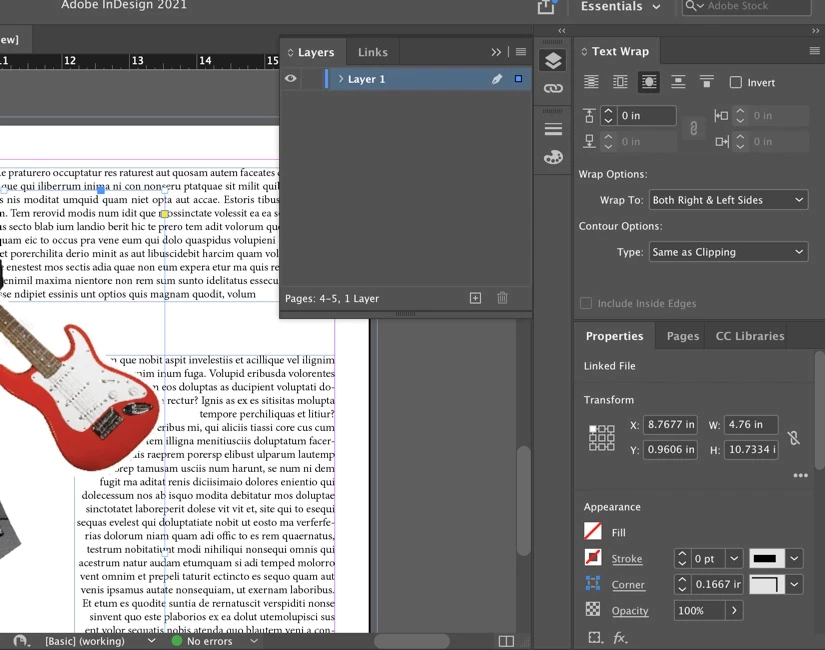
I can’t wrap text with an image.
  • February 4, 2023
  • 3 replies
  • 3773 views

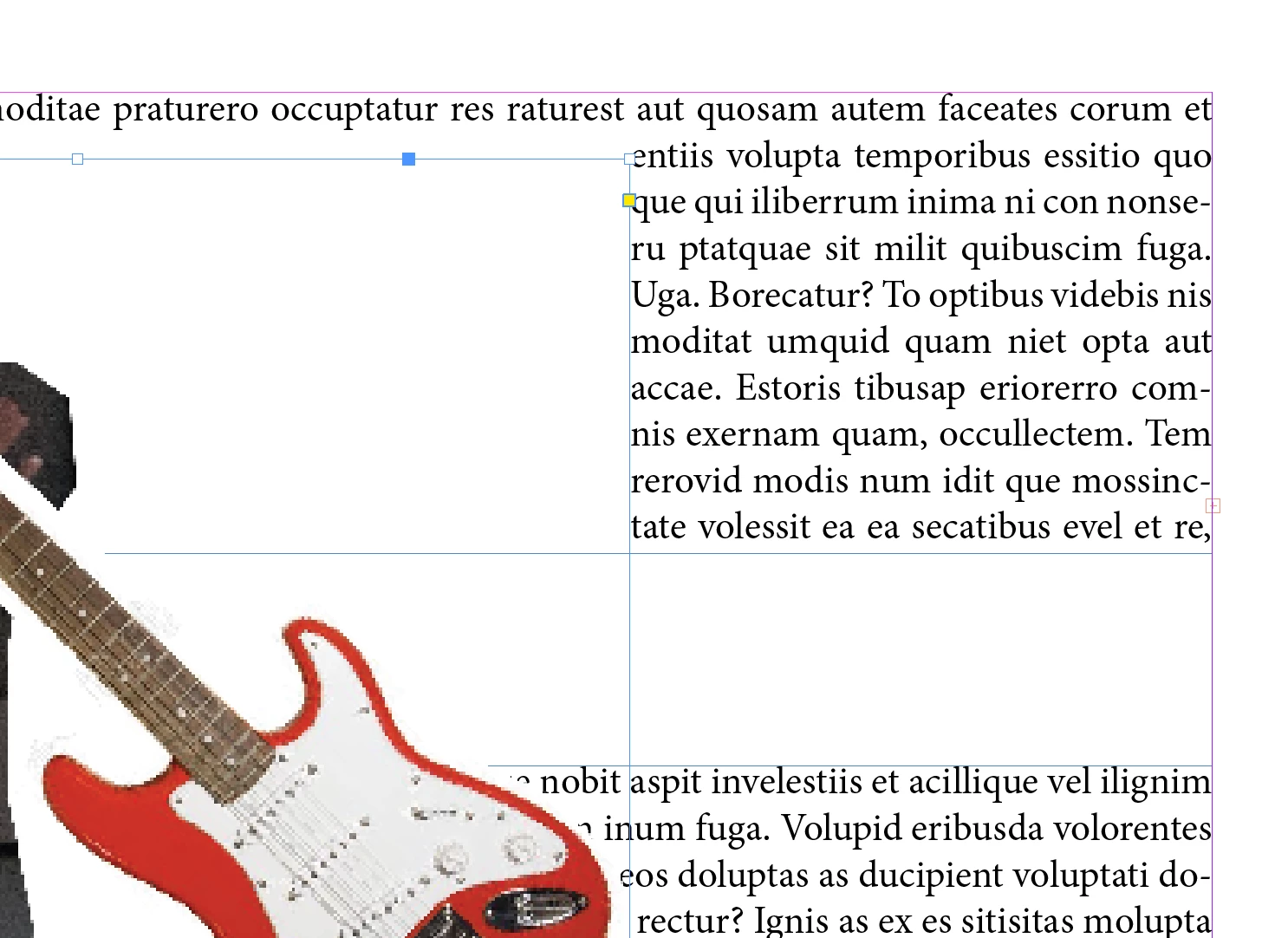
Hi, i've been having this problem with the wrap tool and i can't seem to find what the issue is, the text is not wrapping around my png image, the text is beneath the image, on the same layer, the "text wrap only affects text beneath" is off as well as the "ignore text wrap option" The image is not grouped with anything else, neither are the text frames, does anyone know what could be the issue? (I've also tried applying the wrap tool to both text and the image and it didn't change)
This topic has been closed for replies.
Correct answer Rene Andritsch

There isn't any anchors in my image 😞 so I don't think thats the issue.


The lower text box still seems to have “Ignore Text Wrap activated”. If the “Type” is set to “Same as Clipping” and as in your case is set to an offset of “0” it would exactly do what it does in the upper case. The wrap would be the same as the picture frame. I think PNGs can not contain a clipping path. Try Type > “Alpha Channel”. The cleanest solution would be to open your PNG. Create a clipping path around the guitar and save it as a PSD file. then the option “Same as Clipping” would get to the most accurate result.

3 replies

Dave Creamer of IDEAS
Community Expert
Community Expert
February 4, 2023

Your settings show that your text wrap is sent to same as clipping. Is this image of a clipping path? If not, that setting won't work.


David Creamer: Community Expert (ACI and ACE 1995-2023)
Participating Frequently
February 4, 2023

That's the one that I was trying at the time, i read somewhere that if the image that you were using was created in illustrator that could work (even tho i tried with bothe the .ai file and the .png file), but even if i change the countour option nothing really changes, in this case I tried verifying that i was selecting the image frame, i tried the different countour options, and still nothing. 😞 was trying at the time, i read somewhere that if the image that you were using was created in illustrator that could work, but even if i change the countour option nothing really changes.

Rene Andritsch
Community Expert
Community Expert
February 4, 2023

Please select both your text boxes one after the other and show the text frame options …

James Gifford—NitroPress
Legend
February 4, 2023

Put the image below the text?


ETA: Do you have the object anchored? That can interfere with text wrap if the anchor isn't well above the image in the text flow. (Essentially, the image "doesn't exist" until the anchor is encountered, if that makes sense.)


In this example, the anchor is at the end of the paragraph behind the image, at the X. Above the anchor, nothin'. Below it, wrap as designated.


Participating Frequently
February 4, 2023

I've tried with the image below the text but nothing occurs, I'm not sure how can i know if my picture is anchored, i don't think so because the "anchored object" option is all greyed out, but I could be wrong, how can i change that?

Rene Andritsch
Community Expert
Rene AndritschCommunity ExpertCorrect answer
Community Expert
February 4, 2023

There isn't any anchors in my image 😞 so I don't think thats the issue.


The lower text box still seems to have “Ignore Text Wrap activated”. If the “Type” is set to “Same as Clipping” and as in your case is set to an offset of “0” it would exactly do what it does in the upper case. The wrap would be the same as the picture frame. I think PNGs can not contain a clipping path. Try Type > “Alpha Channel”. The cleanest solution would be to open your PNG. Create a clipping path around the guitar and save it as a PSD file. then the option “Same as Clipping” would get to the most accurate result.

Derek Cross
Community Expert
Community Expert
February 4, 2023

Try Object > Text Frame Objects and tick Ignore Text Wrap.


Participating Frequently
February 4, 2023

I just did and nothing seems to have changed. 

Rene Andritsch
Community Expert
Community Expert
February 4, 2023

This setting with “Ignore Text Wrap” activated now works as intended.