
Inspiring
September 16, 2022
Answered

ID won't retain all .doc formatting, adding spacing after every line

  • September 16, 2022
  • 2 replies
  • 2497 views

This has never been an issue until now. I use Microsoft Word when formatting, and I save the files as .doc files. Even if I save it as a .docx file, the issue persists.

I go to File, Place in InDesign, select my document, and click Place. The document keeps most of its formatting, but my Times font is automatically changed to Cambria, so I have to manually change it every time. Why would it not just keep Times since it's already in the program?

But more maddening is that now, all of a sudden, a bunch of extra space is being added after every single line. Deleting to the previous line and pressing Enter/Return does nothing. It's like the entire thing is default to double-space, and the only way I can fix it is to go to the Paragraph bar and change the Space After box to 0. I've never had to do this before. Is there a way to default that Space After box to 0? It's never done this to me before, but now it won't stop.

I'm using the latest version of Mac OS Monterey on a brand new computer with an M1 chip, as well as the latest version of all Adobe programs.
This topic has been closed for replies.
Correct answer James Gifford—NitroPress

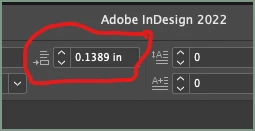
Your last screenshot shows that you have setup your paragraph style with 0.1389 inches in the space after field. If the text is aligned on the baseline grid, it produces this gap. That's completely normal.

If you don't want spaces between paragraphs, why don't you simply modify the paragraph style setttings and remove the space after?


What @jmlevy means is this:

That's defining space after the paragraph, whether it's embedded in the style definition or done by override. I can't see a style name, so can't determine if there's a + override marker on it.


I think you just need to fix your style, removing the space after.


2 replies

Mike Witherell
Community Expert
Community Expert
September 21, 2022

Text must be controlled, like the population of a disputed land. You want the text governed by a paragraph style, an honest government. But text can be overridden by a character style which is fine if you know about it and have authorized it as lawful. Unlawfully, sometimes text is overridden by locally applied directly-clicked-on attributes which were not authorized by the lawful management of the paragraph style. Marauders have rushed in and seized control. 

Word styles are paragraph and character styles from a foreign land. If processed in correctly, these can become naturalized citizens in InDesign and dwell peaceably. If they sneak in, the can cause an undermining of the government of InDesign's paragraph styles.


That makes 4 factions to check on. Your trusted paragraph styles, your trusted character styles, and outsiders like rogue Word styles (I'm looking at you, Normal) and directly-applied attributes that readily override the will of the people, making them do things they shouldn't do. You can see these interlopers plainly by observing the plus sign that shows up next to the style name. 

One more thing. You can't always count on everyone in a trusted group. Make sure your paragraph styles integrity is not compromised by the use of Based On: Basic Paragraph Style. Basic Paragraph Style can be easily manipulated and turned. Trust but verify: Base your styles on "No Paragraph Style" so that they are not influenced to corrupt changes coming from untrustworthy Basic Paragraph Style. 

Mike Witherell
Bevi Chagnon - PubCom.com
Legend
September 22, 2022

@Mike Witherell 

OMG!  Never in my wildest dreams would I have thought that misuse of styles and formatting would be described like this.


Sure wish we could correct the Trumpian maurauders as easily and completely as we can InDesign style formatting <grin>


Right-click, edit Trump or even Right-click, delete Trump.  Such a precious idea!


|&nbsp;&nbsp;&nbsp;&nbsp;Bevi Chagnon &nbsp;&nbsp;|&nbsp;&nbsp;Designer, Trainer, &amp; Technologist for Accessible Documents ||&nbsp;&nbsp;&nbsp;&nbsp;PubCom |&nbsp;&nbsp;&nbsp;&nbsp;Classes &amp; Books for Accessible InDesign, PDFs &amp; MS Office |
James Gifford—NitroPress
Legend
September 22, 2022

It's a suitable ending to a thread in which the basic questions took forever to answer and then it was discovered they were irrelevant. 🙂


James Gifford—NitroPress
Legend
September 16, 2022

Import from Word is usually reliable, but can be glitchy.


The first thing to keep in mind is that you should use managed styles in Word, with no spot override formatting, and then have matching styles in InDesign. Don't count on ID to import every aspect of a Word style faultlessly. The two styles can be night and day; InDesign will apply its defined style simply by name-matching, not by any characteristic of the Word style. So the takeaway there is that you can be casual with your Word styles and set them up to be easy to write and edit, and then completely change them to your layout style on import.


What I think might be happening here is that you are importing, say, "Body Text" style to a style of that name in ID that has these different characteristics. So make sure the ID style is exactly what you want it to be, and that's how text with that style name will be formatted on import.


It can help to use the Import Options menu when you place the file. When you select the file for placing, check the Show Import Options box at the bottom. This will let you do a number of things including reviewing and managing the way styles are mapped between the two docs.


Further questions welcome. It's a fussy process but you have to manage it, not just let the two programs slug it out.


Inspiring
September 19, 2022

I've used the Import Options menu, and everything is set to the way it should be, yet things are still not importing properly. The biggest issue is the Space After feature. This has never been an issue until now. My question is, can I set the default Space After to 0 so that I don't have to go back and forth between Character and Paragraph sections in ID every time I import a Word document?

jmlevy
Community Expert
Community Expert
September 21, 2022

Whenever I create a new document, the Space After box is set to 0. The issue happened when a Word .doc was imported - it automatically created .1398 or whatever After Spacing.


  • Is there any paragraph styles in this InDesign document? Check them.
  • Do you use one of them?
  • Check the settings of the [Basic paragraph style]
  • Check the Word paragraph style settings

Can you post a screenshot of your InDesign document with the text cursor positioned in one paragraph AND the paragraph styles panel?