Participant
November 5, 2021
Answered

Images disappear when exporting to PDF with ISOnewspaper

  • November 5, 2021
  • 4 replies
  • 2661 views

We have created a document in InDesign and are exporting to a PDF with IsoNewspaper26v4 so we can send it to our printing office. When we open the PDF all images are gone. It only shows a white area in the place of the original image. We have already tried several things, but can't solve it.


Does anyone have a solution?
This topic has been closed for replies.
Correct answer rob day

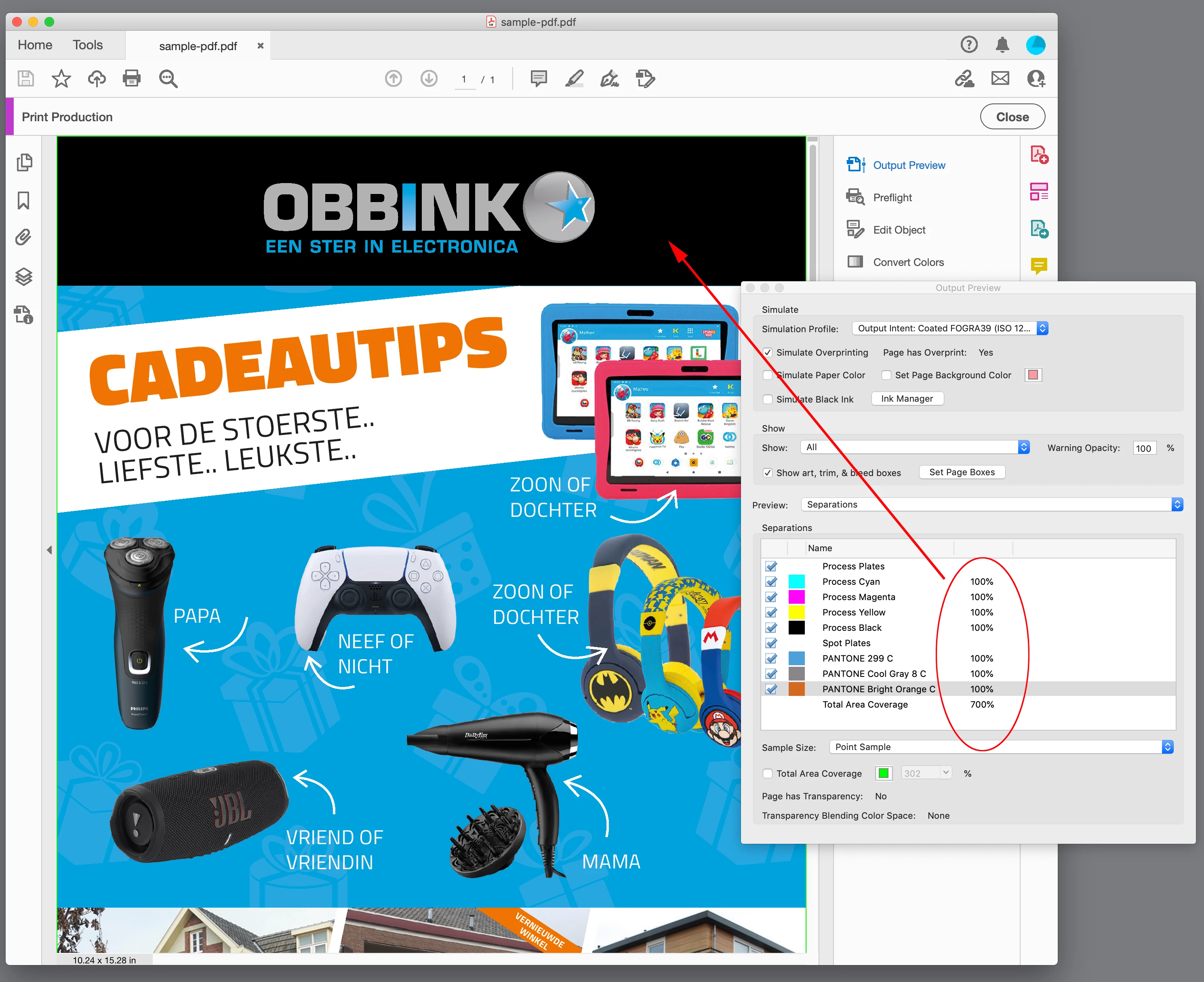
You can also view overprints if you turn on Output Preview.


Also, there are 3 spot colors mixing with process color—newspapers don’t normally run spot plates, so if the output is CMYK process, set your ID Pantone swatches’ Color Types to Process. The spots mixed with process color is probably causing the overprint behavior.


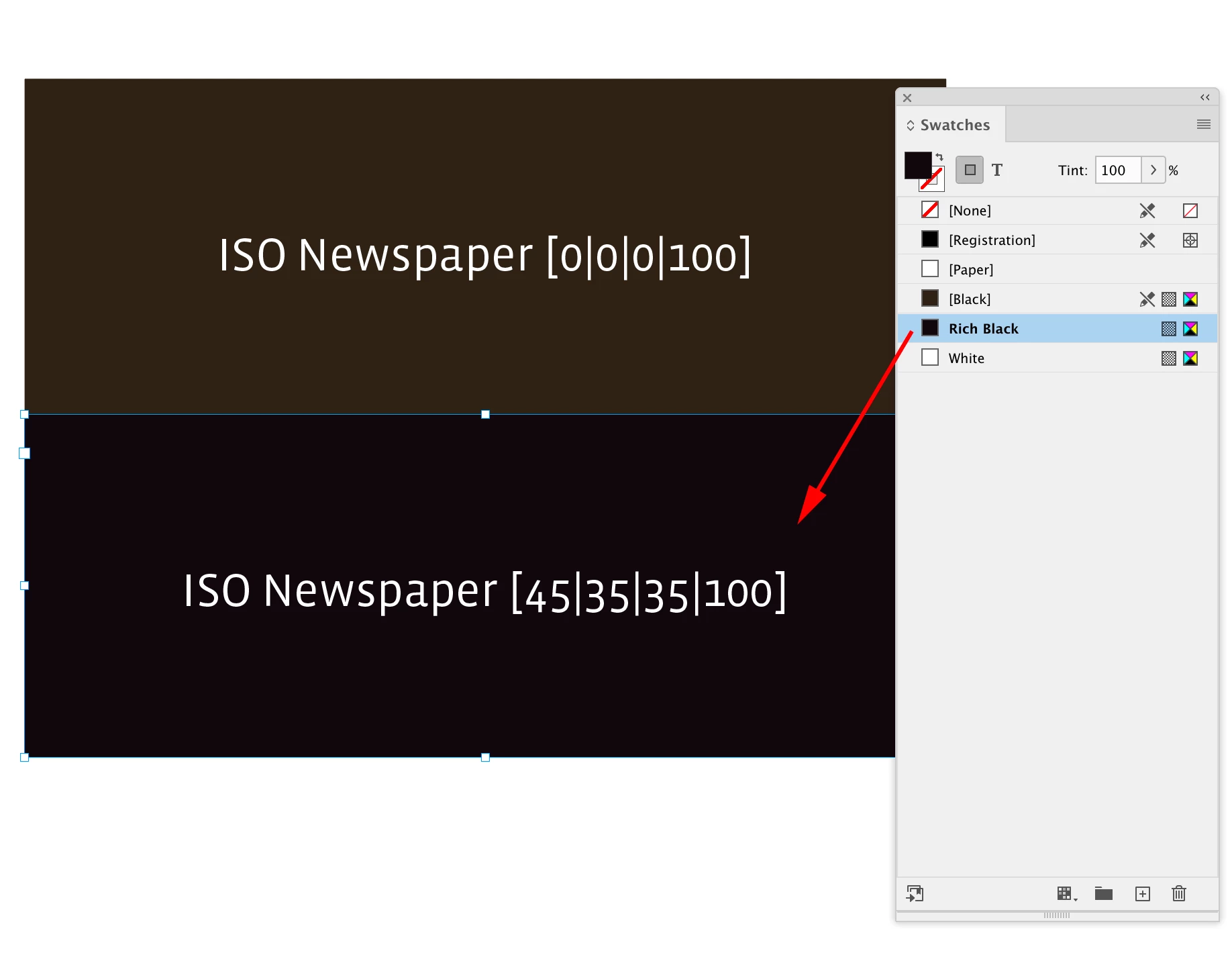
And, don’t use the [Registration] swatch in ID. You can see the black band at the top has 700% total ink—even with process only that much total ink would not be printable. (EDIT) You also did not export to ISONewspaper—the Output Intent is Coated FOGRA39. Set your InDesign document’s assigned profile to ISO Newspaper before you export so you get an accurate print preview:


If you are using [Registration] to get a blacker black, make a custom rich black swatch with CMY instead:


4 replies

rob day
Community Expert
Community Expert
November 9, 2021

Check your InDesign document for a white fill that is set to Overprint. I can force that to happen by making a copy of the default [Black] swatch and setting Black to 0%—a white fill that overprints:


Turn on Overprint/Separation Preview displays the overprint:


Acrobat’s Output Preview


Community Expert
November 8, 2021

Hi MarkB2,

jmlevy is right!

Turn ON overprint preview.


I set "Use Overprint Preview" to "Always" in the Display preferences of Acrobat:


When with Output Preview check if option [  ] Simulate Overprinting is turned on.


[  ] Simulate Overprinting unchecked:


[ x ] Simulate Overprinting checked:


Regards,
Uwe Laubender

( ACP )

MarkB2Author
Participant
November 10, 2021

Thanks for all the replies. We have fixed the issue. It was indeed a combination of Pantone colors and process colors and an overprint in black ink. After correcting this, the white crops where gone and the images are visible again. Thanks for all the help.

rob day
Community Expert
Community Expert
November 7, 2021

What preset are you using? Does it happen if you export a flattened PDF/X-1a? What version of InDesign are you exporting from?

MarkB2Author
Participant
November 8, 2021

It also happens when we export using PDF/X-1a. We are using InDesign 2022 with the latest updates.

jmlevy
Community Expert
Community Expert
November 8, 2021

Check your Acrobat preferences, about overprint preview. If it is ticked, your fil will display correctly

Brad @ Roaring Mouse
Community Expert
Community Expert
November 7, 2021

What are you viewing the PDF with? (Acrobat or something else?).

Do you have a sample PDF we can look at?

MarkB2Author
Participant
November 8, 2021

Acrobat is the only way to view it with it's images. All other programs will not show the images. Attached you will find an example file with the problem.

Brad @ Roaring Mouse
Community Expert
Community Expert
November 8, 2021

There's more going on than just the Overprint Setting in Acrobat. yes, that solves the viewing issue in Acrobat, but it won't help viewing in anything else (say in a web page), nor does it print composite properly. In any case, in the flattening, your blue spot colour graphic (with "white" knockouts) is coming forward IN FRONT of your photos. Is the intent that it be a spot colour? (if so, the file WILL separate properly at print time, but if not, you should consider using the ink manager to convert these spost to process for other uses.