


nilleg57851248
Inspiring
February 20, 2017
Answered

Import from Illustrator looks terrible in InDesign
  • February 20, 2017
  • 6 replies
  • 43496 views

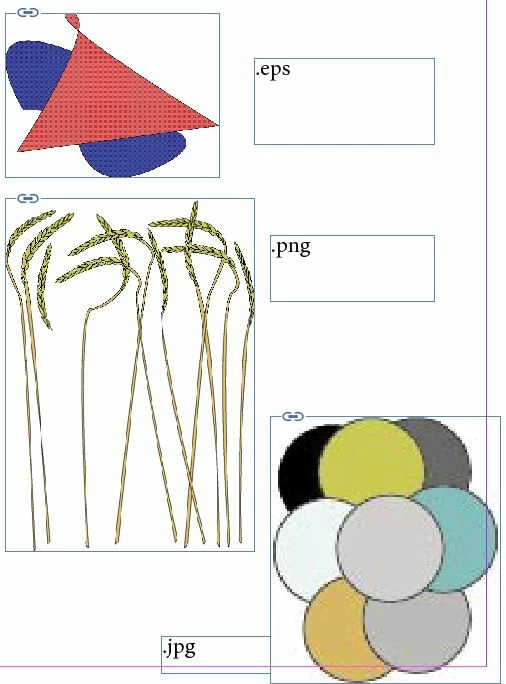
When I place graphic files in InDesign it looks terrible. Normally it works perfect. What is wrong?

I tried to change from Mac to PC, but that did not help

    Correct answer Barb Binder

    Effective PPI are 23

    Bingo. For print, you want to resolution to be at lease 200 ppi, although the precise number depends on the output device. The files are very very low res and that accounts for the pixelation.

    You can place native .ai files from Illustrator into InDesign and not have to deal with resolution at all. That's my recommendation.

    6 replies

    Participant
    September 16, 2022

    For me, the quality was great when I imported my vector file into inDesign, but would pixelate when I would try to export as PDF. I realized that when saving the document, I could change the compression of the images. So I changed it to JPEG2000(Losless) and increased my resolution to 300ppi and that worked for me 🙂 Hope this helps! 

    Participant
    September 19, 2022

    I am having the same issue.  I purchased a vector .ai file from Adobe and it looks aweful.  I did a test print and it prints terribly as well.  I am placing the .ai file in InDesign, not pasting it.  All of my setting are set to high quality and it doesn't change how the image looks or prints at all.  This is for use on a 16' x 4' banner so it will be very large.  I have NEVER had this issue before with a .ai file looking like a small jpg when placed.  I checked the options when placing the file and it shows no PPI as it should because it's a vector file, but still the file is poor quality.  I have re-downloaded the file.  no change.  I converted it to SVG and that showed up blank.  I have several different .ai vector files (I opened them in Illustrator to be sure I was downloading a non-vector file saved as .ai and it is vector when opened in Illustrator.  I have wasted hours on this and nothing helps.


    I recently updated my operating system to Monterey and updated InDesign to 17.4.  These updates were done to solve another problem with InDesign and it did fix that problem.  My settings were not reset to default after the download.

    Participant
    August 31, 2022

    InDesign  17.4   Preferences > Display Performance > Adjust View Settings > Vector Graphics: Slider all the way to the right (High Resolution)

    nilleg57851248
    Inspiring
    February 20, 2017

    Thank You all for all your good support.

    What a relief

    Wish you all a wonderful and inspiring week

    Mike Witherell
    Community Expert
    Community Expert
    February 20, 2017

    Try these steps in this order:

    1. Close the file

    2. Open InDesign preferences > Display performance

    3. Set both Typicals to High Quality

    4. Uncheck Preserve Object Level Display Settings

    5. Click OK

    6. Re-open your file

    7. Sometimes InDesign stubbornly ignores these global settings and a right-click of the problem graphic might reveal something under Display Performance.

    Further advice:

    Don't copy n paste from Illy; it is better to PLACE an Illustrator .ai file. If you feel you must copynpaste, go to Illy preferences  > File Handling > Clipboard. Turn off Include SVG Code. Turn ON AICB and either preserve paths or preserve appearance and overprints, if you are making more complex drawing.

    Don't use the aged, creaky EPS filetype anymore. It cannot transparency blend mode. It cannot support live effects like drop shadows. Save stuff as .AI or .PDF from Illustrator.

    Oh, and make sure your links are good in the Links panel.

    Mike Witherell
    nilleg57851248
    Inspiring
    February 20, 2017

    Hurrayyy

    It was the handling/clipboard thing

    Thank you for so many good advises :-D

    Barb Binder
    Community Expert
    Community Expert
    February 20, 2017

    Select one of the images, and check the Effective PPI in the Links panel. What does it say?

    ~Barb at Rocky Mountain Training
    nilleg57851248
    Inspiring
    February 20, 2017

    Actuall PPI are 72

    Effective PPI are 23

    Dimensions are 97 x 113

    Mike Witherell
    Community Expert
    Community Expert
    February 20, 2017

    So that means the exports were at 72ppi, and then the art was scaled up in size on the ID page, thus lowering the effective ppi to a crude 23 ppi. How are you exporting these pngs and jpgs from Illustrator? Why are you not keeping the artwork in a vector format like a native .ai file or a PDF file format?

    Mike Witherell
    Eternal Warrior
    Inspiring
    February 20, 2017

    Are you using High Quality display settings?

    Right click and choose display performance as below:

    Eternal Warrior
    Inspiring
    February 20, 2017

    In short > because you could have hundreds or even thousands of graphics/images in an InDesign document unless you specifically tell it to.. InDesign will display everything by default on "typical display settings" or occasionally on Fast display...

    This essentially is a thumbnail or pre-render of the actual graphic displayed at a much lower resolution and quality than the original - giving you that blocky effect that you can see.

    If however graphics are still blocky on high-quality display settings then this normally means that the original image/graphic is much too small to be scaled to the size you have set it in Indesign (i.e. width/height taken on X size of X spread).

    Best,

    EW

    nilleg57851248
    Inspiring
    February 20, 2017

    It is now at high, but the result is the same

    This illustration is in A4 Size and I import it smaller to Indesign

    I think is so strange( fruuustrating) , because it never have been a problem earlier.