If you use a narrow column and full justification you’re going to get a big difference in word and letter spacing. You can adjust the Justification settings to favour adjusting one over the other byt entering a narrow range for one nad a wide range for the other.
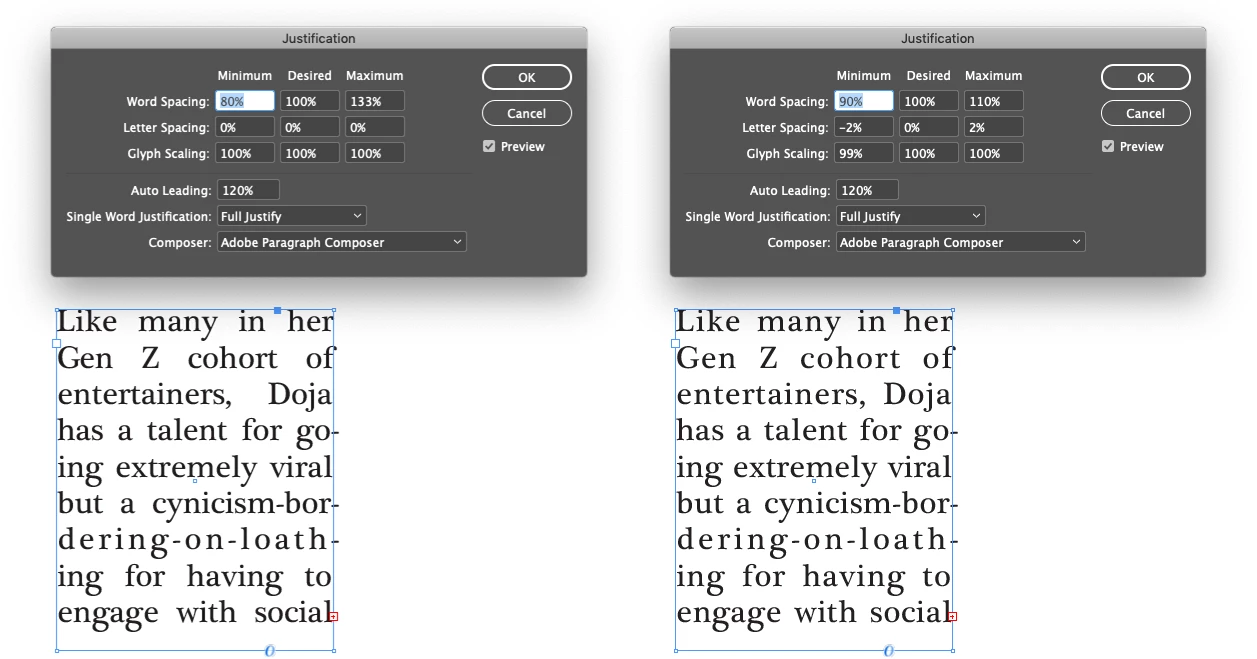
For example, enter a narrower range of values for word spacing and a wider range of values for letter spacing and glyph scaling. InDesign will use letter spacing and glyph scaling (making the characters on a line a bit narrower or wider) to justify instead of only using word spacing.
Below I adjusted glyph scaling and letter spacing to allow more spacing adjustment in those areas and less in word spacing. I also turned on Optical Margin Alignment in the Story panel.
The leading problem is another matter. You are using a baseline grid. When you do that leading will snap to the baseline grid. If your baseline grid is 8.2 points then you cannor have any leading value that is not a multiple of 8.2. If you want 16 point leading, you can’t. InDesign will round that up (always rounding up) to 16.4. Either don’t use a baseline grid or change the grid values to what you want your leading to be, or factors fo that. For example, for 16 point leading use a 16 point grid or an 8 point grid.




 AdChoices