


Copy link to clipboard
Copied
Hi,
I'm quite new to InDesign, and have recently been formatting my novel. I imported a word document into InDesign, and began manually changing anything that didn't come up the way I wanted to better match the appearance I want the document to have.
Now, having done most of what I wanted to do, there is one issue I still have that I can't seem to figure out (or find online help on). At the beginning of every paragraph (excluding one opening a chapter), I insert five spaces before beginning the text. However, in certain paragraphs, the spacing before the first letter is sometimes larger than others. I've even tried manually erasing these spaces and re-typing them, but they still come out at whatever size they were before, either too small or too large. Furthermore, the spacing settings in the upper toolbar seem to be consistent, despite differing results.
There are five spaces inserted at the beginning of every paragraph (except those opening a chapter). Here is an example:
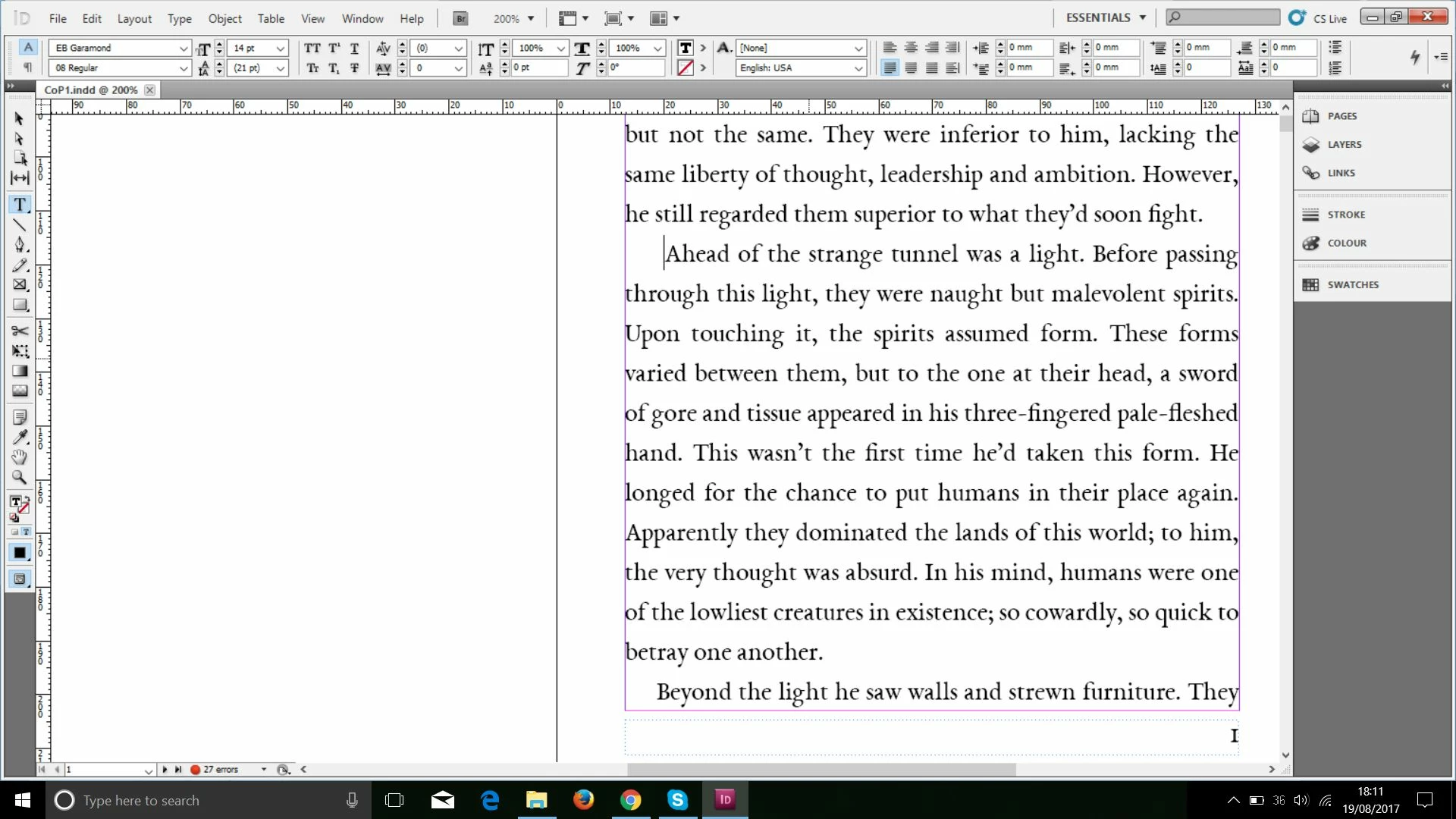
If you look at the amount of space before the word "Ahead" where the cursor is, and the amount of space before "Beyond" on the bottom line, you can see that the former has a much larger distance from the margin. However, both are distanced with five spaces, and the same settings, at least where I can see.
More examples of the same thing can be seen here:
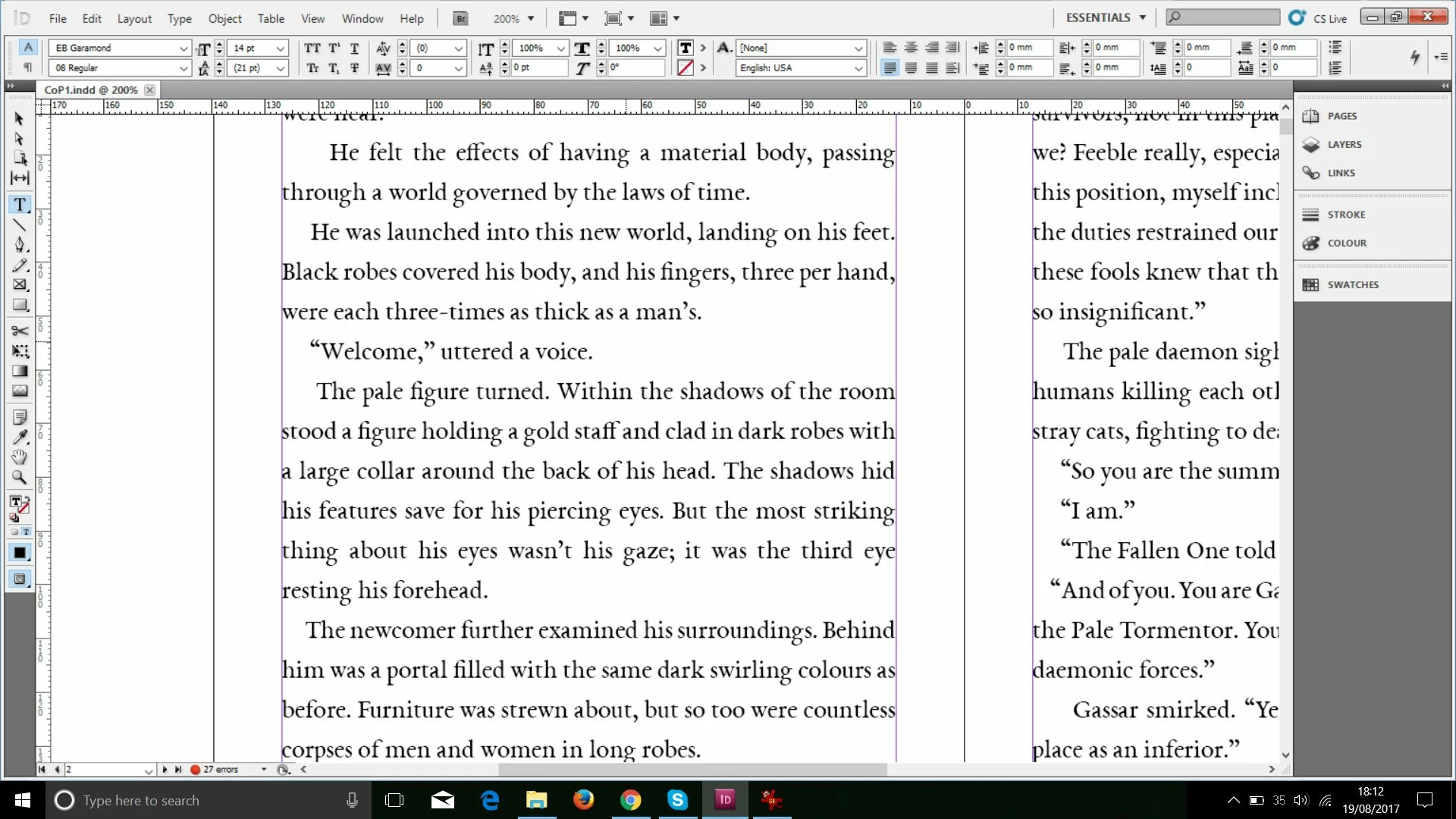
I hope someone can help me with this, because the formatting looks very unprofessional as is.
Thanks in advance.
Message was edited by: Mod (Discussion successfully moved from The Lounge to InDesign)
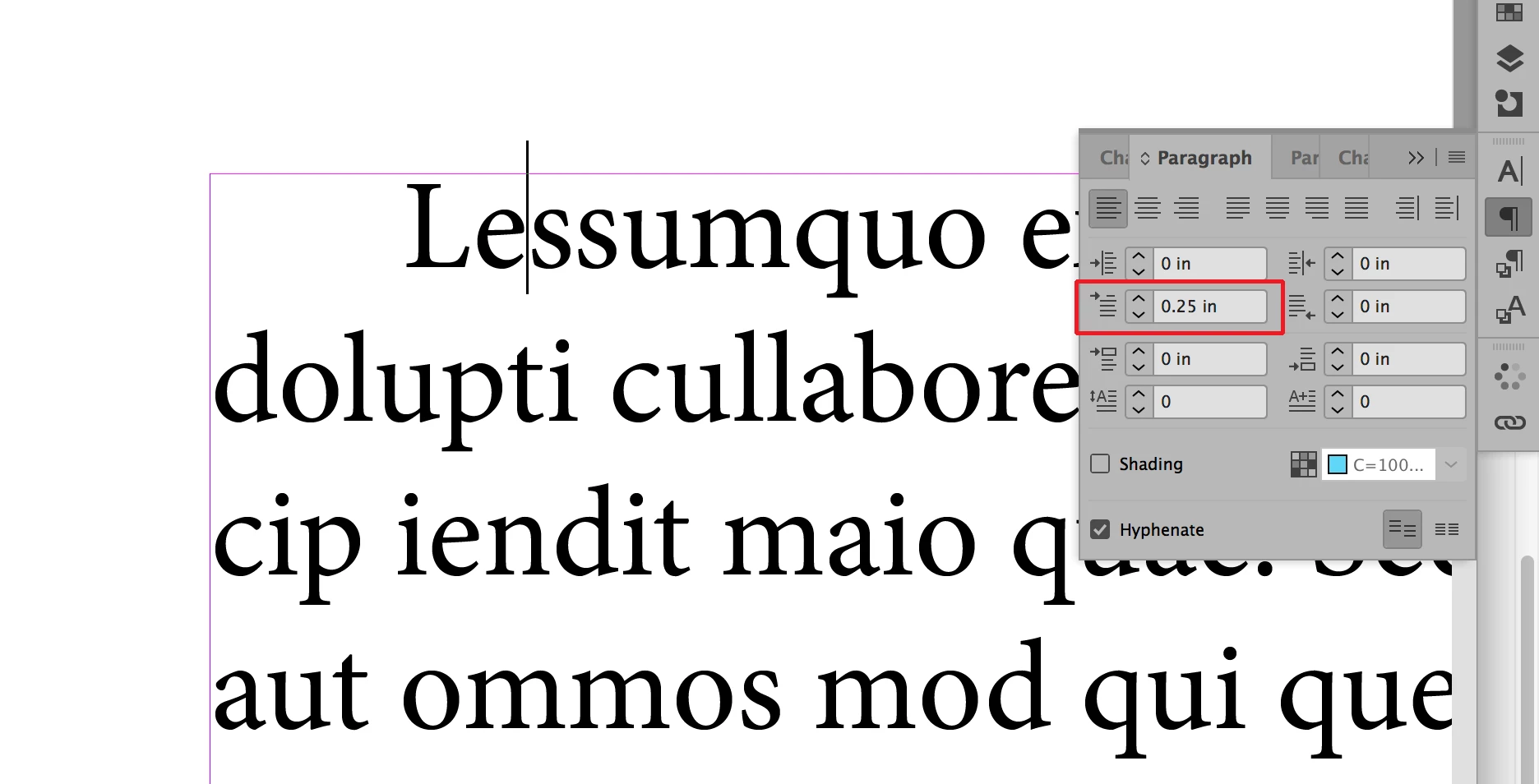
Rather than using spaces to make your indent you should use the paragraph panel to establish your first line indent. See screen shot below:

By entering a value in the first line indent field like this InDesign will automatically compensate for the difference in the contour of the first letter in each paragraph to maintain the appearance of perfect spacing. You can apply this to all of your paragraphs at once by selecting them all or by simply having the cursor in any paragraph that you want to ap
...Copy link to clipboard
Copied
In the Paragraph panel, use a First Line Indent instead of spaces. See second field down on the left.

Copy link to clipboard
Copied
Rather than using spaces to make your indent you should use the paragraph panel to establish your first line indent. See screen shot below:

By entering a value in the first line indent field like this InDesign will automatically compensate for the difference in the contour of the first letter in each paragraph to maintain the appearance of perfect spacing. You can apply this to all of your paragraphs at once by selecting them all or by simply having the cursor in any paragraph that you want to apply it to. All indent functions for paragraphs should be done through this panel.
Copy link to clipboard
Copied
Wow, Jeff. Deja Vu strikes again!
Copy link to clipboard
Copied
Ok guys, thanks. Erasing the five spaces in every paragraph was definitely taxing, but at least I can get the look I want now.
Copy link to clipboard
Copied
A little late now, but you could have looked at the Find/Change feature.
You're done! All spaces are gone!
Copy link to clipboard
Copied
Herr Grepp would be safer, as you can anchor the start to the start of a paragraph (and it is able to catch anything from 3 to 6 spaces, in case the amount varies). It's also slightly faster than regular text find-n-change.
Also, in the Replace With field, you can hard-code an override for the First Line Indent (not recommended) or the proper paragraph style (highly recommended).
Copy link to clipboard
Copied
Yep! I know, there's even a GREP Preset, Multiple Space to Single Space.
Should he be using Styles? Absolutely!
But he's also very new to InDesign.
So the real answer to the question can be found here: Adobe Partner Finder | Adobe Training & Certification https://training.adobe.com/training/partner-finder.html#p=1&name=Jeff%20Witchel
Copy link to clipboard
Copied
Solutions have been offered but I see no-one mentioned the reason for this – to your eyes – inconsistent (maybe even 'unprofessional') behavior.
> However, in certain paragraphs, the spacing before the first letter is sometimes larger than others. I've even tried manually erasing these spaces and re-typing them, but they still come out at whatever size they were before, either too small or too large. Furthermore, the spacing settings in the upper toolbar seem to be consistent, despite differing results.
Your text is set justified. Proper justification is done in InDesign (as in other professional software) by adjusting the width of space characters, so the left and right margins run straight. Therefore, all spaces on each separate line are adjusted (InDesign doesn't care whether the spaces are at the start or in the middle of a line¹), and all lines have subtly different space widths (because the amount of spaces and the accumulated widths of the non-space characters is very likely to be different for each line)². Therefore, whether you type one space at the start, or 3, or 5, their total widths will not be the same from one paragraph to another.³
This is called "Indent" in the Online Manual: Set tabs and indents in Adobe InDesign​; it even comes with the sane advice
> In general, use first‑line indents, not spaces or tabs, to indent the first line of a paragraph.
It is slightly disconcerting that you are planning to do the typography for your book by yourself, using InDesign, because you don't want it to look "very unprofessional", yet you fail to recognize InDesign as a tool for professionals to create a professional level of typesetting. You may want to go on as you do or get a professional to do this for you. Viz., "Erasing the five spaces in every paragraph was definitely taxing" – well, it should not have been for one of them.
¹ But not at the end. Every amount of whitespace at the end of a line or paragraph is ignored. It's usually not a problem.
² I could find out but I don't think the chances of that occurring accidentally is very large. Unless you use lots of stock phrases, longer than a single line.
³ Except when the entire paragraph is one single line and fits comfortably inside the margins. InDesign will not justify it, unless you specifically ask it to (which you should not do).
Copy link to clipboard
Copied
I decided to do the typography myself because I was confident I could quickly learn enough about InDesign and achieve the result I envisioned, and I've done so. Perhaps not as swiftly as a professional would have, but I got the result I wanted nonetheless and saved myself a good sum of money by doing so. The issue with the justified spacing was literally the last thing I needed to adjust, and was something I hadn't been able to find any information on without directly posing the question on these boards.
Thanks for the info though, all of you, and I'll keep those tips in mind for next time. Creating my next document should be much easier.
Copy link to clipboard
Copied
I applaud your efforts Silver Fang! Formatting a book as a beginner is quite a feat.
Get ready! An upgraded Adobe Community experience is coming in January.
Learn more