
Participant
May 27, 2021
Question

Indents and bullets in InDesign

  • May 27, 2021
  • 5 replies
  • 1293 views

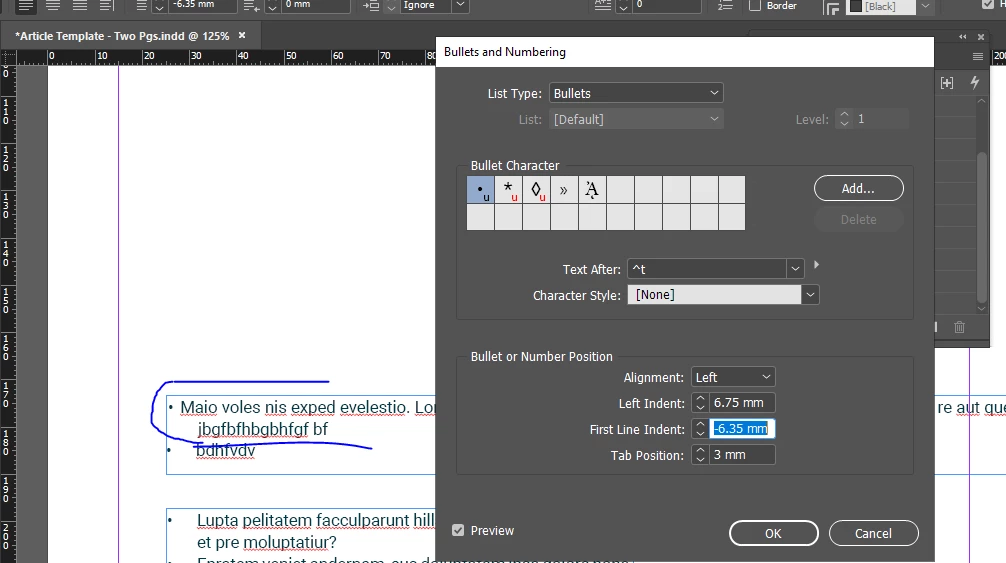
Hi all, I've been tasked to format an InDesign document from scratch for our new flyers and I cannot for the life of me work out what is going on with the bullets. I have managed to work out how to reduce the space between the bullet and first-line text and am now happy with its placement, but I have no idea how the hell you change the second line so that it can be in line with the first. 


I have been struggling to understand the left indent and first-line indent... but I think I get these now. Any help would be greatly appreciated!! I've tried to circle what I want to change and showed my current settings.


I also need to change the colour of the bullet... so if you have any guidance on that it would be great!


Thank you in advance. 


    This topic has been closed for replies.

    5 replies

    John Mensinger
    Community Expert
    Community Expert
    May 27, 2021

    After that, you can tune the indents by adjusting the entries in the Bullets & Numbering dialog, or Indents and Spacing, and base a paragraph style on the selection so it's easily replicated elsewhere.

    John Mensinger
    Community Expert
    Community Expert
    May 27, 2021

    For now, just Click OK.

    With the text still selected, call the Tabs ruler (Ctrl/Cmd+Shift+T)

    Hold down Shift and click/drag the lower (second-line) indent marker to the right to set the desired distance-from-bullet and line up both indents:


    John Mensinger
    Community Expert
    Community Expert
    May 27, 2021

    Yes, getting the desired result by entering measurements in those fields can be confounding. If you're willing to sort of start over, I'll show you a more "visual" method you might find easier.

    With simple text selected, call the Bullets and Number dialog, and set the List: menu to Bullets

    You'll get the following, with the Tab Position defaulting to 12.7 mm

    Lukas Engqvist
    Community Expert
    Community Expert
    May 27, 2021

    If you want bullets at your colum edge the set the Left Indent to where you want all lines to be, not counting bullets. 

    Set First Line Indent to minus value of Left Indent.
    Example:

    Left Indent = 5

    First Line indent -5

    Remove Tab position. In original post the Tab position is less than the left indent which is causing the problem

    jmlevy
    Community Expert
    Community Expert
    May 27, 2021

    To properly align the text, the left indent value and the first line indent must be the exact opposite, like 5 mm and -5 mm. I recommend you to not use a tab, but an em space or an en space. To change the colour of the bullet, create a character style and choose it in the Character style field.

    Ellie5DA7Author
    Participant
    May 27, 2021

    Oh my goodness jmlevy you are a legend! Thank you so much!

    Peru Bob
    Community Expert
    Community Expert
    May 27, 2021

    I've moved this from the Using the Community forum (which is the forum for issues using the forums) to the InDesignn forum so that proper help can be offered.

    Ellie5DA7Author
    Participant
    May 27, 2021

    Ah thank you so much Peru Bob! Sorry, how can I access the InDesign forum?