neogeni77904840
Participating Frequently
May 9, 2019
Answered

InDesign 2019 doesn't recognize installed fonts after upgrading to Windows 10

  • May 9, 2019
  • 3 replies
  • 21095 views

Im having issues with Adobe Indesign CC 2019 after upgrading to win 10 pro 1809. I have 5 fonts that arent recognized by ID even though other programs are seeing them.

{Renamed by MOD}

    This topic has been closed for replies.
    Correct answer Bevi Chagnon - PubCom.com

    They dont work in ID at all but I can use them in other programs such as word.


    Your fonts listed in your screen capture are outdated and incorrect.

    RE: Outdated

    Microsoft is removing all older versions of TrueType (TT) and PostScript (T1) fonts when new editions of Windows 10 are installed.

    The entire computer industry converted to OpenType/Unicode fonts in 2000 (19 years ago) and Microsoft is finally ditching the old technologies completely. (Sad, but we're all required to use this century's technologies!)

    As Mike Witherell mentioned above, replace those outdated fonts with OpenType versions. See below for details.

    RE: Incorrect

    Looking at your screen capture above, I noticed your Minion Pro fonts have odd names that include the weight number (47 Light Condensed, 57 Condensed).

    Minion Pro is an Adobe font available for free through your Creative Cloud subscription. And it doesn't contain those fonts anywhere in the entire 65 font family. See the font family at Minion | Adobe Fonts

    Solution:

    Get the correct fonts installed with the following tasks:

    1. Download OpenType (OTF) versions of the PostScript (T1) fonts:
      1. Helvetica Neue is available from Monotype at https://www.monotype.com/  In fact, they just updated Helvetica Neue to Helvetica Now and you might go with that version. Helvetica is not free from any vendor.
    2. Swap out Times Roman (TT) for the OpenType version of Times New Roman that came with your Windows operating system.
    3. Keep Calibri: it's fine as is.
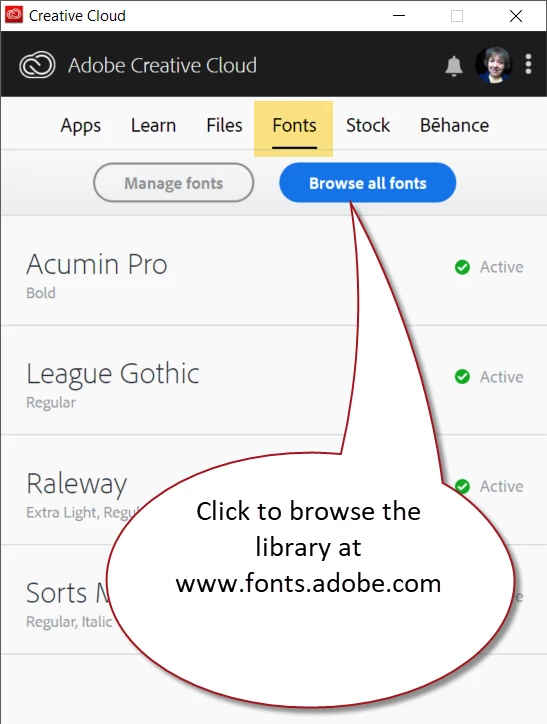
    4. Get legitimate copies of the Minion Pro family from your Creative Cloud app (see screen capture below) or directly from Search results for minion+pro | Adobe Fonts   These will be free with your Creative Cloud subscription.
      1. Swap the Minion Pro 47 Light Condense with something else. There is no "light" version of Minion!
      2. Swap the Minion Pro 57 Condensed with Minion Pro Condensed.
    3 replies

    neogeni77904840
    Participating Frequently
    May 15, 2019

    I would like to thank everyone for their help I will pass this information along!

    Mike Witherell
    Community Expert
    Community Expert
    May 10, 2019

    I recommend NOT reinstalling any type 1 PostScript font. They should all have been retired about 18 years ago. If any TrueType fonts are also aging, retire them, too. That would help your system run better and would account for 3 of your 5 fonts. Replace them with newer OpenType fonts.

    Mike Witherell
    neogeni77904840
    Participating Frequently
    May 10, 2019

    Where do I find the replacements for these and are they the exact same because the Helvetica font is a corporate standard for all of our graphic's.

    Bevi Chagnon - PubCom.com
    Legend
    May 15, 2019

    https://forums.adobe.com/people/Bevi+Chagnon+%7C+PubCom  wrote

    Your fonts listed in your screen capture are outdated and incorrect.

    RE: Outdated

    Microsoft is removing all older versions of TrueType (TT) and PostScript (T1) fonts when new editions of Windows 10 are installed.

    The entire computer industry converted to OpenType/Unicode fonts in 2000 (19 years ago) and Microsoft is finally ditching the old technologies completely. (Sad, but we're all required to use this century's technologies!) …

    Just so that there is absolutely no misunderstanding about the response above, Microsoft does not, repeat does not uninstall any user-installed fonts, whether they are Type 1, TrueType, or OpenType formats when updating operating system versions (either Windows 7/8.x to Windows 10 or from one Windows 10 version to the next half-yearly Windows 10 version.

    Microsoft does update versions of their own system fonts (such as Times New Roman, Arial, Calibri, et.al.) when updating OS and/or Office versions. And the updates may be quite dramatic. Arial and Times New Roman as TrueType fonts in early Windows versions each had less than 256 glyph definitions and in the latest version of Windows 10 as OpenType TrueType fonts have 4503 and 4685 glyph definitions respectively. Calibri, the default font in Microsoft Office currently has 6780 glyph definitions!

    That having been said, although Microsoft allows Type 1 fonts dating all the way back to the 1980s to be installed on Windows, Microsoft has dropped all support for those fonts in Microsoft Office applications. They are supported in PostScript drivers and in all Adobe applications. Pre-OpenType TrueType fonts continue to be fully-supported in all applications on Windows; they are essentially treated as crippled OpenType TrueType fonts.

    With regards to the Minion Pro with the Light weights and numbers, no such fonts were ever licensed by Adobe. I suspect that someone may have hacked around with a copy of Minion and made their own variations, giving them the names shown.

              - Dov


    https://forums.adobe.com/people/Dov+Isaacs  wrote

    ... Microsoft does not, repeat does not uninstall any user-installed fonts, whether they are Type 1, TrueType, or OpenType formats when updating operating system versions (either Windows 7/8.x to Windows 10 or from one Windows 10 version to the next half-yearly Windows 10 version. ...

    Dov, you know I know you're always right about these things.

    But...

    We do have documented cases of MS removing user-purchased fonts, specifically various versions of Arial Unicode. The original Arial MS Unicode (installed with most versions of Windows for many years) was removed during a Windows update 18-24 months ago due to a licensing change between Microsof, Ascender, and Monotype.

    After Arial Unicode MS was removed by Microsoft, we had to purchase the font from Monotype in order to complete a client's job. It has never worked reliably ever since. And every once in a while, it completely disappears from our Windows systems (we suspect after a Windows update) or suddenly shows a byte size of 0 bytes when viewed in Windows explorer. Neither of the 2 companies have been able to tell us why a font, purchased separately from Monotype, would be "changed" by Microsoft's operating system.

    When we do need to use Arial Unicode in a document, we use a Mac with the OpenType versions, and everything goes smoothly.

    (And Monotype has now released so many versions of Arial that complicate this problem. Don't mention the Arial font to me!)

    https://forums.adobe.com/people/Dov+Isaacs  wrote

    ... although Microsoft allows Type 1 fonts dating all the way back to the 1980s to be installed on Windows, Microsoft has dropped all support for those fonts in Microsoft Office applications. They are supported in PostScript drivers and in all Adobe applications. Pre-OpenType TrueType fonts continue to be fully-supported in all applications on Windows; they are essentially treated as crippled OpenType TrueType fonts.

    We've had problems with PostScript fonts in InDesign/Windows. Constant missing font errors, even when they're installed correctly. Has become worse in the last couple of updates to Windows 10, and we haven't seen comparable problems on our Macs. In fact, when a client's Windows job requires a PostScript font, we migrate the project to our Macs.

    I can't calculate the amount of time my firm has lost dealing with these font problems on Windows systems. And our clients' loss of time, too. The industry is being burned on this.

    Out of utter frustration, our office has adopted these practical solutions that work:

    1. Don't use PostScript or old TrueType fonts for projects on Windows systems. The experience will be unstable. Move the project to Mac or switch fonts on Windows.
    2. Use opensource OpenType/Unicode fonts for projects on Windows systems.
    3. Use Adobe Type OpenType/Unicode (formerly called TypeKit) fonts for InDesign documents, but note that there are frequent user rights, licensing, and embedding problems when used in other Windows apps.

    I think the final solution will be developed among the lawyers of the companies involved in this mess of intellectual property rights. I also think that solution is a few years away. Would appreciate any muscle you can exert to speed up the solution!

    — Your colleague,

    Bevi the Font Fairy

    |    Bevi Chagnon   |  Designer, Trainer, & Technologist for Accessible Documents ||    PubCom |    Classes & Books for Accessible InDesign, PDFs & MS Office |
    Srishti Bali
    Community Manager
    Community Manager
    May 9, 2019

    Hi there,

    Thanks for reaching out. I understand that there are few fonts which are working on other applications but not on InDesign. Let us help make this right. Could you please confirm what type of fonts they are, for example, system fonts/ licensed fonts(paid)/ Adobe Fonts?

    If they are system fonts and are installed on the system then we can start with copy-pasting the font files from system fonts folder to the InDesign fonts folder.

    • Please open the Windows Font folder (C:\Windows\Fonts) and copy those fonts and paste it to this location C:\Program Files\Adobe\Adobe InDesign CC 2019\Fonts


    Let us know if that helps. If not, you can try the steps shared here: Troubleshoot fonts in Adobe applications | Mac OS X.

    Regards,

    Srishti

    neogeni77904840
    Participating Frequently
    May 10, 2019

    I have already done that as well.

    I have also tried installing ID 2018 as I saw that was a possible solution but that didnt work either.

    Srishti Bali
    Community Manager
    Community Manager
    May 10, 2019

    In that scenario, my recommendation would be to fully remove those fonts from your system and reinstall them from scratch. Install the fonts from your source by right-clicking on the font file and selecting Install for All Users.

    Do Not use the Install option, a new feature of a recent Windows 10 versions which only makes the font visible to the user installing the font.

    Let us know if that helps, or if you need any further assistance.
