

Marine D
Known Participant
December 19, 2019
Answered

Indesign 2020 doesn't support transparent PNG and adds a colored background

  • December 19, 2019
  • 11 replies
  • 114090 views

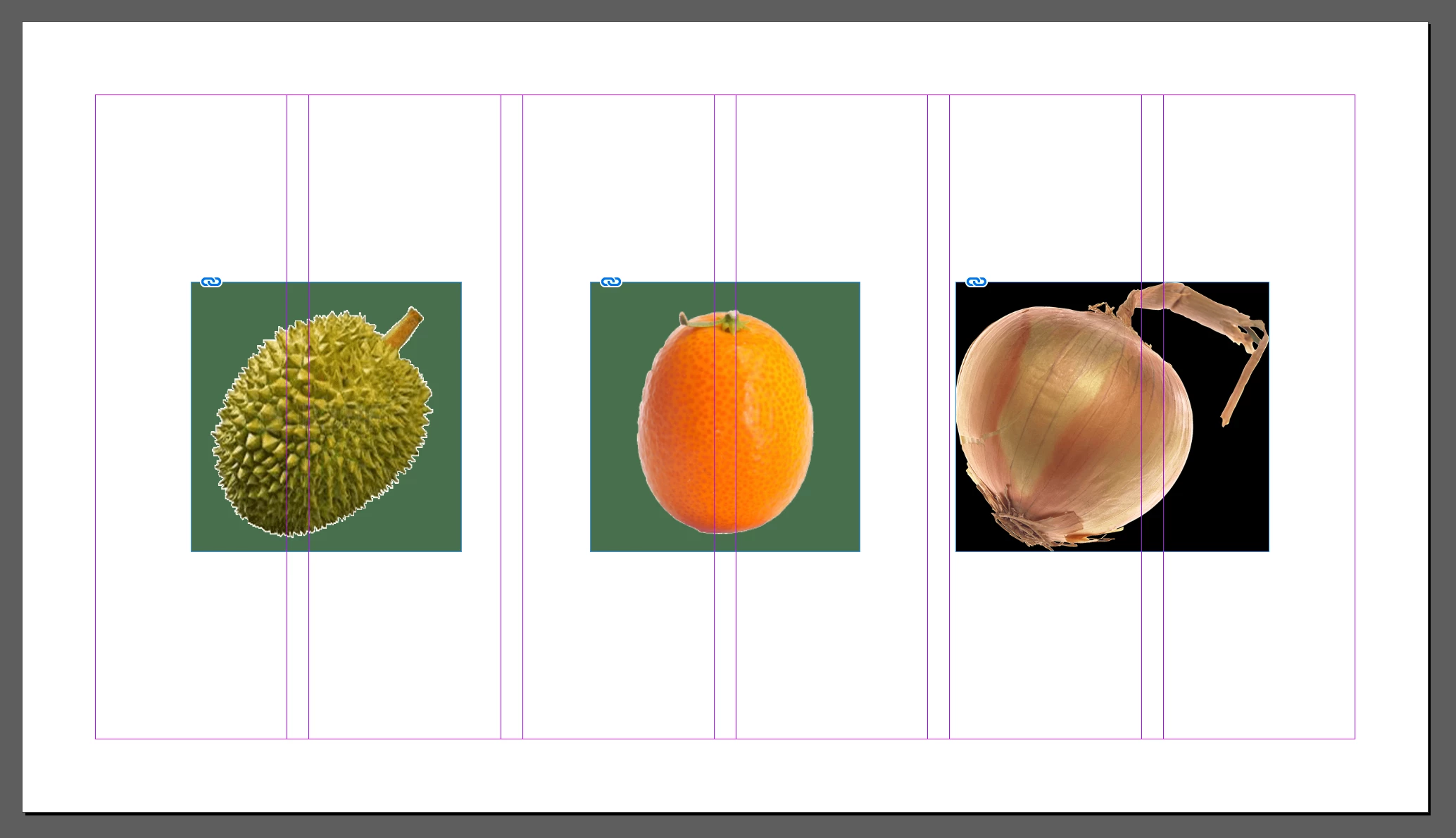
The new version of Indesign doesn't seem to be willing to import transparent PNG files. I tried with a bunch of different images with no background and Indesign automatically adds a green or black background to it (see screenshot below). Any ideas as to how this can be fixed?


Somehow, the same problem occurs with the previous version of Indesign (2019) that is still installed on my computer.

I never had this issue before.


Many thanks for the help
 

This topic has been closed for replies.
Correct answer creadec studio

Hello ,
To resolve this background issue that appears on transparent PNG-type images, I saved the png image as PDF.

It worked for me keeping the background transparent when I imported the corresponding PDF into InDesign cc.
Hope this helps more than one.

11 replies

Participant
December 26, 2023

But why? We as their customers pay so much to not have these issues and they make it even harder for us?!! 

Participant
December 13, 2023

All you need to do is set the PNG image properties of Appearance / FILL to "none". Save first in PGN24 (or standard PNG, not "small file 8-bit"). 

Scott Citron
Legend
October 5, 2020

Just export as .psd or even .tiff with transparency. Problem solved.

creadec studio
creadec studioCorrect answer
Participant
November 23, 2021

Hello ,
To resolve this background issue that appears on transparent PNG-type images, I saved the png image as PDF.

It worked for me keeping the background transparent when I imported the corresponding PDF into InDesign cc.
Hope this helps more than one.

Participant
July 27, 2022

THANK YOU!!!!!!! This helped me too!

Ian Sayers
Inspiring
July 28, 2020

Indesign only supports transparent PNG files saved in PNG24 format. The PNG8 format with transparency doesn't work - please resave the files as PNG24 and it will be sorted.

Participant
October 4, 2020

Agh! This update means that the workflow for an entire project has broken down for me. Exporting assets from Ai for screens is a lot more organised and streamlined. It's easier to quickly update and export iterations of PNGs but export for screens only allows you to export up to PNG 8.


It would be nice if when updating creative cloud apps, Adobe updated more features consistently. Why can export as have a similar dialogue to export for screens for instance in Ai?

rob day
Community Expert
Community Expert
October 4, 2020

Where is the benefit in converting vectors into bitmaps? Is this a print project, why not save and place .AI files?

annekav49623273
Participant
July 28, 2020

I have solved the problem! If your PNG was exported for screens, it will render with a green background in InDesign.


Instead, make sure you export your PNG through the "Export as" option instead and then select a transparent background. That should do it!

Participant
May 28, 2020

I think your PNG files may be in 'Index Mode'. I had the same issues and switching to CMYK mode worked.


Image Menu > Mode > CMYK color

rob day
Community Expert
Community Expert
May 28, 2020

PNGs can’t be saved as CMYK. If you convert to CMYK, and try to Save you will get a Save As dialog without PNG as an option. If you use Save For Web, there will be a conversion back to RGB when you export.


The problem is with Index Mode, so if you want to keep the PNG format, convert from Index Mode to RGB Mode, which will save the PNG as 24-bit on a regular Save.

Participant
October 26, 2022

My file was set to cmyk. duh! 

Community Expert
December 20, 2019

It seems that InDesign only supports transparency with PNG-24 files, and not with PNG-8 files—even if the 8-bit files have been saved with the transparency option. You could resave as PNG-24, but if you're going to that trouble, you might as well, as George-S suggests, save as a PSD.

Participant
December 26, 2023

This is not helpful at all. My InDesign program doesn't even have the "PNG-24" (Whatever that means). I have even updated the program, and only the PNG option exists. What is going on here?! 

BobLevine
Community Expert
Community Expert
December 26, 2023

This discussion is four years old! If you have a question or issue, please start a new discussion with some pertinent information.

Marine D
Marine DAuthor
Known Participant
December 20, 2019

Thank you all for your insights!

Here are my answers to your questions and what I think the problem might be:

  • I have tried a new InDesign file and the save problem occurs
  • My background and border color are both set to none
  • When I open a completely different PNG file (one that I created on Illustrator, as opposed to these fruits & veggies pictures I downloaded), I don't have the problem
  • When I re-save my pictures with Photoshop as .psd and .png, some images finally appear without a background, some are still imported with a dark-green background


I'm starting to believe the issue doesn't come from Adobe but the source of my PNG which I got from this image bank https://www.stickpng.com/

Geоrge
Legend
December 19, 2019

InDesign doesn't support natively and fully png, and even have sometime problems with .tif transparency.

Plus, I have has few times in practice that InDesign crushed because of imported some png-files.


IMHO, you're need to open all your .png-files and re-save as .psd (through Photoshop!). 


I don't wanna hear it any words that I don't right here, because in practise you're need to exclude any known bugs with "supported on the paper image formats". Used to and use it in 95% only .psd for raster images and only .ai for vector images, "only hardcore"! Time is money. 

Remember, never say you can't do something in InDesign, it's always just a question of finding the right workaround to get the job done. © David Blatner
BobLevine
Community Expert
Community Expert
December 19, 2019

Is there a fill assigned to the frame.