
Participant
January 23, 2023
Answered

InDesign 2023 – Reveal In Finder Bug

  • January 23, 2023
  • 3 replies
  • 1128 views

Hi Guys!

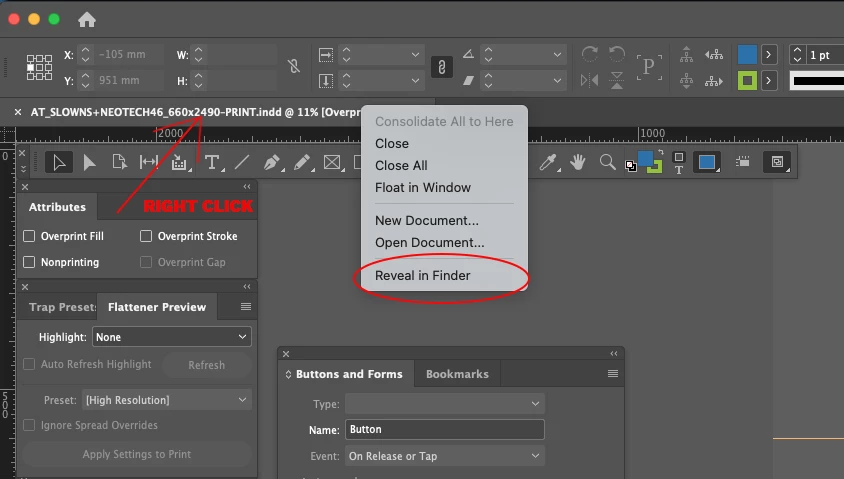
The new releases have a bug that had worked for decades. If I clicked on the file name bar first and selected the 'Reveal in Finder' from the drop down, I could located the origin folder of the file very fast (preview attached). It hasn't been working for a while. It was very functional, I miss this!

Anyone have any ideas?


Thx,

M


This topic has been closed for replies.
Correct answer Kevin Stohlmeyer

OsX 12.6.2
InDesign 18.1


The issue is a few things

1. Adobe officially does not support working on external or networked drives.
But moving past that, I believe the bigger issue could be:

2. Mac OS - make sure InDesign is listed (and checked) under Apple System Preferences/Security and Privacy/Full Disk Access.

3. Make sure your external drive is formatted for the Mac OS. Monterey and Ventura have huge issues with Ex-Fat formatted Windows drives that affect anything dealing with read/write which could be affecting this feature.

3 replies

rob day
Community Expert
Community Expert
April 29, 2024

Hi @user10254475 , The other way to do this, at least on OSX is to right-click the title in the titlebar, and choose the ID file‘s container folder from the dropdown. Here the front doc is on an external drive:


The container folder opens in the Finder


leo.r
Community Expert
Community Expert
April 29, 2024
quote

Hi @user10254475 , The other way to do this, at least on OSX is to right-click the title in the titlebar, and choose the ID file‘s container folder from the dropdown. Here the front doc is on an external drive:


By @rob day


The OP is using Application Frame so this option isn't available to them. It's one of the reasons I always disable Application Frame (like in your screenshot).

Rishabh_Tiwari
Legend
January 23, 2023

Hi @user10254475 


Sorry to hear about the trouble. It's working on my macOS & InDesign 18.1 as well so could you please try restoring the preferences as suggested by Steve and let us know how it goes? If it still doesn't work could you confirm if it's happening with a specific file or multiple files & are the files are saved locally or on any network or shared drive? 


Regards

Rishabh

Participant
January 23, 2023

Thanks to both of you!
I did an experiment:
– took a indd file
– copied it to my desktop (local drive) and copied the same to an external drive (regular WD MyPassport).
– only the file did the issue that was placed to the external drive
– Indesign detects the instruction (click), it is trying to switch to a window (because it seems InDesign window is going to inactive) but when the finder window should be pop up, there is nothing shown up.
– external drive is mounted, I can reach all my files, even I can open them (reading & writing are working well)

ps.: I haven't tried to reset my settings.

Thanks a lot!
M

Kevin Stohlmeyer
Community Expert
Kevin StohlmeyerCommunity ExpertCorrect answer
Community Expert
January 23, 2023

OsX 12.6.2
InDesign 18.1


The issue is a few things

1. Adobe officially does not support working on external or networked drives.
But moving past that, I believe the bigger issue could be:

2. Mac OS - make sure InDesign is listed (and checked) under Apple System Preferences/Security and Privacy/Full Disk Access.

3. Make sure your external drive is formatted for the Mac OS. Monterey and Ventura have huge issues with Ex-Fat formatted Windows drives that affect anything dealing with read/write which could be affecting this feature.

Steve Werner
Community Expert
Community Expert
January 23, 2023

It's working on my MacBook Pro 2021, InDesign 18.1, Ventura 13.1. You might try restoring your preferences: