Participant
April 6, 2018
Answered

InDesign cuts part of logo circle. Why?

  • April 6, 2018
  • 6 replies
  • 4580 views

I created a logo in Illustrator. It has a circle as a background. No problem:

The logo needs to go into a Brand Guide so I need to use InDesign which is a shame because it can't handle something as simple as moving an image from Illustrator.

When I drag the logo into InDesign (or 'Place' or 'Paste in Place' or indeed any other way of trying to get it over to InDesign, it ends up like this:

I have moved logos from Illustrator to InDesign in the past with no problem. This is weird.

I have seen all the posts online, settings to adjust etc, and none fix it. I've wasted days on this and just want it to be over now.

Any ideas appreciated.
This topic has been closed for replies.
Correct answer robertb84415970

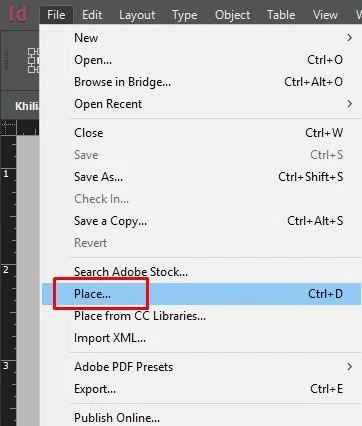
Instead of copying and pasting the object try using the Place command under the File menu in InDesign. You will see a tiny icon of the object as part of your cursor when you do. Then click anywhere on the screen and the entire object will be seen onscreen. If there is still a cut off at the top click on the object with the black arrow selection tool and see if you can open the frame on top to see more of the object. To see the object as clearly as it appeared in Illustrator make sure that High Quality Display is chosen under View>Display Performance. Remember, the object is now linked to the Illustrator file and must have the Illustrator file packaged with it for any export or sending to a vendor.


Ah Bill, you got it. Thank you so much.

For anyone reading this with the same problem here's what I did:

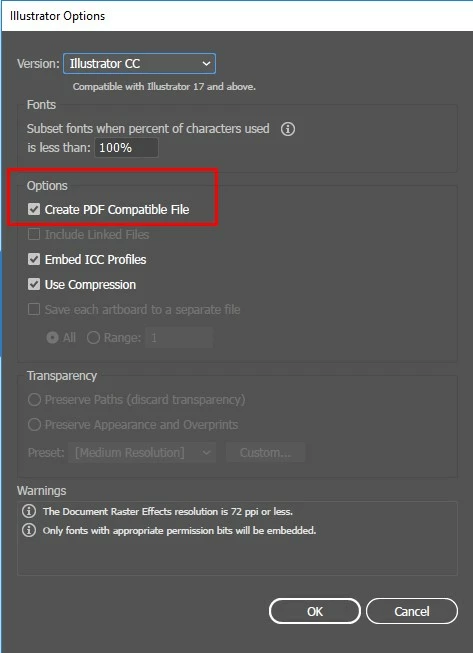
  • In Illustrator save the logo with the 'PDF compatible file' ticked
  • In InDesign choose 'File - Place' (it went into InDesign a bit big so i chose Object - Transform - Scale to make it smaller).

This worked for me. I think my error was that I was copy pasting the logo directly from Illustrator into InDesign. As my settings were already good I knew it wasn't them.

ADMIN: Can you mark this as ANSWERED please, I can't do it as the forum doesn't recognise me as the OP becuase it changes my username every time I login.

Thanks massively to everyone for their help xx

6 replies

Eric Dumas
Community Expert
Community Expert
April 7, 2018

Can you confirm:

- do you have illustrator preferences > File Handling & Clipboard > On copy: PDF is checked

- you have tried to save your illustrator file, then use InDesign>Place... instead of copy paste

- In InDesign > View > Display Performance > High Quality Display

robertb84415970
Participating Frequently
April 7, 2018

It's me, the OP. This forum gives me an new name every time I log in.

Anyway, here's what I'm doing:

  • I created a circle logo with an image inside
  • The image didn't stay within the circle so I got an illustrator guy to add a mask
  • I added the shadow below the circle
  • Viewed in Illustrator all is fine
  • In Illustrator I 'grouped' the logo
  • I drag the logo FROM Illustrator to InDesign
  • InDesign cuts the top off of my circle
  • I got fed up with it and saved it as a PNG
  • I 'placed' the PNG into InDesign
  • The PNG looks blurry, not acceptable
robertb84415970
Participating Frequently
April 7, 2018

This forum wont let me edit my posts so I have to 'Reply'.

By dragged in I mean I open the logo in Illustrator, 'group' it then choose 'Copy'. I then open InDesign and 'Paste'.

The circle gets cut and I wonder why I use such crap software.

BobLevine
Community Expert
Community Expert
April 7, 2018

Save the file as AI with PDF compatibility choices left as their defaults. Use file > place in InDesign to place the file and make sure to show options when doing so. Choose appropriate crop to options.

BobLevine
Community Expert
Community Expert
April 6, 2018

And when you place the file, are you showing options before doing so? If it's an AI file try different "crop to" options.

Community Expert
April 6, 2018

Hi,

what kind of file are you placing?
EPS or AI ( with PDF included )?

Regards,
Uwe

robertb84415970
Participating Frequently
April 9, 2018

Placing an AI file into an InDesign document.

Community Expert
April 9, 2018

robertb84415970  wrote

Placing an AI file into an InDesign document.

Hi,
so you see this placing an AI file?

Regards,
Uwe

amaarora
Inspiring
April 6, 2018

Hi,

what is the Display performance in InDesign set to?

Do you see the same drawing issue after you have exported the InDesign to the needed format?(Pdf for example)

-Aman

robertb84415970
Participating Frequently
April 9, 2018

Display Performance is set to High Quality. Circle gets cut even when the IDD is exported as PDF.

Barb Binder
Community Expert
Community Expert
April 6, 2018

We can go through more troubleshooting but we don't know what you have done and don't want to waste more of your time. It might be easiest just to post the file on dropbox (just the page with the frame and image) and in this case we will need the image. Or for privacy, just recreate the issue with a circle in Illustrator and put it into an InDesign frame. Again though, post the page, the frame with the circle and provide the circle as an .ai file.

~Barb

~Barb at Rocky Mountain Training
robertb84415970
Participating Frequently
April 7, 2018

Thanks foir your help (and everyone else).

My settings seem okay. Could it be because the circle uses a mask (the original has the logo inside this circle)? Perhaps InDesign

gives the mask a certain height, thus, when the shadow is added and it’s all dragged to InDesign it just doesn’t fit and thus the top gets sliced off?

I've uploaded it to: http://robbydesigns.com/z-temp/problem-circle.zip

BobLevine
Community Expert
Community Expert
April 7, 2018

What does "dragged into InDesign" mean. If you want help you're going to need to give the EXACT steps you're using.