
Mauricio_Domingues
Participant
October 23, 2022
Answered

InDesign - Delete row in table

  • October 23, 2022
  • 3 replies
  • 1718 views

Hi!
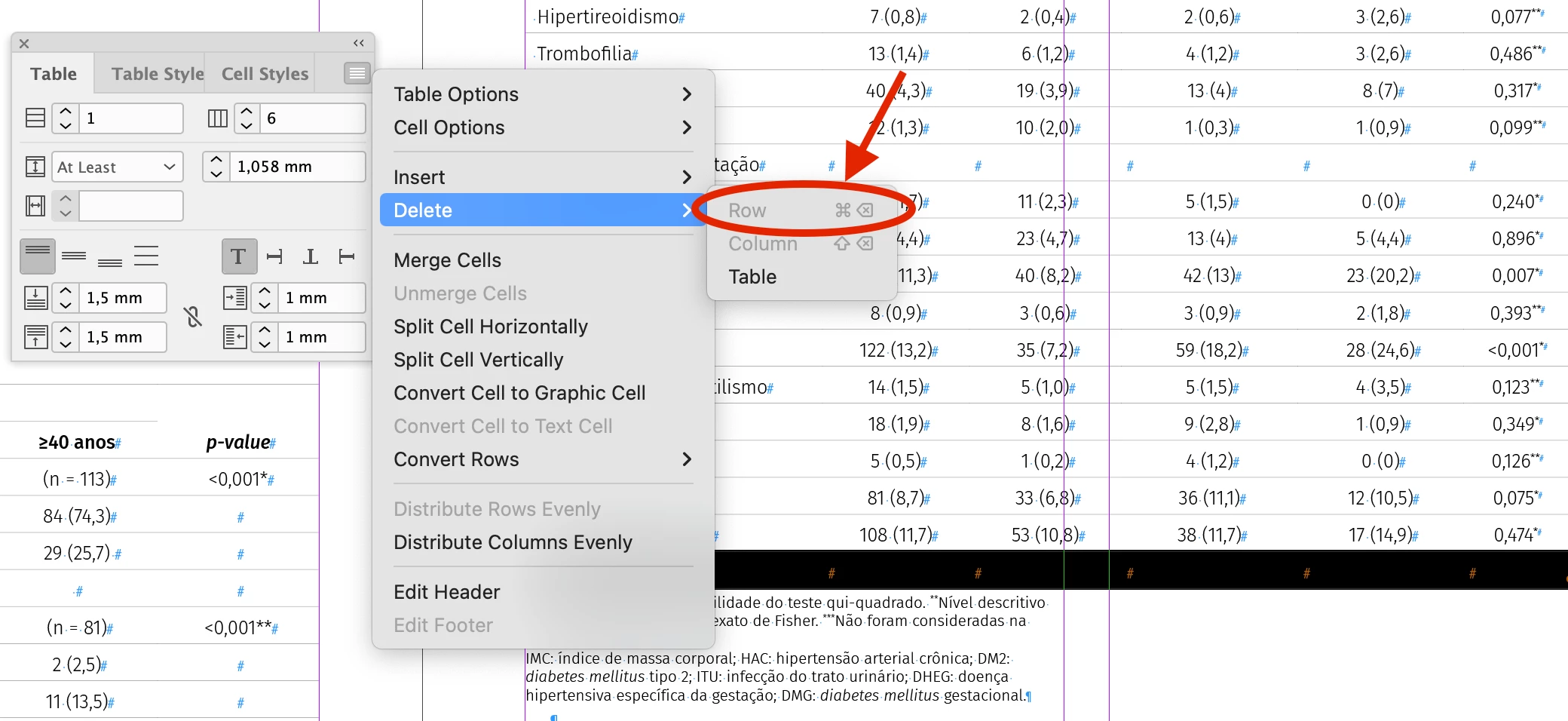
Why can't I delete a row in a table in InDesign anymore?
Someone with the same problem?
Correct answer jenniferj3

I just hit this same problem with a table imported in a Word doc. InDesign had added an extra row that I couldn't delete. I eventually figured out that all the table rows (except the extra one) were set to be header rows. I'm guessing InDesign requires there be at least one row that's not a header or footer, which must be why it added the exta.


I selected all the rows, right-clicked and chose Convert to Body Rows, and then was finally able to delete the extra row.

3 replies

jenniferj3
jenniferj3Correct answer
Participant
October 26, 2023

I just hit this same problem with a table imported in a Word doc. InDesign had added an extra row that I couldn't delete. I eventually figured out that all the table rows (except the extra one) were set to be header rows. I'm guessing InDesign requires there be at least one row that's not a header or footer, which must be why it added the exta.


I selected all the rows, right-clicked and chose Convert to Body Rows, and then was finally able to delete the extra row.

Participating Frequently
October 9, 2025

Thank you very much my friend. This helped.

Community Expert
October 23, 2022

Hi @Mauricio_Domingues ,

could you share a document with that table?

This is definitely not the norm.


Regards,
Uwe Laubender
( Adobe Community Expert )

Derek Cross
Community Expert
Community Expert
October 23, 2022

Do these work?

To delete a row, column, or table, place the insertion point inside the table, or select text in the table, and then choose Table > Delete > Row, Column, or Table. To delete rows and columns by using the Table Options dialogue box, choose Table > Table Options > Table Setup

Mauricio_Domingues
Participant
October 23, 2022

Unfortunately no... with the InDesign update these options were hidden. It just erases the entire table. =(

Community Expert
October 23, 2022

Try resetting your preferences:
The easiest way to reset everything is to delete the InDesign preferences: as soon as InDesign starts to boot hold down Shift, Alt, Ctrl (and Apple/Cmd if working on a Macintosh). A dialog will appear asking to delete the InDesign Preferences, select 'Yes' on this dialog.
Further info and instructions here if needed:
https://helpx.adobe.com/in/indesign/kb/indesign-preferences-support-file-locations.html
