Participant
March 15, 2019
Answered

Indesign displaying faded colours despite correct colour breakdown

  • March 15, 2019
  • 8 replies
  • 85338 views

Hi all,

Apologies if this already exists on the forum somewhere, if it does I have been unable to find anything that helps. I'll list all the facts that I have below. Hoping that someone out there knows something!

My Indesign is displaying colours as faded/washed out. This is happening with whatever documents I work on. I have checked and double checked that the documents have the correct colour break-downs - when I export to PDFs (or JPG or whatever else) the colours show correctly, so I know that the problem is not with my Mac screen. Document colours also display correctly when my colleague opens and works on them on his Mac, so I deduce that it the problem lies with my Indesign.

My indesign is fully up to date and the problem persists no matter what display performance I chose. Indesign is displaying faded on everything both created in indesign and assets imported in from illustrator however imported JPGs seems to be okay. So maybe the problem is with how swatches are displayed? (again, correct colour breakdowns and faded colours only on my Mac's Indesign, not my colleagues)

Swatches and colour breaks-downs display fine in illustrator.

This situation happens when working with both CYMK and RGB. Reds and magenta seems to display the closest to the actual colours - the problem is worst with blues.

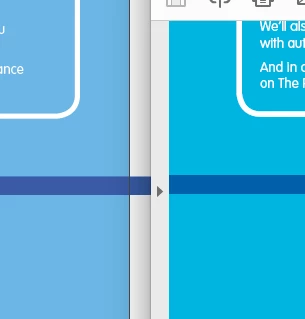
Below are some screenshots of a document open within Indesign (left) and the exported PDF (right) open in acrobat.

Correct answer rob day

Which version of InDesign are you using? If it is CC2019 open Color Settings and make sure color management hasn’t been turned off.

Otherwise does it happen if you set your Transparency Blend Space to RGB, and export using the PDF/X-4 preset?

8 replies

Participant
May 3, 2023

Hi everyone I read through all the responses and I havent been able to fix my color problem. I use Clip studio to make an illustration and I exported to indesign to make the final touches, but for some reason the illustration colors look darker. Only in indesign looks like that outside of it, it has the correct colors.

I have attached what are my color conversions in clip studio and my color settings on InDesign.


rob day
Community Expert
Community Expert
May 3, 2023

Your InDesign page is previewing in the document’s CMYK space—if the document is not for print, try setting your Transparency Blend Space to RGB and turn off Overprint Preview and Proof Colors.

Participant
May 3, 2023

Thank you, I was able to fix the color problem. This project is actually for pritning but it still print with the right colors doing what you told me.


Participant
August 17, 2022

All the solutions I found on this page did not help me, so I applied the trial and error approach and ended up with this solution.
Uncheck the "Proof Colours" option in the view menu. Everything will get back to normal.

rob day
Community Expert
Community Expert
August 17, 2022

Yes, if your Proof Setup is set to a CMYK profile and the page has out-of-gamut RGB colors, those RGB colors would preview in the chosen CMYK proof space if Proof Colors is turned on.

Participant
May 17, 2022

For me, it was the EDIT > TRANSPARENCY BLEND SPACE > DOCUMENT RGB

I couldn't understand why all of the sudden all of my colors looked dull, and when I switched back to this setting.  Ahhhh!!!  Hope It Helps!

Participating Frequently
July 13, 2022

Oh my god, thank you so much for your hint!! It was getting on my nerves SO HARD! I wish Adobe were doing a better job, feel so trapped in their bubble… 
Again, thank you!!

rob day
Community Expert
Community Expert
July 13, 2022

This (3-year old) thread is covering two completely separate issues—@RichardStacy’s original post was about a recurring color management bug where color management was initially turned off when the early versions of CC2019 an CC2021 were installed. See the Color Setting’s screen capture in Richard’s 2nd post.


The Transparency Blend Space is an entirely different issue. InDesign allows objects with different color spaces on the same spread. When there is transparency applied, the transparent areas have to be "flattened" into a single color space at output. If you set the Blend Space to RGB out-of-gamut RGB colors will be previewed unchanged when Overprint Preview is turned Off, but that would be a misleading print preview. You have to turn Overprint Preview On, whether you are using transparency effects or not, in order to see the more accurate CMYK print preview

rob day
Community Expert
Community Expert
October 5, 2019

As a general color management best practice you shouldn’t assign your monitor profile as the document’s RGB profile.


When you calibrate a monitor the OS creates a monitor profile during the calibration—on OSX see System Preferences>Displays>Color. The Adobe print apps then use the system’s monitor profile for the display of CMYK, Lab, or RGB colors—for example a profiled CMYK color is converted from the CMYK color profile into the monitor profile via color management for the displayed preview. Same thing happens with an RGB color. If you assign a large gamut profile like Adobe RGB to your InDesign document, any RGB colors you use are converted into monitor profile for the RGB preview, so you don’t need to use Monitor RGB as the document’s RGB profile.

fisha1244639
Participant
February 13, 2020

This baffled everyone at the office for a few hours... hope this saves you the time we can't get back!


If none of the above works, make sure you check the Transparency Blend settings in InDesign as @rob_day mentions.


Edit>Transparencey Blend Space> Document RGB


If it's set to Document CMKY, it will display in InDesign, PDF Exports and Online Exports as washed out (not Rich black)

Participant
November 1, 2020

Thank you very much!!  Very helpful. We design for both onscreen and print and have had no trouble in the past managing colour gamuts with output in mind. Over the last few days (since InDesign 16.0), colour has beocme completely unpredictable. The colour gamut for CMYK is obviously much more constrained than RGB. What a relief to know how to get InDesign to display swatches correctly (more limited if CMYK, in their full glory if RGB for digital). Thank you very much for the time spent and for sharing. Really appreciate an informed, useful answer.

Participating Frequently
October 5, 2019

I was also having this issue since i got my 2019 iMac. It was always okay on my old 2011 iMac. Rob, you pointed me in the right direction. However what worked for me was changing color settings to 'Monitor Color'. I am not a color profile specialist but it sure helps allot to work with colors as they appear on screen. The PDF output seems to looks the same. If i get a message from my printer that says the color profile was incorrect or anything of the likes,  I'll try to respond back here with further information. 

Participant
March 18, 2019

Update:

I think I have found it. Thanks both of you for putting me onto the colour management. In the colour management window my dropdown had changed to the "emulate Adobe InDesign 2.0 CMS off" (I think this must be what you meant Rob). I'm still fiddling around with some of the options but the closest match I could get to my actual colours is "Europe General Purpose 3"

You guys have been great, thanks!

rob day
Community Expert
Community Expert
March 18, 2019

Yes, that is the CC2019 bug.

You’ll have to be careful with existing documents that were created with CM turned off—they have been saved with no color profiles and an Off Color Management policy. To change how the document is color managed you'll have to assign the correct profiles via Edit>Assign Profiles...

If you are using OSX this AppleScript lets you easily assign profiles and change an existing document’s CM Policies:

http://www.zenodesign.com/forum/ChangeDocCM.zip

Here is the script’s dialog

rob day
Community Expert
rob dayCommunity ExpertCorrect answer
Community Expert
March 15, 2019

Which version of InDesign are you using? If it is CC2019 open Color Settings and make sure color management hasn’t been turned off.

Otherwise does it happen if you set your Transparency Blend Space to RGB, and export using the PDF/X-4 preset?

Eric Dumas
Community Expert
Community Expert
March 15, 2019

Hi,

It could be down to the Color Management you have setup.

Even if it is done through Photoshop, you can set up the behaviour of colours for other Adobe apps. Set up color management

Useful info for printing: Manage color in InDesign

Participant
March 15, 2019

Thanks for a speedy response! I'll explore this and let you know if it works.