
Participant
July 16, 2020
Answered

InDesign Hyperlinks breaking when over two lines

  • July 16, 2020
  • 5 replies
  • 10208 views

Hello,


I've searched the InDesign forum but can't seem to find a solution to my issue.  When I copy and paste or even manually type in a hyperlink address which spans over two lines - when converted to PDF it breaks at the end of the first line.

I've enabled "Show Hidden Characters" and there's no breaks showing. I've set to [No Language] and this hasn't resolved the issue.  I could set the character style to "No Breaks" but as the column text is wrapped around pull out text and inside a box it jumps to the line where the pull out text/box finishes. I also have hypenate disabled.


I'm also on the latest version of InDesign 2020 - 15.1.1


Attached is a PDF of the page I'm having an issue with. Any feedback would be much appreciated, thank you.


Kind regards

Barry
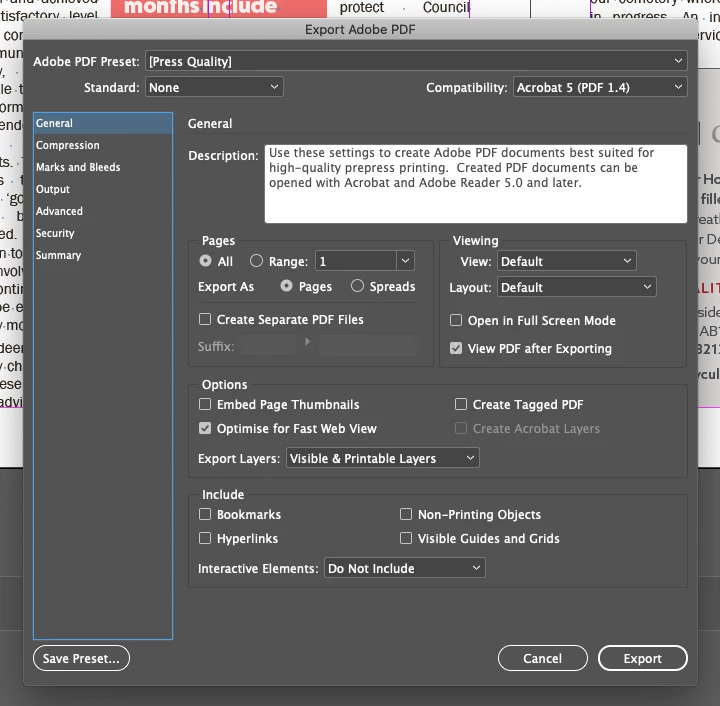
Correct answer Mike Witherell


Your screen shows press quality *without* include Hyperlinks. 

What happens if you ...

Turn that switch on

or

Export to Interactive PDF?

5 replies

Participant
January 13, 2022

Hello Barry,


I've found a solution after facing the same problem.

What I did instead, was edit the PDF file using Acrobat Pro DC.

It's a time consuming process but it worked. I will try to explain the step-by-step below:


1. Open file on Acrobat.

2. Choose the "Edit PDF" option on the sidebar menu (on the right of your screen)

* All the text in you PDF document will be editable and you will need that function in order to copy each link that, later, will be placed in a Dialog Box.

3. With the tool "Edit" from the top menu (which is only visible when you have the "Edit PDF" in operation), copy the whole link.

4. Click on the tool "Link" (also from the top menu); "Add/Edit Web or Link".

5. An extendable 'cross' tool will be enabled. Select the area of the link (you can make it as big as you like).

6. Once you do that, it will open a "Create Link" dialog box. Choose your settings on "Link Appearance" and pick your desirable "Link Action".

7. If you select "Open a Web Page" and press "Next", it will open a "Edit URL" dialog box where you can PASTE the link you've copied in the beggining of this action. Click "OK".

8. Save the document and CLOSE the "Edit PDF" window.

9. Check the link and "voilá"!


I hope this will be helpful.


Cheers,

Juliana

Ashutosh_Mishra
Inspiring
July 25, 2020

Hi there,


Thanks for reaching out. I hope your issue is resolved now. We'd appreciate if you can mark the appropriate answer correct.

If you used any other method, please share it here. It'll help other users having similar concern.

If you still have issues, let us know. We'll be happy to help.


Regards,

Ashutosh

Participant
November 18, 2021

OK, so this is the only fix I found for hyperlinks that span two lines: 
1. Open the hyperlinks dialog box Window > Interactive > hyperlinks
2. Copy and past the complete hyperlink at the top of that dialog box in the space that follows URL:
3. The URL will populate in that dialog box. Check for the green dot after the link. If the dot is red then the link is non-functional (maybe it has an extra space or a period that got captured when you entered it.
4. This is the tricky part. InDesign cannot read a full link across two lines if the line-break occurs where a / or a . or a - is on the first line. Instead it only reads up to that symbol, which sends the hyperlink to the wrong page. To get InDesign to recognize the full link you can change the letter spaceing to get it all on one line or you can force that symbol to the next line by putting your cursor just before the offending symbol and holding down [return/shift]. Even though the link is still across two lines, having the symbol on the second line solves the problem. 

Participating Frequently
February 9, 2022

Thanks lynns64788696


That fixed a lot of problems for me.


Just one more thing I learned that may be useful to others if anyone choses to resave pdfs in optimized form to reduce their file size:


If, in Adobe Acrobat, you resave a PDF file using the default ‘Adobe PDF Files, Optimized’ setting, the fixes that you have described will fail. URLs running on 2 lines will not work!


BUT all you have to do when you select ‘Adobe PDF Files, Optimized’ is click on ‘Settings’ beside it and make sure Transparency, Discard Objects and Discard User Data are deselected. 

Mike Witherell
Community Expert
Community Expert
July 16, 2020

What recipe preset are you using for exporting the PDF?

Mike Witherell
Barry Christian Wink
Participant
July 16, 2020

I've set to Press Quality - default settings.  Thank you

Barry Christian Wink
Participant
July 16, 2020

Mike Witherell
Community Expert
Community Expert
July 16, 2020

So, in other words, when you look at the Hyperlink Options, you see the whole URL spelled correctly and not truncated, correct?

Mike Witherell
Mike Witherell
Community Expert
Community Expert
July 16, 2020

Setting to No Language is not the way...

What does your Hyperlinks panel say about the links? Do they green light?

Mike Witherell
Participant
July 16, 2020

Hi Mike,


Thanks for replying.


The hyperlink has the hyperlink url a underlined number 2 (click to select source) and a green light.


Kind regards

Barry