



Troy789
Inspiring
October 9, 2020
Answered

InDesign images become pixelated when placed

  • October 9, 2020
  • 1 reply
  • 1869 views

Hi,


When I place images into InDesign my images pixelate and become low quality (Any files including psd, ai etc.)


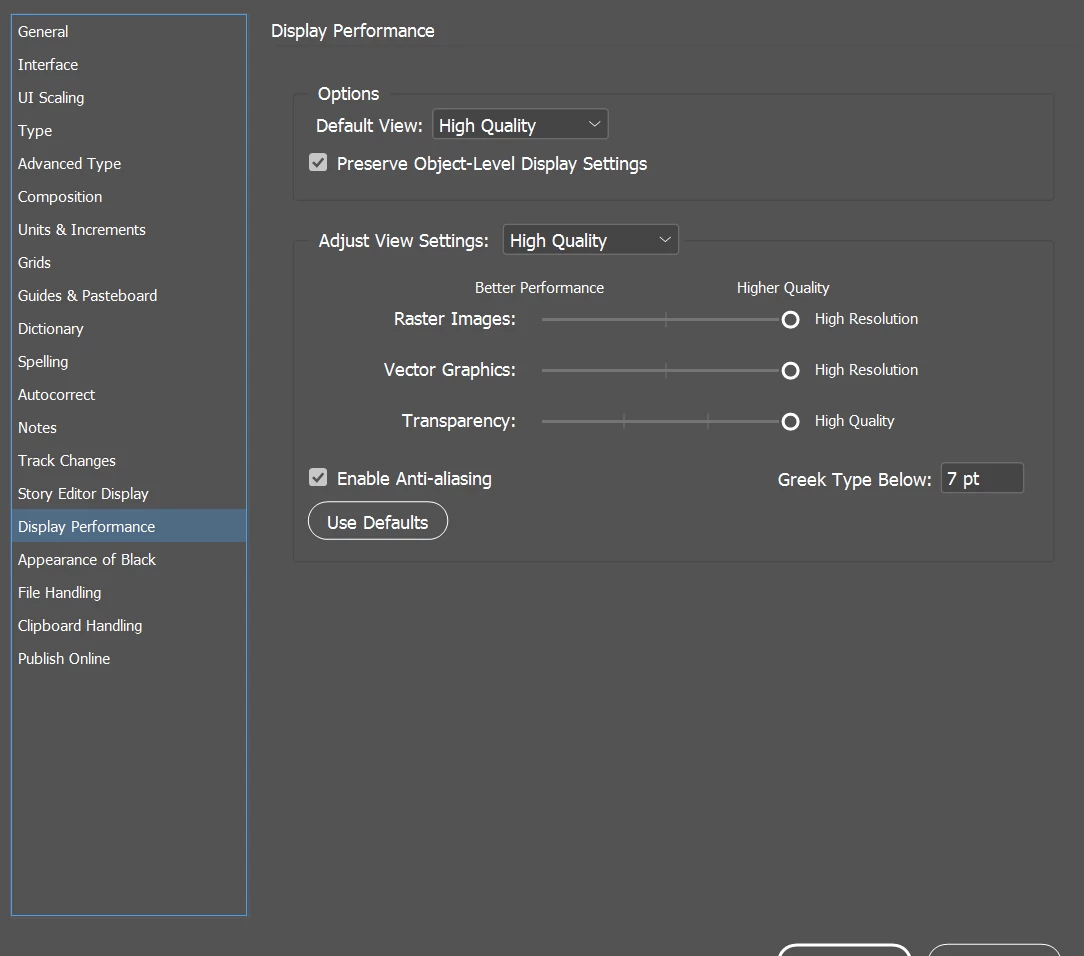
I have gone to preferences> display performance and changed the settings but still no change. (Adobe InDesign 2020)


What should I do next?
 

This topic has been closed for replies.
Correct answer Troy789

Hi Eric,

I right-clicked and selected the correct setting. It was on "use view setting" and not "high quality display".

Thank you!

1 reply

Eric Dumas
Community Expert
Community Expert
October 9, 2020

Hi,

Can you right-click on an image with the selection tool and confirm that the Display Performance section has the correct option selected? Alternatively, in the View menu > Display Performance, can you check what option is selected?

Finally, can you check the Links panel to make sure all the files are listed without any warning?

I assume all your images are high resolution and that's why they should all display in a higher quality.

Participant
April 23, 2022

Hi Eric, I'm having the same problem with a vector I downloaded. It is behaving more like a .jpeg than a vector and giving me the same pixilation problem when scale up. Problem is:

1. I definitely selected vector when I downloaded the file;

2. I had already set the display performance to "high quality display" and based on your answer, I just checked the links and there are no warnings.


Adobe support is currently closed so I'm hoping you might have some answers.

Thank you in advance - Marie

Participant
April 25, 2022

Hi Marie,

what is the file type of your downloaded vector graphic?

If EPS you could convert it to PDF using Acrobat Distiller and open the PDF with Acrobat Pro DC to have a look.

If PDF open the file with Acrobat Pro DC.

If AI or SVG open the file with Adobe Illustrator and check its contents.


Regards,
Uwe Laubender

( ACP )


Thank you.
It is AI. Interestingly, the author put a grid on the image to make it look
like the background was transparent. I accidently clicked on one of the
"transparent background" squares and saw it was a group. Deleted the group
and now acts like an AI file should. Problem solved! I don't know what the
purpose of the grid was but now the background is white and the artwork is
in separate groups/layers.

Thank you for taking the time to help,
Marie

--
Life isn't just about the journey, but who you decide to share it with.


Now offering Nutrition Response Testing and Individualized Clinical
Nutrition Programs in Anchorage. Schedule your appointment with me
at SynergyNutrition.info
907-222-1824

Because healthy has to taste amazing, check out my recipes at O
urNutritionKitchen.com
Young Living member #2838107